
PANTUM PT-L270N
PANTUM PT-L270N Thermal Label Printer User Manual
Comprehensive instructions for setup, operation, and maintenance.
1. Introduction
This user manual provides detailed instructions for the installation, operation, and maintenance of your PANTUM PT-L270N Thermal Label Printer. Designed for high-paced environments such as distribution centers, warehouses, and large e-commerce operations, the PT-L270N combines high processing speed with a robust structure to ensure continuous label printing. Please read this manual thoroughly before using the printer to ensure proper function and longevity.
2. Product Overview
The PANTUM PT-L270N is a high-performance thermal label printer featuring network connectivity and intelligent sensor technology. Key features include:
- Network Connectivity (Ethernet): Allows multiple users to print from the same machine without requiring a dedicated server computer.
- Superior Speed: Agile data processing prevents bottlenecks between print commands and label output.
- Intelligent Sensor: Automatically identifies gaps and black marks, ensuring perfect alignment for each label.
- Industrial Construction: Equipped with a high-durability print head, built for extended work shifts.
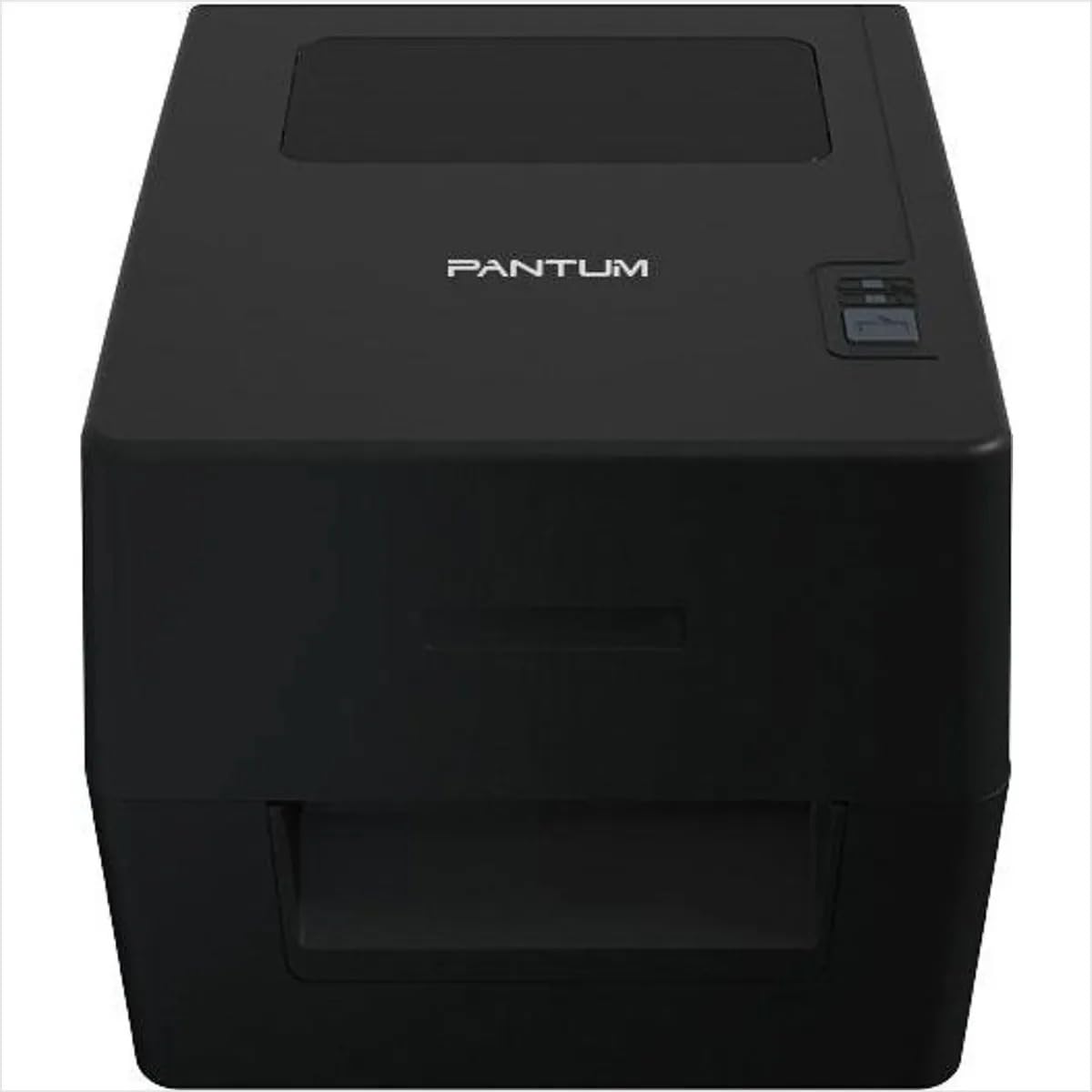
Figure 2.1: Front view of the PANTUM PT-L270N Thermal Label Printer.

Figure 2.2: Angled view of the PANTUM PT-L270N Thermal Label Printer.

Figure 2.3: Side view of the PANTUM PT-L270N Thermal Label Printer.
3. Setup
3.1 Unboxing and Placement
- Carefully remove the printer and all accessories from the packaging.
- Place the printer on a stable, flat surface with adequate ventilation. Ensure there is enough space around the printer for cable connections and label loading.
3.2 Connecting Power and Network
- Connect the power adapter to the printer's power port and then plug it into a power outlet.
- For network connectivity, connect an Ethernet cable from your network router or switch to the printer's Ethernet port.
- Power on the printer using the power switch.
3.3 Loading Labels
- Open the printer cover.
- Insert the thermal label roll into the designated compartment, ensuring the labels feed correctly through the guides.
- Close the printer cover. The intelligent sensor will automatically detect the label type and alignment.
3.4 Driver Installation
- Visit the official PANTUM website to download the latest drivers for the PT-L270N model.
- Follow the on-screen instructions to install the printer drivers on your computer.
- Once installed, add the printer through your operating system's printer settings.
4. Operating Instructions
4.1 Basic Printing
- Ensure the printer is powered on and connected to your computer or network.
- Open the document or application from which you wish to print labels.
- Select "Print" from the application's menu.
- Choose the PANTUM PT-L270N from the list of available printers.
- Adjust print settings such as label size, orientation, and quantity as needed.
- Click "Print" to start the printing process.
4.2 Network Printing
The PT-L270N's Ethernet connectivity allows for seamless printing across a network. Once the printer is connected to your network and drivers are installed on client computers, any authorized user on the network can send print jobs to the printer. Refer to your operating system's network printer setup guide for specific instructions on adding a network printer.
5. Maintenance
5.1 Cleaning the Print Head
Regular cleaning of the print head ensures optimal print quality and extends the life of your printer. It is recommended to clean the print head after every few label roll changes or if print quality degrades.
- Turn off the printer and unplug the power cord.
- Open the printer cover.
- Gently wipe the print head surface with a lint-free cloth lightly dampened with isopropyl alcohol. Do not use water or abrasive cleaners.
- Allow the print head to dry completely before closing the cover and powering on the printer.
5.2 Replacing Labels
When the label roll is depleted, replace it with a new thermal label roll following the instructions in Section 3.3 "Loading Labels". Ensure you use thermal labels compatible with your PT-L270N printer.
6. Troubleshooting
| Problem | Possible Cause | Solution |
|---|---|---|
| Printer not powering on | Power cord not connected; Power outlet faulty; Printer switch off | Check power connections; Try a different outlet; Ensure power switch is on |
| No labels printing | No labels loaded; Labels loaded incorrectly; Printer offline; Driver issue | Load labels correctly (Section 3.3); Check printer status; Reinstall drivers (Section 3.4) |
| Poor print quality | Dirty print head; Incorrect label type; Print settings incorrect | Clean print head (Section 5.1); Ensure correct thermal labels are used; Adjust print density/speed in driver settings |
| Labels misaligned | Labels not properly seated; Sensor obstruction | Reload labels, ensuring they are straight and snug; Clean the intelligent sensor area |
| Printer not detected on network | Ethernet cable disconnected; Network configuration issue; Firewall blocking connection | Check Ethernet cable connection; Verify network settings on printer and computer; Temporarily disable firewall for testing |
7. Specifications
| Brand | PANTUM |
| Model Name | PT-L270N |
| Color | Black |
| Item Weight | 10 Kilograms |
| Item Dimensions (L x W x H) | 22 x 28 x 19 centimeters |
| Printer Technology | Thermal |
| Printer Output | Monochromatic |
| Print Media | Thermal Paper |
| Specific Uses | Distribution centers, warehouses, e-commerce operations |
| Included Components | Labels |
| Country of Origin | Brazil |
8. Warranty and Support
8.1 Product Warranty
The PANTUM PT-L270N Thermal Label Printer comes with a 12-month limited warranty from the date of purchase. This warranty covers manufacturing defects under normal use. Please retain your proof of purchase for warranty claims. For full warranty terms and conditions, please refer to the warranty card included with your product or visit the official PANTUM website.
8.2 Customer Support
If you encounter any issues or have questions regarding your PANTUM PT-L270N printer that are not covered in this manual, please contact PANTUM customer support. You can find contact information on the official PANTUM website or through the retailer where you purchased the product.
Ask a question about this manual
Ask about setup, troubleshooting, compatibility, parts, safety, or missing instructions. Manuals+ will review the question and use this page’s manual context to help answer it.