
1. Introduction
This manual provides detailed instructions for the proper setup, operation, maintenance, and troubleshooting of your Polycom SoundStation 2201-03308-001-F audio conferencing unit. Please read this manual thoroughly before using the device to ensure optimal performance and safety.
The Polycom SoundStation is designed to provide clear, high-quality audio for conference calls, making it an essential tool for business communication. Its intuitive design allows for easy integration into various office environments.
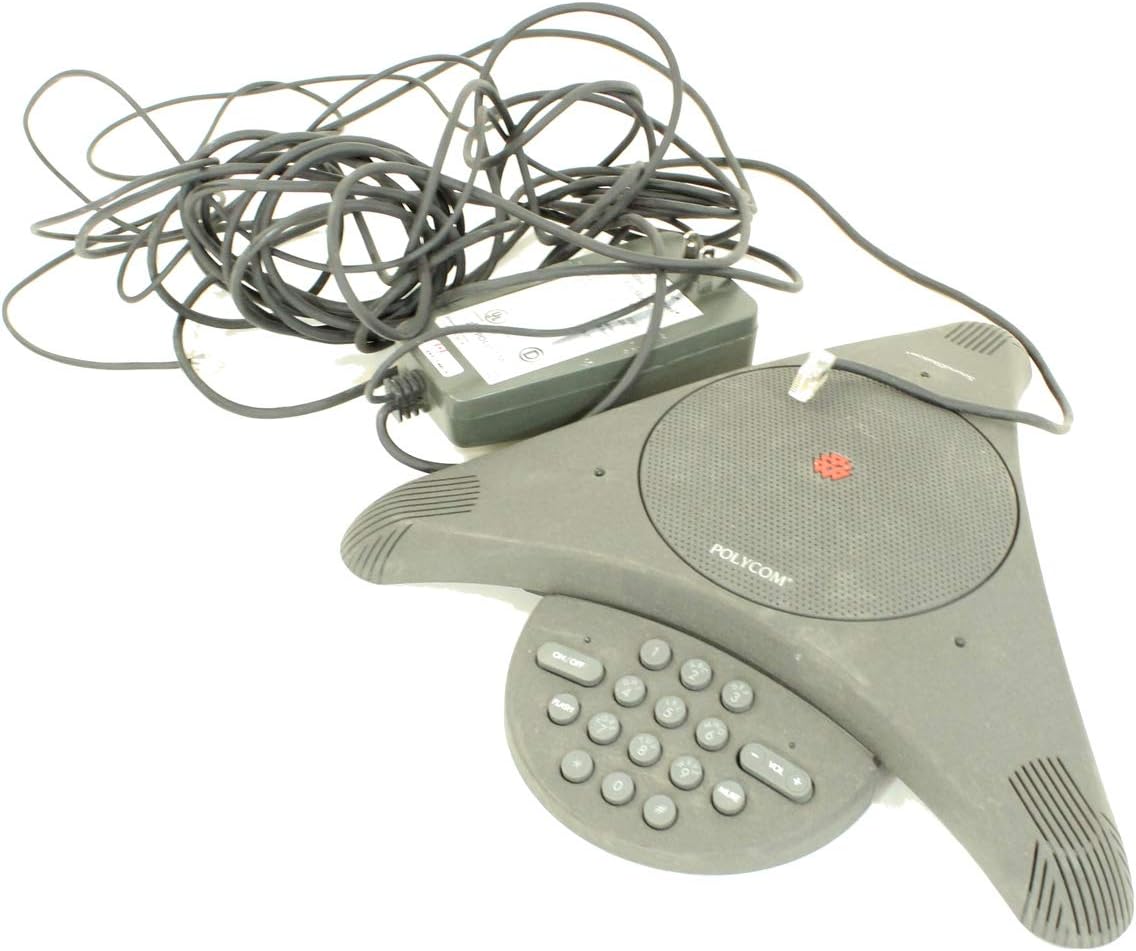
Figure 1: Polycom SoundStation 2201-03308-001-F unit, showing the triangular conference phone, its attached power adapter, and coiled cables.
2. Setup
Follow these steps to set up your Polycom SoundStation for the first time:
- Unpack the Unit: Carefully remove all components from the packaging. Verify that you have the SoundStation unit, the power adapter, and any necessary cables.
- Connect Power: Plug the power adapter cable into the power input port on the SoundStation unit. Then, plug the power adapter into a standard electrical outlet.
- Connect to Phone Line: Locate the RJ-11 phone jack on the SoundStation unit. Connect one end of a standard telephone line cord (not included) to this jack and the other end to a wall phone jack.
- Placement: Place the SoundStation unit on a flat, stable surface in the center of your conference table for optimal microphone pickup. Ensure it is away from sources of electrical interference.

Figure 2: The power adapter and associated cables for the Polycom SoundStation, shown coiled and ready for connection.
3. Operating Instructions
The Polycom SoundStation is designed for ease of use. Here are the basic operating procedures:
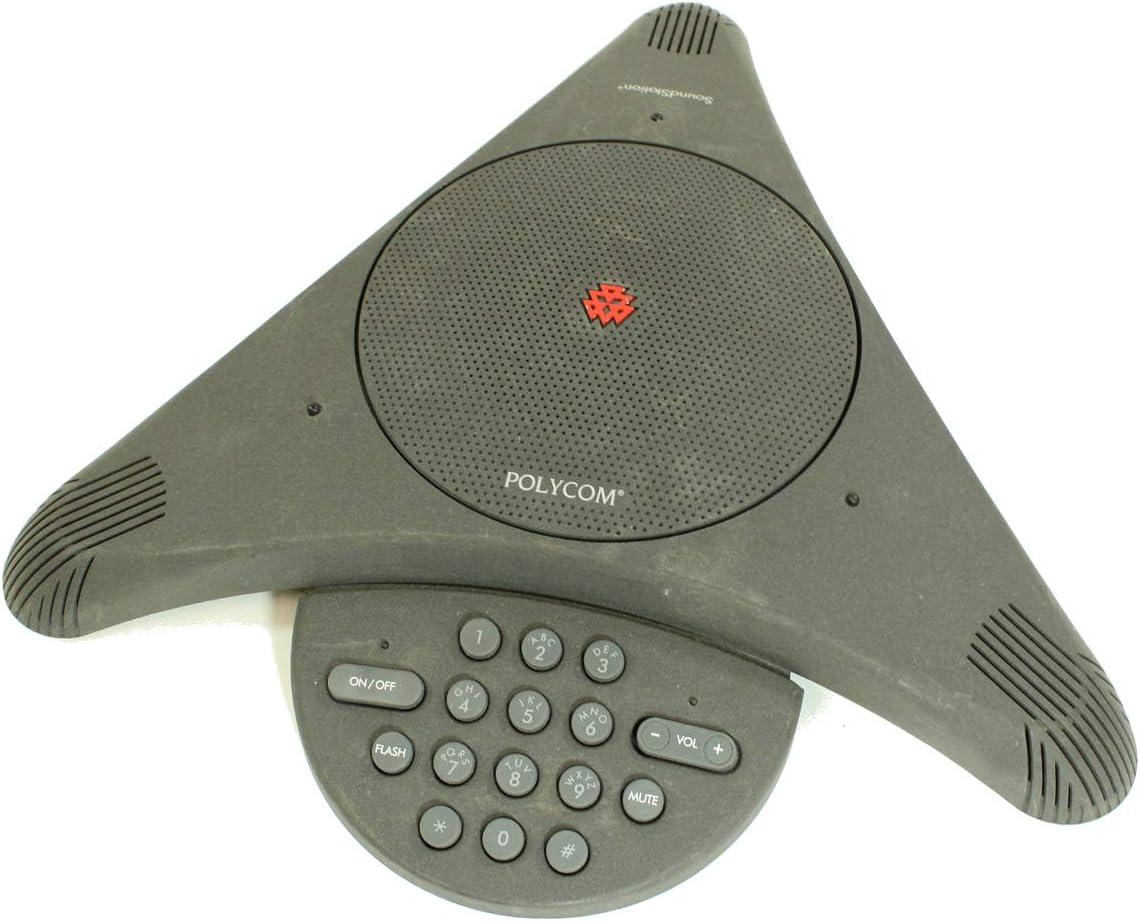
Figure 3: Top-down view of the Polycom SoundStation, highlighting the central speaker grille and the integrated keypad with various function buttons.
- Power On/Off: Press the ON/OFF button to power the unit on or off.
- Making a Call:
- Ensure the unit is powered on.
- Dial the desired phone number using the numeric keypad.
- The call will automatically connect once the number is dialed.
- Answering a Call: When the phone rings, press any key on the keypad (except MUTE) or simply pick up the handset if connected to an external phone.
- Ending a Call: Press the ON/OFF button to disconnect the call.
- Volume Control: Use the VOL + and VOL - buttons to adjust the speaker volume during a call.
- Mute Function: Press the MUTE button to temporarily disable the microphones. The mute indicator light will illuminate when active. Press again to unmute.
- Flash Button: The FLASH button is used for accessing features provided by your telephone service provider, such as call waiting or transferring calls. Consult your phone service provider's documentation for specific flash functions.
4. Maintenance
Proper maintenance ensures the longevity and performance of your SoundStation:
- Cleaning: Use a soft, dry, lint-free cloth to clean the exterior of the unit. Do not use abrasive cleaners, waxes, or solvents.
- Storage: When not in use for extended periods, store the unit in a cool, dry place, away from direct sunlight and extreme temperatures.
- Cable Management: Ensure cables are not kinked or pinched, which can lead to damage.
5. Troubleshooting
If you encounter issues with your SoundStation, refer to the following common problems and solutions:
| Problem | Possible Cause | Solution |
|---|---|---|
| No dial tone | Power adapter not connected; Phone line not connected; Faulty phone line. | Ensure power adapter is securely plugged in. Verify phone line connection to unit and wall jack. Test with a different phone line or outlet. |
| Poor audio quality (echo, static) | Unit too close to other electronic devices; Room acoustics; Faulty phone line. | Move unit away from other electronics. Consider room treatment (e.g., curtains, carpet) to reduce echo. Check phone line connection. |
| Unit does not power on | Power adapter not connected; Power outlet not working; Faulty power adapter. | Check power connections. Test power outlet with another device. Contact support if power adapter is suspected faulty. |
| Keypad unresponsive | Unit frozen; Internal malfunction. | Unplug the power adapter, wait 10 seconds, then plug it back in to reset the unit. If problem persists, contact support. |
If the problem persists after attempting these solutions, please contact Polycom customer support or a qualified service technician.
6. Specifications
Key specifications for the Polycom SoundStation 2201-03308-001-F:
- Model Number: 2201-03308-001-F
- Manufacturer: Polycom Inc.
- Item Weight: 3.67 pounds
- Package Dimensions: 13.58 x 11.26 x 5.39 inches
- ASIN: B00C3O6BPO
- Date First Available: October 14, 2015
7. Warranty and Support
Specific warranty details for the Polycom SoundStation 2201-03308-001-F are not provided in this document. For information regarding warranty coverage, technical support, or service, please refer to the official Polycom website or contact Polycom customer service directly.
You may find additional resources and contact information on the official Polycom support page: www.polycom.com/support