
cellularline F3XT
Cellularline Interphone F3XT Bluetooth Headset User Manual
Model: F3XT
Introduction
Thank you for choosing the Cellularline Interphone F3XT Bluetooth Headset. This device is designed to provide seamless communication and entertainment while riding, offering features such as rider-to-passenger intercom, mobile phone connectivity, and GPS audio instructions. Please read this manual carefully to ensure proper use and maximize your experience with the Interphone F3XT.
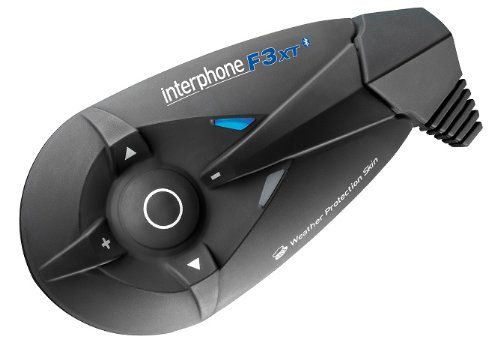
Figure 1: The Cellularline Interphone F3XT main unit. This image displays the compact, black unit with clearly visible control buttons for volume, navigation, and a central multi-function button. The "interphone F3XT" branding is visible on the top surface, along with a small blue indicator light. The unit features a weather protection skin.
Safety Information
Always prioritize safety while riding. Do not operate the device in a way that distracts you from the road. Keep volume at a level that allows you to hear ambient sounds. Ensure the device is securely mounted to your helmet before riding.
- Do not attempt to disassemble or modify the device.
- Keep the device away from extreme temperatures and moisture.
- Use only approved charging cables and adapters.
- Dispose of the device and its components responsibly according to local regulations.
Setup
1. Charging the Device
Before first use, fully charge the Interphone F3XT.
- Connect the supplied USB charging cable to the device's USB port.
- Connect the other end of the cable to a USB power adapter (not supplied) or a computer's USB port.
- The LED indicator will show charging status (e.g., red for charging, blue for fully charged).
- A full charge typically takes approximately 3 hours.
2. Mounting on Helmet
The Interphone F3XT can be mounted on most helmet types.
- Choose a suitable location on the side of your helmet, ensuring it does not obstruct your vision or helmet functionality.
- Use the provided clamp or adhesive mount to secure the main unit.
- Install the speakers inside the helmet, aligning them with your ears.
- Position the microphone appropriately for clear voice pickup.
3. Pairing with Bluetooth Devices
The Interphone F3XT supports pairing with mobile phones, GPS devices, and other Interphone units.
Pairing with a Mobile Phone:
- Ensure the Interphone F3XT is off.
- Press and hold the multi-function button until the LED flashes rapidly (pairing mode).
- On your mobile phone, enable Bluetooth and search for new devices.
- Select "Interphone F3XT" from the list of available devices.
- If prompted, enter the PIN "0000".
- Once paired, the LED will change to a slow flash.
Pairing with Another Interphone Unit (Intercom):
- Ensure both Interphone F3XT units are off.
- Press and hold the multi-function button on both units until the LED flashes rapidly.
- Briefly press the multi-function button on one of the units.
- The units will search for each other and automatically pair.
- Once paired, the LED will change to a slow flash on both units.
Operating Instructions
Power On/Off
- Power On: Press and hold the multi-function button for approximately 3 seconds until the LED illuminates.
- Power Off: Press and hold the multi-function button for approximately 5 seconds until the LED turns off.
Volume Control
- Increase Volume: Press the '+' button.
- Decrease Volume: Press the '-' button.
Phone Calls
- Answer Call: Briefly press the multi-function button.
- End Call: Briefly press the multi-function button during a call.
- Reject Call: Press and hold the multi-function button for 2 seconds when a call comes in.
- Voice Dial: Briefly press the multi-function button when not on a call (if supported by your phone).
Intercom Function
- Start Intercom: Briefly press the multi-function button when not on a call or playing music.
- End Intercom: Briefly press the multi-function button.
Music Playback (A2DP)
- Play/Pause: Briefly press the multi-function button.
- Next Track: Press the 'forward arrow' button.
- Previous Track: Press the 'backward arrow' button.
Maintenance
- Cleaning: Use a soft, damp cloth to clean the device. Do not use harsh chemicals or abrasive cleaners.
- Storage: Store the device in a cool, dry place when not in use. Avoid direct sunlight and extreme temperatures.
- Battery Care: For optimal battery life, avoid fully discharging the battery frequently. Charge the device regularly, even if not in use for extended periods.
Troubleshooting
| Problem | Possible Cause | Solution |
|---|---|---|
| Device does not power on. | Low battery. | Charge the device fully. |
| Cannot pair with phone/intercom. | Device not in pairing mode; Bluetooth off on phone; too far apart. | Ensure device is in pairing mode; enable Bluetooth on phone; bring devices closer. |
| No sound from speakers. | Volume too low; speakers disconnected; device not connected. | Increase volume; check speaker connections; ensure device is paired and connected. |
| Intercom connection drops. | Out of range; interference. | Move closer to the other unit; avoid areas with strong electromagnetic interference. |
Specifications
- Brand: Cellularline
- Model: Interphone F3XT
- Connectivity Technology: Wireless
- Wireless Communication Technology: Bluetooth (V2.1)
- Headphone Jack: USB (for charging/data)
- Form Factor: Helmet-mounted Headset
- Intercom Range: Up to 100 meters (approximate, depending on terrain)
- Battery Life: Up to 10 hours talk time (approximate)
Warranty Information
The Cellularline Interphone F3XT comes with a standard manufacturer's warranty. Please refer to the warranty card included in your product packaging or visit the official Cellularline website for detailed terms and conditions. Keep your proof of purchase for warranty claims.
Customer Support
For further assistance, technical support, or spare parts, please contact Cellularline customer service. You can find contact information on the official Cellularline website or through your local distributor.
Website: www.cellularline.com (This is a placeholder link, please verify the actual official website)
Ask a question about this manual
Ask about setup, troubleshooting, compatibility, parts, safety, or missing instructions. Manuals+ will review the question and use this page’s manual context to help answer it.