
Sharp EA-772R
Sharp Black/Red Ink Roller User Manual
Model: EA-772R, CP-13, NR42 Compatible Ink Rollers
1. Introduction
This manual provides essential information for the proper use and maintenance of your Sharp Black/Red Ink Rollers. These ink rollers are designed for compatibility with various Sharp and Casio calculators and printers, including models SHARP EA-772R, IR40T, CP-13, and others listed in the compatibility section. Each pack contains 5 replacement ink rollers, sealed for freshness, ensuring consistent print quality.
For optimal performance, please read this manual thoroughly before installation and use.
2. Compatibility
These ink rollers are compatible with the following models:
- Sharp EA-772R
- Sharp IR40T
- Casio CP-13
- SHARP EL1614, EL1620, EL1620S, EL1626, EL1626H, EL1750P, EL1750PII, EL1750PIII, EL1801P, EL1801PIII, EL2192, EL2620, EL2620S, EL2626, EL2626H, EL2628, VX1614
Always verify your device's model number before purchasing and installing replacement ink rollers.
3. Installation Guide
Follow these general steps to install the ink roller. Specific instructions may vary slightly depending on your device model. Refer to your device's original manual for detailed instructions if necessary.
- Power Off Device: Ensure your calculator or printer is turned off and unplugged from the power source before beginning the installation process.
- Locate Ink Roller Compartment: Identify the compartment where the ink roller is housed. This is typically accessible by opening a cover or panel on the device.
- Remove Old Ink Roller: Carefully remove the old ink roller. It may snap out or require a gentle pull. Dispose of the old roller responsibly.
- Unpack New Ink Roller: Open one of the new Sharp Black/Red Ink Rollers from its sealed packaging. Avoid touching the ink ribbon directly to prevent contamination.
- Insert New Ink Roller: Align the new ink roller with the guides in the compartment. Gently push or snap it into place until it is securely seated. Ensure it moves freely if designed to rotate.
- Close Compartment: Close the ink roller compartment cover securely.
- Test Functionality: Plug in and power on your device. Perform a test print or calculation to ensure the new ink roller is functioning correctly and producing clear, legible output.
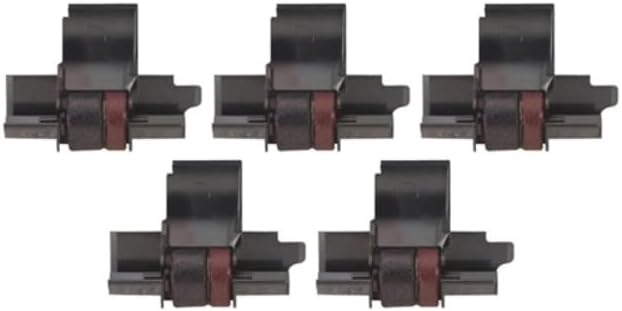
Figure 1: A pack of five Sharp Black/Red Ink Rollers, showing their individual packaging and design.

Figure 2: A close-up view of a single Sharp Black/Red Ink Roller, highlighting its black casing and red ink ribbon.
4. Operation
Once properly installed, the Sharp Black/Red Ink Roller operates automatically as part of your compatible calculator or printer. The ink roller provides the necessary ink for printing characters in black and red, depending on the device's functionality.
No direct user interaction with the ink roller is required during normal operation. The device will utilize the ink as needed for its printing functions.
5. Maintenance and Storage
5.1 Storage
- Store unused ink rollers in their original sealed packaging to maintain freshness and prevent drying.
- Keep ink rollers in a cool, dry place, away from direct sunlight and extreme temperatures.
- Avoid storing near chemicals or solvents that could damage the ink or roller material.
5.2 Disposal
When an ink roller is depleted, remove it from your device and dispose of it according to local regulations for electronic waste or general office supplies. Some recycling programs may accept used ink rollers.
6. Troubleshooting
If you encounter issues related to printing quality after installing a new ink roller, consider the following:
6.1 Faded or Incomplete Print
- Check Ink Roller Installation: Ensure the ink roller is correctly seated in its compartment. Remove and re-insert it to confirm proper alignment.
- Verify Ink Roller Freshness: If the ink roller has been stored for an extended period or in unfavorable conditions, it might be dry. Replace it with a new, freshly sealed roller.
- Device Settings: Consult your device's manual to ensure there are no specific settings affecting print density or color selection.
6.2 Ink Roller Does Not Fit
- Verify Compatibility: Double-check that your device's model number is listed in the compatibility section of this manual or on the product packaging. Incorrect model numbers are the most common cause of fit issues.
- Inspect for Damage: Ensure the ink roller itself is not damaged or deformed, which could prevent proper installation.
If problems persist, refer to your device's original user manual or contact the device manufacturer for further assistance.
7. Specifications
| Product Type | Black/Red Ink Roller (5 Pack) |
| Brand | Sharp (Compatible) |
| Compatible Models | Sharp EA-772R, IR40T, Casio CP-13, and various Sharp EL/VX series calculators |
| Ink Color | Black and Red |
| Product Dimensions | 3 x 2.3 x 2.5 inches |
| Item Weight | 3.2 ounces |
| ASIN | B00C2EF6QK |
| Manufacturer | SHARP ELEC - CALCULATORS (as listed for compatible devices) |
| Material | Plastic (housing) |
8. Warranty and Support
This product is a compatible replacement part. For specific warranty information regarding the ink rollers, please refer to the retailer or the manufacturer of the compatible ink rollers (FJA Products, as indicated by the buybox winner). For issues related to the calculator or printer itself, please contact the original device manufacturer.
For general inquiries or assistance with FJA Products brand ink rollers, please visit the FJA Products website or contact their customer service.
Related documentsEA-772R


Ask a question about this manual
Ask about setup, troubleshooting, compatibility, parts, safety, or missing instructions. Manuals+ will review the question and use this page’s manual context to help answer it.