
1. Product Overview
The Rosewill Challenger S is an ATX Mid Tower Gaming Computer Case designed for desktop PC builds. It features a classic design with blue LED fans for enhanced aesthetics and airflow. This case is constructed from SECC steel, ensuring durability and stability for your components.

Figure 1: Front-left view of the Rosewill Challenger S ATX Mid Tower Gaming Computer Case. This image highlights the overall structure and the blue LED fans visible through the front mesh panel.
2. Key Features
- Classic Design: A mid-tower PC case with a gaming aesthetic, featuring a blue LED case fan at the front.
- Optimized Airflow: Includes two pre-installed 120mm blue LED front fans and one 120mm rear fan for efficient cooling. Supports additional 120mm fans (optional).
- Spacious Interior: Accommodates ATX motherboards, long graphics cards, and offers tool-less installation for 2.5" and 3.5" drives.
- Expandability: Features five internal 3.5" drive bays, two external 3.5" drive bays, three 5.25" external drive bays, and seven expansion slots.
- Convenient I/O: Front panel includes 2x USB 2.0, 1x USB 3.0, and front audio in/out ports for easy access.
- Dust Filtration: Equipped with a bottom-mounted dust filter to protect the power supply.
3. Setup and Installation
3.1 Preparing the Case
- Unpack the Rosewill Challenger S case and place it on a stable, flat surface.
- Remove the side panels by unscrewing the thumbscrews at the rear of the case.
3.2 Motherboard Installation
- Install the I/O shield that came with your motherboard into the designated slot at the rear of the case.
- Align your ATX motherboard with the pre-installed standoffs inside the case. Ensure all screw holes align.
- Secure the motherboard using the provided screws.
3.3 Drive Installation
The case supports tool-less installation for 2.5" and 3.5" drives, and features external 5.25" drive bays.
- For 5.25" external drives (e.g., optical drives): Remove the front panel cover, slide the drive into the bay, and secure it using the tool-less mechanism.
- For 3.5" HDDs: Utilize the internal drive bays with the screw-less design for easy installation.
- For 2.5" SSDs: Use the dedicated 2.5" drive bays, also featuring tool-less installation.

Figure 2: Internal view of the case highlighting the tool-less drive bay design for convenient component installation.
3.4 Power Supply and Graphics Card Installation
- Install your power supply unit (PSU) at the bottom rear of the case. Ensure the fan faces downwards for optimal airflow through the dust filter.
- Install your graphics card(s) into the appropriate PCIe slots on your motherboard. The case offers ample space for long graphics cards.
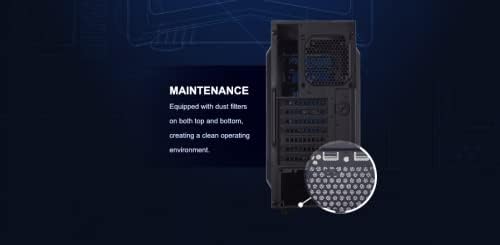
Figure 3: Internal view demonstrating the spacious layout, allowing for the installation of a full-sized graphics card.
3.5 Cable Management
Utilize the cutouts and space behind the motherboard tray for effective cable management. This improves airflow and the overall aesthetic of your build.
3.6 Connecting Front I/O Ports
Connect the cables from the front I/O panel (USB 2.0, USB 3.0, audio) to their respective headers on your motherboard.
4. Operating Instructions
Once all components are installed and secured, and all necessary cables are connected:
- Ensure the power supply switch is in the "ON" position.
- Press the power button located on the front I/O panel to start your computer.
- The pre-installed blue LED fans will illuminate, indicating operation.
4.1 Airflow and Cooling
The Challenger S is designed for optimal airflow. The two front 120mm blue LED fans draw cool air into the case, while the rear 120mm fan exhausts warm air. Additional fans can be installed at the top and side for enhanced cooling performance.
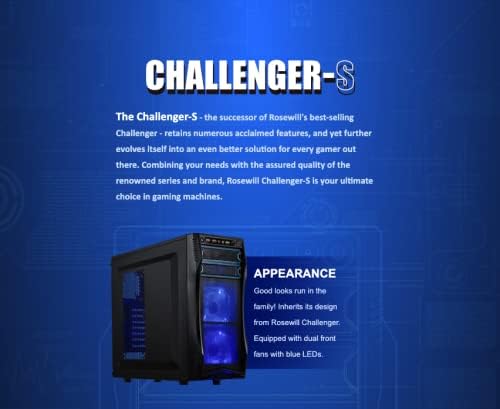
Figure 4: Front view of the case, showcasing the blue LED fans that contribute to both cooling and visual appeal.
5. Maintenance
Regular maintenance ensures the longevity and optimal performance of your computer case and its components.
5.1 Dust Filter Cleaning
The case features a bottom-mounted dust filter for the power supply. Periodically remove and clean this filter to prevent dust buildup and maintain efficient cooling.
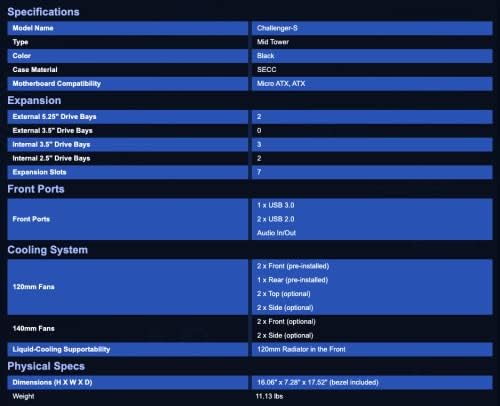
Figure 5: Bottom view of the case, illustrating the removable dust filter for the power supply intake.
5.2 Fan Cleaning
Over time, dust can accumulate on the fan blades. Carefully open the case and use compressed air or a soft brush to clean the pre-installed and any optional fans.
5.3 General Cleaning
Wipe down the exterior of the case with a soft, damp cloth. Avoid using harsh chemicals that may damage the finish.
6. Troubleshooting
- No Power:
- Ensure the power supply is properly connected to the wall outlet and the PSU switch is ON.
- Verify all power cables (24-pin ATX, 8-pin CPU, PCIe for GPU) are securely connected to the motherboard and components.
- Check the front panel power button connection to the motherboard.
- Fans Not Spinning/LEDs Off:
- Confirm fan power cables are correctly connected to the motherboard or fan controller.
- Check if the fan headers on the motherboard are enabled in the BIOS/UEFI settings.
- Overheating:
- Ensure all case fans are operating correctly and oriented for proper airflow (front intake, rear exhaust).
- Clean dust filters and fan blades regularly.
- Verify CPU cooler and GPU fans are functioning.
- Front I/O Ports Not Working:
- Check that the USB and audio cables from the front panel are correctly plugged into the motherboard headers.
7. Specifications
| Feature | Detail |
|---|---|
| Brand | Rosewill |
| Model Name | CHALLENGER S |
| Case Type | Mid Tower |
| Motherboard Compatibility | ATX |
| Material | SECC Steel, Alloy Steel |
| Product Dimensions (LxWxH) | 17.52 x 8.26 x 16.06 inches |
| Item Weight | 11.24 pounds |
| External 5.25" Drive Bays | 3 |
| External 3.5" Drive Bays | 2 |
| Internal 3.5" Drive Bays | 5 |
| Internal 2.5" Drive Bays | Tool-less installation |
| Expansion Slots | 7 |
| Front I/O Ports | 2 x USB 2.0, 1 x USB 3.0, Front Audio In / Out |
| Pre-installed Fans | 2 x 120mm Blue LED (Front), 1 x 120mm (Rear) |
| Cooling Method | Air |
| Power Supply Mounting Type | Bottom Mount |
8. Warranty and Support
Specific warranty details for the Rosewill Challenger S ATX Mid Tower Gaming Computer Case are not provided in the available product information. Please refer to the official Rosewill website or your retailer for the most current warranty policy and support contact information.
For technical support or further assistance, please visit the Rosewill Store on Amazon or the official Rosewill support channels.
9. Additional Resources
No official product videos from the seller for this specific model were found in the provided data. For general PC building guides or related content, please consult reputable online resources.


