
Introduction
The TP-Link Archer C7 AC1750 is a high-performance wireless router designed to provide fast and reliable Wi-Fi connectivity for your home or office network. Featuring dual-band technology and Gigabit Ethernet ports, it supports the 802.11ac Wi-Fi standard, offering a combined bandwidth of up to 1750 Mbps (450 Mbps on 2.4 GHz and 1300 Mbps on 5 GHz). This manual provides essential information for setting up, operating, maintaining, and troubleshooting your Archer C7 router.
Package Contents
- TP-Link Archer C7 AC1750 Wireless Dual Band Gigabit Router
- Power Adapter
- Ethernet Cable
- Quick Installation Guide

Image: The retail packaging box for the TP-Link Archer C7 AC1750 router, showing the product features and design.
Setup
1. Physical Connection
- Power On: Connect the provided power adapter to the router's power port and plug it into a power outlet. Press the Power On/Off button if necessary.
- Connect to Modem: Connect your modem's Ethernet cable to the blue WAN port on the back of the Archer C7 router.
- Connect Devices (Optional): For wired connections, connect your computers or other network devices to the yellow LAN ports (Ethernet 1-4) using Ethernet cables.
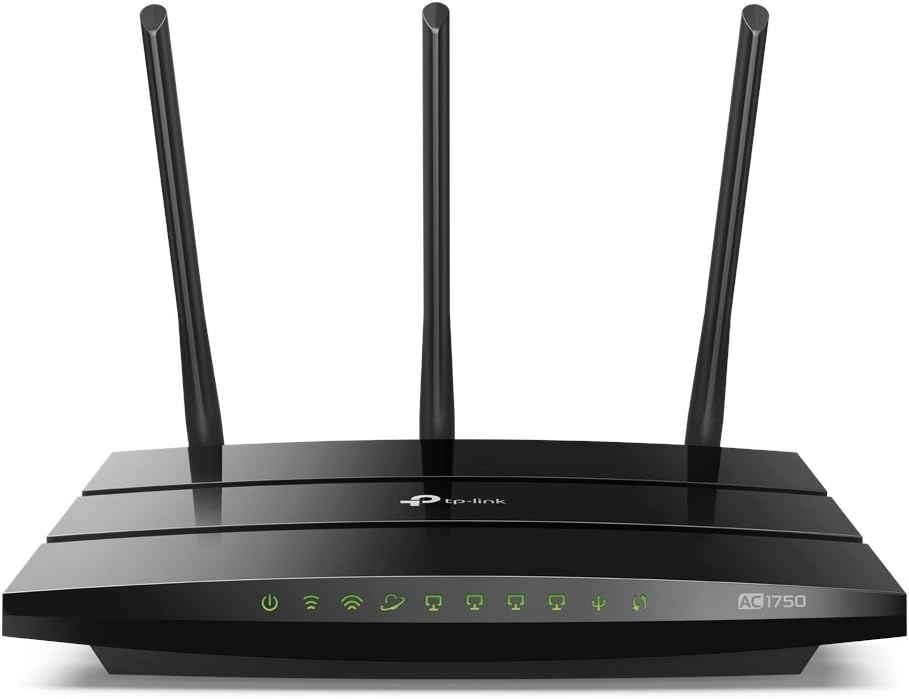
Image: The rear panel of the Archer C7 router, highlighting the power input, USB ports, blue WAN port, and four yellow LAN ports.
2. Initial Configuration
You can configure your router using a web browser or the TP-Link Tether app.
- Using a Web Browser:
- Connect your computer to the router either wirelessly (using the default Wi-Fi name and password found on the router's label) or via an Ethernet cable to a LAN port.
- Open a web browser and type
http://tplinkwifi.netorhttp://192.168.0.1into the address bar. - Log in using the default username and password (usually
adminfor both, or as specified on the router's label). - Follow the on-screen Quick Setup Wizard to configure your internet connection and wireless settings.
- Using the TP-Link Tether App:
- Download the TP-Link Tether app from the App Store or Google Play.
- Connect your mobile device to the router's default Wi-Fi network.
- Open the Tether app and follow the instructions to set up your router.
Operating the Router
Dual-Band Wi-Fi
The Archer C7 operates on two separate Wi-Fi bands: 2.4 GHz and 5 GHz. This allows for greater flexibility and performance.
- 2.4 GHz Band: Ideal for basic internet use like browsing and email, and for devices that are further away from the router.
- 5 GHz Band: Provides faster speeds and less interference, suitable for bandwidth-intensive activities such as online gaming and HD video streaming.
Guest Network Access
The router supports creating a separate guest network, providing secure Wi-Fi access for visitors without sharing your main network's password or resources. This enhances network security and privacy.
IP-based Bandwidth Control
Utilize the IP-based Bandwidth Control feature to manage the bandwidth allocated to individual devices connected to your network. This helps ensure fair bandwidth distribution and prevents a single device from monopolizing the connection.
USB Ports for Sharing
The dual USB ports allow you to share files, media, and even a printer across your network. You can access shared content locally or remotely via an FTP server, turning your router into a versatile media and file server.

Image: The front panel of the Archer C7 router, displaying the LED indicators for power, internet, 2.4 GHz Wi-Fi, 5 GHz Wi-Fi, LAN activity, and USB activity.
Maintenance
- Firmware Updates: Regularly check the TP-Link website for firmware updates. Updating your router's firmware can improve performance, add new features, and enhance security. Follow the instructions provided with the firmware update carefully.
- Regular Reboots: Periodically restarting your router can help clear its memory and resolve minor connectivity issues, ensuring optimal performance.
- Physical Cleaning: Keep the router clean and free from dust to prevent overheating. Ensure proper ventilation around the device.
Troubleshooting
- No Internet Access:
- Check all cable connections, especially the Ethernet cable from your modem to the router's WAN port.
- Verify that your modem is working correctly.
- Restart both your modem and router.
- Slow Wi-Fi Speed:
- Ensure your devices are connected to the appropriate Wi-Fi band (5 GHz for faster speeds).
- Reduce interference by moving the router away from other electronic devices.
- Check for firmware updates.
- Consider using IP-based Bandwidth Control to prioritize certain devices.
- Forgotten Wi-Fi Password or Router Login Password:
- Locate the label on the bottom of your router for default Wi-Fi credentials.
- If you changed the password and forgot it, you may need to perform a factory reset. Use a pin to press and hold the Reset button on the back of the router for about 10 seconds until the LEDs flash. This will restore the router to its factory default settings.
Specifications
| Feature | Detail |
|---|---|
| Model Number | Archer C7 |
| Wi-Fi Standard | 802.11ac |
| Frequency Band Class | Dual-Band (2.4 GHz & 5 GHz) |
| Total Available Bandwidth | 1750 Mbps (450 Mbps at 2.4GHz, 1300 Mbps at 5GHz) |
| Ethernet Ports | 4 Gigabit LAN Ports, 1 Gigabit WAN Port |
| USB Ports | Dual USB Ports (for file, media, and printer sharing) |
| Dimensions | 9.57 x 6.32 x 1.28 inches |
| Item Weight | 1.12 pounds |
| Included Components | Router, Power Adapter, Ethernet Cable |
Warranty
TP-Link products typically come with a standard manufacturer's warranty. Please refer to the warranty card included in your product packaging or visit the official TP-Link website for detailed warranty terms and conditions specific to your region and product model. Keep your purchase receipt as proof of purchase for warranty claims.
Support
For further assistance, technical support, or to download the latest drivers and firmware, please visit the official TP-Link support website. You can also find FAQs and community forums for common issues and solutions.
- TP-Link Support Website: https://www.tp-link.com/support
- TP-Link Tether App: Available on App Store and Google Play for easy management.


