
1. Introduction
The Cable Matters SuperSpeed USB 3.0 to HDMI Adapter allows you to connect an HDTV, monitor, or projector with HDMI to an available USB port on your computer. This adapter functions as an external graphics card, enabling you to add an additional display when other video ports on your computer are occupied. It supports video resolutions up to 2560 x 1440, including 1920x1080 (1080p).

Figure 1: Connection overview of the Cable Matters USB 3.0 to HDMI/DVI Adapter, illustrating connectivity from a computer or laptop to various display types.
2. Package Contents
Verify that your package contains the following items:
- Cable Matters SuperSpeed USB 3.0 to HDMI Adapter
- HDMI to DVI Adapter
- User Manual
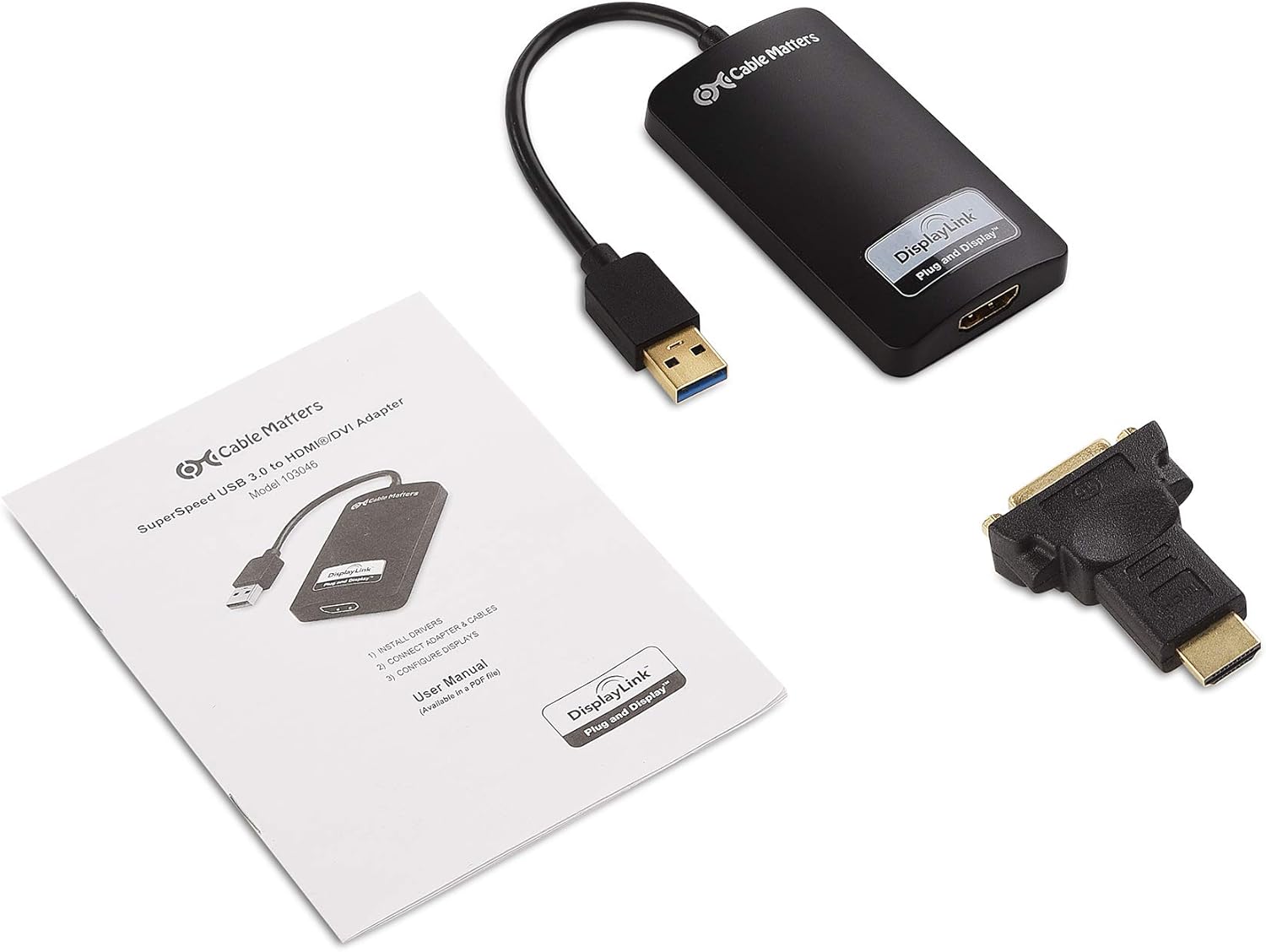
Figure 2: Included components in the product package.
3. System Requirements
- Available USB 3.0 port (USB 2.0 compatible with reduced performance)
- Operating System: Windows 10, 8.1, 7, Vista, XP
- Display with HDMI or DVI input
4. Installation & Setup
Follow these steps to install and set up your Cable Matters USB 3.0 to HDMI Adapter:
- Install Drivers: Before connecting the adapter, download and install the latest DisplayLink drivers from the official Cable Matters website or DisplayLink website. A driver installation is required for the adapter to function correctly.
- Connect the Adapter to your Computer: Plug the USB 3.0 connector of the adapter into an available USB 3.0 port on your computer.
- Connect to Display (HDMI): Connect an HDMI cable (sold separately) from the HDMI port on the adapter to the HDMI input on your HDTV, monitor, or projector.
- Connect to Display (DVI - Optional): If your display only has a DVI input, attach the included HDMI to DVI adapter to the HDMI port on the USB adapter. Then, connect a DVI cable (sold separately) from the DVI adapter to the DVI input on your display. Note that DVI only transmits video, not audio.
- Configure Display Settings: Once connected, your computer should detect the new display. You may need to adjust display settings in your operating system to extend or mirror your desktop.

Figure 3: Download and install DisplayLink drivers.

Figure 4: USB 3.0 connector.

Figure 5: HDMI connection setup.

Figure 6: DVI connection setup (video only).
5. Operating Instructions
After successful installation, you can configure your display settings to suit your needs:
- Extend Display: This mode allows you to have separate content on each screen, expanding your desktop workspace.
- Mirror Display: This mode duplicates your primary display onto the connected external display, showing the same content on both screens. This is useful for presentations.
Access these settings through your operating system's display configuration panel (e.g., Windows Display Settings).

Figure 7: Example of mirroring a laptop display to an external monitor.

Figure 8: Example of extending a laptop display to an external monitor.
6. Troubleshooting
- No Display/Black Screen:
- Ensure DisplayLink drivers are correctly installed and updated.
- Verify all cable connections (USB, HDMI/DVI) are secure.
- Try connecting the adapter to a different USB port on your computer.
- Restart your computer.
- Poor Video Quality/Lag:
- Ensure the adapter is connected to a USB 3.0 port for optimal performance. USB 2.0 ports will result in lower bandwidth and potential lag.
- Check your display resolution settings. High resolutions (e.g., 2560x1440) require sufficient system resources.
- Update your computer's graphics drivers.
- No Audio (with HDMI):
- Verify that the correct audio output device is selected in your computer's sound settings (e.g., 'DisplayLink Audio').
- Ensure your HDMI cable supports audio transmission.
- DVI Connection Issues:
- Remember that DVI connections only transmit video, not audio.
- Ensure the HDMI to DVI adapter is securely attached and the DVI cable is properly connected.
7. Specifications
| Model Number | 103046 |
| Connector Type | USB 3.0 (Input), HDMI (Output), DVI (Output via included adapter) |
| Max Resolution (HDMI) | 2560 x 1440 @ 50Hz |
| Max Resolution (DVI) | 1920 x 1200 @ 60Hz |
| Compatible Devices | Monitor, Projector, HDTV |
| Operating System Compatibility | Windows 10/8.1/7/Vista/XP |
| Input Voltage | 5 Volts (DC) |
| Item Dimensions (L x W x H) | 8.66 x 6.14 x 0.55 inches |
| Item Weight | 0.11 Kilograms |

Figure 9: Physical dimensions of the adapter and DVI accessory.

Figure 10: Displaying 2560 x 1440 resolution.
8. Warranty and Support
This product comes with a Limited Warranty. For detailed warranty information and technical support, please visit the official Cable Matters website or contact their customer service. Ensure you have your product model number (103046) and proof of purchase available when seeking support.


