
1. Introduction
The Marantz NR1504 is a powerful 5-channel home theater receiver designed to deliver high-quality sound from a slim-line body. It incorporates network capabilities, allowing access to internet radio and online streaming services. This receiver supports AirPlay for streaming content from Apple devices and can be operated using the Marantz Remote App on Android or iOS devices. The on-screen Setup Assistant guides users through the initial configuration process, ensuring an optimal surround sound experience.
2. Key Features
- Power Output: 50 watts per channel (8 ohms, 20Hz-20kHz, THD 0.08%), featuring all discrete, equal power, high-current amplifiers.
- Network Connectivity: Integrated AirPlay, Pandora, Spotify, and Internet Radio (U version) access, controllable via the Marantz Remote App.
- Video Support: Supports 1080P and 3D video pass-through with 6 HDMI inputs (1 front) and 1 HDMI output.
- Audio Calibration: Includes Audyssey MultEQ, Dynamic Volume, and Dynamic EQ for optimized sound performance.
- User-Friendly Setup: Features an on-screen setup assistant for quick and easy configuration.
3. Setup
Proper setup is crucial for optimal performance of your Marantz NR1504 receiver. Follow these steps for initial installation and configuration.
3.1 Unpacking and Placement
Carefully remove the receiver from its packaging. Place the unit on a stable, level surface with adequate ventilation around it to prevent overheating. Ensure no objects block the ventilation holes on the top or sides of the receiver.
3.2 Connecting Speakers
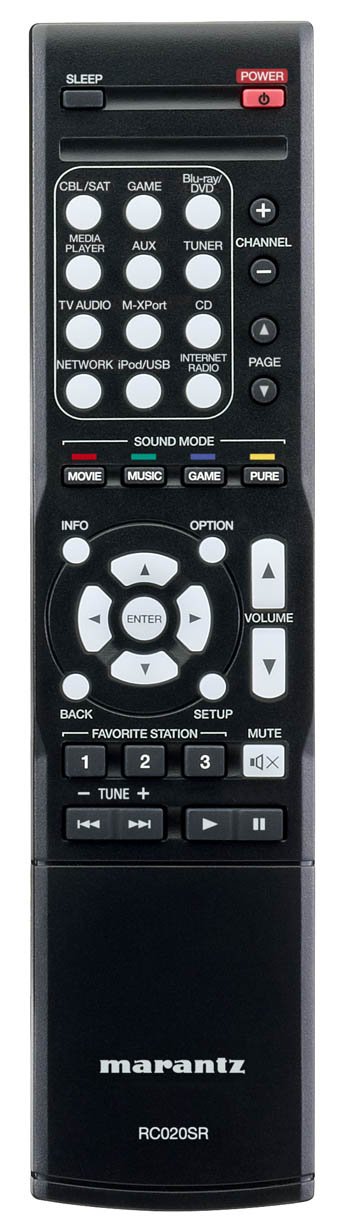
Connect your speakers to the corresponding terminals on the rear panel of the NR1504. Ensure correct polarity (positive to positive, negative to negative) for each speaker. The receiver supports a 5.1 channel setup.

3.3 Connecting Audio/Video Devices
Use HDMI cables to connect your source devices (e.g., Blu-ray player, game console, cable/satellite box) to the HDMI input ports on the receiver. Connect your TV or projector to the HDMI OUT port. The NR1504 supports 1080P and 3D video pass-through.

3.4 Network Connection
Connect the receiver to your home network using an Ethernet cable for access to internet radio and streaming services. Alternatively, the receiver supports wireless network connectivity.

3.5 Initial Setup Assistant
Upon first power-on, the NR1504 will display an on-screen Setup Assistant on your connected TV. Follow the prompts to configure speaker settings, network connections, and input assignments. The Audyssey MultEQ system will guide you through calibrating your speakers for your room's acoustics.


4. Operating Instructions
This section covers the basic operation of your Marantz NR1504 receiver.
4.1 Front Panel Controls
The front panel provides essential controls for power, input selection, volume, and headphone connection.

4.2 Remote Control
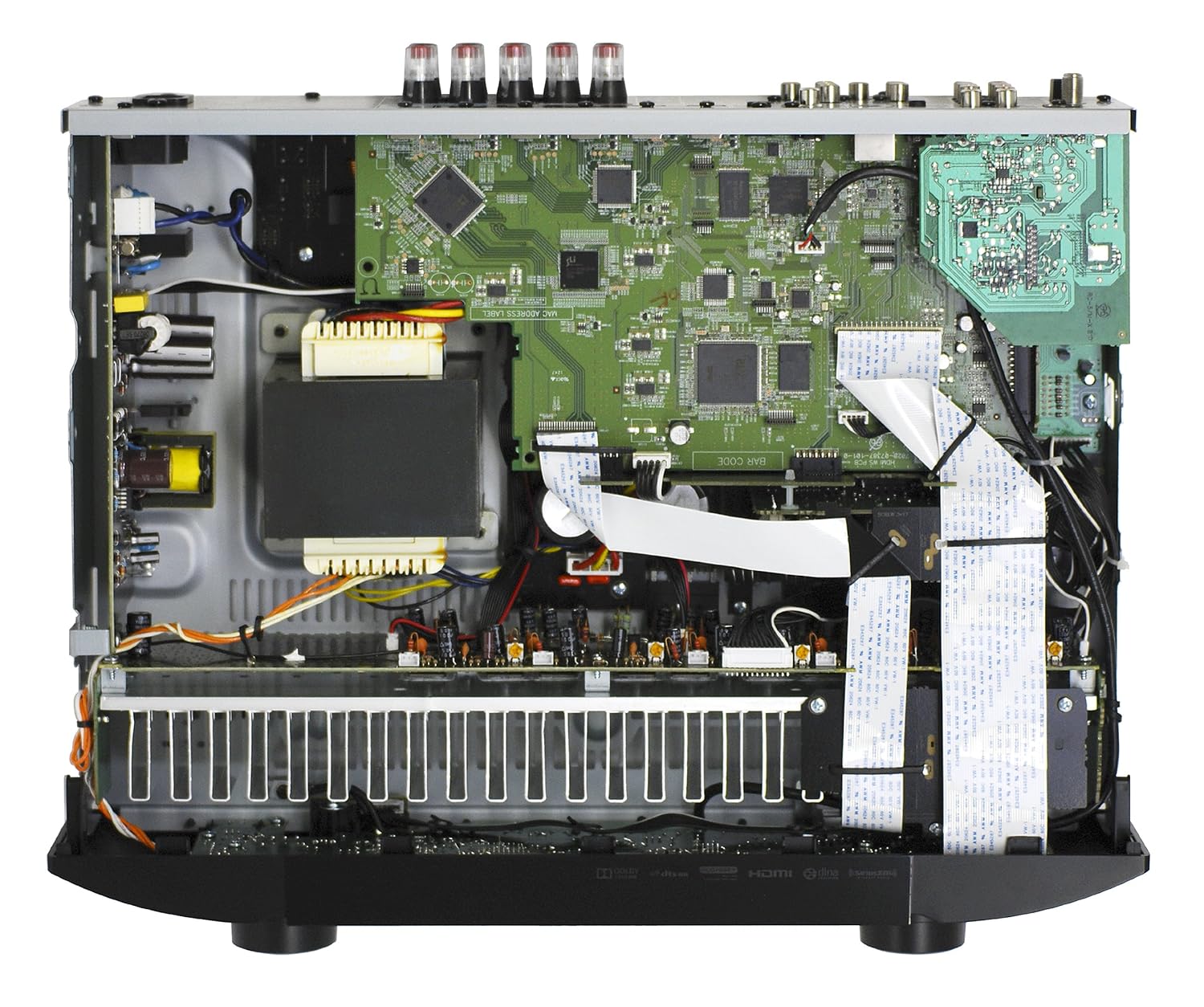
Use the supplied remote control for comprehensive operation of the receiver, including input switching, volume adjustment, sound mode selection, and navigation of network features.
4.3 Marantz Remote App
Download the Marantz Remote App for your Android or iOS device to control the NR1504. The app provides an intuitive interface for input selection, volume control, and browsing network music sources like internet radio, Pandora, and Spotify.


4.4 USB Playback
Connect a USB storage device or an Apple iPod/iPhone to the front USB port to play audio files directly through the receiver.

4.5 AirPlay Streaming
Utilize AirPlay to stream music wirelessly from your iPhone, iPod touch, or iPad to the NR1504. Ensure both the receiver and your Apple device are connected to the same network.

4.6 Media Server Playback
Access and play music files stored on a network-connected media server (e.g., a computer or NAS drive) through the receiver's network features.

5. Maintenance
To ensure the longevity and optimal performance of your Marantz NR1504 receiver, follow these maintenance guidelines:
- Cleaning: Gently wipe the exterior surfaces with a soft, dry cloth. Avoid using abrasive cleaners, solvents, or chemical sprays, as these can damage the finish.
- Ventilation: Ensure that the ventilation openings on the top and sides of the receiver are not obstructed. Proper airflow is essential to prevent overheating.
- Dust Removal: Periodically use a soft brush or a low-power vacuum cleaner with a brush attachment to remove dust from the ventilation grilles.
- Power Cord: Regularly check the power cord for any signs of damage. If damaged, discontinue use and contact Marantz service.
- Environmental Conditions: Avoid exposing the receiver to extreme temperatures, high humidity, direct sunlight, or excessive dust.
6. Troubleshooting
If you encounter issues with your Marantz NR1504, refer to the following common troubleshooting steps before contacting customer support.
6.1 No Power
- Check if the power cord is securely plugged into both the receiver and a working wall outlet.
- Ensure the power button on the front panel or remote control has been pressed.
- Verify that the wall outlet is functional by plugging in another device.
6.2 No Sound
- Confirm that the correct input source is selected on the receiver.
- Check all speaker wire connections at both the receiver and the speakers for proper polarity and secure fit.
- Ensure the volume is turned up and not muted.
- Verify that your TV's audio output is correctly configured if using ARC or optical connections.
- Run the Audyssey MultEQ setup again to re-calibrate speaker settings.
6.3 No Video
- Ensure all HDMI cables are securely connected between source devices, the receiver, and the TV.
- Confirm the correct HDMI input is selected on both the receiver and the TV.
- Try connecting the source device directly to the TV to rule out an issue with the source or TV.
6.4 Network Connection Issues
- Check the Ethernet cable connection if using a wired network.
- Restart your router and modem.
- Ensure the receiver's network settings are correctly configured (refer to the Setup Assistant).
- If using Wi-Fi, verify the network password is correct and the receiver is within range of your wireless router.
7. Specifications
Detailed technical specifications for the Marantz NR1504 receiver.
| Feature | Specification |
|---|---|
| Product Dimensions | 14.45 x 17.32 x 4.14 inches |
| Item Weight | 18.1 pounds |
| Model Number | NR1504 |
| Brand | Marantz |
| Connectivity Technology | Bluetooth, HDMI, USB |
| Controller Type | Android, iOS |
| Special Features | Pandora, Tidal, eARC |
| Compatible Devices | Smartphone, Speaker |
| Total HDMI Ports | 6 |
| Connector Type | HDMI, USB |
| Audio Output Mode | Surround |
| Surround Sound Channel Configuration | 5 Channel |
| Video Encoding | H.264, H.265/HEVC |
| Date First Available | April 1, 2013 |
| Manufacturer | Marantz |
8. Warranty and Support
The Marantz NR1504 comes with a limited warranty. For specific warranty details, please refer to the documentation included with your product or visit the official Marantz website. For technical support, service, or inquiries regarding your product, please contact Marantz customer support directly. You may also find additional resources and FAQs on the Marantz support website.


