
Introduction
This manual provides detailed instructions for the setup, operation, and maintenance of your Microsoft LifeCam Webcam (Model H5D-00013). Please read this manual thoroughly before using the product to ensure proper functionality and to maximize your experience.
What's in the Box
- Microsoft LifeCam Webcam (H5D-00013)
- USB Cable
Product Overview
The Microsoft LifeCam Webcam is designed for high-quality video communication. It features a 5-megapixel interpolated CMOS sensor, 720p HD video recording, auto-focus, and a built-in microphone. Its compact design allows for easy placement on various monitors.
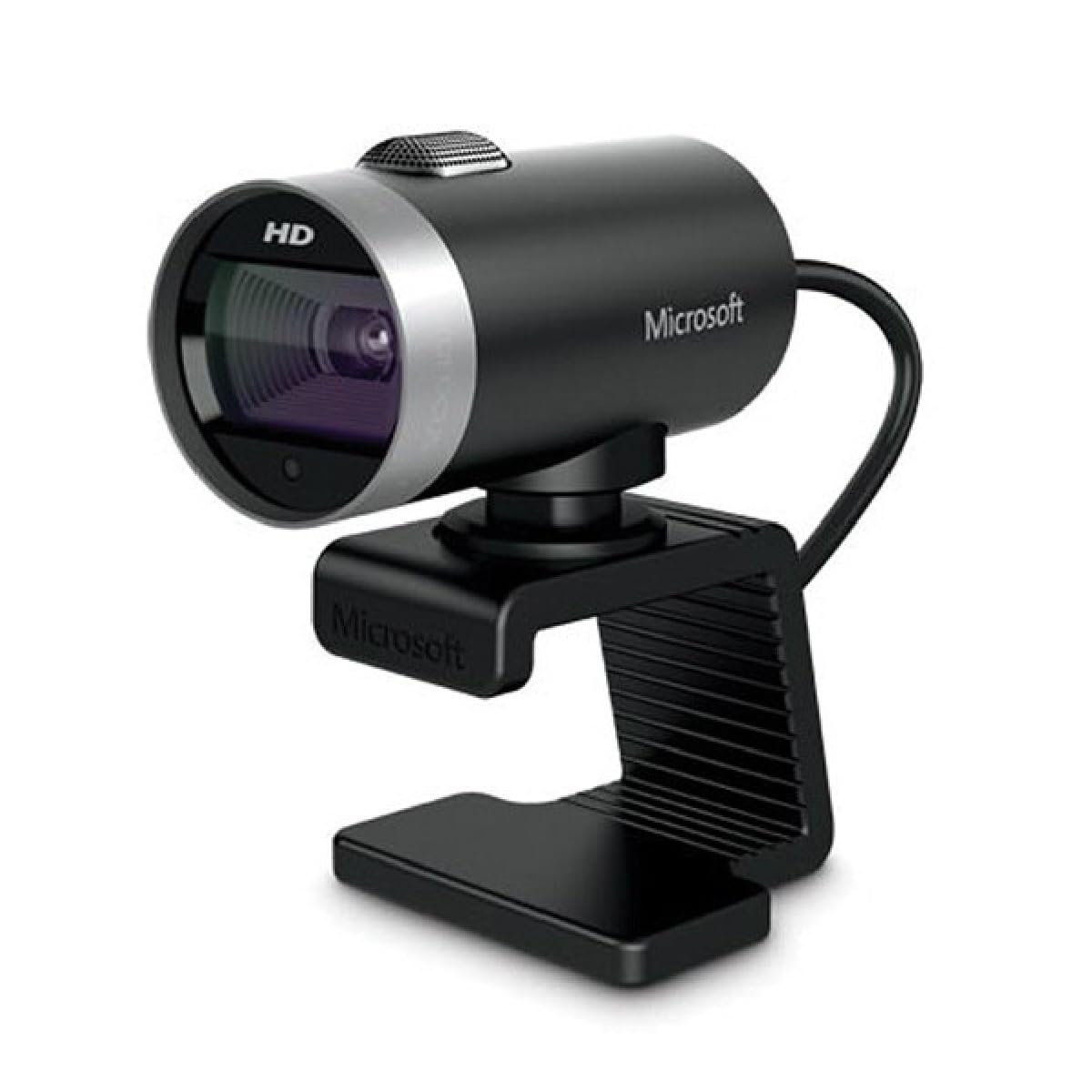
Figure 1: Microsoft LifeCam Webcam with key dimensions. The top image shows the front view of the webcam, highlighting its compact size. The bottom image displays a side view, illustrating the flexible clip for monitor attachment and the cylindrical body of the camera.
Setup
- Placement: Position the LifeCam Webcam on top of your computer monitor or a flat surface. The flexible clip is designed to securely grip various monitor thicknesses without causing damage.
- Connection: Connect the USB cable from the LifeCam Webcam to an available USB 2.0 port on your computer.
- Driver Installation: Your operating system should automatically detect and install the necessary drivers. If prompted, follow the on-screen instructions. For manual driver installation or software, visit the official Microsoft support website.
- Software Configuration: Open your preferred video conferencing application (e.g., Skype, Zoom, Microsoft Teams) and select the Microsoft LifeCam as your video and audio input device in the application's settings.
Operating Instructions
The LifeCam Webcam is designed for ease of use. Once connected and configured, it will automatically adjust for optimal video and audio quality.
- Auto-focus: The webcam features automatic focus adjustment to keep your image sharp and clear.
- TrueColor Technology: This feature automatically adjusts exposure for bright, vibrant footage, even in varying lighting conditions.
- ClearFrame Technology: Improves picture quality in low-light environments.
- Built-in Microphone: The integrated microphone provides clear audio capture.
Video 1: Overview of the Microsoft LifeCam Webcam, demonstrating its features such as the flexible mount, wide-angle lens, auto-focus, and noise-canceling microphone. The video shows the webcam being placed on a monitor and highlights its stable design.
Maintenance
- Cleaning the Lens: Use a soft, lint-free cloth specifically designed for optical lenses to gently wipe the webcam lens. Avoid abrasive materials or harsh chemicals.
- Storage: When not in use, store the webcam in a clean, dry place away from direct sunlight and extreme temperatures.
- Cable Care: Avoid bending or crimping the USB cable excessively to prevent internal damage.
Troubleshooting
- No Video/Audio:
- Ensure the USB cable is securely connected to both the webcam and the computer.
- Try connecting to a different USB port.
- Verify that the Microsoft LifeCam is selected as the active video and audio device in your application's settings.
- Check your computer's privacy settings to ensure applications have permission to access the camera and microphone.
- Poor Video Quality:
- Ensure the lens is clean and free of smudges or dust.
- Check lighting conditions. While the webcam has low-light enhancement, sufficient lighting improves overall quality.
- Ensure your internet connection is stable and has adequate bandwidth for HD video.
- Microphone Issues:
- Confirm the LifeCam microphone is selected as the default recording device in your computer's sound settings and your application.
- Adjust microphone volume levels in your system settings.
Specifications
| Feature | Detail |
|---|---|
| Image Sensor | CMOS |
| Interpolated Resolution | 5 Megapixel |
| Maximum Video Resolution | 1280 x 720 (720p HD) |
| Widescreen Support | Yes |
| Focus Modes | Auto-focus |
| Built-in Microphone | Yes |
| Host Interface | USB 2.0 |
| Dimensions (H x W x D) | 2.2" x 1.8" x 1.6" (55.8mm x 45.7mm x 40.6mm) |
| Weight | 3.36 oz (95.25g) |
| Color | Black |
| Special Feature | Low Light Enhancement |
Warranty and Support
The Microsoft LifeCam Webcam (Model H5D-00013) comes with a 3-Year Limited Warranty from the date of purchase. This warranty covers defects in materials and workmanship under normal use.
For warranty claims, technical support, or further assistance, please visit the official Microsoft support website or contact Microsoft customer service.
Please retain your proof of purchase for warranty purposes.


