
Introduction
This manual provides essential information for the proper installation, operation, and maintenance of your Esperanza Hub 4 Porty EA112 USB 2.0. Please read this manual thoroughly before using the device to ensure optimal performance and safety. Keep this manual for future reference.
Safety Information
- Do not expose the device to water, moisture, or extreme temperatures.
- Avoid dropping or subjecting the device to strong impacts.
- Do not attempt to disassemble or repair the device yourself. Refer all servicing to qualified personnel.
- Keep the device away from children.
- Use only with compatible USB devices.
Product Overview
The Esperanza Hub 4 Porty EA112 USB 2.0 is a compact and portable USB hub designed to expand the connectivity of your computer. It provides four additional USB 2.0 ports, allowing you to connect multiple peripherals simultaneously.
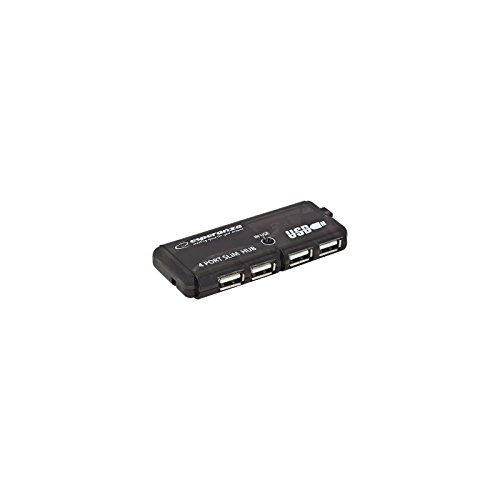
This image displays the Esperanza EA112 USB 2.0 4-Port Hub. The top view shows the compact black hub with four USB 2.0 ports and a small indicator light. The bottom view reveals the integrated USB cable neatly tucked into a compartment, making it portable.
Key Features:
- 4 x USB 2.0 Ports
- Compact and portable design
- Plug & Play functionality
- Compatible with desktop computers
Setup
- Connect the Hub to your Computer: Locate an available USB port on your desktop computer. Connect the integrated USB cable of the Esperanza EA112 hub into this port.
- System Recognition: Your operating system should automatically detect and install the necessary drivers for the hub. This is a plug-and-play device, so no manual driver installation is typically required.
- Connect USB Devices: Once the hub is recognized, you can connect your USB peripherals (e.g., mouse, keyboard, flash drive) into the four available USB 2.0 ports on the hub.
The hub is now ready for use.
Operating Instructions
The Esperanza EA112 USB 2.0 Hub operates automatically once connected. Simply plug your USB devices into the hub's ports. The hub will facilitate data transfer and power distribution to the connected devices.
- Connecting Devices: Insert the USB connector of your peripheral device firmly into any of the four USB ports on the hub.
- Disconnecting Devices: For optimal performance and to prevent data corruption, always safely eject or unmount storage devices (like USB flash drives) from your operating system before physically removing them from the hub.
- Indicator Light: A small LED indicator on the hub typically illuminates when the hub is powered and connected to a host device, indicating operational status.
Maintenance
- Cleaning: Use a soft, dry cloth to clean the exterior of the hub. Do not use liquid cleaners or aerosols.
- Storage: When not in use, store the hub in a cool, dry place, away from direct sunlight and excessive dust. The integrated cable can be tucked into its compartment for compact storage.
- Cable Care: Avoid bending or twisting the integrated USB cable excessively to prevent internal damage.
Troubleshooting
| Problem | Possible Cause | Solution |
|---|---|---|
| Device not recognized by computer. | Loose connection, faulty port, driver issue. |
|
| Slow data transfer speeds. | Overloaded hub, incompatible device, system resources. |
|
| Hub indicator light is off. | No power, faulty connection. |
|
Specifications
| Brand | Esperanza |
| Model Number | ESP-EA112 |
| Interface | USB 2.0 |
| Total USB Ports | 4 |
| Compatible Devices | Desktop computers |
| Color | Multicolor (typically black) |
| International Article Code (UPC) | 05905784768564 |
Warranty and Support
Information regarding specific warranty terms and conditions for the Esperanza Hub 4 Porty EA112 USB 2.0 is typically provided by the retailer at the time of purchase or can be found on the official Esperanza website. Please retain your proof of purchase for warranty claims.
For technical support or further inquiries, please refer to the contact information provided by your retailer or visit the manufacturer's official support channels.
Note: Spare parts availability and software update guarantees are not specified for this product.
