
1. Introduction
This user manual provides comprehensive instructions for the installation, operation, and maintenance of the CINO F780 Fuzzy Barcode Scanner. The F780 Fuzzy is a high-performance handheld barcode scanner designed for efficient and accurate data capture, particularly effective with poorly printed, damaged, or low-contrast barcodes due to its advanced FuzzyScan imaging technology. It connects via USB for seamless integration with various systems.
2. Safety Information
Please read and understand all safety instructions before using the device. Failure to follow these instructions may result in injury or damage to the scanner.
- Do not expose the scanner to extreme temperatures, humidity, or direct sunlight.
- Avoid dropping the scanner or subjecting it to severe impact.
- Do not attempt to disassemble or modify the scanner. This will void the warranty.
- Use only the provided USB cable for connection.
- Keep the scanner away from strong magnetic fields.
- Dispose of the device according to local regulations for electronic waste.
3. Package Contents
Verify that all items are present in the package:
- CINO F780 Fuzzy Barcode Scanner
- USB Connection Cable
- Quick Start Guide (or similar documentation)
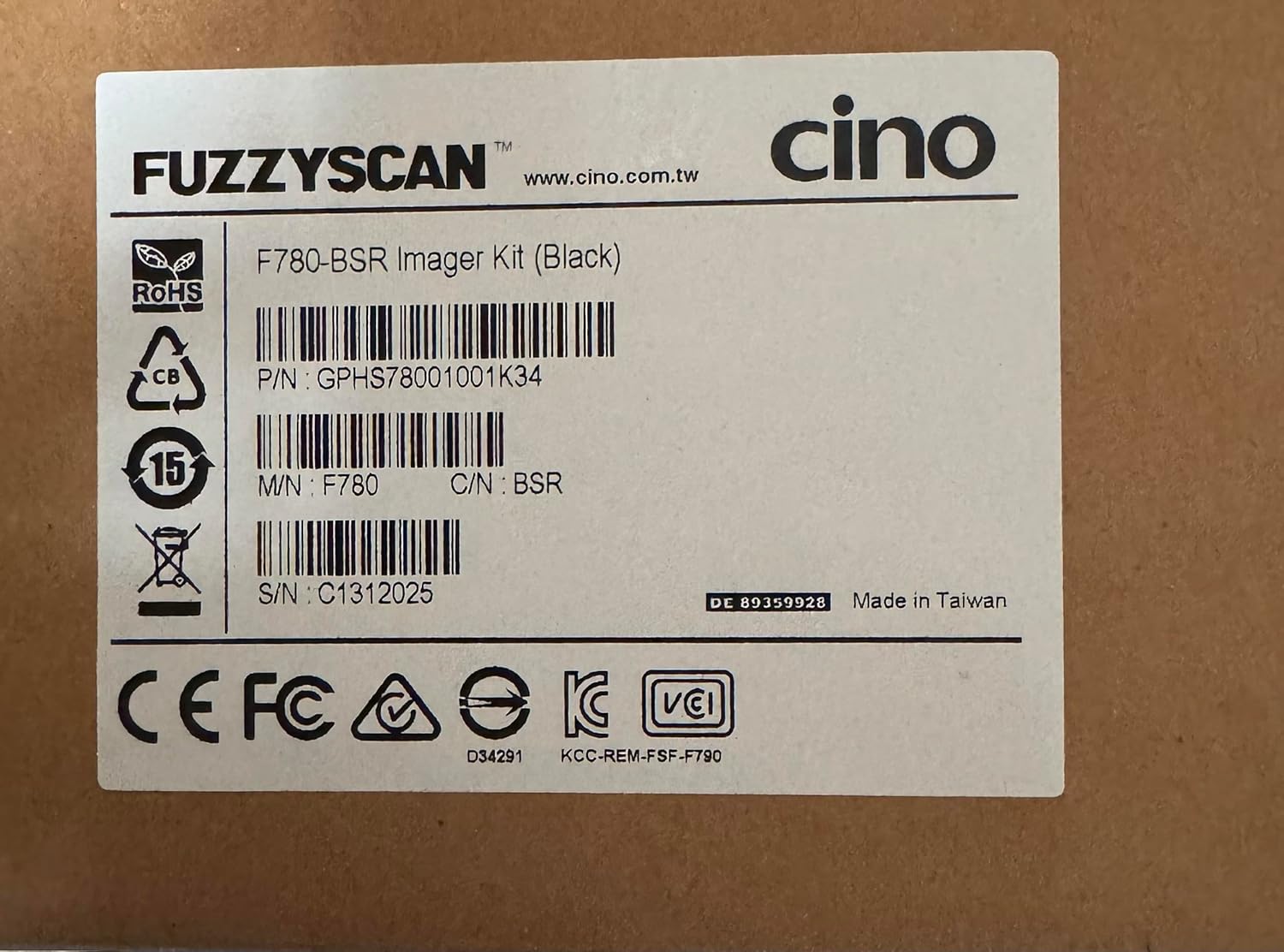
Image: Product label showing model F780-BSR, part number GPHS78001001K34, and serial number C1312025. This label is typically found on the product packaging.
4. Setup
4.1 Connecting the Scanner
- Locate the USB port on your computer (Laptop, Desktop, Tablet, or compatible Smartphone with USB OTG).
- Connect the smaller end of the USB cable to the port at the base of the CINO F780 scanner.
- Connect the larger USB-A end of the cable to an available USB port on your computer.
- The operating system should automatically detect and install the necessary drivers. The scanner is typically recognized as a USB HID (Human Interface Device) keyboard, requiring no special driver installation.

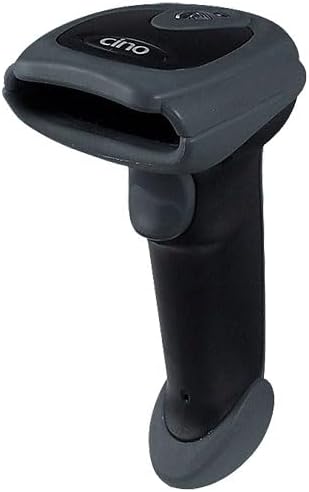

Images: Various views of the CINO F780 Barcode Scanner, showing its ergonomic design and scanning window.
4.2 Initial Test
After connecting, open a text editor (e.g., Notepad, Word) or any application that accepts keyboard input. Scan any standard barcode. The data should appear in the text editor, followed by a carriage return (Enter key press).
5. Operating the Scanner
5.1 Basic Scanning
- Hold the scanner comfortably in your hand.
- Point the scanning window towards the barcode you wish to read.
- Press and hold the trigger button. A red aiming line or illumination will appear.
- Align the aiming line across the entire barcode.
- Once the barcode is successfully read, the scanner will emit a short beep and the LED indicator will flash green. The decoded data will be transmitted to your connected device.
The CINO F780 Fuzzy scanner is designed to read a wide range of 1D barcodes, including those that are poorly printed, damaged, or have low contrast, thanks to its advanced FuzzyScan technology.
5.2 LED Indicators and Beeper
- Green LED Flash & Short Beep: Successful barcode read.
- Red LED (constant when trigger pressed): Aiming light.
- No LED/No Beep: Scanner not powered or not connected.
6. Maintenance
Proper maintenance ensures the longevity and optimal performance of your scanner.
- Cleaning: Use a soft, clean, lint-free cloth slightly dampened with water or a mild glass cleaner to wipe the scanning window and the exterior of the scanner. Do not use abrasive cleaners, solvents, or excessive liquid.
- Storage: Store the scanner in a cool, dry place away from direct sunlight and extreme temperatures when not in use.
- Cable Care: Avoid bending or twisting the USB cable excessively, as this can damage the internal wires.
7. Troubleshooting
| Problem | Possible Cause | Solution |
|---|---|---|
| Scanner does not power on / No light when trigger pressed. | USB cable not properly connected or faulty. Insufficient power from USB port. | Ensure USB cable is securely connected to both the scanner and the computer. Try a different USB port or a different computer. |
| Scanner does not read barcodes. | Barcode damaged or unreadable. Incorrect scanning angle/distance. Scanner not configured for barcode type. | Try scanning a known good barcode. Adjust scanning angle and distance. Refer to the full programming manual (if available) for enabling specific barcode symbologies. |
| Barcode data appears incorrectly. | Keyboard layout mismatch. Incorrect data formatting settings. | Ensure your computer's keyboard layout matches the scanner's output (e.g., German vs. US layout). Check scanner programming for data formatting options (e.g., prefix/suffix). |
| Scanner beeps but no data appears. | Application not in focus. Output mode incorrect. | Click into the text field or application where you expect the data to appear. Verify the scanner is in HID-Keyboard mode (default for most USB scanners). |
8. Specifications
| Feature | Description |
|---|---|
| Model | CINO F780 Fuzzy Barcode Scanner |
| Connectivity Technology | USB (Wired) |
| Power Source | Cable-powered via USB |
| Compatible Devices | Laptop, Desktop, Tablet, Smartphone (with appropriate USB host support) |
| Scanning Capability | 1D Barcodes (optimized for poorly printed, damaged, or low-contrast codes with FuzzyScan technology) |
| Part Number (Example) | GPHS78001001K34 |
| Serial Number (Example) | C1312025 |
| Model Number (from label) | F780-BSR |
| ASIN | B00BHE9TVE |
9. Warranty and Support
For warranty information, technical support, or service inquiries, please contact your local distributor or the manufacturer directly. Retain your proof of purchase for warranty claims.
Manufacturer Website: www.cino.com.tw