
1. Introduction
The ViewHD VHD-U2HV is a versatile USB 3.0 to HDMI and VGA video adapter designed to extend or mirror your computer's display to external monitors or projectors. It supports simultaneous HDMI and VGA output, providing a flexible solution for various display needs. This manual provides detailed instructions for setup, operation, and troubleshooting to ensure optimal performance of your device.
2. Features
- USB 3.0 to HDMI & VGA Converter; Backward Compatible to USB 2.0
- Support Simultaneous HDMI and VGA output
- Support Integrated HDMI Video + Audio Output
- Support HDMI Up To Full HD 1080P, Same Format as Input
- Support VGA, SVGA, XGA, SXGA, and UXGA Resolutions
- Durable Metal Enclosure
3. Package Contents
Please verify that all items are included in your package:
- ViewHD VHD-U2HV USB 3.0 to HDMI + VGA Video Adapter
- Software Disc (for driver installation)
- Custom 3-Head USB 3.0 Cable
- User Manual (this document)

Image 1: ViewHD VHD-U2HV adapter, custom USB 3.0 cable, and software disc.
4. Setup Instructions
4.1. Software Installation
- Insert the provided software disc into your computer's optical drive.
- Follow the on-screen instructions to install the necessary drivers for the VHD-U2HV adapter. If your computer does not have an optical drive, drivers can typically be downloaded from the official ViewHD support website.
- Restart your computer after the driver installation is complete, if prompted.
4.2. Hardware Connection
- Connect one end of the custom USB 3.0 cable to the USB input port on the VHD-U2HV adapter.
- Connect the other end of the USB 3.0 cable to an available USB 3.0 port on your computer. Ensure it is a USB 3.0 port for optimal performance (usually blue colored).
- Connect an HDMI cable from your display (monitor, TV, projector) to the HDMI output port on the VHD-U2HV adapter.
- Optionally, connect a VGA cable from your display to the VGA output port on the VHD-U2HV adapter for simultaneous VGA output.
- Power on your computer and connected display(s).

Image 2: Close-up of the USB 3.0 input port on the VHD-U2HV adapter.

Image 3: The custom USB 3.0 cable included with the adapter.
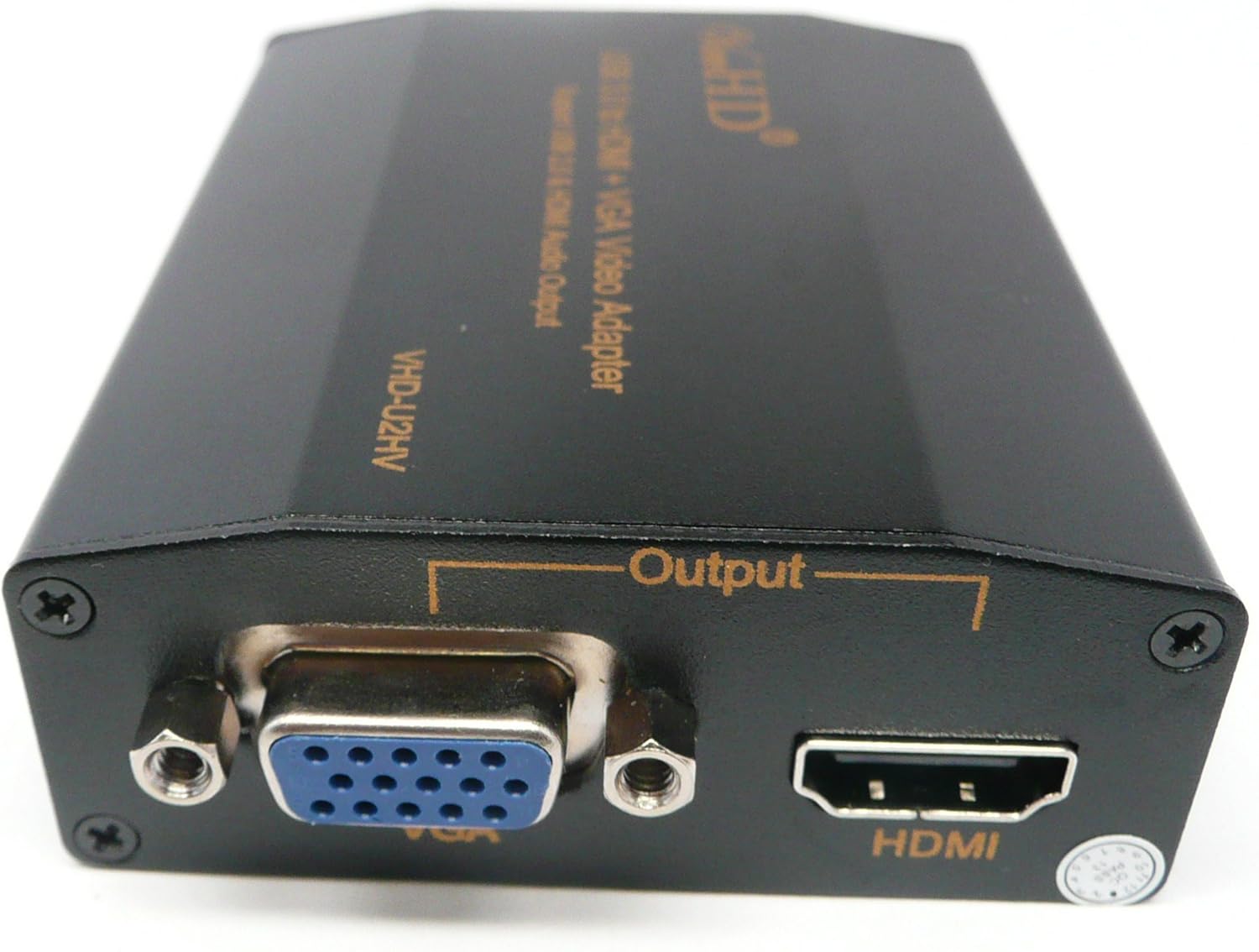
Image 4: Close-up of the HDMI and VGA output ports on the VHD-U2HV adapter.
5. Operating Instructions
Once the drivers are installed and the hardware is connected, your computer should detect the external display(s) automatically. You can configure the display settings through your operating system:
- Windows: Right-click on your desktop, select 'Display settings' or 'Screen resolution'. Here you can choose to 'Extend these displays' (to have a larger desktop area) or 'Duplicate these displays' (to mirror your primary screen).
- macOS: Go to 'System Preferences' > 'Displays'. You can arrange displays, set resolutions, and choose between mirroring or extending your desktop.
- The adapter supports simultaneous output to both HDMI and VGA. The resolution and refresh rate will be determined by your computer's graphics card and the capabilities of the connected displays.
- For audio output via HDMI, ensure your computer's sound settings are configured to output audio through the HDMI device.
6. Troubleshooting
- No Display/Black Screen:
- Ensure the USB 3.0 cable is securely connected to both the adapter and your computer.
- Verify that the HDMI/VGA cables are properly connected to the adapter and the display.
- Check if the display is set to the correct input source (e.g., HDMI 1, VGA).
- Confirm that the drivers are correctly installed. Reinstall if necessary.
- Try connecting the adapter to a different USB 3.0 port on your computer.
- Poor Picture Quality/Incorrect Resolution:
- Adjust the display resolution in your computer's display settings.
- Ensure your graphics card drivers are up to date.
- Check the quality of your HDMI/VGA cables.
- No Audio via HDMI:
- Go to your computer's sound settings and select the HDMI output device as the default playback device.
- Ensure the volume on your display and computer is not muted.
- Adapter Gets Warm: It is normal for the adapter to become slightly warm during operation. If it becomes excessively hot, ensure it has adequate ventilation and is not covered.
7. Specifications
| Model Number | VHD-U2HV |
| Input | USB 3.0 (Backward compatible with USB 2.0) |
| Output | HDMI, VGA |
| HDMI Resolution Support | Up to Full HD 1080P |
| VGA Resolution Support | VGA, SVGA, XGA, SXGA, UXGA |
| Audio Output | Integrated with HDMI |
| Enclosure Material | Metal |
8. Maintenance
To ensure the longevity and proper functioning of your ViewHD VHD-U2HV adapter, please follow these maintenance guidelines:
- Keep the device in a cool, dry place, away from direct sunlight and extreme temperatures.
- Avoid exposing the adapter to water or excessive moisture.
- Clean the exterior of the device with a soft, dry cloth. Do not use harsh chemicals or abrasive cleaners.
- Do not attempt to open or modify the adapter, as this will void the warranty and may cause damage.
- Ensure proper ventilation around the device during operation to prevent overheating.
9. Warranty and Support
The ViewHD VHD-U2HV USB 3.0 to HDMI + VGA Video Adapter comes with a ViewHD One Year Warranty from the date of purchase. This warranty covers defects in materials and workmanship under normal use. It does not cover damage caused by misuse, accident, unauthorized modification, or external causes.
For technical support or warranty claims, please contact ViewHD customer service through their official website or the contact information provided with your purchase documentation. Please have your model number (VHD-U2HV) and proof of purchase ready when contacting support.