
Introduction
The Ion KARAOKE2GO Karaoke 2 Go is a portable karaoke system designed for use with your smart devices. This manual provides instructions for setting up, operating, and maintaining your device to ensure optimal performance.
Package Contents
Verify that all items listed below are included in your package:
- Karaoke 2 Go Speaker Unit
- Microphone
- USB Charging Cable (Note: Wall adapter not included)
- 3.5mm Audio Cable
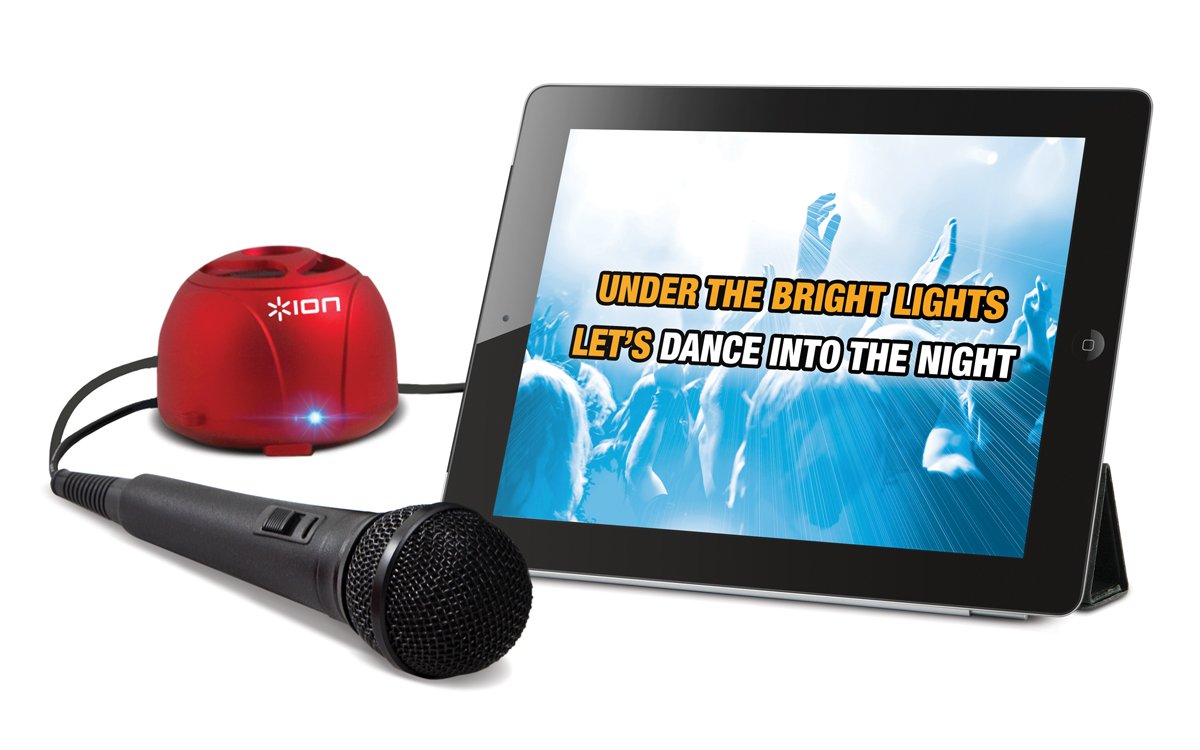
Image: The Ion KARAOKE2GO Karaoke 2 Go system, showing the compact speaker unit and the included microphone.
Product Features
- Compact and portable design.
- Integrated speaker for audio output.
- Wired microphone for vocal input.
- Compatible with iPad, iPhone, iPod touch, and Android devices.
- Rechargeable internal battery.
Setup
1. Charging the Unit
Before first use, fully charge the Karaoke 2 Go unit. Connect the included USB charging cable to the unit's charging port and the other end to a standard USB power source (e.g., computer USB port, USB wall adapter - not included). The charging indicator light will illuminate during charging and turn off or change color when fully charged.
2. Connecting Your Device
The Karaoke 2 Go connects to your smart device via the 3.5mm audio cable.
- Ensure your smart device (iPad, iPhone, iPod touch, or Android device) is powered on.
- Connect one end of the 3.5mm audio cable to the audio output (headphone jack) of your smart device.
- Connect the other end of the 3.5mm audio cable to the AUX input port on the Karaoke 2 Go speaker unit.
3. Connecting the Microphone
Plug the microphone cable into the microphone input port on the Karaoke 2 Go speaker unit.
Operating Instructions
1. Powering On/Off
Locate the Power button on the Karaoke 2 Go unit. Press and hold the button for a few seconds to power the unit on or off. An indicator light will confirm the power status.
2. Adjusting Volume
The Karaoke 2 Go unit features a volume control knob or buttons. Adjust this control to set the desired output volume for the music and microphone. Additionally, ensure the volume on your connected smart device is also set to an appropriate level.
3. Using the Microphone
Once connected and the unit is powered on, speak or sing into the microphone. The sound will be amplified through the speaker. Adjust the microphone volume if available, or rely on the main volume control.
4. Using the Karaoke Cloud App (or other karaoke apps)
For the full karaoke experience, download and install a compatible karaoke application on your smart device, such as the Karaoke Cloud app. Follow the app's instructions for selecting songs and managing your karaoke session. The Karaoke 2 Go unit will output the audio from your device, including music and your vocals.
Maintenance
- Cleaning: Use a soft, dry cloth to clean the exterior of the unit. Do not use abrasive cleaners or solvents.
- Storage: Store the unit in a cool, dry place away from direct sunlight and extreme temperatures.
- Battery Care: To prolong battery life, avoid fully discharging the unit frequently. Recharge the unit periodically if it will not be used for an extended period.
Troubleshooting
| Problem | Possible Solution |
|---|---|
| No sound from speaker. |
|
| Microphone not working. |
|
| Unit not charging. |
|
| Poor audio quality. |
|
Specifications
| Feature | Detail |
|---|---|
| Model Number | ISP11 |
| Dimensions (L x W x H) | 9.5 x 7 x 7.5 inches |
| Item Weight | 14.4 ounces |
| Power Source | Battery Powered (Rechargeable) |
| Speaker Count | 1 |
| Compatible Devices | Smartphones (iOS/Android), Tablets, Radio |
| Included Components | Microphone, Speaker Unit |
Warranty and Support
For warranty information and technical support, please refer to the documentation provided with your purchase or visit the official Ion Audio website. Keep your purchase receipt as proof of purchase for warranty claims.
For further assistance, you may contact Ion Audio customer support directly.