
Zenith ZB410MB
Zenith ZB410MB Microban 4-Device Universal Remote Control Instruction Manual
1. Introduction
This manual provides comprehensive instructions for the setup, operation, and maintenance of your Zenith ZB410MB Microban 4-Device Universal Remote Control. This remote is designed to control up to four different audio/video components, including TVs, VCRs/DVDs, Satellite receivers, and Cable boxes. It features Microban antimicrobial technology and oversized, rubberized buttons for enhanced usability.
2. Product Features
- Controls up to 4 devices: TV, VCR/DVD, Satellite, and Cable.
- Integrated Microban antimicrobial technology for product protection.
- Oversized, rubberized 12mm buttons for improved tactile feedback and ease of use.
- HD Dot button for off-air digital use and select cable systems.
- Extensive code library for compatibility with over 400 TV manufacturers and major brands.
3. Remote Control Layout
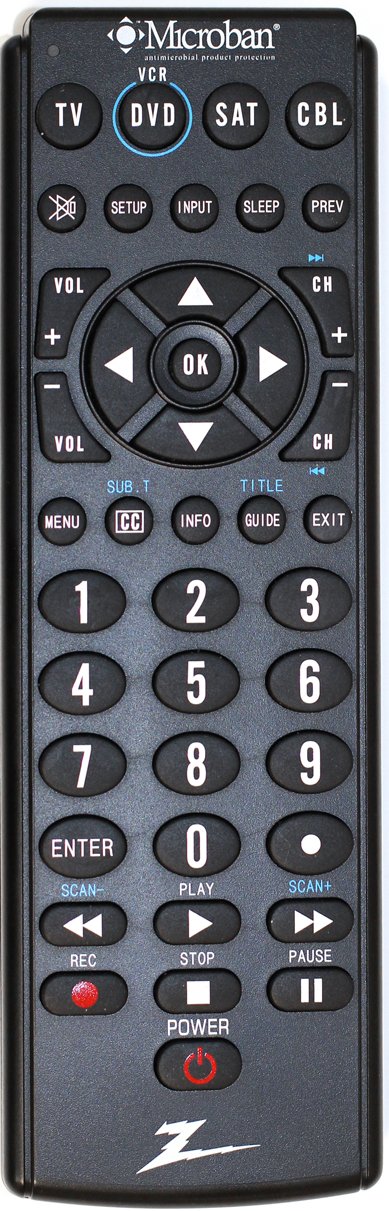
The image above displays the Zenith ZB410MB Microban 4-Device Universal Remote Control. It features a black casing with clearly labeled, large, rubberized buttons. The top section includes device selection buttons (TV, DVD, SAT, CBL) and function keys like SETUP, INPUT, SLEEP, and PREV. The central area contains navigation and OK buttons, flanked by Volume and Channel controls. Below this are numerical keys (0-9), MENU, CC, INFO, GUIDE, and EXIT buttons. The bottom section includes playback controls (SCAN-, PLAY, SCAN+, REC, STOP, PAUSE) and a POWER button.
Key Button Functions:
- Device Select Buttons (TV, DVD, SAT, CBL): Press to select the device you wish to control.
- POWER: Turns the selected device on or off.
- SETUP: Used for programming the remote.
- INPUT: Selects video input sources on your TV.
- VOL (+/-): Adjusts the volume.
- CH (+/-): Changes channels.
- OK / Navigation Arrows: Confirms selections and navigates menus.
- MENU: Accesses the menu of the selected device.
- CC (Closed Caption): Toggles closed captions.
- INFO: Displays program information.
- GUIDE: Opens the electronic program guide.
- EXIT: Exits menus or guides.
- Number Pad (0-9, ENTER): For direct channel entry and other numerical inputs.
- Playback Controls (REC, STOP, PLAY, PAUSE, SCAN-, SCAN+): Controls functions for VCRs/DVDs.
4. Setup
4.1. Battery Installation
Your remote control requires two AAA batteries (not included).
- Remove the battery compartment cover on the back of the remote by sliding it downwards.
- Insert two AAA batteries, matching the (+) and (-) terminals as indicated inside the compartment.
- Replace the battery compartment cover by sliding it back into place until it clicks.
4.2. Programming Your Remote
To control your devices, the remote must be programmed with the correct codes. Refer to the code list provided with your remote or available online for specific brand codes. If a code is not found, use the Code Search Method.
4.2.1. Code Entry Method
- Turn on the device you wish to program (e.g., TV, DVD player).
- Press and hold the SETUP button until the red indicator light illuminates.
- Press and release the device button you want to program (e.g., TV, DVD). The red indicator light will blink once and then remain lit.
- Enter the 3-digit code for your device's brand using the number pad.
- If the code is valid, the red indicator light will turn off. If the light blinks and stays on, the code is invalid; re-enter the code or try another code for your brand.
- Point the remote at the device and press the POWER button. If the device turns off, the programming was successful. If not, repeat the steps with the next code listed for your brand.
4.2.2. Code Search Method
Use this method if you cannot find a code for your device or if the entered codes do not work.
- Turn on the device you wish to program.
- Press and hold the SETUP button until the red indicator light illuminates.
- Press and release the device button you want to program (e.g., TV, DVD). The red indicator light will blink once and then remain lit.
- Press the POWER button repeatedly (approximately every 2 seconds) until your device turns off. This may take several presses as the remote cycles through codes.
- Once the device turns off, immediately press the ENTER button to save the code. The red indicator light will turn off.
- Test the remote's functions (e.g., volume, channel). If all functions work, programming is complete. If not, repeat the process, as you may have passed the correct code.
5. Operating Instructions
5.1. Device Selection
Before operating any device, you must select the correct device mode on the remote. Press the corresponding device button (TV, DVD, SAT, or CBL) once. The red indicator light will flash once to confirm the selection.
5.2. Basic Functions
- Power On/Off: Press the POWER button to turn the selected device on or off.
- Volume Control: Use the VOL + and VOL - buttons to increase or decrease the volume.
- Channel Change: Use the CH + and CH - buttons to change channels sequentially. For direct channel entry, use the number pad.
5.3. Special Functions
- Menu Navigation: Press MENU to access the device's on-screen menu. Use the navigation arrows and OK button to move through and select options.
- Guide: Press GUIDE to display the electronic program guide (if supported by your device).
- Information: Press INFO to view details about the current program or selected item.
- Closed Captioning: Press CC to activate or deactivate closed captions.
- Playback Controls: When in DVD/VCR mode, use PLAY, PAUSE, STOP, REC, SCAN- (rewind), and SCAN+ (fast forward) for media playback.
6. Maintenance
- Cleaning: Wipe the remote control with a soft, dry cloth. Do not use abrasive cleaners or solvents. The Microban technology is integrated into the product and does not require special cleaning for its antimicrobial properties.
- Battery Replacement: Replace batteries when the remote's range decreases or the indicator light fails to illuminate consistently. Always replace both batteries simultaneously with new AAA batteries.
- Storage: Store the remote in a dry place away from extreme temperatures.
7. Troubleshooting
| Problem | Possible Cause | Solution |
|---|---|---|
| Remote does not operate device. | Incorrect device mode selected. Batteries are low or dead. Remote not programmed correctly. Obstruction between remote and device. | Press the correct device button (TV, DVD, SAT, CBL). Replace batteries. Reprogram the remote using Code Entry or Code Search. Ensure a clear line of sight. |
| Some buttons do not work. | Remote not fully compatible with all device functions. Incorrect code programmed. | Try other codes for your device brand. Some advanced functions may not be supported by universal remotes. |
| Red indicator light does not illuminate. | Batteries are low or dead. | Replace batteries. |
| Device turns off during Code Search before I can press ENTER. | You pressed the POWER button too slowly. | Repeat the Code Search method, pressing the POWER button more quickly once the device turns off. |
8. Specifications
- Model: ZB410MB
- Brand: Zenith
- Supported Devices: 4 (TV, VCR/DVD, Satellite, Cable)
- Dimensions: 1.38 x 4.33 x 10.91 inches
- Item Weight: 5.9 ounces
- Batteries: 2 x AAA (not included)
- Special Feature: Microban Antimicrobial Technology
- Color: Black
9. Warranty and Support
For warranty information or technical support, please refer to the documentation included with your purchase or contact Zenith customer service. Specific warranty terms may vary by region and retailer.
Related documentsZB410MB


Ask a question about this manual
Ask about setup, troubleshooting, compatibility, parts, safety, or missing instructions. Manuals+ will review the question and use this page’s manual context to help answer it.