
1. Product Overview
The Sitecom WLA-5100 N600 Wi-Fi Dual Band USB Adapter provides wireless connectivity for your computer. It supports Wi-Fi 4 (802.11n) standards and operates on dual bands (2.4 GHz and 5 GHz) for optimal performance. This adapter connects via a USB interface, offering a convenient solution for adding or upgrading Wi-Fi capabilities to desktop or laptop computers.

Image 1: The Sitecom WLA-5100 N600 Wi-Fi Dual Band USB Adapter. This image shows the compact black USB adapter with the Sitecom logo, featuring a removable cap for the USB connector.
2. Package Contents
- 1 x Sitecom WLA-5100 N600 Wi-Fi Dual Band USB Adapter
- 1 x Quick Installation Guide (may vary by region)
- 1 x Driver CD (drivers may also be available for download online)
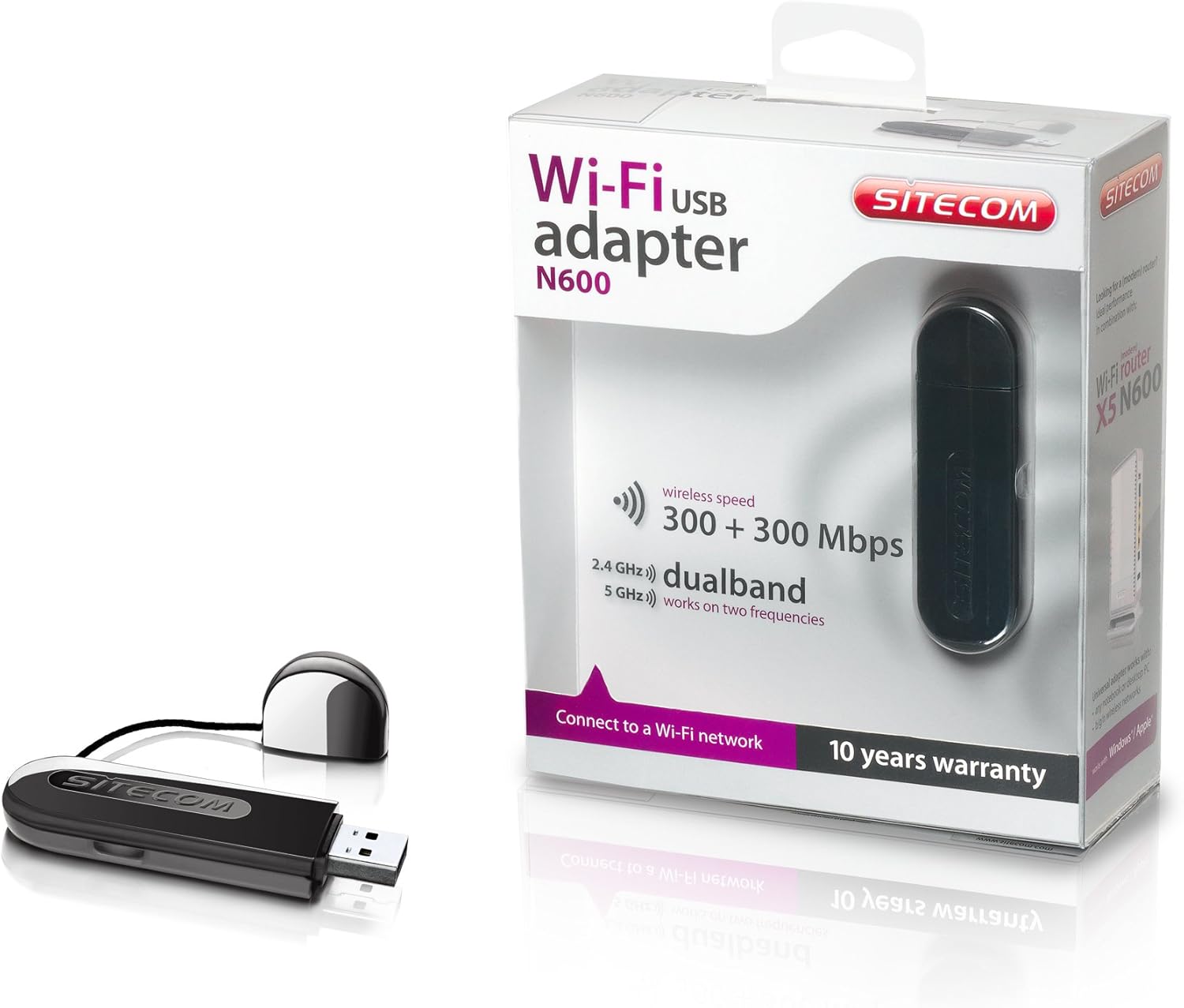
Image 2: The Sitecom WLA-5100 N600 Wi-Fi Dual Band USB Adapter shown alongside its retail packaging. The packaging highlights features such as wireless speed (300 + 300 Mbps) and dual-band functionality (2.4 GHz and 5 GHz).
3. System Requirements
- Available USB port (USB 2.0 or higher recommended)
- Operating System: Compatible with Windows and Mac OS X (e.g., Mac OS X 10.8 Mountain Lion and later versions).
- Internet connection for driver download (if not using the included CD).
4. Setup
4.1 Driver Installation
- Before inserting the adapter, it is recommended to install the necessary drivers.
- Insert the included Driver CD into your computer's optical drive, or download the latest drivers from the official Sitecom support website.
- Follow the on-screen instructions to complete the driver installation process.
4.2 Hardware Installation
- Carefully insert the Sitecom WLA-5100 USB adapter into an available USB port on your desktop or laptop computer.
- Ensure the adapter is fully seated in the USB port. The operating system should detect the new hardware.
4.3 Connecting to a Wi-Fi Network
- Once the drivers are installed and the adapter is connected, your computer should detect available wireless networks.
- Access your operating system's network settings (e.g., Wi-Fi icon in the system tray for Windows, Wi-Fi menu bar item for macOS).
- Select your desired Wi-Fi network (SSID) from the list of available networks.
- Enter the network security key (password) if prompted, then click 'Connect'.
- Your computer should now be connected to the Wi-Fi network.
5. Operating
The WLA-5100 adapter supports dual-band operation, allowing connection to both 2.4 GHz and 5 GHz Wi-Fi networks. The 2.4 GHz band offers wider coverage and better penetration through obstacles, while the 5 GHz band provides faster speeds and less interference, making it ideal for activities like online gaming and high-definition video streaming.
Your computer's operating system will automatically detect and display available networks on both bands. You can choose which band to connect to based on your proximity to the router and your performance needs. For optimal performance, connect to a 5 GHz network if available and you are in close range to your router.
6. Maintenance
- Keep the adapter clean and free from dust. Use a soft, dry cloth for cleaning.
- Avoid exposing the adapter to extreme temperatures, direct sunlight, or moisture.
- Do not attempt to disassemble or modify the device, as this will void the warranty and may cause damage.
- When not in use, store the adapter in a safe place to prevent physical damage.
7. Troubleshooting
7.1 No Wi-Fi Connection
- Check Adapter Connection: Ensure the adapter is securely plugged into a functional USB port. Try a different USB port.
- Verify Driver Installation: Confirm that the drivers are correctly installed. Check your computer's Device Manager (Windows) or System Information (macOS) to see if the adapter is listed without errors. Reinstall drivers if necessary.
- Router Status: Ensure your Wi-Fi router is powered on and broadcasting a signal.
- Network Range: Make sure your computer is within range of your Wi-Fi network.
- Restart Computer: Sometimes a simple restart can resolve connectivity issues.
7.2 Slow Connection Speed
- Band Selection: If available, connect to the 5 GHz network for faster speeds, especially if you are close to the router.
- Interference: Move the adapter or computer away from potential sources of interference (e.g., microwaves, cordless phones, Bluetooth devices).
- Driver Update: Ensure you have the latest drivers installed for the adapter.
- Router Performance: Check your router's settings and ensure it is operating optimally.
7.3 Adapter Not Recognized
- USB Port: Try plugging the adapter into a different USB port on your computer.
- Reinstall Drivers: Uninstall existing drivers and perform a clean reinstallation.
- Operating System Updates: Ensure your operating system is up to date.
8. Specifications
| Feature | Detail |
|---|---|
| Brand | Sitecom |
| Model | WLA-5100 |
| Connectivity Technology | Wireless |
| Host Interface | USB |
| Wireless Standard | IEEE 802.11a, 802.11b, 802.11g, 802.11n (Wi-Fi 4) |
| Wireless Speed | Up to 300 Mbps (2.4 GHz) + 300 Mbps (5 GHz) |
| Frequency Band | Dual Band (2.4 GHz and 5 GHz) |
| Color | Black |
| Dimensions (L x W x H) | 7.5 x 2.5 x 1 cm (approximately) |
| Weight | 10 g |
| Power Source | USB Powered |
| Compatible Devices | Desktop computer, Laptop computer |
| Global Trade Item Number (GTIN) | 08716502026821 |
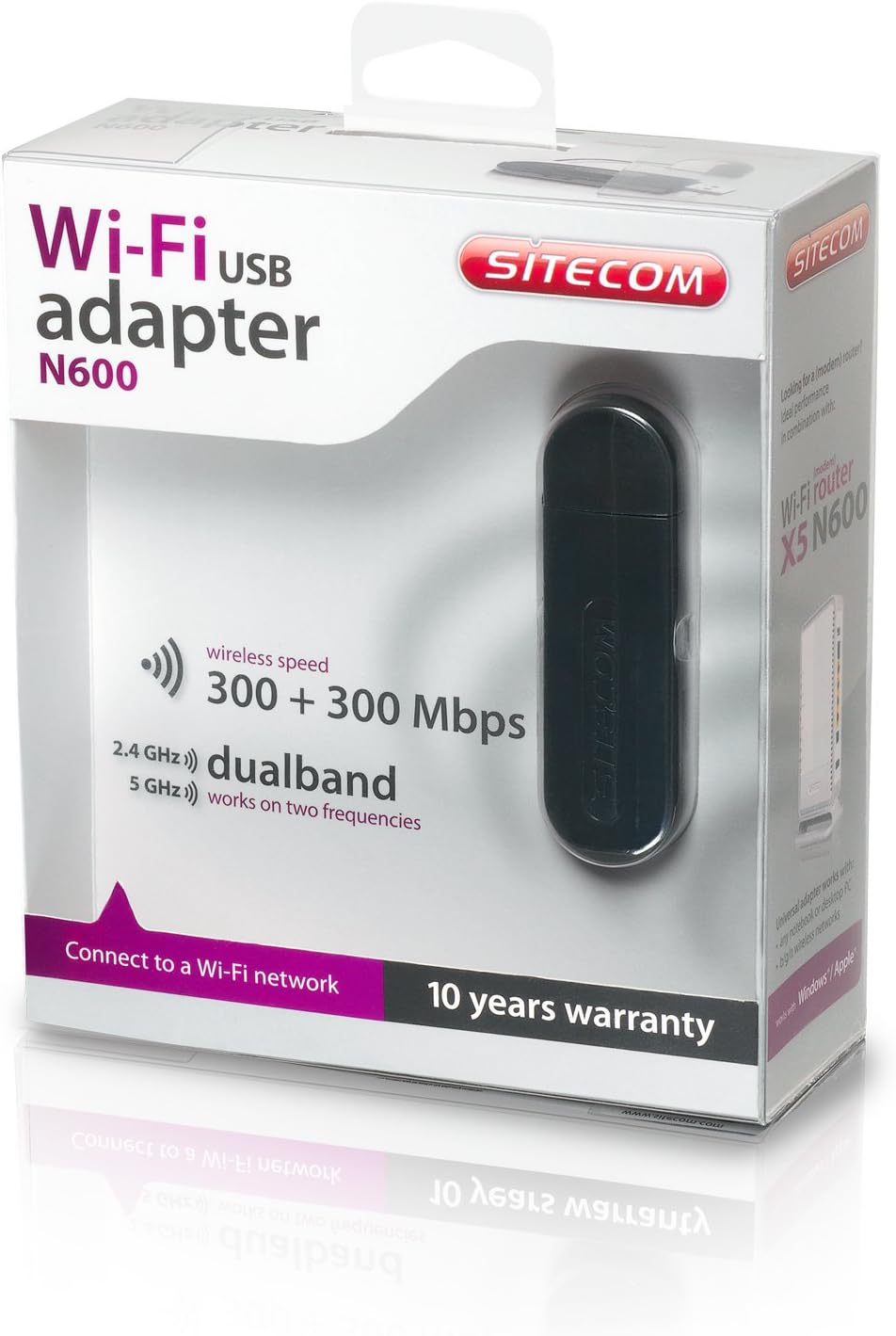
Image 3: The retail packaging for the Sitecom WLA-5100 N600 Wi-Fi Dual Band USB Adapter. The box prominently displays the product name, N600 rating, wireless speed, and dual-band capabilities.
9. Warranty and Support
The Sitecom WLA-5100 N600 Wi-Fi Dual Band USB Adapter typically comes with a 10-year warranty, as indicated on the product packaging. Please retain your proof of purchase for warranty claims.
For technical support, driver downloads, frequently asked questions, or further assistance, please visit the official Sitecom website or contact their customer support. Refer to the packaging or the Sitecom website for the most current support contact information.


