
1. Introduction
This manual provides detailed instructions for the installation, configuration, operation, and troubleshooting of your Renkforce RF-4392996 WS-WN530HP3-A Dual-Band Wi-Fi Router. Please read this manual thoroughly before using the device to ensure proper operation and to prevent damage.
1.1 Package Contents
- 1x Renkforce RF-4392996 WS-WN530HP3-A Wi-Fi Router
- 1x Power Adapter (if included, otherwise PoE is expected)
- 1x Ethernet Cable
- Mounting Kit (for ceiling/wall installation)
- User Manual (this document)
2. Safety Instructions
Observe the following safety guidelines to prevent injury or damage to the device:
- Do not expose the device to water, moisture, or extreme temperatures.
- Use only the provided power adapter or a compatible Power over Ethernet (PoE) source.
- Do not open the device casing. Refer all servicing to qualified personnel.
- Keep the device away from heat sources and direct sunlight.
- Ensure proper ventilation around the device.
3. Product Overview
The Renkforce RF-4392996 WS-WN530HP3-A is a dual-band Wi-Fi router designed for flexible deployment, offering high-speed wireless connectivity.
3.1 Device Layout

Figure 1: Top view of the Renkforce RF-4392996 Wi-Fi Router, showing the Renkforce logo and a Wi-Fi signal icon.

Figure 2: Another top view of the Renkforce RF-4392996 Wi-Fi Router, highlighting its circular design and Renkforce branding.
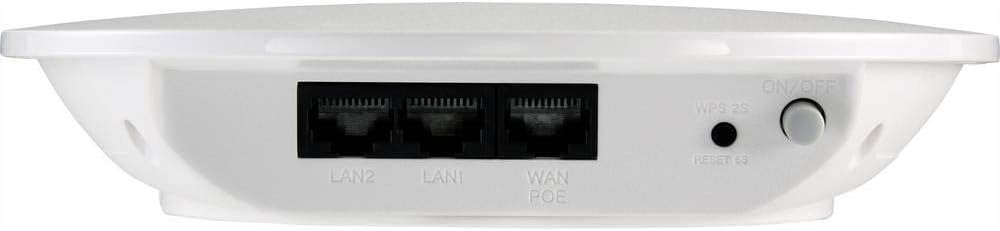
Figure 3: Rear view of the Renkforce RF-4392996 Wi-Fi Router, displaying LAN2, LAN1, WAN/PoE ports, a WPS button, a Reset button, and an ON/OFF switch.
3.2 Ports and Buttons
- WAN/PoE Port: Connects to your modem or network for internet access and receives power via Power over Ethernet.
- LAN1/LAN2 Ports: Connects to wired devices such as computers or network switches.
- WPS Button: For quick and secure connection to WPS-enabled devices. Press for 2 seconds.
- Reset Button: Restores the device to factory default settings. Press and hold for 5 seconds.
- ON/OFF Switch: Powers the device on or off.
4. Setup
Follow these steps to set up your Renkforce Wi-Fi Router.
4.1 Mounting Options
The router can be used as a desktop device or mounted on a ceiling/wall.

Figure 4: Bottom view of the Renkforce RF-4392996 Wi-Fi Router, illustrating the mounting slots for ceiling or wall installation.

Figure 5: The Renkforce RF-4392996 Wi-Fi Router discreetly mounted on a ceiling in a commercial environment, demonstrating its flexible installation.
- Desktop Placement: Simply place the router on a flat, stable surface.
- Ceiling/Wall Mounting:
- Use the provided mounting kit to secure the bracket to your desired location.
- Attach the router to the bracket by aligning the mounting slots and twisting until it locks into place.
4.2 Powering On the Device
The router supports Power over Ethernet (PoE) or a standard power adapter.
- Using PoE: Connect an Ethernet cable from a PoE-enabled switch or injector to the WAN/PoE port on the router.
- Using Power Adapter: Connect the power adapter to the router's power input and then plug it into a power outlet.
- Flip the ON/OFF switch to the 'ON' position. The indicator lights will illuminate.
4.3 Network Connection
- Connect your modem or main network cable to the WAN/PoE port.
- (Optional) Connect wired devices (e.g., PC, game console) to the LAN1 or LAN2 ports using Ethernet cables.
5. Operating
This section covers basic operation and configuration of your Wi-Fi router.
5.1 Initial Configuration
- Connect a computer to one of the router's LAN ports or connect wirelessly to the default Wi-Fi network (SSID and password usually found on a label on the device).
- Open a web browser and enter the default IP address (e.g.,
192.168.1.1or192.168.0.1). Refer to the device label or quick start guide for the exact IP. - Enter the default username and password (e.g.,
admin/admin). - Follow the on-screen setup wizard to configure your internet connection, Wi-Fi network names (SSID), and passwords for both 2.4 GHz and 5 GHz bands.
- It is highly recommended to change the default administrator password for security reasons.
5.2 Wi-Fi Network Management
Access the router's web interface to manage your wireless networks:
- SSID Broadcast: Enable or disable the visibility of your Wi-Fi network name.
- Security Settings: Configure WPA2-PSK or WPA3 encryption for secure connections.
- Guest Network: Create separate networks for guests to isolate them from your main network.
- Smart Wi-Fi Tools: Utilize built-in tools to optimize network performance for browsing and media streaming.
5.3 Power over Ethernet (PoE)
The WAN/PoE port supports passive PoE, allowing the device to receive power and data through a single Ethernet cable. Ensure your PoE source is compatible with passive PoE standards.
6. Maintenance
Regular maintenance helps ensure optimal performance and longevity of your device.
6.1 Firmware Updates
Periodically check the Renkforce support website for firmware updates. Firmware updates can improve performance, add new features, and fix security vulnerabilities.
- Download the latest firmware file from the official Renkforce website.
- Access the router's web interface.
- Navigate to the "System Tools" or "Firmware Upgrade" section.
- Upload the downloaded firmware file and follow the on-screen instructions. Do not power off the device during the update process.
6.2 Cleaning
Clean the device regularly to prevent dust buildup.
- Disconnect the power before cleaning.
- Use a soft, dry cloth to wipe the exterior of the device.
- Do not use liquid cleaners or abrasive materials.
7. Troubleshooting
This section addresses common issues you might encounter.
7.1 No Internet Connection
- Check if the modem is working correctly.
- Ensure the Ethernet cable from the modem is securely connected to the router's WAN/PoE port.
- Verify your internet settings in the router's web interface.
- Restart both the modem and the router.
7.2 Wi-Fi Signal Issues
- Ensure the router is placed in a central location, away from obstructions and interference sources (e.g., microwaves, cordless phones).
- Check if the Wi-Fi is enabled in the router's settings.
- Try changing the Wi-Fi channel in the router's settings to avoid interference from neighboring networks.
7.3 Cannot Access Router's Web Interface
- Ensure your device is connected to the router (wired or wirelessly).
- Verify the IP address entered in the browser is correct.
- Clear your browser's cache or try a different browser.
- If you forgot the password, perform a factory reset by pressing and holding the Reset button for 5 seconds. Note: This will erase all your custom settings.
8. Specifications
| Feature | Detail |
|---|---|
| Model Name | RF-4392996 (WS-WN530HP3-A) |
| Brand | Renkforce |
| Wireless Standard | 2.4 GHz, 5 GHz |
| Max Speed (2.4 GHz) | Up to 300 Mbit/s |
| Max Speed (5 GHz) | Up to 867 Mbit/s |
| Total Max Speed | 1200 MBit/s (AC1200) |
| Connectivity Technology | WLAN |
| Ports | WAN/PoE, LAN1, LAN2 |
| Power Input | Passive PoE or DC Power Adapter |
| Operating System Compatibility | Windows (for configuration access) |
9. Warranty and Support
Renkforce products are designed for reliability and performance. For specific warranty information, please refer to the warranty card included with your product or visit the official Renkforce website.
For technical support, troubleshooting assistance, or to download the latest drivers and firmware, please visit the Renkforce support portal or contact their customer service.
Please retain your proof of purchase for warranty claims.
