
Introduction
This user manual provides comprehensive instructions for the setup, operation, and maintenance of your AT&T CL82201 DECT 6.0 Cordless Phone/Answering System. This expandable system supports up to twelve handsets and features a digital answering system, caller ID, and intercom capabilities for convenient communication.
Setup
1. Package Contents
Ensure all items are present:
- AT&T CL82201 Base Unit with Digital Answering System
- Cordless Handsets (2 included)
- Handset Battery Packs
- Battery Compartment Covers
- AC Power Adapter for Base Unit
- Telephone Line Cord
- Handset Charger with AC Power Adapter (for second handset)
2. Battery Installation
- Open the battery compartment cover on the back of each handset.
- Connect the battery pack plug securely into the jack inside the compartment.
- Place the battery pack into the compartment.
- Replace the battery compartment cover.
- Place the handset in the base unit or charger to charge for at least 16 hours before first use.
3. Base Unit Connection
- Plug the small end of the AC power adapter into the power jack on the back of the base unit.
- Plug the large end of the AC power adapter into a standard electrical outlet.
- Plug one end of the telephone line cord into the TEL LINE jack on the back of the base unit.
- Plug the other end of the telephone line cord into a telephone wall jack.
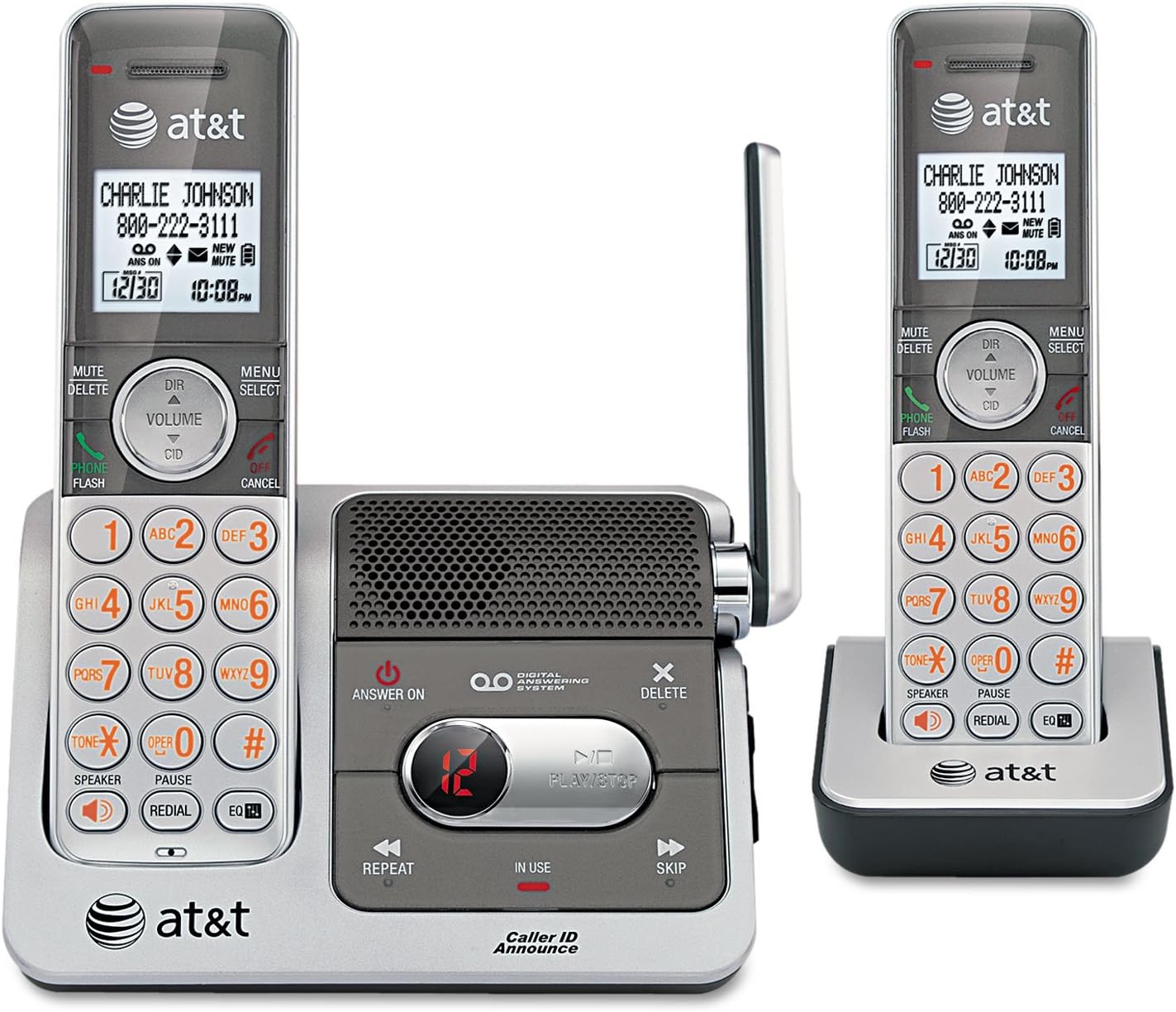
This image displays the AT&T CL82201 cordless phone system. On the left, a handset is docked in the main base unit, which features a digital answering system with controls for playback, repeat, and skip. The base also has an 'Answer On' button and a message counter. On the right, a second handset is shown docked in its charging cradle. Both handsets feature a backlit display showing caller ID information, date, and time, along with a full keypad, navigation buttons, and function keys for mute, delete, volume, speaker, and redial.
Operating Instructions
1. Making and Receiving Calls
- To Make a Call: Press PHONE/FLASH or SPEAKER, then dial the number.
- To Answer a Call: Press PHONE/FLASH or SPEAKER when the phone rings.
- To End a Call: Press OFF/CANCEL or place the handset back in the base/charger.
2. Digital Answering System
- Turn On/Off: Press ANSWER ON button on the base unit.
- Message Playback: Press PLAY/STOP on the base unit.
- Skip Message: Press SKIP during playback.
- Repeat Message: Press REPEAT during playback.
- Delete Message: Press DELETE during playback or when the system is idle.
- Record Greeting: Refer to the handset menu for options to record a custom outgoing message.
3. Caller ID
The handset display shows the caller's name and number (if available) after the first ring. The system also features Caller ID Announce, which audibly announces the caller's name.
- Review Caller ID Log: Press DIR/VOLUME to scroll through the log.
- Call Back: Press PHONE/FLASH to dial a number from the Caller ID log.
4. Intercom (Multi-Handset)
Use the intercom feature to communicate between handsets.
- Press MENU/SELECT on a handset.
- Scroll to "Intercom" and press SELECT.
- Select the desired handset to call.
5. Volume Control
Adjust the earpiece or speaker volume during a call by pressing DIR/VOLUME up or down.
6. Mute Function
During a call, press MUTE/DELETE to mute your microphone. Press it again to unmute.
7. Redial
Press REDIAL to view the last 10 dialed numbers. Press PHONE/FLASH to dial the selected number.
Maintenance
1. Cleaning
Clean the phone and base unit with a soft, slightly damp cloth. Do not use cleaning sprays or harsh chemicals.
2. Battery Care
- Keep the handset charged when not in use to maintain optimal battery performance.
- If the phone will not be used for an extended period, remove the battery pack from the handset.
- Replace the battery pack when the handset indicates low battery or performance degrades significantly.
Troubleshooting
| Problem | Solution |
|---|---|
| No dial tone. |
|
| Handset displays "Low Battery" or does not hold a charge. |
|
| Poor sound quality or static. |
|
| Answering system not recording messages. |
|
Specifications
- Model: CL82201
- Telephone Type: Cordless
- Technology: DECT 6.0
- Handsets Included: 2 (Expandable up to 12)
- Answering System: Digital, Integrated
- Recording Capacity: Approximately 17 minutes
- Caller Identification: Yes (with Caller ID Announce)
- Conference Call Capability: 3-way
- Intercom: Yes (Handset-to-handset)
- Display: White backlit display
- Keypad: Illuminated
- Manufacturer: AT&T
- UPC: 151903430309
Warranty and Support
Warranty Information
This AT&T product is covered by a standard manufacturer's limited warranty. Please refer to the warranty card included in your product packaging for specific terms, conditions, and duration. Keep your purchase receipt as proof of purchase.
Customer Support
For technical assistance, troubleshooting, or warranty service, please visit the official AT&T support website or contact their customer service hotline. Contact information can typically be found on the AT&T website or in the product's original packaging.


