
ORICO CD3510
ORICO Networkable Hard Drive Enclosure CD3510 User Manual
Model: CD3510
1. Introduction
The ORICO Networkable Hard Drive Enclosure CD3510 is designed to provide a personal cloud storage solution for 3.5-inch SATA HDDs. It allows for independent access by multiple accounts, secure storage of various media files, and offers a permanent free private cloud experience. The device supports APP connection for simplified configuration and tool-free installation, making it an efficient solution for managing and sharing digital content within a family or for remote work.
2. Setup
2.1 Hardware Installation
The CD3510 features a tool-free design for easy hard drive installation:
- Insert Hard Drive: Open the magnetic cover of the enclosure. Carefully insert your 3.5-inch SATA HDD into the designated slot, ensuring it is properly seated.
- Close Enclosure: Replace the magnetic cover, ensuring it clicks securely into place.
- Connect Cables: Connect the DC power adapter to the enclosure and plug it into a power outlet. Connect a WLAN cable from your router to the enclosure's LAN port.
- Power On: Press the switch button. A blue LED light will illuminate, indicating the device is powered on.

Figure 2.1: Tool-free installation process for the ORICO CD3510.
2.2 Initial App Connection
To configure and manage your CD3510, use the Weline APP:
- Download Weline APP: Search for "Weline" in the Apple App Store (for iOS) or Google Play Store (for Android), or visit weline.io to download the application.
- Scan to Connect: Open the Weline APP and follow the on-screen instructions to scan the QR code on your CD3510 device to establish a connection.
- Format Hard Disk: Within the Weline APP, navigate to 'Setting' > 'Node Space' and select 'Format hard disk' to prepare your drive for use. Warning: Formatting will erase all data on the selected drive. Ensure you have backed up any important data before proceeding.
3. Operating
3.1 Private Cloud and Data Management
The ORICO CD3510 functions as a permanent free private cloud, allowing you to store and access your data securely without monthly fees. It supports independent access for multiple accounts, enabling separate privacy from shared content.
- Cloud Storage for Family: Safely store photos, videos, music, and documents. The device supports up to 20TB (3.5" SATA HDD).
- APP Connection: All functions, including data upload, download, and management, are accessible through the Weline APP.
- Remote Access via VPN: Users directly access the CD3510 through a VPN connection instead of a third-party cloud server, enhancing data privacy and security. When installing the Weline App for the first time, grant VPN permissions.

Figure 3.1: Cloud storage capabilities for family use.

Figure 3.2: Sharing content anytime across multiple devices.
3.2 Network Drive Mapping (Samba Function)
The CD3510 supports Samba functionality, allowing you to map it as a network drive on Windows and macOS for direct file access.
For Windows:
- Open the Weline APP and navigate to the Samba function.
- Set a Samba password within the app.
- On your Windows PC, open File Explorer.
- Right-click on 'This PC' or 'Network' and select 'Map network drive...'.
- Enter the network path (e.g., \\CD3510 or \\IP_ADDRESS) and provide the Samba credentials when prompted.
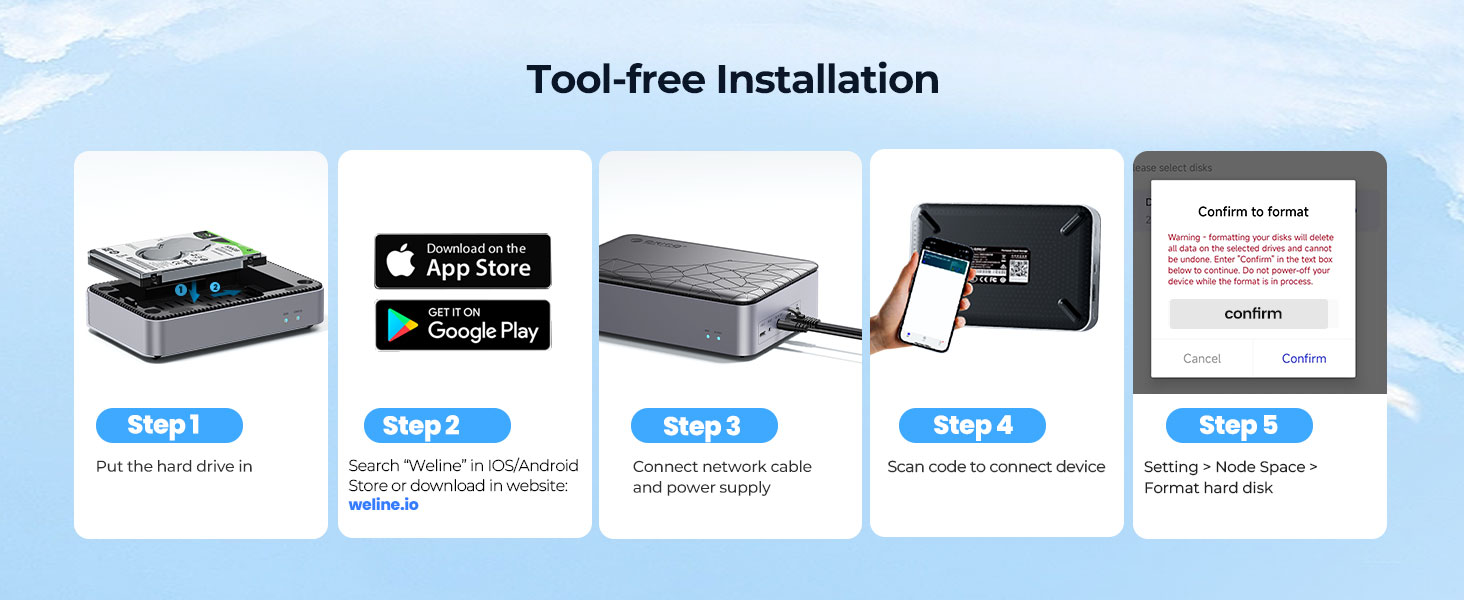
Figure 3.3: Windows Samba setup, steps 1-3.

Figure 3.4: Windows Samba setup, steps 4-6.
For macOS:
- From the Finder, click 'Go' in the menu bar, then select 'Connect to Server...'.
- Enter the server address (e.g., smb://IP_ADDRESS or smb://CD3510) and click 'Connect'.
- Select 'Registered User' and enter your Samba username and password.
- Choose the desired share (e.g., 'home' or 'public') to mount.

Figure 3.5: macOS Samba setup, steps 1-4.

Figure 3.6: macOS Samba setup, steps 5-8.
4. Maintenance
To ensure optimal performance and longevity of your ORICO CD3510 Networkable Hard Drive Enclosure, consider the following maintenance guidelines:
- Keep Clean: Regularly wipe the exterior of the enclosure with a soft, dry cloth to prevent dust buildup. Avoid using liquid cleaners directly on the device.
- Environmental Conditions: Operate the enclosure in a well-ventilated area, away from direct sunlight, excessive heat, and moisture. Avoid extreme temperatures.
- Safe Removal: Always safely eject or unmount the network drive from your computer or mobile device before disconnecting the enclosure or powering it off to prevent data corruption.
- Firmware Updates: Check the Weline APP or ORICO's official website periodically for any available firmware updates to ensure the device operates with the latest features and security enhancements.
5. Troubleshooting
For common issues and solutions, please refer to the official Troubleshooting Guide provided by ORICO. This document contains detailed steps to diagnose and resolve various operational problems.
6. Specifications
| Feature | Detail |
|---|---|
| Brand | ORICO |
| Model Number | CD3510 |
| Compatible Devices | Desktop |
| Hard Disk Form Factor | 3.5 Inches (SATA HDD) |
| Memory Storage Capacity | Up to 20 TB |
| Data Transfer Rate | 5 Gigabits Per Second (USB 3.0) |
| Max Number of Supported Devices | 1 |
| Hardware Interface | USB 3.0 |
| Material | Plastic |
| Color | Black |
| Item Weight | 80 Grams (2.82 ounces) |
| Product Dimensions (LxWxH) | 6.89 x 5.12 x 1.69 inches |
7. Warranty and Support
ORICO offers an 18-month warranty for the CD3510 Networkable Hard Drive Enclosure. Additionally, lifetime service support is provided to assist with any product-related inquiries or issues.
For support, please refer to the contact information provided with your product packaging or visit the official ORICO website.
Related documentsCD3510


Ask a question about this manual
Ask about setup, troubleshooting, compatibility, parts, safety, or missing instructions. Manuals+ will review the question and use this page’s manual context to help answer it.