Introduction
This manual provides essential information for the safe and efficient operation of your Sony KDL-55W900A 55-Inch 3D Internet LED HDTV. Please read these instructions thoroughly before using the television and retain them for future reference.
The Sony KDL-55W900A features a 55-inch display with 1080p resolution, 240Hz refresh rate, 3D capabilities, and integrated internet connectivity. It incorporates X-Reality PRO for enhanced detail and a TRILUMINOS display for brilliant colors.

Image: Front view of the Sony KDL-55W900A 55-Inch 3D Internet LED HDTV, showcasing its sleek design and display.
What's in the Box
Verify that all the following items are included with your television:
- Television Unit (Sony KDL-55W900A)
- Remote Control
- TV Stand
- Power Cord
- Active 3D Glasses (quantity may vary, typically 4 pairs)
- AA Batteries (2 for remote control)
- Documentation (Quick Setup Guide, Safety Information)
Setup
1. Attaching the TV Stand
Place the TV screen face down on a soft, clean surface to prevent damage. Align the stand with the mounting holes on the bottom of the TV and secure it using the provided screws. Ensure the stand is firmly attached before proceeding.

Image: Diagram showing the dimensions of the Sony KDL-55W900A TV, including width, height, and depth.

Image: Side view of the Sony KDL-55W900A TV, highlighting its slim profile.
2. Connecting Peripherals
Connect your external devices such as Blu-ray players, gaming consoles, or cable/satellite boxes to the appropriate input ports (HDMI, USB, etc.) on the rear of the TV.
- HDMI: For high-definition audio and video.
- USB: For connecting USB storage devices.
- Ethernet: For a wired internet connection.
- RF: For antenna or cable connection.
3. Power Connection
Plug the power cord into the TV's power input, then into a wall outlet.
4. Initial Setup Wizard
Upon first power-on, the TV will guide you through an initial setup process. This includes language selection, time zone, channel scanning, and network configuration.

Image: A person interacting with a tablet displaying a program guide, with the Sony TV visible in the background, demonstrating smart TV control.
Operating Instructions
1. Basic TV Functions
- Power: Press the power button on the remote or TV to turn it on/off.
- Input Selection: Use the "Input" or "Source" button on the remote to switch between connected devices (HDMI 1, HDMI 2, TV, etc.).
- Volume: Adjust using the Volume Up/Down buttons.
- Channel: Change channels using the Channel Up/Down buttons or number pad.
2. Smart TV Features and Internet Connectivity
Your TV can connect to the internet via Wi-Fi or Ethernet. Access various online services and applications through the Smart TV interface.
- Navigate the Smart TV menu using the remote's directional pad.
- Select apps like Netflix, Hulu, or Amazon Prime Video for streaming content.
- Use the built-in web browser for internet surfing.

Image: A family enjoying content on the Sony TV, with a smartphone mirroring its display to the TV, illustrating connectivity features.
3. Picture and Sound Settings
Access the "Picture" and "Sound" menus to customize your viewing and listening experience.
- Picture Modes: Choose from Standard, Vivid, Cinema, Game, etc.
- Brightness, Contrast, Color: Adjust these settings to your preference.
- X-Reality PRO: This feature enhances detail and texture.
- TRILUMINOS Display: Provides a wider spectrum of colors.
- Motionflow XR 960: Improves motion clarity for fast-moving scenes.

Image: A split-screen comparison demonstrating the enhanced detail and clarity provided by X-Reality PRO technology on the Sony TV.
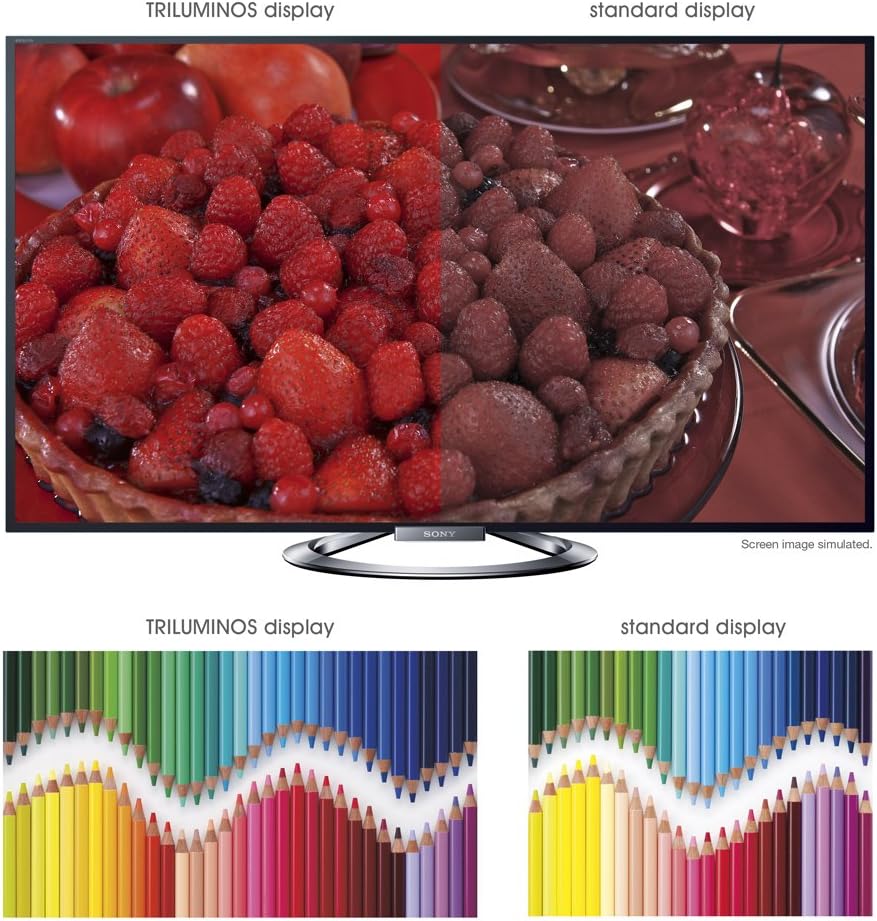
Image: A split-screen comparison illustrating the vibrant and expanded color palette of the TRILUMINOS display versus a standard display.
4. 3D Viewing
To enjoy 3D content, ensure you have active 3D glasses and a 3D-compatible source (e.g., 3D Blu-ray player).
- Put on the active 3D glasses.
- Play 3D content from a connected source. The TV should automatically detect and switch to 3D mode.
- If 3D mode does not activate automatically, check the TV's picture settings for 3D options.
- Ensure 3D glasses are charged or have fresh batteries.
Maintenance
1. Cleaning the TV
- Screen: Gently wipe the screen with a soft, dry microfiber cloth. For stubborn marks, slightly dampen the cloth with water or a specialized screen cleaner (do not spray directly onto the screen).
- Cabinet: Wipe the TV cabinet with a soft, dry cloth. Avoid using abrasive cleaners, waxes, or solvents.
- Always unplug the TV before cleaning.
2. Software Updates
Periodically check for software updates to ensure optimal performance and access to the latest features.
- Navigate to the "Settings" menu on your TV.
- Look for "System Software Update" or similar options.
- Follow the on-screen instructions to download and install updates. Ensure the TV remains powered on during the update process.
3. 3D Glasses Care
- Clean lenses with a soft, dry cloth.
- Store glasses in a protective case when not in use.
- Replace batteries as needed (typically AA batteries).
Troubleshooting
| Problem | Possible Cause / Solution |
|---|---|
| No Power |
|
| No Picture / Black Screen |
|
| No Sound |
|
| Network Connection Issues |
|
| 3D Image is Blurry or Not Working |
|
If the problem persists after attempting these solutions, please refer to the support section for further assistance.
Specifications
| Feature | Detail |
|---|---|
| Brand | Sony |
| Model Number | KDL-55W900A |
| Screen Size | 55 Inches |
| Display Technology | LED |
| Resolution | 1080p |
| Refresh Rate | 240 Hz (Motionflow XR 960) |
| Aspect Ratio | 16:9 |
| Special Features | Flat, 3D Capable, Internet TV, X-Reality PRO, TRILUMINOS Display, Dynamic Edge LED Backlight |
| Connectivity Technology | Ethernet, HDMI, RF, USB, Wi-Fi |
| Product Dimensions (with stand) | 48.9" W x 29.9" H x 11.8" D |
| Product Dimensions (without stand) | 48.9" W x 28.5" H x 2.5" D |
| Item Weight | 48.5 Pounds |
| Batteries Required | 2 AA batteries (for remote) |
| Date First Available | January 7, 2013 |
Warranty Information
Your Sony KDL-55W900A television is covered by a limited warranty. The specific terms and duration of the warranty may vary by region and purchase date. Please refer to the warranty card included with your product or visit the official Sony support website for detailed information regarding warranty coverage, terms, and conditions.
Keep your proof of purchase (receipt) as it will be required for any warranty claims.
Customer Support
For further assistance, technical support, or service inquiries regarding your Sony KDL-55W900A, please contact Sony customer support.
- Online Support: Visit the official Sony support website for FAQs, troubleshooting guides, software downloads, and contact options.
- Telephone Support: Refer to the contact information provided in your product documentation or on the Sony support website for regional telephone numbers.
When contacting support, please have your TV model number (KDL-55W900A) and serial number ready.


