
Introduction
This manual provides essential information for the safe and effective use of your Fujifilm FinePix XP60 digital camera. The FinePix XP60 is a rugged digital camera designed for various environments, featuring 4-way protection: waterproof up to 20 feet (6m), shockproof up to 5 feet (1.5m), freezeproof down to 14°F (-10°C), and dustproof. It is equipped with a 16MP CMOS sensor, 5x optical zoom, and Full HD video recording capabilities.
Please read this manual thoroughly before using your camera and keep it in a safe place for future reference.

Figure 1: Front view of the Fujifilm FinePix XP60 Digital Camera, showcasing its lens and flash.
Setup
1. Installing the Battery
- Locate the battery/memory card compartment cover on the side of the camera.
- Rotate the lock knob to the unlocked position and open the cover.
- Insert the supplied battery into the compartment, ensuring the correct orientation as indicated by the diagram inside.
- Close the cover and rotate the lock knob to the locked position. Ensure it is securely latched to maintain waterproof integrity.
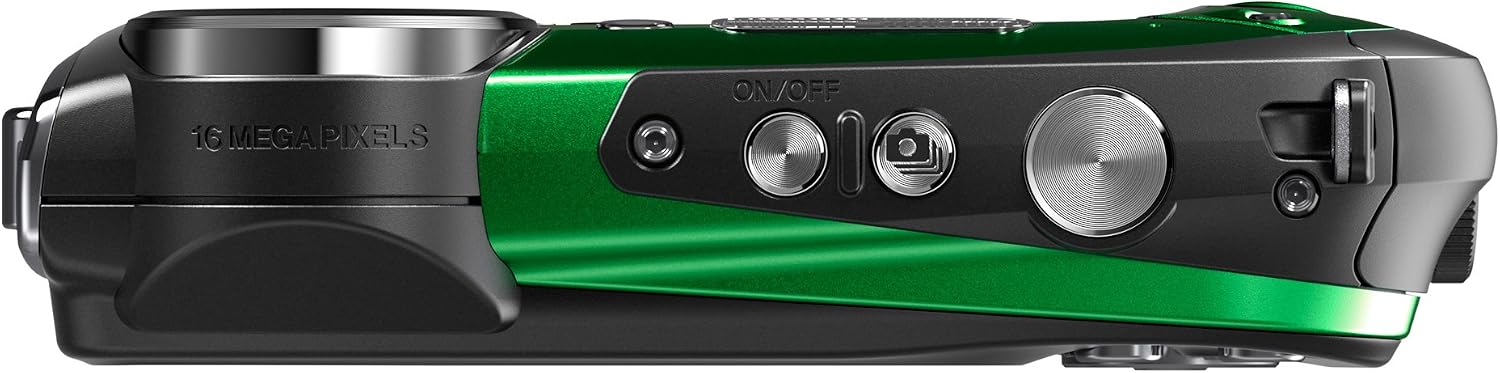
Figure 2: Top view of the camera, showing the power button and shutter release. The battery compartment is on the side.
2. Inserting a Memory Card
The FinePix XP60 requires an SD, SDHC, or SDXC memory card (not included) for storing photos and videos. The internal memory is limited.
- With the battery compartment cover open, locate the memory card slot.
- Insert the memory card with the contacts facing the correct direction until it clicks into place.
- Close the compartment cover and lock it securely.
3. Initial Power On and Settings
- Press the ON/OFF button to power on the camera.
- Follow the on-screen prompts to set the date, time, and language. Use the directional buttons and the MENU/OK button to navigate and confirm selections.
Operating the Camera
1. Basic Photography

Figure 3: Back view of the camera, displaying the LCD screen and various control buttons including zoom, menu, and playback.
- Power On: Press the ON/OFF button.
- Taking a Picture: Frame your shot using the LCD monitor. Press the shutter button halfway to focus, then press it fully to capture the image.
- Zoom: Use the W (Wide) and T (Telephoto) buttons to adjust the optical zoom. The camera also features 10x Intelligent Digital Zoom.
2. Shooting Modes
The FinePix XP60 offers various shooting modes to optimize your photos for different situations.
- SR AUTO (Scene Recognition Auto): Automatically detects the scene type and applies optimal camera settings.
- Burst Mode: Press the dedicated Burst Mode button to quickly capture a series of images at up to 10 frames/second (full resolution) or 60 frames/second (reduced resolution).
- Movie Recording: Press the dedicated movie recording button to start and stop recording Full HD (1920 x 1080) video at 60fps. High-speed movie modes (up to 240fps) are also available for slow-motion playback.
- Advanced Filter: Access a selection of seven special filters (e.g., Pop Color, Toy Camera, Miniature) to add creative effects to your photos.
- Motion Panorama 360: Sweep the camera across a scene to automatically create a 360-degree panoramic image.
- 3D Shooting: Capture two exposures of the same scene to create a 3D image.
- Scene Modes: Select from various scene-specific modes like Portrait, Landscape, Sport, Night, Underwater, etc., for optimized results.
3. Playback and Review
- Press the Playback button to view captured images and videos.
- Use the directional buttons to navigate through your media.
- Press the MENU/OK button to access playback options, including deleting, rotating, or editing images.
4. Connecting to a Computer
To transfer photos and videos, connect the camera to your computer using a USB cable. The camera will appear as a removable disk, allowing you to copy files. The FinePix XP60 also supports direct tagging of images for upload to social media platforms like Facebook and YouTube via MyFinePix Studio software (requires installation on PC).
Maintenance
1. Cleaning the Camera
- Lens: Use a soft, lint-free cloth specifically designed for camera lenses. Avoid touching the lens with your fingers.
- LCD Monitor: Gently wipe with a soft, dry cloth. The anti-reflective coating helps maintain visibility.
- Camera Body: Wipe with a soft, damp cloth. For stubborn dirt, use a mild soap solution, then wipe with a clean, damp cloth and dry thoroughly.
2. Waterproof and Shockproof Care

Figure 4: The Fujifilm FinePix XP60 camera with water droplets, demonstrating its waterproof design.
- Always ensure the battery/memory card compartment cover is securely locked before exposing the camera to water or dust.
- After using the camera in water, rinse it with fresh water and dry it thoroughly with a soft cloth. Do not open the compartment cover until the camera is completely dry.
- Avoid dropping the camera from heights exceeding its shockproof rating (5 feet / 1.5m).
3. Battery Care
- Charge the battery fully before first use and after extended periods of non-use.
- Store the battery in a cool, dry place when not in use.
- Do not expose the battery to extreme temperatures or direct sunlight.
Troubleshooting
- Camera does not power on: Ensure the battery is fully charged and correctly inserted. Check if the battery compartment cover is securely closed.
- Images are blurry: Ensure the lens is clean. Check lighting conditions; use flash if necessary. Hold the camera steady or use optical image stabilization.
- No images can be taken: Check if a memory card is inserted and has sufficient free space. Ensure the camera is not in playback mode.
- Water inside compartment: If water enters the battery/memory card compartment, immediately remove the battery and memory card. Allow the camera and components to dry completely in a well-ventilated area before attempting to use again. Contact customer support if issues persist.
- LCD screen is difficult to see in bright sunlight: The LCD monitor has an anti-reflective coating and automatically adjusts brightness. Try to shade the screen or adjust your viewing angle.
Specifications
| Feature | Specification |
|---|---|
| Model Name | FinePix XP60 |
| Image Sensor | 16MP CMOS Sensor (1/2.3-inch) |
| Lens | FUJINON 5x Optical Zoom (28-140mm equivalent) |
| Digital Zoom | Up to 2x (10x Intelligent Digital Zoom combined with optical) |
| Image Stabilization | Optical (Sensor-shift) |
| LCD Monitor | 2.7-inch TFT color LCD (approx. 230,000 dots) with anti-reflective coating |
| Waterproof | Up to 20ft (6m) |
| Shockproof | Up to 5ft (1.5m) |
| Freezeproof | Down to 14°F (-10°C) |
| Dustproof | IP6X compliant |
| Video Recording | Full HD 1920 x 1080 (60fps), High Speed Movie (up to 240fps) |
| Storage Media | SD/SDHC/SDXC memory card |
| Connectivity | USB 2.0 High-Speed, HDMI Micro connector (Type C) |
| Power Supply | Rechargeable Li-ion battery (NP-50A) |
| Dimensions (W x H x D) | Approx. 104.1 x 66.5 x 25.9 mm (4.1 x 2.6 x 1.0 in.) |
| Weight | Approx. 183g (including battery and memory card) |
Warranty and Support
For warranty information, please refer to the warranty card included with your product or visit the official Fujifilm website. If you encounter any issues not covered in this manual or require further assistance, please contact Fujifilm customer support.
Fujifilm Support: www.fujifilm.com/us/en/consumer/support


