
Introduction
This manual provides essential information for the proper setup, operation, and maintenance of your HoverCam Solo 5 Document Camera. Please read these instructions carefully before using the device to ensure optimal performance and longevity.
The HoverCam Solo 5 is a versatile 5-megapixel USB document camera designed to enhance educational and professional presentations. It combines multiple functions, including live presentations, document scanning, and video creation, into a single, portable device.
Product Overview
Key Features
- Lightweight and Portable: Features a 5.0 MegaPixel HD CMOS USB camera.
- Multi-functional Solution: Capable of scanning, recording voice and video, displaying picture-in-picture, video conferencing, and document sharing.
- Advanced Zoom: Patented 16X digital zoom combined with a 12X mechanical zoom, providing up to 192X effective magnification for detailed viewing.
- Wide Shooting Area: Accommodates documents up to A3 size, including A4, tabloid, legal, and letter sizes, allowing display of two full pages or an entire textbook.
- HoverCam Flex Software: Includes software for scanning multiple pages, creating PDFs, cropping images, recording voice and video to your computer, annotating during presentations, and uploading files to cloud services like Dropbox and Evernote.
Components
The HoverCam Solo 5 features a three-pivot design for flexible positioning. It includes a camera head with a built-in microphone and is powered solely via a USB cable.

Image: The HoverCam Solo 5 Document Camera positioned over a document, illustrating its projection capability.
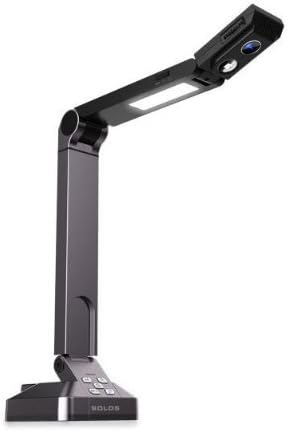
Image: The HoverCam Solo 5 Document Camera shown in its compact, folded configuration, highlighting its portability.
Setup
- Unpack the Device: Carefully remove the HoverCam Solo 5 from its packaging.
- Position the Camera: Place the document camera on a stable, flat surface. Adjust the camera arm and head to the desired position using its three-pivot design.
- Connect via USB: Connect the provided USB cable from the HoverCam Solo 5 to an available USB port on your computer (desktop, laptop, or tablet). The device is USB-powered and does not require an external power adapter.
- Install Software: Install the HoverCam Flex software on your computer. This software is essential for accessing the full functionality of the document camera, including image capture, recording, and advanced features. Ensure you download and install the correct version compatible with your operating system from the official HoverCam website.
- Verify Connection: Once the software is installed and the camera is connected, launch the HoverCam Flex application. The camera feed should appear on your screen, indicating a successful setup.
Operating Instructions
Basic Operation
- Power On: The camera powers on automatically when connected via USB to your computer.
- Adjust Camera Position: Use the flexible arm and rotating camera head to position the lens directly over the document or object you wish to display. The camera can hover an inch above objects for close-ups.
- Focus: The camera features fixed focus. Ensure the object is within the optimal focal range for clear images.
- Zoom: Utilize the 16X digital zoom and 12X mechanical zoom through the HoverCam Flex software to magnify details.
- Lighting: The camera has an internal flash for additional illumination if needed.

Image: The HoverCam Solo 5 Document Camera demonstrating its adjustable arm, allowing for various viewing angles and heights.
Using HoverCam Flex Software
The HoverCam Flex software provides a comprehensive interface for controlling your document camera and managing your content.
- Live Display: View the live feed from the camera on your computer screen.
- Image Capture: Capture still images of documents or objects.
- Video Recording: Record video presentations or demonstrations, including audio from the built-in microphone.
- Scanning: Scan multiple pages to create multi-page PDF documents.
- Annotation: Draw, highlight, and add text directly onto the live image or captured content during presentations.
- Image Editing: Crop and adjust captured images.
- Cloud Integration: Upload recorded videos and scanned documents directly to services like Dropbox and Evernote.
Maintenance
- Cleaning: Use a soft, dry cloth to clean the camera lens and body. Avoid abrasive cleaners or solvents.
- Storage: When not in use, fold the camera into its compact form for storage to protect the lens and arm mechanisms. Store in a cool, dry place.
- Environmental Protection: While the device is rated as waterproof, it is generally recommended to protect all electronic devices from excessive moisture and extreme temperatures to ensure long-term reliability.
- Software Updates: Regularly check the HoverCam official website for software updates to ensure you have the latest features and bug fixes for the HoverCam Flex software.
Troubleshooting
Common Issues and Solutions
- No Image Displayed:
- Ensure the USB cable is securely connected to both the camera and the computer.
- Verify that the HoverCam Flex software is running and the correct camera is selected if multiple cameras are connected.
- Try connecting to a different USB port on your computer.
- Software Freezes or Crashes:
- Ensure your HoverCam Flex software is the latest version compatible with your operating system. Outdated software can lead to instability.
- Close other demanding applications that might be consuming system resources.
- Restart the HoverCam Flex application and your computer.
- Poor Image Quality / Blurry Images:
- Ensure adequate lighting. Use the internal flash if necessary.
- Adjust the camera's height and angle to ensure the document is flat and within the camera's fixed focus range.
- Clean the camera lens with a soft, dry cloth to remove any dust or smudges.
- OCR (Optical Character Recognition) Issues:
- For optimal OCR results, ensure the document is well-lit, flat, and free from shadows.
- OCR accuracy can vary significantly based on font type, size, and document quality. Test with different documents.
- Ensure the document is positioned squarely under the camera.
Specifications
| Model Name | Solo 5 |
| Brand | HoverCam |
| Effective Still Resolution | 5 MP |
| Video Capture Resolution | 1080p |
| Optical Zoom | 12x |
| Digital Zoom | 16x |
| Zoom Type | Both Digital Zoom and Mechanical Zoom |
| Sensor Type | CMOS |
| Focus Type | Fixed Focus |
| Exposure Control Type | Automatic |
| Flash Type | Internal |
| Connectivity Technology | USB |
| Hardware Interface | USB 2.0 |
| Compatible Devices | Desktop, Interactive Whiteboard, Laptop, Tablet |
| File Formats | AVI, JPEG, PDF, PNG (Media Type: avi, pdf, gif, tiff, bmp, jpeg, png) |
| Water Resistance Level | Waterproof |
| Color | Black |
| Item Weight | 2.2 pounds |
Warranty and Support
For detailed warranty information, please refer to the official HoverCam website or the documentation included with your purchase. Warranty terms and conditions may vary.
For technical support, software downloads, and additional resources, please visit the HoverCam official support website. Contact information for customer service can typically be found on the manufacturer's website.


