
1. Introduction
1.1. Overview
The Black Box LGC011A-R2 MultiPower Media Converter is designed to seamlessly bridge Gigabit Ethernet copper networks with fiber optic cabling. This device enables the extension of network distances and the integration of different media types, facilitating robust and reliable data transmission. Its compact design allows for flexible deployment in various environments, including behind a PC or within a rackmount PowerTray (optional).
1.2. Package Contents
- Black Box LGC011A-R2 MultiPower Media Converter Unit
- Universal AC Power Supply
- User Manual (this document)
2. Safety Information
Please read and understand all safety instructions before operating this device. Failure to do so may result in injury or damage to the equipment.
- Power Supply: Use only the provided universal AC power supply or a compatible Black Box PowerTray. Ensure the power source matches the voltage requirements.
- Environment: Operate the converter in a dry, well-ventilated area. Avoid exposure to extreme temperatures, humidity, or direct sunlight.
- Handling: Handle the device with care. Do not drop or subject it to strong impacts.
- Fiber Optic Safety: Never look directly into the end of a fiber optic cable or port when the device is powered on, as invisible laser radiation can cause eye damage.
- Cleaning: Disconnect power before cleaning. Use a soft, dry cloth. Do not use liquid or aerosol cleaners.
3. Product Features
The LGC011A-R2 MultiPower Media Converter offers a range of features designed for efficient network integration:
- Gigabit Ethernet Conversion: Converts 1000-Mbps copper signals to 1000-Mbps fiber signals.
- Fiber Type: Supports 1310-nm Single-Mode fiber for extended distances.
- Distance Capability: Extends network connections up to 10 kilometers (6.2 miles).
- Connector Types: Features an RJ-45 port for copper and an SC connector for fiber.
- Auto MDI/MDI-X: Automatically detects and configures the copper cable type (straight-through or crossover), eliminating the need for specific cable types.
- Compact Design: Measures approximately 0.8" (H) x 1.8" (W) x 3.4" (D), allowing for discreet placement.
- Flexible Power Options: Can be powered by the included universal AC power supply or an optional rackmountable PowerTray.
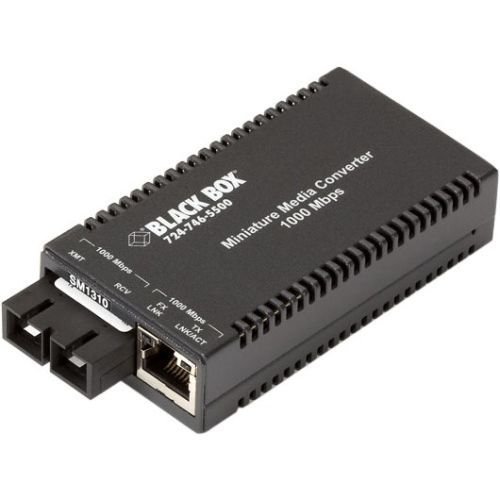
Figure 1: The Black Box LGC011A-R2 MultiPower Media Converter. This image displays the compact unit, highlighting its RJ-45 copper port and SC fiber port, along with the power input.
4. Setup and Installation
Follow these steps to install and set up your MultiPower Media Converter:
- Prepare Cables: Ensure you have a standard CAT5 (or higher) Ethernet cable for the copper connection and a single-mode fiber optic cable with SC connectors for the fiber connection.
- Connect Copper Cable: Plug one end of the Ethernet cable into the RJ-45 port on the LGC011A-R2 converter. Connect the other end of the Ethernet cable to your network device (e.g., PC, switch, router).
- Connect Fiber Optic Cable: Carefully remove the protective caps from both ends of your fiber optic cable and the SC fiber port on the converter. Connect one end of the fiber optic cable to the SC port on the LGC011A-R2. Connect the other end of the fiber optic cable to your fiber network device.
- Connect Power: Plug the universal AC power supply into the power input port on the converter. Then, plug the power supply into a standard electrical outlet.
- Verify Status: Once powered, observe the LED indicators on the converter. A steady Link LED for both copper and fiber ports indicates a successful connection. Refer to the Troubleshooting section if indicators do not light up as expected.
5. Operation
The Black Box LGC011A-R2 MultiPower Media Converter operates automatically once properly installed and powered. It functions as a transparent bridge between your copper and fiber network segments, converting electrical signals to optical signals and vice-versa without requiring any software configuration.
- Data Flow: Data transmitted over the copper Ethernet cable is converted into optical signals and sent over the fiber optic cable. Conversely, optical signals received from the fiber optic cable are converted back into electrical signals for the copper Ethernet network.
- Auto-Negotiation: The copper port supports auto-negotiation for speed and duplex mode, ensuring compatibility with connected Ethernet devices.
- LED Indicators: The front panel LEDs provide visual status of the power, link, and activity for both copper and fiber connections. Consult the Troubleshooting section for common LED states.
6. Maintenance
To ensure optimal performance and longevity of your Black Box LGC011A-R2 MultiPower Media Converter, follow these maintenance guidelines:
- Cleaning: Keep the converter unit clean and free from dust. Use a soft, dry, lint-free cloth for cleaning. Do not use abrasive cleaners or solvents.
- Ventilation: Ensure that the ventilation openings are not blocked to prevent overheating. Maintain adequate airflow around the device.
- Cable Connections: Periodically check all cable connections (power, copper, fiber) to ensure they are secure and free from damage. Loose or damaged cables can lead to intermittent connectivity or performance issues.
- Fiber Optic Connectors: Keep fiber optic connectors clean. Dust or debris on the fiber end-faces can significantly degrade optical performance. Use appropriate fiber optic cleaning tools if necessary, following manufacturer guidelines.
7. Troubleshooting
If you encounter issues with your MultiPower Media Converter, refer to the following common problems and solutions:
| Problem | Possible Cause | Solution |
|---|---|---|
| No Power LED indication. | Power supply not connected or faulty; power outlet not active. | Ensure the power supply is securely connected to the converter and a working electrical outlet. Test the outlet with another device. |
| Copper Link LED is off. | Ethernet cable faulty or disconnected; connected device is off or faulty. | Check the Ethernet cable connection between the converter and the network device. Ensure the network device is powered on and functioning correctly. Try a different Ethernet cable. |
| Fiber Link LED is off. | Fiber optic cable faulty or disconnected; connected fiber device is off or faulty; incorrect fiber type or wavelength. | Verify the fiber optic cable connection. Ensure the fiber network device is powered on and operational. Confirm that the fiber cable is single-mode and compatible with 1310 nm wavelength. Clean fiber connectors. |
| Slow network speed. | Cable quality issues; duplex mismatch; network congestion. | Ensure high-quality CAT5e/CAT6 Ethernet cables are used. Check for duplex settings on connected devices (though Auto MDI/MDI-X should handle this). Isolate the converter to rule out network congestion. |
8. Specifications
| Model Number | LGC011A-R2 |
| Data Rate | 1000 Mbps (Gigabit Ethernet) |
| Copper Port | 1 x RJ-45, Auto MDI/MDI-X |
| Fiber Port | 1 x SC, Single-Mode |
| Wavelength | 1310 nm |
| Max. Fiber Distance | 10 km (6.2 miles) |
| Power Input | Universal AC Power Supply (included), optional PowerTray compatible |
| Dimensions (H x W x D) | 0.8" x 1.8" x 3.4" (2.03 cm x 4.57 cm x 8.64 cm) |
| Weight | 1 pound (0.45 kg) |
| Operating Temperature | (Information not provided, refer to manufacturer's data sheet) |
| Storage Temperature | (Information not provided, refer to manufacturer's data sheet) |
9. Warranty and Support
For information regarding product warranty, technical support, or service, please refer to the official Black Box website or contact their customer support directly. Keep your purchase receipt for warranty claims.
Black Box Contact Information:
- Website: www.blackbox.com
- Support: Refer to the website for regional contact numbers and support resources.


