
Introduction
This instruction manual provides essential information for the proper setup, operation, and maintenance of your Speedlink DRIFT O.Z. Racing Wheel for PC. Please read this manual thoroughly before using the product to ensure optimal performance and longevity.

Front view of the Speedlink DRIFT O.Z. Racing Wheel, highlighting its design and controls. For full functionality, drivers must be downloaded from www.speedlink.com.
Safety Information
- Keep the device away from moisture, dust, and direct sunlight.
- Do not attempt to disassemble or modify the device. This will void the warranty.
- Use only with compatible PC systems as specified.
- Ensure proper ventilation around the device during use.
- Avoid excessive force when operating the wheel or pedals.
Package Contents
Verify that all components are present in the package:
- Speedlink DRIFT O.Z. Racing Wheel
- Pedal Unit (Gas and Brake)
- Gear Shifter
- Instruction Manual (this document)

The product box illustrating the main components included: the racing wheel, pedal unit, and gear shifter.
Setup
1. Physical Connection
- Connect the pedal unit cable to the designated port on the racing wheel.
- Connect the USB cable from the racing wheel to an available USB port on your PC.

Step-by-step diagram illustrating the physical connection of the racing wheel to a PC and the pedal unit to the wheel.
2. Driver Installation
For full functionality and optimal performance, it is recommended to download and install the latest drivers from the official Speedlink website.
- Visit www.speedlink.com.
- Navigate to the support or downloads section and locate the drivers for the DRIFT O.Z. Racing Wheel (Model SL-6695-BKOR-01).
- Follow the on-screen instructions to complete the driver installation.

Diagram indicating the necessity of downloading drivers from www.speedlink.com and the default DirectInput mode.
3. Mounting the Racing Wheel
The racing wheel features suction cups on its base for stable attachment to a flat surface, such as a desk or table.
- Place the racing wheel on a clean, smooth, and flat surface.
- Press down firmly on the wheel base to engage the suction cups, ensuring maximum stability.

Side view of the racing wheel, illustrating the suction cups on the base designed for stable mounting on a flat surface.
Operating Instructions
1. Controls Overview
The DRIFT O.Z. Racing Wheel is equipped with various controls for an immersive gaming experience:
- Steering Wheel: Provides precise steering input.
- D-Pad: Digital directional pad for menu navigation and specific in-game actions.
- Action Buttons (A, B, X, Y): Standard gaming buttons for various functions.
- Shoulder Buttons (LB, LT, RT, RB): Located on the wheel for additional controls.
- Gear Shifter: For manual gear changes in supported games.
- Shift Paddles: Located behind the wheel for quick gear changes.
- Pedals: Separate units for gas (accelerator) and brake.

Close-up front view of the racing wheel, detailing the D-pad, action buttons, and central controls.
2. Mode Switching (DirectInput / XInput)
The racing wheel supports both DirectInput and XInput modes, allowing compatibility with a wide range of PC games. The default mode is DirectInput.
- To switch between DirectInput (analog/digital) and XInput modes, press and hold the MODE button for approximately 3 seconds.
- The LED indicator will change to confirm the mode switch.
- After switching modes, it is advisable to check button configurations in the game's controller settings or the driver menu.
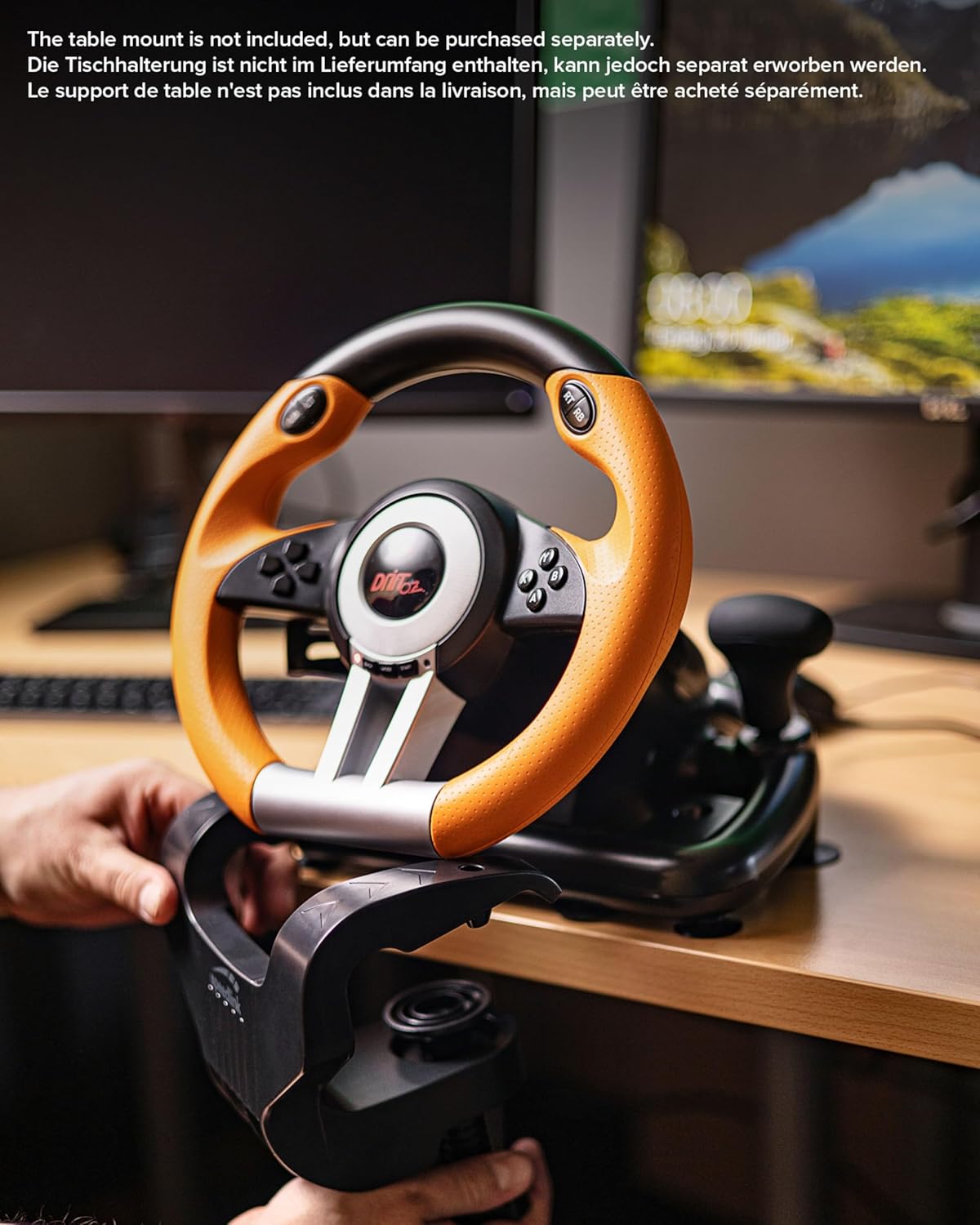
Diagram showing how to switch between DirectInput and XInput modes by holding the MODE button for 3 seconds, and the corresponding driver menu checks.
3. Vibration Feedback
The racing wheel features vibration effects to enhance realism during gameplay. This function is automatically active in supported games when the appropriate drivers are installed.
4. Adjustable Steering Sensitivity
The steering sensitivity can be adjusted to suit individual preferences and game requirements. Refer to the driver software or in-game controller settings for specific adjustment options.
Maintenance
- Cleaning: Use a soft, dry cloth to clean the surfaces of the racing wheel and pedals. Do not use abrasive cleaners or solvents.
- Storage: Store the device in a cool, dry place away from direct sunlight and extreme temperatures when not in use.
- Cable Care: Avoid bending or twisting cables excessively to prevent damage.
Troubleshooting
Common Issues and Solutions:
- Device not recognized by PC:
- Ensure the USB cable is securely connected to both the racing wheel and the PC.
- Try connecting to a different USB port.
- Verify that the latest drivers are installed from www.speedlink.com.
- Restart your PC.
- Buttons or pedals not responding correctly:
- Check in-game controller settings to ensure the racing wheel is selected and properly configured.
- Ensure the pedal unit cable is firmly connected to the racing wheel.
- Verify the operating mode (DirectInput/XInput) is appropriate for the game.
- Calibrate the device through your PC's game controller settings (Windows Control Panel > Devices and Printers > Right-click on device > Game controller settings > Properties).
- No vibration feedback:
- Ensure the game supports force feedback or vibration effects.
- Check in-game settings to ensure vibration is enabled.
- Confirm that drivers are correctly installed.
If issues persist, please refer to the Speedlink support website for further assistance.
Specifications
| Model Number | SL-6695-BKOR-01 |
| Compatibility | PC (Windows XP and later) |
| Connectivity | USB |
| Input Modes | XInput, DirectInput |
| Features | Vibration feedback, Gear shifter, Shift paddles, Gas and brake pedals, Digital D-pad, 12 fire buttons, Rubberized wheel rim, Adjustable steering sensitivity |
| Mounting | Suction cups for stable grip |
| Product Dimensions (Wheel) | Approximately 12.99 x 10.63 x 10.83 inches |
| Item Weight | 3.2 pounds |
Warranty Information
Speedlink products are covered by a limited warranty from the date of purchase. This warranty covers defects in materials and workmanship under normal use. It does not cover damage caused by misuse, accident, unauthorized modification, or improper installation.
For detailed warranty terms and conditions, please visit the official Speedlink website or contact customer support.
Customer Support
If you encounter any issues or have questions regarding your Speedlink DRIFT O.Z. Racing Wheel that are not addressed in this manual, please contact Speedlink customer support:
- Website: www.speedlink.com/support
- Refer to the website for regional contact information, FAQs, and driver downloads.


