
D-Link DGS-1210-28
D-Link DGS-1210-28 28-Port Gigabit Smart Managed Switch User Manual
Model: DGS-1210-28
Product Overview
The D-Link DGS-1210-28 is a 28-Port Gigabit Smart Managed Switch, part of the DGS-1210 Series. This advanced network switch features 24 10/100/1000BASE-T ports and 4 Gigabit SFP optical ports, designed to provide robust functionality, security, and manageability for small and medium-sized businesses. It incorporates D-Link Green 3.0 technology for energy efficiency, complying with the IEEE 802.3az Energy Efficient Ethernet standard. Multiple management options facilitate quick deployment, infrastructure expansion, and seamless upgrades. Key features include comprehensive Layer 2 capabilities such as IGMP Snooping, Port Mirroring, Spanning Tree, and Link Aggregation Control Protocol (LACP). Enhanced security features like D-Link Safeguard Engine, 802.1X port-based authentication, Access Control List (ACL), ARP Spoofing Prevention, and DHCP Server Screening protect against various network threats. The DGS-1210-28 is fanless for silent operation and comes with a Limited Lifetime Warranty, reflecting D-Link's commitment to product quality and long-term customer confidence.

Figure 1: Front view of the D-Link DGS-1210-28 Smart Managed Switch, showing 24 Gigabit Ethernet ports and 4 SFP combo ports.
Setup and Installation
This section provides instructions for the initial setup and installation of your D-Link DGS-1210-28 switch.
Package Contents
Before you begin, ensure all items are present in the package:
- D-Link DGS-1210-28 Switch
- Rack mounting kit
- Power cord
- Retainer clip
- Console cable
- Rubber feet
- Quick Installation Guide (QIG)
Physical Installation
The DGS-1210-28 can be installed on a desktop or mounted in a standard 19-inch equipment rack.
Desktop Installation
- Attach the included rubber feet to the bottom of the switch to prevent scratching and provide stability.
- Place the switch on a flat, stable surface in a well-ventilated area, away from direct sunlight and heat sources.
- Ensure adequate space around the switch for proper airflow.

Figure 2: Angled view of the DGS-1210-28, illustrating its form factor for desktop or rackmount installation.
Rack Installation
- Attach the two rack-mounting brackets to the sides of the switch using the screws provided in the rack mounting kit.
- Secure the switch in the rack using appropriate rack screws (not included).
- Ensure the rack is properly grounded and has sufficient ventilation.

Figure 3: DGS-1210 Family Series switches in a rack, highlighting their suitability for business environments.
Connecting the Switch
- Power Connection: Connect the provided power cord to the AC power inlet on the rear panel of the switch. Secure the power cord with the retainer clip if desired. Plug the other end into a suitable power outlet.
- Network Connections:
- Connect your network devices (computers, servers, printers, IP cameras, etc.) to the 24 Gigabit Ethernet ports (RJ45) on the front panel using standard Ethernet cables.
- For high-speed uplinks or long-distance fiber connectivity, use the 4 Gigabit SFP combo ports with compatible SFP transceivers and fiber optic cables.
- Management Connection (Optional): For initial configuration or advanced management, connect a computer to the switch's console port using the provided console cable, or connect via an Ethernet port for web-based management.

Figure 4: Rear panel of the DGS-1210-28, illustrating the power connection and grounding options.
Operating the Switch
The DGS-1210-28 is a Smart Managed Switch, offering various management interfaces for configuration and monitoring.
Web-Based Management Interface (Web UI)
The primary method for managing the switch is through its intuitive web-based interface. This allows for easy setup, monitoring, and advanced configuration.
- Ensure your computer is connected to the switch via an Ethernet cable.
- Open a web browser and enter the default IP address of the switch (refer to the Quick Installation Guide or product documentation for the default IP).
- Log in using the default username and password.
- Once logged in, you can configure various settings, including VLANs, QoS, port mirroring, link aggregation, and security features.

Figure 5: Intuitive Web-Based Management interface, providing options for standard and surveillance modes.
Key Features and Functionality
- High-Speed Networking: 24 Gigabit Ethernet ports provide high-speed connectivity for various devices.
- SFP Ports: 4 Gigabit SFP combo ports enable flexible fiber optic uplinks for extended reach.
- Advanced Traffic Management: Features like Bandwidth Control, Quality of Service (QoS), VLAN support, Port Mirroring, Link Aggregation, and Spanning Tree Protocol (STP) optimize network performance and minimize congestion.
- Comprehensive Security: Includes Access Control List (ACL), 802.1X / RADIUS authentication, ARP Spoofing Prevention, and D-Link Safeguard Engine to protect against unauthorized access and malicious attacks.
- Surveillance Mode with ONVIF Support: Streamlines IP surveillance network deployment by automatically detecting ONVIF-compliant devices and optimizing video traffic for security systems.
- Energy Efficiency: Fanless design ensures silent operation and complies with IEEE 802.3az Energy Efficient Ethernet for reduced power consumption.
- Cable Diagnostics: Quickly identifies and resolves network cable issues, ensuring stable and reliable connections.
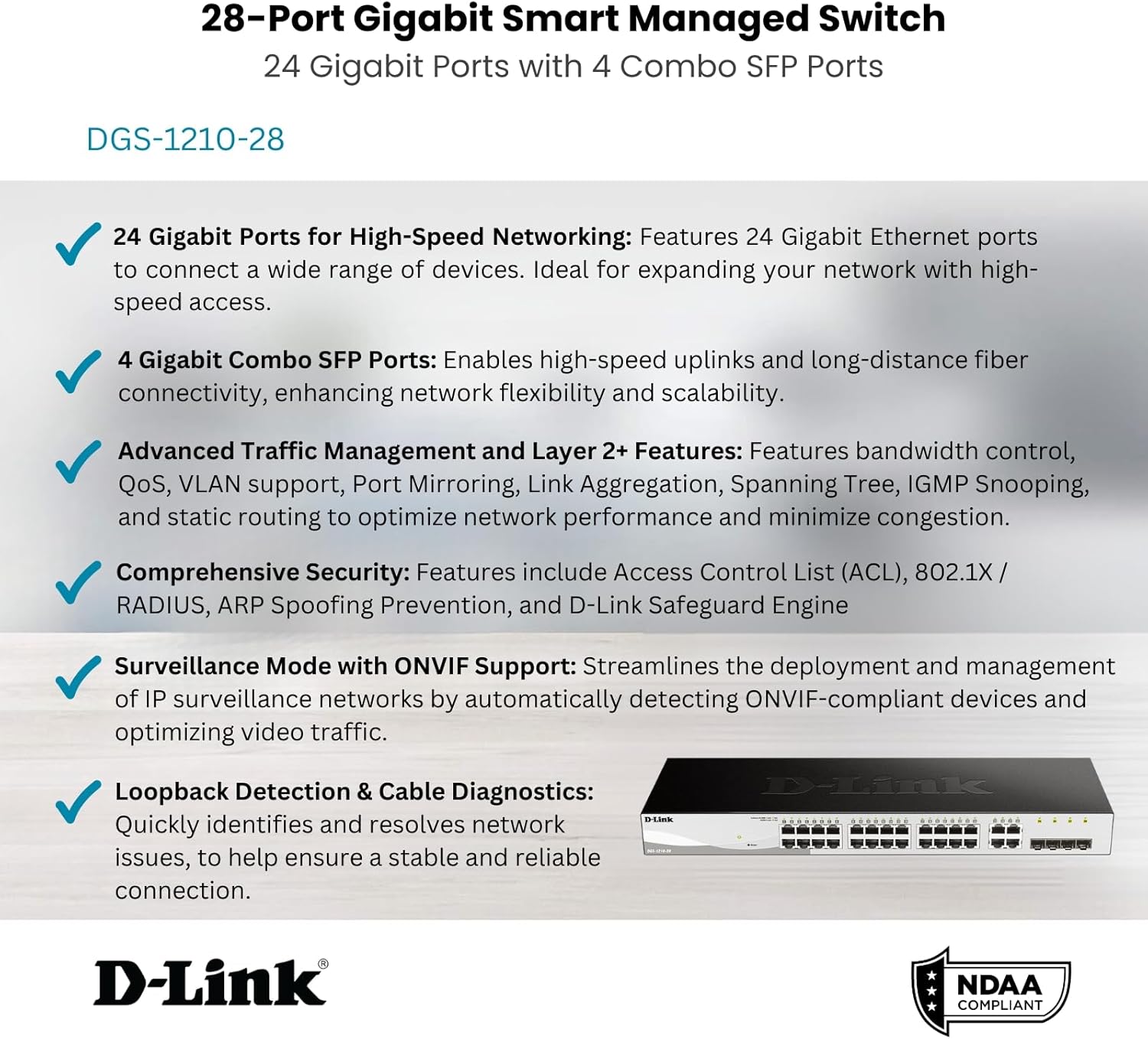
Figure 6: Overview of the DGS-1210-28's core features.
Maintenance
Proper maintenance ensures the longevity and optimal performance of your D-Link DGS-1210-28 switch.
- Firmware Updates: Regularly check the D-Link support website for the latest firmware updates. Keeping the firmware up-to-date ensures access to new features, performance improvements, and security patches.
- Environmental Conditions: Ensure the switch operates within the recommended temperature (up to 60°C) and humidity ranges. Avoid placing it in direct sunlight or near heat sources.
- Cleaning: Keep the switch clean and free of dust. Use a soft, dry cloth to wipe the exterior. Do not use liquid or aerosol cleaners.
- Cable Management: Ensure network cables are neatly organized and not excessively bent or strained. This prevents damage to cables and ports and improves airflow.
- Backup Configuration: Periodically back up your switch configuration settings. This allows for quick restoration in case of a factory reset or device replacement.
Troubleshooting
This section addresses common issues you might encounter with your DGS-1210-28 switch.
No Power Indicator Light
- Verify that the power cord is securely connected to both the switch and a working power outlet.
- Check the power outlet by plugging in another device.
- Ensure the power switch (if present) is in the 'On' position.
No Network Connectivity on a Port
- Check the Ethernet cable connection at both ends (switch port and connected device). Try a different cable.
- Verify that the Link/Act LED for the specific port on the switch is illuminated. If not, there might be an issue with the cable or the connected device.
- Ensure the connected device is powered on and its network adapter is functioning correctly.
- Use the switch's Cable Diagnostics feature via the Web UI to test the cable integrity.
- If using an SFP port, ensure the SFP transceiver is properly seated and compatible with the fiber optic cable and the connected device.
Cannot Access Web Management Interface
- Ensure your computer's IP address is in the same subnet as the switch's IP address.
- Verify that you are using the correct IP address for the switch. If unsure, you may need to reset the switch to factory defaults (refer to the QIG for instructions).
- Disable any firewall or antivirus software on your computer temporarily to rule out interference.
- Try accessing the interface from a different web browser.
Network Performance Issues
- Check for network loops using the switch's Spanning Tree Protocol (STP) or Loopback Detection features.
- Monitor port utilization via the Web UI to identify congested ports. Consider enabling Bandwidth Control or configuring QoS for critical applications.
- Ensure all connected devices are operating at their optimal speed (Gigabit Ethernet where supported).
Technical Specifications
| Feature | Specification |
|---|---|
| Model Number | DGS-1210-28 |
| Switch Type | Layer 2 Smart Managed Switch |
| Number of Ports | 24 x 10/100/1000BASE-T Gigabit Ethernet Ports, 4 x Gigabit SFP Combo Ports |
| Data Transfer Rate | 1000 Megabits Per Second (Mbps) |
| Voltage | 100 Volts (AC) |
| Case Material | Metal |
| Upper Temperature Rating | 60 Degrees Celsius |
| Product Dimensions | 17.32 x 5.46 x 1.73 inches |
| Item Weight | 0.02 Pounds |
| Included Components | Switch, Rack mounting kit, Power cord, Retainer clip, Console cable, Rubber feet, QIG |
| Compliance | IEEE 802.3az Energy Efficient Ethernet, NDAA Compliant |
Warranty and Support
The D-Link DGS-1210-28 switch comes with a Limited Lifetime Warranty, demonstrating D-Link's commitment to product quality and long-term customer confidence. For detailed warranty terms and conditions, please refer to the official D-Link website or the warranty card included with your product.
For technical support, product registration, and additional resources, please visit the official D-Link support portal. You can also find the latest drivers, firmware, and user manuals there.
For the User Guide (PDF), you can refer to the official document: DGS-1210 Series User Guide
Related documentsDGS-1210-28


Ask a question about this manual
Ask about setup, troubleshooting, compatibility, parts, safety, or missing instructions. Manuals+ will review the question and use this page’s manual context to help answer it.