
Introduction
This manual provides comprehensive instructions for the installation, operation, maintenance, and troubleshooting of your Intel Core i3-3220 Processor. Designed for desktop computing, this processor delivers reliable performance for everyday tasks and multimedia.
Product Overview
The Intel Core i3-3220 is a dual-core processor featuring Intel Hyper-Threading Technology, providing 4-way multi-task processing. It operates at a base clock speed of 3.3 GHz and is designed for the LGA 1155 socket. This processor includes 3MB of Intel Smart Cache and supports a 5.0 GT/s DMI (Direct Media Interface).
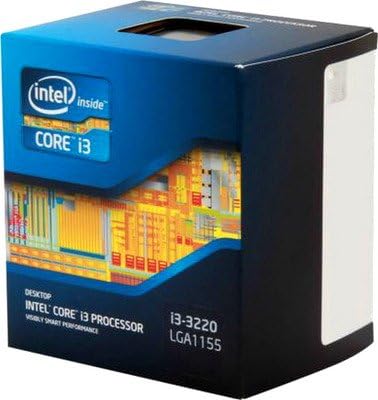
Image: Retail packaging for the Intel Core i3-3220 Processor, showing the Intel Inside Core i3 branding and model number.
Setup and Installation
Proper installation is crucial for optimal performance and longevity of your processor. Always ensure your system is powered off and unplugged before beginning installation.
Pre-installation Checklist:
- Compatible Motherboard (LGA 1155 socket).
- Adequate CPU Cooler (compatible with LGA 1155).
- Thermal Interface Material (thermal paste).
- Anti-static wrist strap or proper grounding procedures.
Installation Steps:
- Prepare the Motherboard: Open the CPU socket lever and lift the load plate.
- Handle the Processor: Hold the processor by its edges. Avoid touching the gold contacts or the top surface.
- Align and Insert: Carefully align the two notches on the processor with the keys on the socket. Gently lower the processor into the socket. Do not force it.
- Secure the Processor: Close the load plate and push the lever down until it locks into place.
- Apply Thermal Paste: Apply a small amount of thermal paste (pea-sized dot) to the center of the processor's integrated heat spreader (IHS).
- Install CPU Cooler: Mount the CPU cooler according to its manufacturer's instructions, ensuring even pressure distribution.
- Connect Fan: Connect the CPU cooler fan cable to the designated CPU_FAN header on the motherboard.
Note: Refer to your motherboard's manual for specific CPU installation instructions, as procedures may vary slightly.
Operating the Processor
Once installed, the Intel Core i3-3220 processor functions as the central processing unit of your computer system. It executes instructions, performs calculations, and manages the flow of information, enabling your operating system and applications to run.
Initial Boot and Driver Installation:
- After assembling your PC, power it on. The system should recognize the new processor.
- Install the operating system if not already present.
- Install the latest chipset drivers for your motherboard, typically found on the motherboard manufacturer's website. These drivers ensure proper communication between the CPU and other system components.
The processor is designed to operate within specified thermal and power limits. Modern operating systems and motherboards automatically manage CPU frequencies and power states for optimal performance and energy efficiency.
Specifications
| Feature | Detail |
|---|---|
| CPU Manufacturer | Intel |
| CPU Model | Core i3 |
| Item Model Number | i3 3220 |
| CPU Speed | 3.3 GHz |
| CPU Socket | LGA 1155 |
| Item Weight | 15.8 ounces |
| ASIN | B00AHAV68S |
| Date First Available | March 10, 2014 |
Maintenance
Processors generally require minimal direct maintenance. However, maintaining the overall cleanliness and proper thermal environment of your computer system is vital for the processor's longevity and performance.
- Dust Management: Regularly clean dust from inside your computer case, especially around the CPU cooler and case fans. Dust accumulation can impede airflow and lead to overheating.
- Thermal Paste: The thermal paste applied between the CPU and cooler may degrade over many years. If you notice consistently high temperatures, reapplying fresh thermal paste might be necessary. This should only be done by experienced users.
- Environmental Conditions: Ensure your computer operates in a well-ventilated area, away from direct sunlight or heat sources.
Troubleshooting
If you encounter issues with your system after installing the processor, consider the following common troubleshooting steps:
- No Boot/No Display:
- Verify that the CPU is correctly seated in its socket and the lever is locked.
- Ensure the CPU power cable (4-pin or 8-pin EPS) is securely connected to the motherboard.
- Check that the CPU cooler is properly installed and its fan is spinning.
- Confirm RAM modules are correctly seated.
- Overheating:
- Ensure the CPU cooler is making good contact with the CPU and thermal paste is applied correctly.
- Check for proper airflow within the computer case; clean any dust buildup.
- Verify CPU cooler fan is functioning.
- System Instability/Crashes:
- Update motherboard BIOS to the latest version (if necessary and compatible).
- Ensure all drivers, especially chipset drivers, are up to date.
- Run system diagnostics to check for other component failures (RAM, storage).
If issues persist, consult your motherboard's troubleshooting guide or seek professional assistance.
Warranty and Support
Intel processors typically come with a limited warranty. For specific warranty terms and conditions, please refer to the documentation included with your purchase or visit the official Intel website.
For technical support, driver downloads, and additional resources, please visit the official Intel support website:
For information regarding protection plans, please refer to the details provided by your retailer at the time of purchase.

