
Introduction
The Dayton Audio iMM-6 is a precision condenser microphone designed for critical acoustic measurement and audio analysis. It is compatible with a wide range of mobile devices, including Apple iPhone, iPad, iPod Touch, and Android/Windows Phone devices that feature a 3.5mm TRRS headset jack. The iMM-6 provides accurate and repeatable measurements, making it an essential tool for audio professionals and enthusiasts alike. Its robust construction and included carrying case ensure durability and portability.
Safety Information
- Do not expose the microphone to extreme temperatures or humidity.
- Avoid dropping or subjecting the microphone to severe impacts.
- Keep the microphone away from strong magnetic fields.
- Do not attempt to disassemble or modify the microphone. This will void the warranty and may cause damage.
- Ensure your device's audio input is configured correctly to prevent signal overload, especially when using line-level sources with adapters.
What's in the Box
- Dayton Audio iMM-6 Calibrated Measurement Microphone
- Sturdy carrying case with foam insert
Setup
- Connecting the Microphone: Insert the 3.5mm TRRS jack of the iMM-6 microphone firmly into the headset jack of your compatible smartphone or tablet.

Image: The Dayton Audio iMM-6 microphone, featuring its 3.5mm TRRS jack, is shown connected to the headphone port of a smartphone, ready for use with an audio analysis application. The microphone's capsule is visible at one end, and a pass-through headphone jack is located at the base of the unit.
- Using the Headphone/Line Out Pass-Through: The iMM-6 features a headphone/line-out pass-through jack. This allows you to monitor the recorded signal or inject test signals from your device while the microphone is connected. Simply plug your headphones or an audio cable into this jack.

Image: A side view of the Dayton Audio iMM-6 microphone highlights its compact design and the integrated 3.5mm TRRS jack for connecting to mobile devices. The microphone's capsule is visible at the top, and the pass-through headphone/line-out jack is clearly shown at the bottom, allowing for simultaneous audio monitoring or signal injection.
- Positioning with the Kickstand: The iMM-6 includes a kickstand feature that allows you to elevate and angle the microphone capsule for more direct and accurate measurements. Adjust the kickstand to position the microphone optimally for your measurement environment.
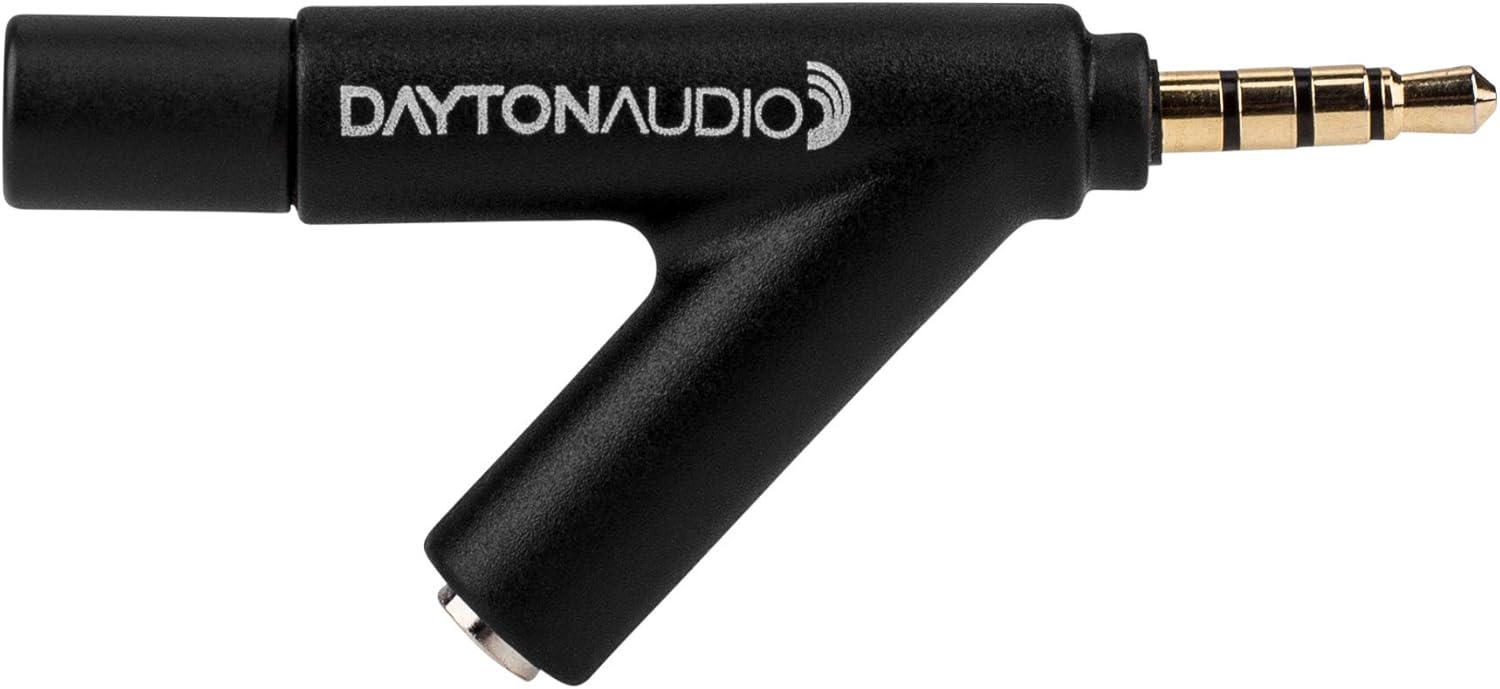
Image: The Dayton Audio iMM-6 microphone is depicted with its integrated kickstand extended, demonstrating how the device can be angled for optimal acoustic measurements. This feature helps to position the microphone capsule accurately towards the sound source, improving measurement precision.
- Install an Audio Analysis App: Download and install a compatible audio analysis (RTA) app on your smartphone or tablet. Many apps are available that support external measurement microphones and calibration files.

Image: A smartphone screen displays a real-time audio analysis (RTA) application, showing frequency response graphs. The Dayton Audio iMM-6 microphone is plugged into the phone's 3.5mm jack, indicating its active use for acoustic measurements. The app's interface shows various controls and data points relevant to audio analysis.
- Download Calibration File: Each iMM-6 microphone comes with a unique serialized calibration file. This file corrects for the microphone's individual frequency response characteristics, ensuring highly accurate measurements. Visit the Dayton Audio calibration download tool (as instructed in the product packaging or documentation) and enter the serial number from your iMM-6 to download its specific calibration file.
- Load Calibration File into App: Follow your chosen audio analysis app's instructions to load the downloaded calibration file. This step is crucial for achieving precise and reliable measurement results.
Operating Instructions
Once the iMM-6 is connected and your audio analysis app is configured with the calibration file, you can begin taking measurements. The microphone is omnidirectional, meaning it picks up sound equally from all directions. This is ideal for room acoustic measurements and general sound pressure level (SPL) readings.

Image: A polar plot illustrates the typical frequency response and omnidirectional pattern of the Dayton Audio iMM-6 microphone. The graph shows consistent sound pickup across various angles for different frequencies, confirming its omnidirectional characteristic essential for accurate room measurements.
- Real-Time Analysis (RTA): Use your RTA app to display the frequency response of your audio system or environment. Generate pink noise or other test signals through your speakers and observe the real-time frequency spectrum on your device.

Image: Another view of a smartphone running an RTA application, with the Dayton Audio iMM-6 microphone connected. This image shows a different frequency response graph, likely demonstrating the microphone's ability to capture and display detailed acoustic data for various audio analysis tasks.
- Sound Pressure Level (SPL) Measurement: The iMM-6 can also be used to measure overall sound pressure levels. Your RTA app will typically display an SPL reading in decibels (dB).
- Troubleshooting Audio Systems: The iMM-6, combined with an RTA app, can help identify issues in audio systems, such as frequency imbalances, resonances, or phase problems.
Maintenance
- Clean the microphone's exterior with a soft, dry cloth. Do not use liquid cleaners or solvents.
- Store the microphone in its provided sturdy carrying case when not in use to protect it from dust, moisture, and physical damage.
- Avoid touching the microphone capsule directly, as oils and debris can affect its performance.
Troubleshooting
No Sound or Low Level:
- Ensure the iMM-6 is fully inserted into the device's 3.5mm TRRS jack.
- Check your audio analysis app settings to ensure the correct input source (external microphone) is selected and input levels are not muted or set too low.
- Verify that the device's volume is turned up.
- If using an adapter for newer phones without a 3.5mm jack, ensure the adapter is compatible and functioning correctly.
Distorted Sound:
- The input signal might be too strong, causing clipping. Check your app's input gain settings and reduce them if necessary.
- Ensure you are using the correct type of adapter if your device requires one (e.g., an adapter with an attenuator for line-level sources).
Inaccurate Measurements:
- Confirm that the correct calibration file for your specific iMM-6 is loaded into the audio analysis app.
- Ensure the microphone is positioned correctly and is not obstructed.
- Environmental factors (e.g., background noise, room acoustics) can affect measurements. Try to perform measurements in a quiet environment.
Specifications
| Feature | Specification |
|---|---|
| Brand | Dayton Audio |
| Model Name | iMM-6 |
| Connectivity Technology | 3.5mm TRRS |
| Connector Type | 3.5 mm Jack |
| Compatible Devices | Smartphone, Tablet |
| Polar Pattern | Omnidirectional |
| Item Weight | 3.53 ounces |
| Product Dimensions | 4.33 x 3.15 x 1.18 inches |
| Impedance | 2200 Ohm |
| Frequency Range | 50 Hz - 16 KHz |
| Noise Level | 45 dB |
| Material | Metal alloy or high-quality plastic |
| Color | Black |
Warranty and Support
Dayton Audio products are designed for reliability and performance. For specific warranty details and technical support, please refer to the official Dayton Audio website or contact their customer service. Ensure you have your product model number (iMM-6) and any purchase information available when seeking support.
For additional resources and information, visit the Dayton Audio Store on Amazon.


