Introduction
This manual provides comprehensive instructions for the setup, operation, and maintenance of your A4tech G11-570HX-1 Rechargeable Wireless Mouse. Please read this manual thoroughly before using the device to ensure optimal performance and longevity.
Package Contents
- A4tech G11-570HX-1 Wireless Mouse
- USB Wireless Receiver
- Rechargeable Lithium-Ion Battery (included, may be pre-installed)
Setup Instructions
- Charge the Mouse: Ensure the mouse is fully charged before first use. Connect the mouse to a USB power source using the appropriate charging cable (not explicitly listed in package contents, but implied for rechargeable devices). The charging status indicator will provide feedback. The battery stops charging automatically when fully charged.
- Insert USB Wireless Receiver: Locate an available USB port on your computer. Insert the A4tech USB wireless receiver into the USB port. Your operating system should automatically detect and install the necessary drivers.
- Power On the Mouse: Locate the power switch on the underside of the mouse and slide it to the 'ON' position.
- Test Connectivity: Move the mouse to confirm cursor movement on your screen. If the mouse does not respond, ensure the receiver is securely plugged in and the mouse is powered on.

Image: The A4tech G11-570HX-1 wireless mouse shown alongside its compact USB wireless receiver, ready for connection to a computer.
Operating Instructions
The A4tech G11-570HX-1 mouse features 7 buttons for enhanced functionality and an operating range of up to 15 meters from the USB receiver.
- Left Click: Primary function, typically for selecting items or activating commands.
- Right Click: Secondary function, typically for opening context menus.
- Scroll Wheel: Scroll documents or web pages vertically. The scroll wheel may also function as a clickable button.
- Additional Buttons: The mouse includes additional programmable buttons. Refer to the manufacturer's software (if available) for customization options.
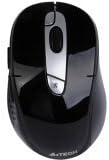
Image: Top view of the A4tech G11-570HX-1 wireless mouse, highlighting its ergonomic design and button layout.
Charging Instructions
Your A4tech G11-570HX-1 mouse is equipped with a long-life, rechargeable lithium-ion battery. To charge the mouse:
- Connect the charging cable (typically a standard USB cable, not included in package contents) to the charging port on the mouse.
- Plug the other end of the charging cable into a powered USB port (e.g., on your computer or a USB wall adapter).
- Observe the charging status indicator. The indicator will show the charging progress.
- The battery stops charging automatically when it reaches full capacity, preventing overcharge and extending battery life.
Customizable Features
The A4tech G11-570HX-1 features a customizable shuttle key, allowing users to assign various functions for enhanced productivity. For detailed customization options, please refer to the official A4tech software or support resources.
Multi-Link Receiver Functionality
The included USB wireless receiver is a multi-link receiver, capable of connecting up to 3 sets of compatible A4tech keyboards and mice simultaneously. This feature allows for a streamlined setup, using a single receiver for multiple wireless peripherals.
Maintenance
- Cleaning: Use a soft, dry cloth to clean the mouse. Avoid using harsh chemicals or abrasive materials.
- Battery Care: To prolong battery life, avoid fully discharging the mouse frequently. Store the mouse in a cool, dry place when not in use for extended periods.
- Storage: When transporting or storing the mouse, ensure the power switch is in the 'OFF' position to conserve battery.
Troubleshooting
- Mouse Not Responding:
- Ensure the USB wireless receiver is securely plugged into a working USB port.
- Verify the mouse is powered on.
- Check the battery level and recharge if necessary.
- Try plugging the receiver into a different USB port.
- Intermittent Connectivity:
- Ensure the mouse is within the 15-meter operating range of the receiver.
- Minimize interference from other wireless devices (e.g., Wi-Fi routers, cordless phones).
- Charging Issues:
- Confirm the charging cable is properly connected to both the mouse and the power source.
- Try a different USB port or charging adapter.
If you continue to experience issues, please refer to the A4tech official support website for further assistance.
Specifications
| Model Number | G11-570HX-1 |
| Wireless Type | 2.4 GHz Radio Frequency |
| Connectivity Technology | Wireless |
| Movement Detection Technology | Optical |
| Number of Buttons | 7 |
| Operating Range | Up to 15 meters |
| Power Source | Battery Powered |
| Battery Type | 1 Lithium Ion battery (included) |
| Hardware Platform | PC |
| Color | Black |
| Item Weight | 5.6 ounces (approx. 158.76 grams) |
| Product Dimensions (LxWxH) | 7.25 x 5 x 2.75 inches (approx. 18.4 x 12.7 x 7 cm) |
| Manufacturer | A4Tech |
Warranty and Support
A4tech products typically come with a limited warranty. For specific warranty terms, registration, and technical support, please visit the official A4tech website or contact their customer service. Keep your purchase receipt as proof of purchase.
Official A4tech Website: www.a4tech.com


