
Spectralink TGD208
Spectralink 8000 Telephony Gateway TGD208 User Manual
Model: TGD208
Introduction
This manual provides comprehensive instructions for the installation, operation, and maintenance of the Spectralink 8000 Telephony Gateway, Model TGD208. Please read this manual thoroughly before attempting to install or operate the device to ensure proper functionality and to prevent damage.
The Spectralink 8000 Telephony Gateway TGD208 is designed to integrate digital telephony systems with Spectralink wireless solutions, enabling seamless communication within your organization.
1. Setup
1.1 Unpacking and Inspection
Carefully unpack the Spectralink 8000 Telephony Gateway TGD208 and all accessories from its packaging. Verify that all components listed below are present and undamaged. If any items are missing or damaged, contact your supplier immediately.
- Spectralink 8000 Telephony Gateway TGD208 unit
- Power Adapter
- Mounting Hardware (if applicable)
- Documentation (Quick Start Guide, Safety Information)
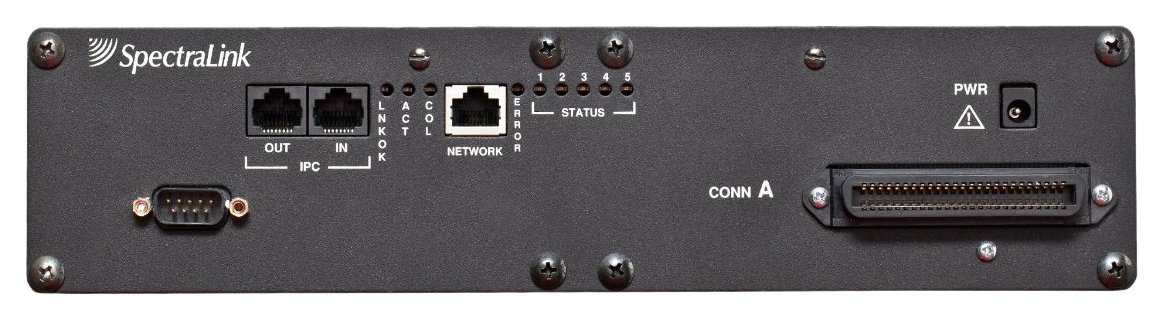
Image showing the Spectralink 8000 Telephony Gateway TGD208 unit, highlighting its compact design and port layout.
1.2 Physical Installation
The gateway can be placed on a flat surface or mounted to a wall or rack using the provided hardware. Ensure the installation location is well-ventilated, free from excessive heat or moisture, and within reach of power and network connections.
- Mounting: If wall-mounting, use appropriate screws and anchors for the wall material. Ensure the unit is securely fastened.
- Connect Digital Telephony Lines: Connect your digital telephony lines (e.g., T1/E1, PRI) to the designated ports on the gateway. Refer to the port labels for correct connections.
- Connect to Network: Connect an Ethernet cable from your local area network (LAN) to the Ethernet port on the gateway. This connection is essential for management and IP-based communication.
- Connect Power: Plug the power adapter into the gateway's power input and then into a suitable electrical outlet.
1.3 Powering On and Initial Boot
Once all connections are secure, the gateway will power on automatically. Observe the LED indicators on the front panel. The power LED should illuminate, and other LEDs will indicate network and telephony line status during the boot sequence. Allow several minutes for the device to fully boot up.
1.4 Initial Configuration
Access the gateway's web-based management interface using a web browser on a computer connected to the same network. Refer to the Quick Start Guide for the default IP address and login credentials. Follow the on-screen prompts to configure basic network settings, time zone, and integrate with your PBX or communication server.
2. Operating Instructions
2.1 Basic Operation
The Spectralink 8000 Telephony Gateway TGD208 operates primarily as an interface between your digital telephony infrastructure and Spectralink wireless handsets. Once configured, its operation is largely automatic.
- Call Routing: The gateway facilitates the routing of calls between the digital telephony system and registered Spectralink handsets.
- Status Monitoring: Monitor the gateway's status through its web interface or LED indicators to ensure proper functioning of telephony lines and network connectivity.
2.2 Advanced Features
The gateway supports various advanced features configurable via its web management interface. These may include:
- Codec Configuration: Adjust audio codecs for optimal call quality and bandwidth usage.
- QoS Settings: Configure Quality of Service (QoS) parameters to prioritize voice traffic.
- Security Settings: Implement security protocols for secure communication.
- Logging and Reporting: Access system logs and reports for troubleshooting and performance monitoring.
Refer to the detailed administration guide available on the Spectralink support website for comprehensive information on advanced feature configuration.
3. Maintenance
3.1 Cleaning
Keep the gateway clean and free from dust. Use a soft, dry cloth to wipe the exterior. Do not use liquid cleaners or abrasive materials, as these can damage the unit.
3.2 Firmware Updates
Periodically check the Spectralink support website for available firmware updates. Firmware updates can provide new features, performance improvements, and security enhancements. Follow the instructions provided with the firmware update package carefully to avoid damaging the device during the update process.
3.3 Regular Checks
Regularly inspect all cable connections to ensure they are secure. Monitor the gateway's status indicators and system logs for any unusual activity or error messages.
4. Troubleshooting
This section provides solutions to common issues you might encounter with your Spectralink 8000 Telephony Gateway TGD208.
4.1 No Power
- Check Power Connection: Ensure the power adapter is securely plugged into the gateway and a working electrical outlet.
- Verify Outlet: Test the electrical outlet with another device to confirm it is supplying power.
- Inspect Power Adapter: Check the power adapter for any visible damage. If damaged, replace it with an approved Spectralink adapter.
4.2 No Network Connectivity
- Check Ethernet Cable: Ensure the Ethernet cable is securely connected to both the gateway and the network switch/router.
- Verify Network Status LEDs: Check the Ethernet port LEDs on the gateway. They should indicate link activity.
- Network Configuration: Confirm that the gateway's IP address and network settings are correctly configured and match your network environment.
- Router/Switch Status: Verify that your network router or switch is functioning correctly.
4.3 Telephony Line Issues
- Check Digital Line Connections: Ensure all digital telephony lines are correctly and securely connected to the gateway's ports.
- Verify PBX Configuration: Confirm that your PBX or communication server is correctly configured to communicate with the Spectralink gateway.
- Gateway Configuration: Review the gateway's telephony interface configuration via its web management interface.
4.4 Accessing Web Interface
- IP Address: Ensure you are using the correct IP address for the gateway. If unsure, you may need to reset the device to factory defaults (refer to the administration guide for this procedure, as it will erase all configurations).
- Network Connection: Confirm your computer is on the same network segment as the gateway.
- Browser Issues: Try a different web browser or clear your browser's cache.
5. Specifications
The following are key technical specifications for the Spectralink 8000 Telephony Gateway TGD208:
| Feature | Description |
|---|---|
| Model Number | TGD208 |
| Manufacturer | Spectralink |
| Telephony Interface | 8-Port Universal Digital (e.g., T1/E1, PRI) |
| Network Interface | Ethernet (RJ-45) |
| Compliance | ROHS Compliant |
| Date First Available | September 28, 2010 |
6. Warranty and Support
6.1 Product Warranty
The Spectralink 8000 Telephony Gateway TGD208 is covered by a limited warranty provided by Spectralink. For detailed information regarding warranty terms, conditions, and duration, please refer to the warranty card included with your product or visit the official Spectralink website.
6.2 Technical Support
If you encounter issues that cannot be resolved using the troubleshooting steps in this manual, please contact Spectralink technical support. Before contacting support, have your product model number (TGD208) and serial number ready. You can find contact information and additional resources on the official Spectralink support website.
Note: This product is now End of Life (EOL). Support and parts availability may be limited.
Ask a question about this manual
Ask about setup, troubleshooting, compatibility, parts, safety, or missing instructions. Manuals+ will review the question and use this page’s manual context to help answer it.