
1. Introduction
The Logitech Extreme 3D PRO Joystick is designed to provide precise and flexible control for PC gaming, particularly flight simulators. It features 12 programmable action buttons, an 8-way hat switch, and a rapid-fire trigger, offering extensive customization for various gaming experiences.

Figure 1: Front view of the Logitech Extreme 3D PRO Joystick.
2. Setup
2.1 System Requirements
- Operating System: Compatible with Desktop PC platforms.
- Connectivity: Available USB port.
2.2 Connecting the Joystick
- Ensure your computer is powered on.
- Locate an available USB port on your computer.
- Plug the USB connector of the Logitech Extreme 3D PRO Joystick into the USB port.
- The operating system should automatically detect and install the necessary drivers. Allow a few moments for the installation to complete.
- Once installed, the joystick is ready for use. You may need to configure specific button mappings within your game's settings.
3. Operation
The Logitech Extreme 3D PRO Joystick offers a range of controls for enhanced gaming precision.
3.1 Key Features
- 12 Programmable Action Buttons: Customize functions for various in-game actions.
- 8-Way Hat Switch: Provides quick and easy control for camera views or weapon selection.
- Rapid-Fire Trigger: Designed for quick and responsive firing in combat scenarios.
- Precise Twist Handle: Offers rudder control for flight simulation, allowing for accurate yaw movements.
- Smooth Throttle Control: Integrated throttle for managing engine speed.

Figure 2: Top-down view highlighting the numerous programmable buttons on the joystick base and stick.
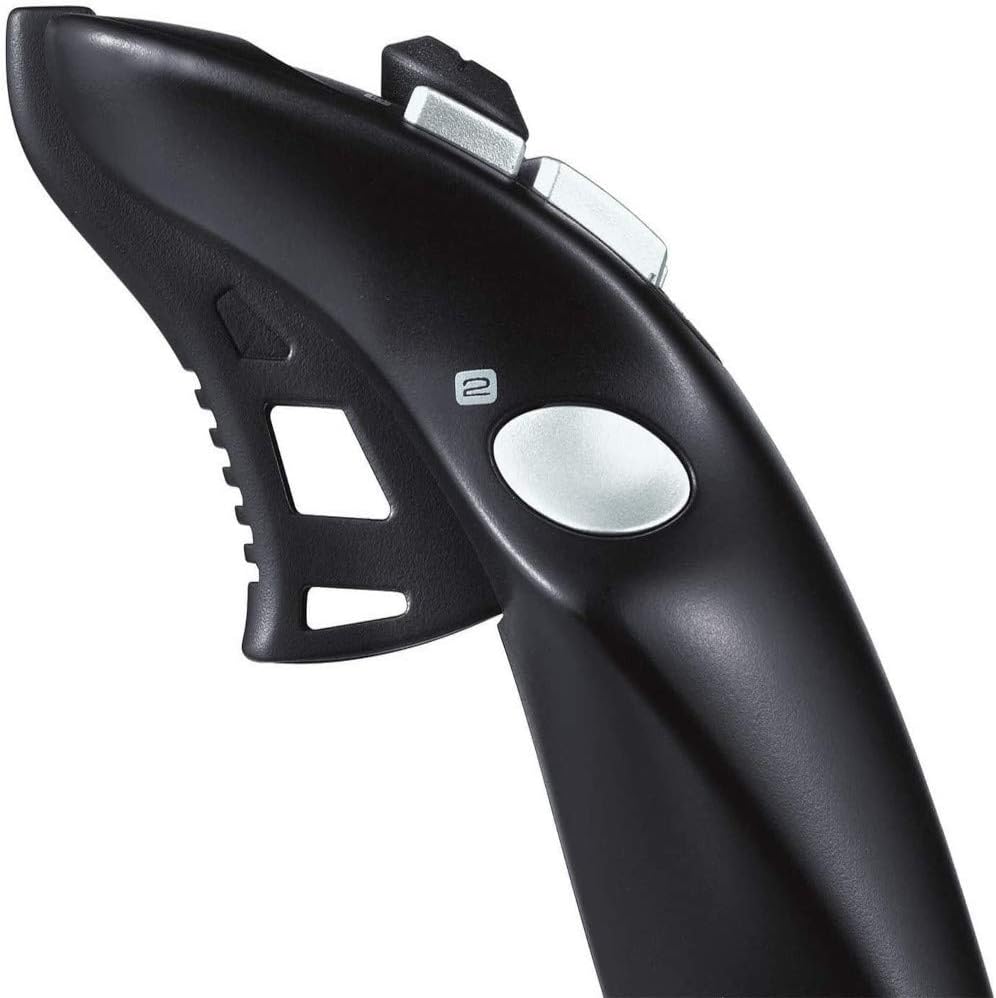
Figure 3: Detail of the rapid-fire trigger and hat switch on the joystick handle.

Figure 4: The integrated throttle control for engine speed adjustment.
3.2 Customizing Controls
Most games allow for in-game customization of joystick buttons and axes. Refer to your game's control settings menu to assign specific functions to the 12 action buttons, hat switch, and twist handle for optimal performance.
4. Maintenance
4.1 Cleaning
- Disconnect the joystick from your computer before cleaning.
- Use a soft, dry cloth to wipe down the surface of the joystick.
- For stubborn dirt, slightly dampen the cloth with water or a mild, non-abrasive cleaner. Avoid harsh chemicals.
- Ensure the joystick is completely dry before reconnecting it to your computer.
4.2 Storage
Store the joystick in a cool, dry place away from direct sunlight and extreme temperatures to prevent damage to electronic components and plastic materials.
5. Troubleshooting
5.1 Joystick Not Detected
- Ensure the USB cable is securely plugged into a working USB port.
- Try a different USB port on your computer.
- Restart your computer and try reconnecting the joystick.
- Check your operating system's Device Manager (Windows) or System Information (macOS) to see if the device is listed.
5.2 Buttons or Axes Not Responding
- Verify that the joystick is properly configured within your game's control settings.
- Calibrate the joystick through your operating system's game controller settings.
- Ensure no other conflicting input devices are connected.
6. Specifications
| Feature | Detail |
|---|---|
| Brand | Logitech G |
| Model Name | FBA_942-000008 |
| Connectivity Technology | USB |
| Controller Type | Joystick |
| Compatible Devices | Desktop, PC |
| Item Weight | 2.38 pounds |
| Product Dimensions (LxWxH) | 8.27 x 8.86 x 9.06 inches |
| Color | Black N Silver |
| Features | 12 action buttons, an eight-way hat switch, and a rapid-fire trigger. |
7. Warranty and Support
The Logitech Extreme 3D PRO Joystick is covered by a manufacturer's limited warranty. For detailed warranty information, product registration, and technical support, please visit the official Logitech G website or refer to the warranty card included with your product. Keep your proof of purchase for warranty claims.
For further assistance, you can visit the Logitech G Store on Amazon.


