
1. Introduction and Overview
The Alpine VIE-X007-WS-E is a dedicated in-dash car navigation system designed for specific vehicle models, featuring a high-definition 7-inch wide VGA LED LCD display. This unit provides clear and detailed maps, high-quality video playback, and integrates advanced features for an enhanced driving experience. It includes a 32GB SDHC memory for map and music data, a built-in terrestrial digital TV tuner, and Bluetooth connectivity for hands-free calling and audio streaming. The system is 'Tuned by Alpine' to ensure optimal acoustic settings and vehicle-specific functionalities.
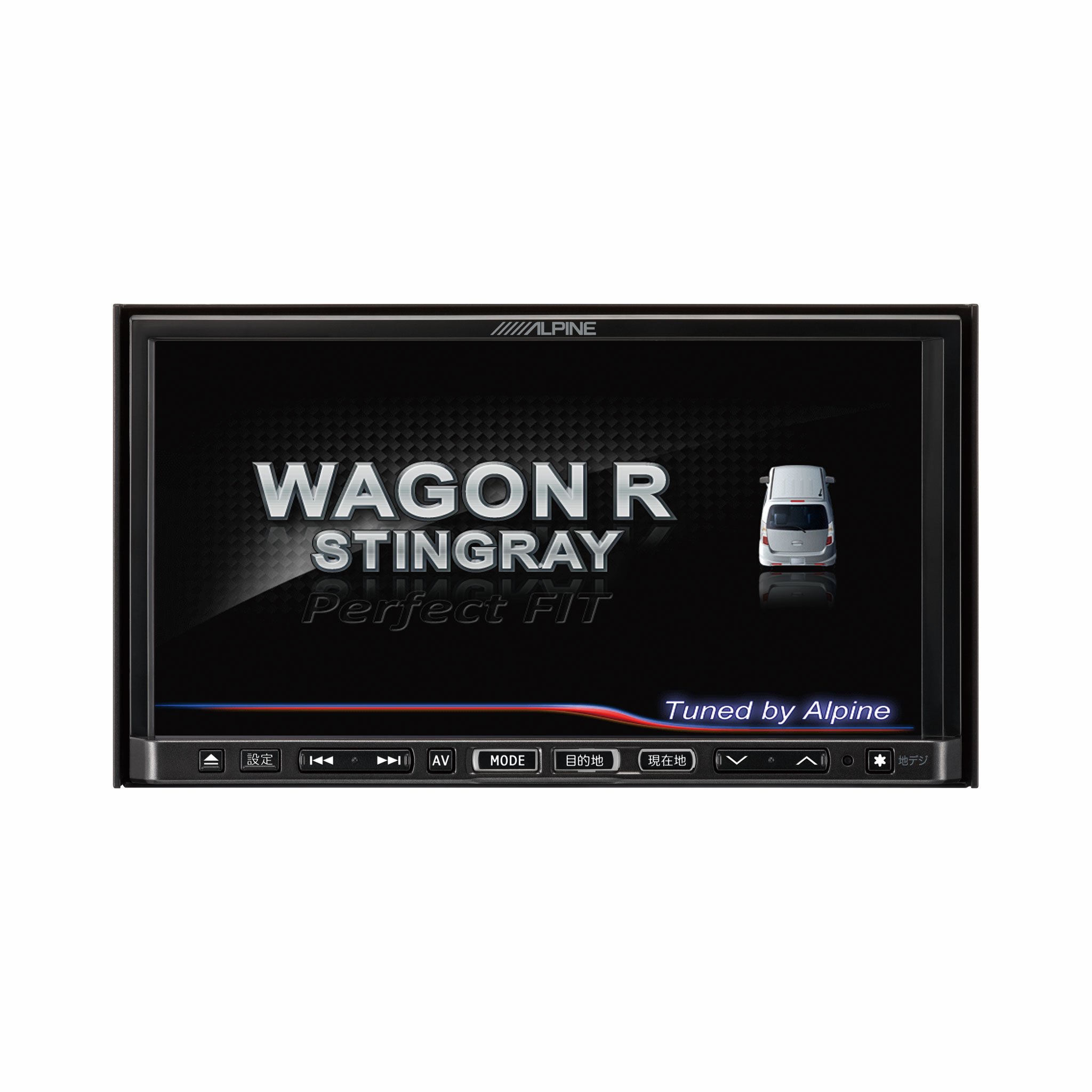
Image 1.1: Front view of the Alpine VIE-X007-WS-E In-Dash Car Navigation System, showcasing its 7-inch display and control interface.
2. Key Features
- Display: 7-inch LED / WVGA Touch Panel Monitor for clear visuals and intuitive control.
- Storage: 32GB SD memory (16GB for Map Data + 16GB for Music Data).
- Tuner: Built-in Terrestrial Digital TV Tuner (12 Segments/One Segment) for broadcast reception.
- Connectivity: Built-in Bluetooth for hands-free calling and Bluetooth audio support.
- Media Playback: Supports DVD/CD, FM/AM radio, SD Memory Card, iPod/iPhone, USB, and Walkman (connection cable not included).
- Vehicle Integration: Alpine system link functions for rear vision camera and vehicle-specific settings.
3. Setup Instructions
Proper installation is crucial for optimal performance and safety. It is highly recommended that this unit be installed by a qualified professional car audio technician.
3.1. Pre-Installation Checks
- Ensure the vehicle's battery is disconnected before starting installation.
- Verify all necessary mounting hardware and wiring harnesses are present.
- Confirm compatibility with your specific vehicle model (Wagon R MH23 Stingray).
3.2. Wiring Connections
- Power Connection: Connect the main power harness to the vehicle's power supply, ensuring proper grounding.
- Speaker Connections: Connect the speaker wires to the corresponding vehicle speakers, observing polarity.
- Antenna Connections: Connect the GPS antenna and the terrestrial digital TV antenna to their respective inputs on the unit. Position antennas in locations with clear line of sight.
- External Device Connections: Connect any optional devices such as a rear-view camera, USB devices, or iPod/iPhone using the appropriate cables (sold separately).
3.3. Mounting the Unit
- Carefully insert the unit into the vehicle's dashboard opening.
- Secure the unit using the provided mounting brackets and screws.
- Re-connect the vehicle's battery.
3.4. Initial Power-On
- Turn on the vehicle's ignition. The unit should power on and display the Alpine logo.
- Follow any on-screen prompts for initial setup, such as language selection and time zone.
4. Operating Instructions
This section provides general guidance on operating your Alpine navigation system.
4.1. Power On/Off
- The unit typically powers on automatically with the vehicle's ignition.
- To manually turn off or put the unit into standby, press and hold the power button (location may vary, refer to specific vehicle integration manual).
4.2. Touchscreen Operation
- Navigate menus and select functions by lightly touching the screen icons.
- Use swipe gestures for scrolling through lists or maps.
4.3. Navigation Functions
- Accessing Navigation: Tap the 'Navigation' or 'Map' icon on the main menu.
- Entering Destination: Use the on-screen keyboard to input an address, point of interest (POI), or select from recent destinations.
- Route Guidance: Once a destination is set, the system will calculate a route and provide turn-by-turn voice guidance and visual cues.
- Map View: Switch between 2D, 3D, and various zoom levels using the on-screen controls.
4.4. Media Playback
- Radio: Select 'FM' or 'AM' from the main menu. Use the tuner controls to scan for stations or select presets.
- CD/DVD: Insert a disc into the slot. Playback should begin automatically or can be selected from the 'Disc' source.
- SD Card/USB: Insert an SD card or USB device. Select 'SD' or 'USB' as the source and browse for media files.
- Bluetooth Audio: Pair your Bluetooth device (see section 4.5) and select 'Bluetooth Audio' as the source to stream music.
- Terrestrial Digital TV: Select 'TV' from the main menu. The system will scan for available channels.
4.5. Bluetooth Pairing
- On the unit, go to the 'Bluetooth' menu.
- Enable Bluetooth on your mobile device and search for available devices.
- Select 'Alpine VIE-X007-WS-E' (or similar name) from your device's list.
- Confirm the pairing code on both devices if prompted.
- Once paired, you can make/receive calls and stream audio.
5. Maintenance
Regular maintenance ensures the longevity and optimal performance of your navigation system.
5.1. Cleaning the Unit
- Use a soft, dry cloth to wipe the display and control panel.
- For stubborn smudges on the screen, lightly dampen the cloth with a screen cleaner specifically designed for electronics. Do not spray cleaner directly onto the unit.
- Avoid using abrasive cleaners, solvents, or harsh chemicals.
5.2. Software and Map Updates
- Periodically check the Alpine official website for available software and map updates.
- Follow the instructions provided with the update package carefully to ensure proper installation. Updates typically involve downloading files to an SD card or USB drive and inserting it into the unit.
5.3. SD Card Handling
- Always eject the SD card safely through the unit's menu before physically removing it.
- Store the SD card in a protective case when not in use to prevent damage.
6. Troubleshooting
This section addresses common issues you might encounter and their potential solutions.
| Problem | Possible Cause | Solution |
|---|---|---|
| Unit does not power on. | Loose power connection, blown fuse, vehicle battery issue. | Check power wiring and fuse. Ensure vehicle battery is charged. Consult a professional if issues persist. |
| No GPS signal or inaccurate positioning. | GPS antenna obstructed or improperly connected, unit in an area with poor satellite reception. | Ensure GPS antenna has a clear view of the sky. Check antenna connection. Move to an open area. |
| Bluetooth device fails to pair. | Bluetooth not enabled on device, incorrect pairing mode, interference. | Ensure Bluetooth is active on your device. Put the unit in pairing mode. Try re-pairing. Move closer to the unit. |
| Touchscreen is unresponsive. | Temporary software glitch, screen calibration issue. | Restart the unit (turn vehicle ignition off and on). If available, perform screen calibration via settings. |
| No sound from speakers. | Volume too low, mute activated, speaker wiring issue. | Increase volume. Check if mute is active. Verify speaker connections. |
If you encounter problems not listed here or if the suggested solutions do not resolve the issue, please contact Alpine customer support or a certified service center.
7. Specifications
| Feature | Specification |
|---|---|
| Brand | Alpine |
| Model | VIE-X007-WS-E |
| Screen Size | 7 Inches |
| Display Type | WVGA LED LCD Touch Panel Monitor |
| Memory Storage Capacity | 16 GB (for Map Data, total 32GB SDHC) |
| Special Features | Hands Free (Bluetooth) |
| Connectivity Technology | Bluetooth, USB |
| Human Interface Input | Touchscreen |
| Media Type Supported | Memory, DVD, CD, FM/AM, SD Card, iPod/iPhone, USB, Walkman |
| Built-in Tuner | Terrestrial Digital TV Tuner (12 Segments/One Segment) |
| Batteries Included | No |
| Product Dimensions | 18.66 x 17.8 x 10 cm |
| Item Weight | 6.44 kg |
8. Warranty and Support
Warranty information for the Alpine VIE-X007-WS-E is typically provided with the product packaging or at the point of purchase. Please refer to these documents for details regarding warranty coverage, terms, and conditions.
For technical support, service inquiries, or to find authorized service centers, please visit the official Alpine website or contact Alpine customer service directly. Ensure you have your product model number (VIE-X007-WS-E) and proof of purchase available when seeking support.
Alpine Official Website: www.alpine.com


