
1. Product Overview
The TP-Link TL-WA850RE is a 300Mbps Wireless N Range Extender designed to conveniently extend the coverage and improve the signal strength of an existing wireless network to eliminate "dead zones." With its miniature size and wall-mounted design, it is easy to deploy and move flexibly. It also features an Ethernet port, allowing it to function as a wireless adapter to connect wired devices.

Image: Front view of the TP-Link TL-WA850RE Range Extender, showing its compact design and indicator lights.
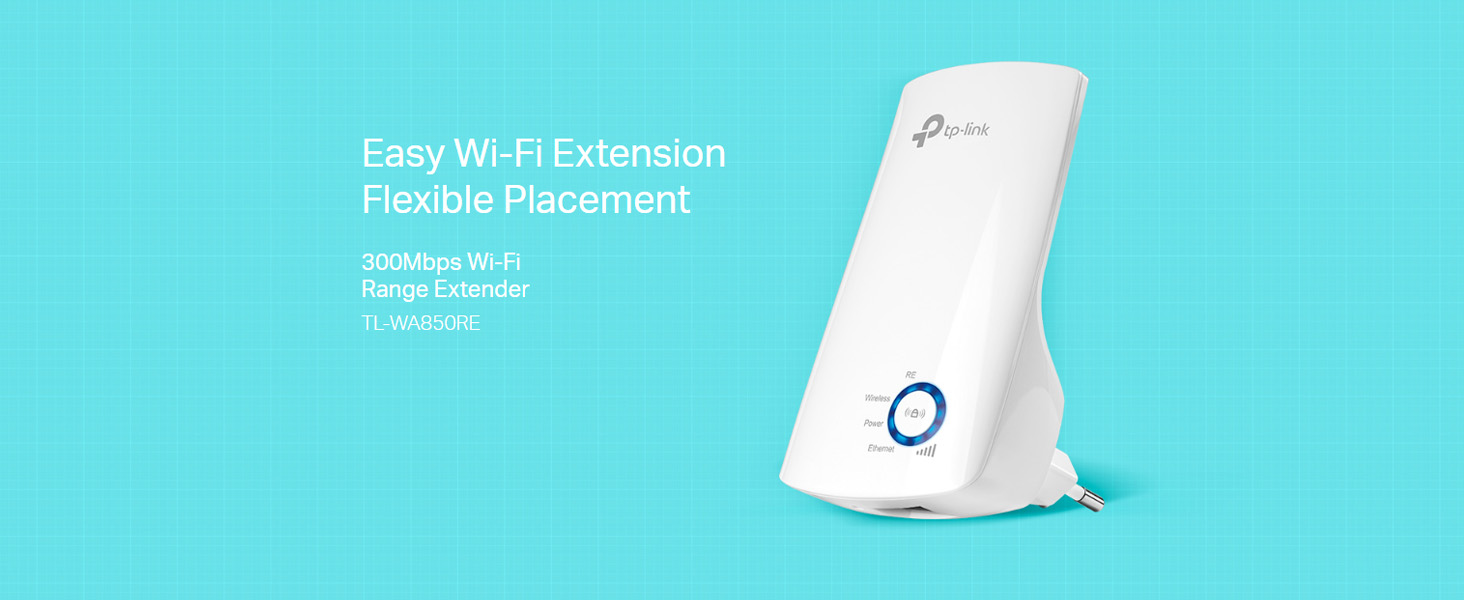
Image: Diagram illustrating how the TL-WA850RE extends Wi-Fi coverage from an existing router to eliminate dead zones in a home.
2. What's in the Box
Upon unboxing your TL-WA850RE, please ensure all the following items are present:
- TP-Link TL-WA850RE 300Mbps Wi-Fi Range Extender
- Quick Installation Guide

Image: The package contents of the TL-WA850RE, including the extender unit and documentation.
3. Setup Guide
3.1. Method 1: Using the WPS Button (Recommended)
The easiest way to set up your range extender is by using the WPS (Wi-Fi Protected Setup) button on both your router and the extender.
- Plug the TL-WA850RE into an electrical outlet near your wireless router.
- Wait until the Power LED on the extender turns solid.
- Press the WPS button on your router.
- Within two minutes, press the Range Extender button (RE button) on the TL-WA850RE.
- The Wireless LED on the extender should change from blinking to solid, indicating a successful connection.

Image: Visual guide for WPS setup, showing the WPS button on the router and the RE button on the extender.
3.2. Method 2: Using a Web Browser
If your router does not have a WPS button, or if the WPS method fails, you can set up the extender via a web browser.
- Plug the TL-WA850RE into an electrical outlet near your wireless router.
- Connect your computer to the extender wirelessly (connect to the Wi-Fi network named 'TP-LINK_Extender_XXXXXX') or via an Ethernet cable to the extender's Ethernet port.
- Open a web browser and type http://tplinkrepeater.net or http://192.168.0.254 in the address bar.
- Create a login password when prompted.
- Follow the on-screen instructions in the Quick Setup Wizard to select your host network and enter its password.
3.3. Optimal Placement
After successful setup, relocate the extender to a location between your router and the Wi-Fi dead zone. The intelligent signal indicator light will help you find the best spot.
- Blue Light: Good signal strength.
- Red Light: Weak signal strength. Relocate the extender closer to the router.

Image: Close-up of the TL-WA850RE's signal indicator light, showing different signal strengths (Best, Good, Bad) and corresponding light colors.
4. Operating the Extender
4.1. Ethernet Port Functionality
The TL-WA850RE's single Ethernet port allows the Extender to function as a wireless adapter. This enables you to connect wired devices like Blu-ray players, gaming consoles, DVRs, and Internet TVs to your Wi-Fi network.

Image: Diagram showing how the TL-WA850RE's Ethernet port can connect wired devices like laptops, smart TVs, and gaming consoles to the wireless network.
4.2. Tether App for Easy Management
The TP-Link Tether app provides an easy way to access and manage your extender using any mobile device. You can control various features, including the LED Control function's Night Mode, which allows you to enjoy a more peaceful night's sleep by turning off the LEDs.
- Download the TP-Link Tether app from the App Store (iOS) or Google Play Store (Android).
- Connect your mobile device to the extender's Wi-Fi network.
- Launch the Tether app and follow the instructions to manage your extender.

Image: A user interacting with the Tether App on a smartphone, demonstrating its ease of use for managing the extender.
5. Maintenance
To ensure optimal performance and longevity of your TL-WA850RE, consider the following maintenance tips:
- Firmware Updates: Regularly check the TP-Link official website for the latest firmware updates. Updating firmware can improve performance, add new features, and fix bugs.
- Placement: Avoid placing the extender in direct sunlight, near heat sources, or in areas with high humidity.
- Cleaning: Gently wipe the device with a soft, dry cloth. Do not use liquid or aerosol cleaners.
- Ventilation: Ensure the extender's ventilation holes are not blocked to prevent overheating.
6. Troubleshooting
Here are solutions to common issues you might encounter:
- Extender cannot connect to the router:
- Ensure the extender is within the router's Wi-Fi range.
- Verify that the Wi-Fi password entered during setup is correct.
- Try restarting both the router and the extender.
- If using WPS, ensure you press the WPS button on both devices within the two-minute window.
- Weak signal even with extender:
- Relocate the extender to an optimal position, ideally halfway between your router and the dead zone, where the signal indicator light shows a strong connection (blue).
- Avoid physical obstructions like thick walls or metal objects.
- Connected to extender but no internet access:
- Check if your main router has internet access.
- Ensure the extender is properly connected to the router (Wireless LED solid).
- Try resetting the extender to factory defaults and reconfiguring it.
- Forgot extender's management password:
- You will need to reset the extender to its factory default settings. Use a pin to press and hold the Reset button for about 5 seconds until all LEDs flash. Then, reconfigure the extender.
7. Specifications
| Feature | Detail |
|---|---|
| Model | TL-WA850RE |
| Wireless Standard | IEEE 802.11n, IEEE 802.11g, IEEE 802.11b |
| Data Transfer Rate | Up to 300 Mbps |
| Frequency Band | 2.4 GHz (Single-Band) |
| Ports | 1 x 10/100M Ethernet Port (RJ45) |
| Buttons | RE (Range Extender) Button, Reset Button |
| Power Consumption | Approx. 3W |
| Dimensions (W x D x H) | 6.6 x 10.92 x 7.62 cm (2.6 x 4.3 x 3.0 in.) |
| Operating System Compatibility | Linux, Windows 7, Windows, Mac OS |

Image: Diagram showing the physical dimensions of the TL-WA850RE in centimeters.
8. Warranty and Support
TP-Link products come with a manufacturer's warranty. Please refer to the warranty card included in your product packaging or visit the official TP-Link website for detailed warranty terms and conditions specific to your region.
For technical support, product information, or service inquiries, please contact TP-Link customer support:
- Toll Free Contact: 18002094168
- Email: support.in@tp-link.com
- Manufacturer/Importer: Pacific Cyber Technology Private Limited, Survey No. 57/3/55, 57/2/56, 57/1/57, Silver Industrial Estate, Village Bhimpore, Nani Daman, Daman Dadra and Nagar Haveli and Daman and Diu, India - 396210
You can also visit the official TP-Link website for FAQs, driver downloads, and additional support resources: www.tp-link.com


