
1. Introduction
This manual provides essential instructions for the safe and efficient use of your Fujitsu Sparepart Power Supply 300W 90+ (Model: S26113-E566-V50-1). Please read this manual thoroughly before installation and operation, and retain it for future reference. This power supply is designed for use in compatible computer systems, particularly for printer applications, providing a stable 300W power output.
2. Safety Information
- Always disconnect power from the system before installing or removing the power supply.
- Do not open the power supply unit. High voltages are present inside, even when disconnected.
- Ensure proper grounding of the system.
- Avoid exposing the unit to moisture or extreme temperatures.
- Handle with care to prevent damage to components.
3. Setup
3.1 Unpacking
Carefully remove the power supply from its packaging. Inspect the unit for any visible damage that may have occurred during transit. If damage is found, do not proceed with installation and contact your supplier.
3.2 Installation Steps
- Prepare the System: Ensure the computer system is powered off and disconnected from the main power outlet. Open the computer case to access the power supply bay.
- Remove Old Power Supply (if applicable): Disconnect all cables from the old power supply to the motherboard, graphics card, drives, and other components. Unscrew and remove the old power supply unit.
- Install New Power Supply: Carefully place the Fujitsu S26113-E566-V50-1 power supply into the designated bay. Secure it with the appropriate screws provided with your computer case or the power supply.
- Connect Cables: Connect the necessary power cables from the new power supply to the motherboard (24-pin ATX, 4/8-pin CPU), graphics card (PCIe), storage drives (SATA/Molex), and any other peripherals. Ensure all connections are firm and correctly oriented.
- Close Case: Once all connections are made and verified, close the computer case.
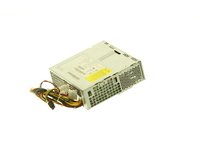
Figure 3.2.1: Fujitsu S26113-E566-V50-1 Power Supply Unit. This image shows the general appearance of the power supply, highlighting its compact form factor and connector layout.
4. Operating
4.1 Powering On
After installation, connect the system's power cord to a wall outlet. Press the power button on your computer. The power supply will initiate, providing power to all connected components. Listen for normal system startup sounds and observe any indicator lights on your motherboard or case.
4.2 Normal Operation
During normal operation, the power supply fan will operate to maintain optimal internal temperatures. The unit is designed to deliver a stable 300 Watts of power. Input voltage range is 100-240 V at 50-60 Hz. Ensure adequate airflow around the computer case to prevent overheating.
5. Maintenance
5.1 Cleaning
To ensure longevity and efficient cooling, periodically clean the power supply's fan and vents. Disconnect the power cord before cleaning. Use compressed air to gently remove dust buildup from the fan blades and ventilation grilles. Do not use liquid cleaners directly on the unit.
5.2 Inspection
Occasionally inspect the power cables for any signs of wear, fraying, or damage. Ensure all connections remain secure. If any damage is observed, replace the affected cables or consult a qualified technician.
6. Troubleshooting
6.1 No Power
- Check Power Cord: Ensure the power cord is securely connected to both the power supply and the wall outlet.
- Wall Outlet: Test the wall outlet with another device to confirm it is supplying power.
- Internal Connections: Verify that all internal power supply cables (24-pin ATX, CPU, PCIe, SATA) are firmly seated.
- Power Supply Switch: Some power supplies have an ON/OFF switch on the back. Ensure it is in the 'ON' position.
6.2 System Instability or Random Shutdowns
- Overload: Ensure the total power draw of your components does not exceed the power supply's 300W capacity.
- Overheating: Check for proper airflow within the computer case. Clean any dust buildup from the power supply fan and system fans.
- Faulty Components: If issues persist, other components (motherboard, RAM, GPU) might be faulty. Testing with known good components may be necessary.
If troubleshooting steps do not resolve the issue, contact Fujitsu customer support or a qualified technician.
7. Specifications
| Feature | Detail |
|---|---|
| Brand | Fujitsu |
| Model Number | S26113-E566-V50-1 |
| Part Number (Type) | 34031913 |
| Output Wattage | 300 Watts |
| Minimum Input Voltage | 100 Volts |
| Maximum Input Voltage | 240 Volts |
| Input Frequency | 50-60 Hz |
| Cooling Method | Air |
| Item Weight | 3.14 pounds |
| Compatible Devices | Printer (and other compatible computer systems) |
| Date First Available | November 21, 2021 |
8. Warranty Information
Fujitsu products are manufactured to high-quality standards. For specific warranty terms and conditions applicable to your S26113-E566-V50-1 power supply, please refer to the warranty card included with your purchase or visit the official Fujitsu website. Warranty coverage typically includes defects in materials and workmanship under normal use.
9. Customer Support
For technical assistance, troubleshooting, or warranty claims, please contact Fujitsu customer support. You can find contact information, including phone numbers and online support portals, on the official Fujitsu website:
www.fujitsu.com/global/support/
Please have your product model number (S26113-E566-V50-1) and purchase details ready when contacting support.


