
Introduction
Thank you for choosing the Philips Snow Edition 64GB USB 3.0 Flash Drive. This manual provides essential information for the proper setup, operation, and maintenance of your device. This high-speed flash drive offers reliable data storage and transfer capabilities, compatible with various operating systems and devices.
Setup and First Use
The Philips Snow Edition USB 3.0 Flash Drive is designed for plug-and-play functionality. No special drivers are typically required for most modern operating systems.
Connecting the Flash Drive
- Locate an available USB port on your computer or compatible device. The drive supports USB 2.0, USB 3.0, and USB 3.1 ports. For optimal performance, use a USB 3.0 or 3.1 port.
- Remove the protective cap from the flash drive.
- Insert the flash drive firmly into the USB port.
- The LED indicator on the drive will illuminate, indicating a proper connection and activity.
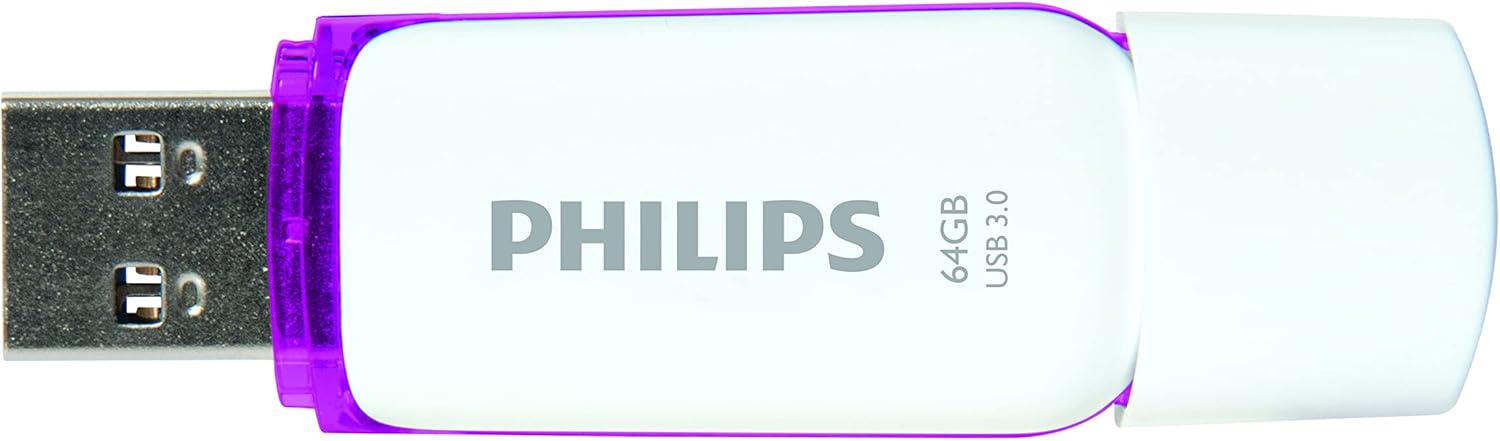
Image: Philips USB 3.0 Flash Drive with its protective cap removed, revealing the USB Type-A connector. The drive is white with purple accents.
System Compatibility
The flash drive is compatible with the following operating systems:
- Windows XP and higher
- Mac OS 9.0 or higher
- Linux 2.4.0 or higher
Operating Instructions
Accessing the Drive
Once connected, your computer's operating system should automatically detect the flash drive and assign it a drive letter (e.g., "Removable Disk (E:)"). You can access the drive through "My Computer" or "This PC" on Windows, or through the Finder on Mac OS.
Transferring Files
To transfer files to or from the flash drive, simply drag and drop files or folders between your computer's storage and the flash drive's window. The LED indicator will pulsate faster during file transfer operations.

Image: The Philips USB 3.0 Flash Drive shown in a diagram connecting to various devices such as a laptop, desktop computer, car audio system, television, and printer, illustrating its versatility.

Image: The Philips USB 3.0 Flash Drive displayed alongside icons for documents, images, music, and video, indicating its use for storing various types of digital media.
Safely Removing the Drive
Always safely eject the flash drive before physically removing it from your computer. This prevents data corruption.
- Windows: Click the "Safely Remove Hardware and Eject Media" icon in the system tray, then select the flash drive.
- Mac OS: Drag the flash drive icon from the desktop to the Trash, or right-click (Control-click) the drive icon and select "Eject."
Care and Maintenance
To ensure the longevity and optimal performance of your Philips flash drive, follow these guidelines:
- Keep the protective cap on the USB connector when not in use to prevent dust and debris from entering.
- Avoid exposing the drive to extreme temperatures, direct sunlight, or high humidity.
- Do not drop the drive or subject it to strong impacts. While designed to be shock-proof, excessive force can cause damage.
- Clean the exterior of the drive with a soft, dry cloth. Do not use liquid cleaners or solvents.
- Always safely eject the drive before removal to prevent data loss or corruption.
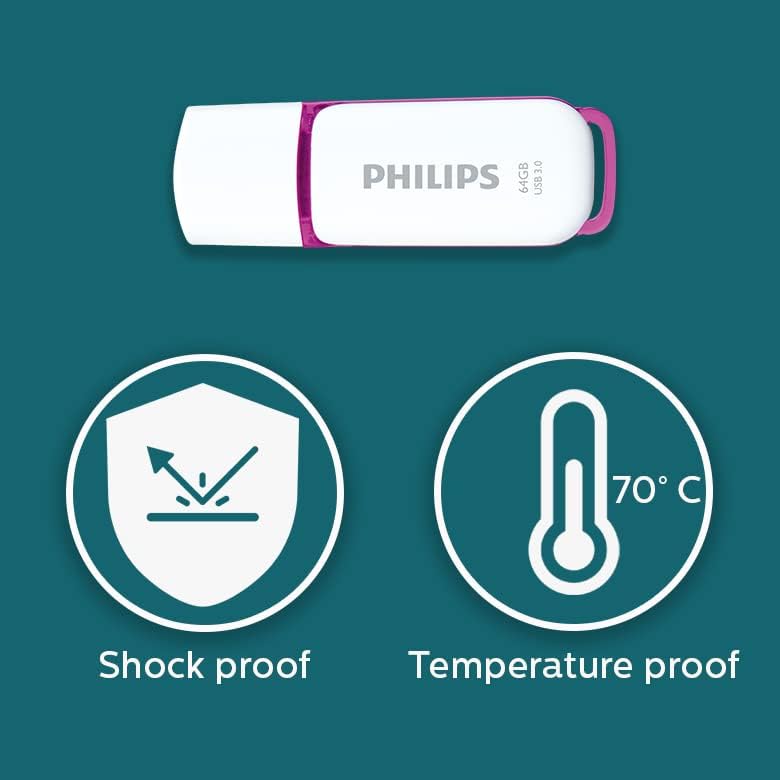
Image: Graphic illustrating the shock-proof and temperature-proof features of the Philips USB flash drive, indicating its durability.
Troubleshooting
If you encounter issues with your Philips flash drive, refer to the following common problems and solutions:
Drive Not Detected
- Ensure the drive is fully inserted into the USB port.
- Try a different USB port on your computer.
- Test the drive on another computer to rule out a computer-specific issue.
- Check your computer's Device Manager (Windows) or System Information (Mac) to see if the drive is listed.
- Restart your computer.
Slow Transfer Speeds
- Ensure you are using a USB 3.0 or USB 3.1 port on your computer. Connecting to a USB 2.0 port will result in slower speeds.
- The actual performance can depend on the host device and the type of files being transferred (many small files transfer slower than one large file).
- Close other applications that might be using system resources.
- Ensure your computer's USB drivers are up to date.
Data Corruption or Errors
- Always safely eject the drive before removing it. Unplugging the drive directly can lead to data corruption.
- Run a disk check utility on the drive (e.g., Error Checking on Windows, Disk Utility on Mac) to scan for and repair errors.
- If the drive continues to show errors, it may indicate a hardware issue.
Specifications
| Model Name | SNOW USB3.0 |
| Model Number | FM64FD75B/10 |
| Memory Storage Capacity | 64 GB |
| Hardware Interface | USB 3.0 |
| Connectivity Technology | USB Type-A |
| Read Speed | Up to 100 MB/s |
| Write Speed | ≥60 MB/s |
| Color | White/Purple |
| Product Dimensions | 0.79 x 0.28 x 2.36 inches (20 x 7 x 59 mm) |
| Item Weight | 0.261 ounces |
| Special Feature | Lightweight, Shock-proof, Temperature-proof |
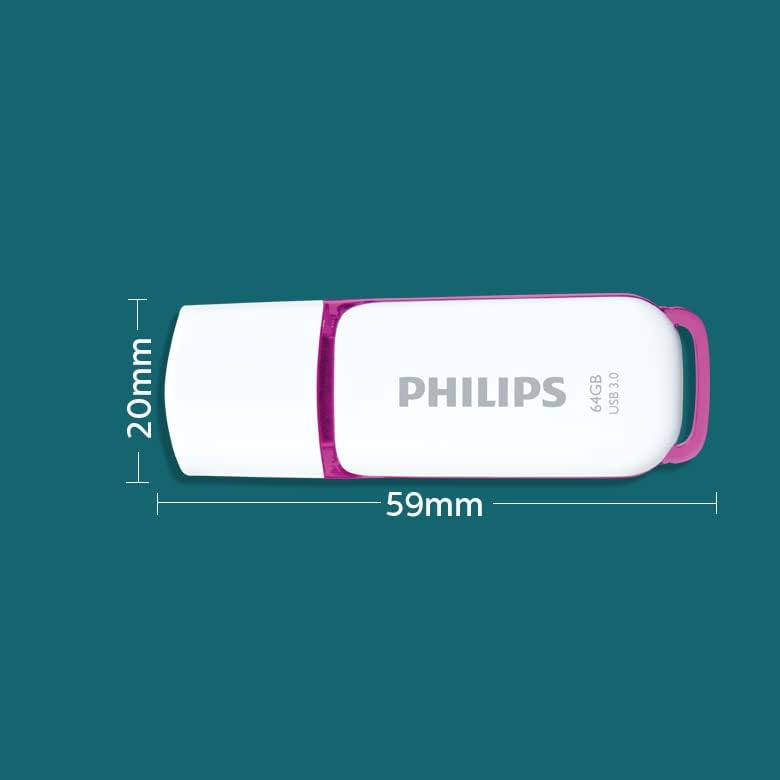
Image: A diagram illustrating the physical dimensions of the Philips USB flash drive, showing a width of 20mm and a length of 59mm.
Warranty Information
This Philips USB Flash Drive comes with a 1-year warranty covering parts and labor from the date of purchase. Please retain your proof of purchase for warranty claims. The warranty does not cover damage caused by misuse, accidents, unauthorized modifications, or normal wear and tear.
Support and Contact
For further assistance, technical support, or warranty inquiries, please visit the official Philips support website or contact their customer service.
You can find more information and support resources by visiting the Philips Store on Amazon.


