
Intel SL35E
User Manual: Intel SL35E Pentium III 500MHz Processor
Model: SL35E | Brand: Intel
1. Introduction
This manual provides essential information for the Intel SL35E Pentium III 500MHz Processor. It covers product specifications, installation guidelines, operational considerations, maintenance tips, and troubleshooting steps to ensure optimal performance and longevity of your processor.
2. Specifications
| Feature | Detail |
|---|---|
| Product Number | SL35E |
| Voltage | 2.0V |
| Clock Speed | 500MHz |
| Secondary Cache | 512KB (0.51 MB) |
| Bus Speed | 100MHz |
| CPU Socket | Slot 1 |
| Product Dimensions | 3 x 4 x 5 inches |
| Weight | 12.8 ounces |
| Manufacturer | Intel |
| First Available | October 21, 2015 |
3. Setup and Installation
Proper installation is crucial for the functionality and longevity of your Intel SL35E processor. Always ensure your system is powered off and unplugged before beginning installation.
- Preparation: Ensure your motherboard supports the Intel Pentium III processor (specifically Slot 1). Consult your motherboard's manual for compatibility and BIOS settings.
- Static Discharge: Before handling the processor, discharge any static electricity from your body by touching a grounded metal object. Consider using an anti-static wrist strap.
- Processor Insertion: Align the processor cartridge with the Slot 1 on the motherboard. Gently push down until it clicks into place. Ensure the retention clips are securely fastened.
- Heatsink and Fan Installation: The processor generates heat and requires a heatsink and fan assembly for cooling.
- Apply a thin, even layer of thermal paste to the top surface of the processor (if not pre-applied on the heatsink).
- Mount the heatsink and fan assembly securely onto the processor, ensuring good contact.
- Connect the fan's power cable to the appropriate header on the motherboard (usually labeled "CPU_FAN").
- System Reassembly: Close your computer case, reconnect all peripherals, and power cables.
- Initial Boot: Power on your system. The BIOS should detect the new processor. You may need to enter the BIOS setup to verify settings or load optimized defaults.
Note: This processor is a vintage component. Ensure your system's power supply and motherboard are compatible with its voltage and power requirements.
4. Operation
The Intel SL35E Pentium III 500MHz processor functions as the central processing unit (CPU) of your computer system. It executes instructions, performs calculations, and manages the flow of data, enabling your operating system and applications to run.
Once installed and recognized by your system's BIOS and operating system, the processor operates automatically. Its performance is influenced by factors such as the speed of your RAM, motherboard chipset, and storage devices.
For optimal operation, ensure your operating system and drivers are up-to-date. Avoid running too many demanding applications simultaneously if you experience performance degradation.
5. Maintenance
While processors generally require minimal direct maintenance, ensuring a clean and cool operating environment is vital for their longevity and stable performance.
- Dust Removal: Periodically clean the heatsink and fan assembly to prevent dust buildup, which can impede airflow and lead to overheating. Use compressed air to gently blow dust away from the fins of the heatsink and fan blades.
- Thermal Paste: If you notice consistently high temperatures or if you remove the heatsink for any reason, it is recommended to clean off old thermal paste and apply a fresh layer before reattaching the heatsink.
- Environmental Control: Ensure your computer case has adequate ventilation. Avoid placing the computer in enclosed spaces or near heat sources. Maintain a moderate room temperature.
- Software Updates: Keep your operating system and motherboard drivers updated. These updates can sometimes include microcode updates or optimizations that improve processor stability and performance.
6. Troubleshooting
If you encounter issues after installing or while using your Intel SL35E processor, consider the following troubleshooting steps:
- No Boot/Black Screen:
- Verify the processor is correctly seated in its slot and the retention mechanism is engaged.
- Ensure the heatsink and fan are properly installed and the fan is connected to the motherboard.
- Check RAM modules for proper seating.
- Reset CMOS (BIOS settings) on your motherboard. Refer to your motherboard manual.
- Ensure your power supply provides sufficient wattage for all components.
- System Instability/Crashes:
- Overheating: Monitor CPU temperatures using system monitoring software. If temperatures are high, re-check heatsink installation, thermal paste application, and case airflow.
- Driver Issues: Ensure all motherboard and chipset drivers are correctly installed and up-to-date.
- Power Delivery: Verify that the motherboard's CPU power connector is securely plugged in.
- Slow Performance:
- Check for background processes consuming CPU resources.
- Ensure your operating system is not heavily fragmented (for older systems with HDDs).
- Verify that the processor is running at its advertised speed in BIOS or system information.
If issues persist, consult a qualified computer technician or refer to online resources specific to vintage Intel Pentium III processors and compatible motherboards.
7. Product Images

Figure 1: An angled view of the Intel SL35E Pentium III processor, showcasing the integrated heatsink and fan assembly. This view highlights the cooling fins designed to dissipate heat from the CPU.

Figure 2: A top-down view of the Intel SL35E processor, clearly showing the arrangement of the heatsink fins. This perspective is useful for understanding the overall footprint of the processor module.

Figure 3: A close-up shot of the processor's label, displaying key identification information such as "500/512/100/2.0V" and part numbers. This label is crucial for verifying the exact model and specifications.

Figure 4: Another close-up of the processor's label, showing the "SL35E" model number and copyright information, confirming its authenticity and manufacturing details.
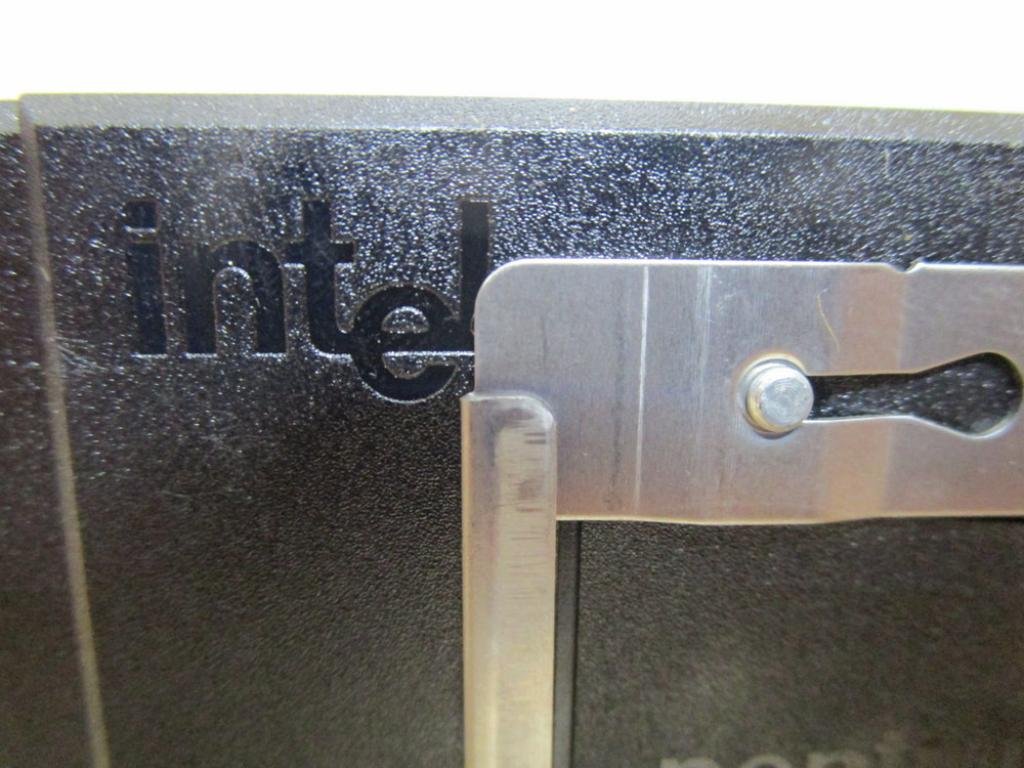
Figure 5: A detailed view highlighting the "Intel" branding on the processor module, indicating the manufacturer of the component.

Figure 6: The rear side of the processor module, showing the "This Side Up" and "Pentium III" markings, along with the connector area. This view is important for correct orientation during installation.

Figure 7: An angled side view of the processor, showing the heatsink and the attached fan cable, which connects to the motherboard for power.

Figure 8: A side profile of the processor, providing a clear view of the heatsink structure and the fan's power cable extending from the unit.

Figure 9: A close-up of the fan's power connector, typically a 3-pin or 4-pin connector, which plugs into the motherboard to supply power to the cooling fan.
8. Warranty Information
Specific warranty details for the Intel SL35E Pentium III 500MHz Processor should be obtained from the original seller or Intel directly, if applicable. Given the vintage nature of this component, warranty coverage may be limited or expired. It is recommended to verify the warranty status at the time of purchase.
9. Support
For further technical assistance, documentation, or product information regarding Intel processors, please visit the official Intel website or their support pages.
You can also visit the Intel Store on Amazon for more products and information.
Ask a question about this manual
Ask about setup, troubleshooting, compatibility, parts, safety, or missing instructions. Manuals+ will review the question and use this page’s manual context to help answer it.