
1. Introduction
Thank you for choosing the Gear Head KB7500AND Bluetooth Wireless Keyboard. This keyboard is designed to provide a comfortable and efficient typing experience for your Android-compatible tablet or smartphone. Featuring Bluetooth 4.0 technology, Scissor-Click keys, and integrated hot keys, it enhances productivity and ease of use. Please read this manual carefully to ensure proper setup and operation.
2. Package Contents
Please verify that all items are present in your package:
- Gear Head KB7500AND Bluetooth Wireless Keyboard
- 2 x AAA Batteries (pre-installed or included separately)
- USB Cable (for potential charging or data transfer, depending on model variant)
- User Manual (this document)
3. Product Features
- Bluetooth 4.0 Certified: Ensures stable wireless connectivity up to 30 feet (approximately 9 meters) while optimizing power consumption.
- Scissor-Click Key Technology: Provides accurate and comfortable typing with precise tactile feedback.
- 10 Integrated Hot Keys: Offers one-touch access to multimedia controls, function keys, and internet functions.
- Multi-Host Keys: Allows connection to two Android devices and easy toggling between them.
- Automatic Wireless Synchronization: Designed for hassle-free pairing with compatible devices.
- LED Indicators: Built-in multi-color LEDs provide visual feedback for Bluetooth connectivity and pairing status.
4. Setup
4.1 Battery Installation
The keyboard requires 2 AAA batteries for operation. These are typically included with your purchase.
- Locate the battery compartment cover on the back of the keyboard.
- Slide or lift the cover to open the compartment.
- Insert the 2 AAA batteries, ensuring the positive (+) and negative (-) terminals match the indicators inside the compartment.
- Replace the battery compartment cover securely.
4.2 Powering On the Keyboard
Locate the power switch on the keyboard. Slide the switch to the ON position. An LED indicator will illuminate briefly, indicating the keyboard is powered on.
4.3 Pairing with an Android Device
The keyboard uses Bluetooth for wireless connection. Follow these steps to pair it with your Android tablet or smartphone:
- Ensure the keyboard is powered on.
- On your Android device, go to Settings > Connected devices > Bluetooth (or similar path depending on your Android version).
- Turn on Bluetooth on your Android device. It will start scanning for nearby devices.
- On the Gear Head KB7500AND keyboard, press the Connect key (often labeled with a Bluetooth symbol or 'Pair'). The Bluetooth LED indicator on the keyboard will start blinking, indicating it is in pairing mode.
- On your Android device, select "Gear Head KB7500AND" or a similar name from the list of available devices.
- If prompted, enter the pairing code displayed on your Android device using the keyboard, then press Enter.
- Once paired, the Bluetooth LED indicator on the keyboard will stop blinking and may turn solid or turn off, and your Android device will show the keyboard as "Connected."
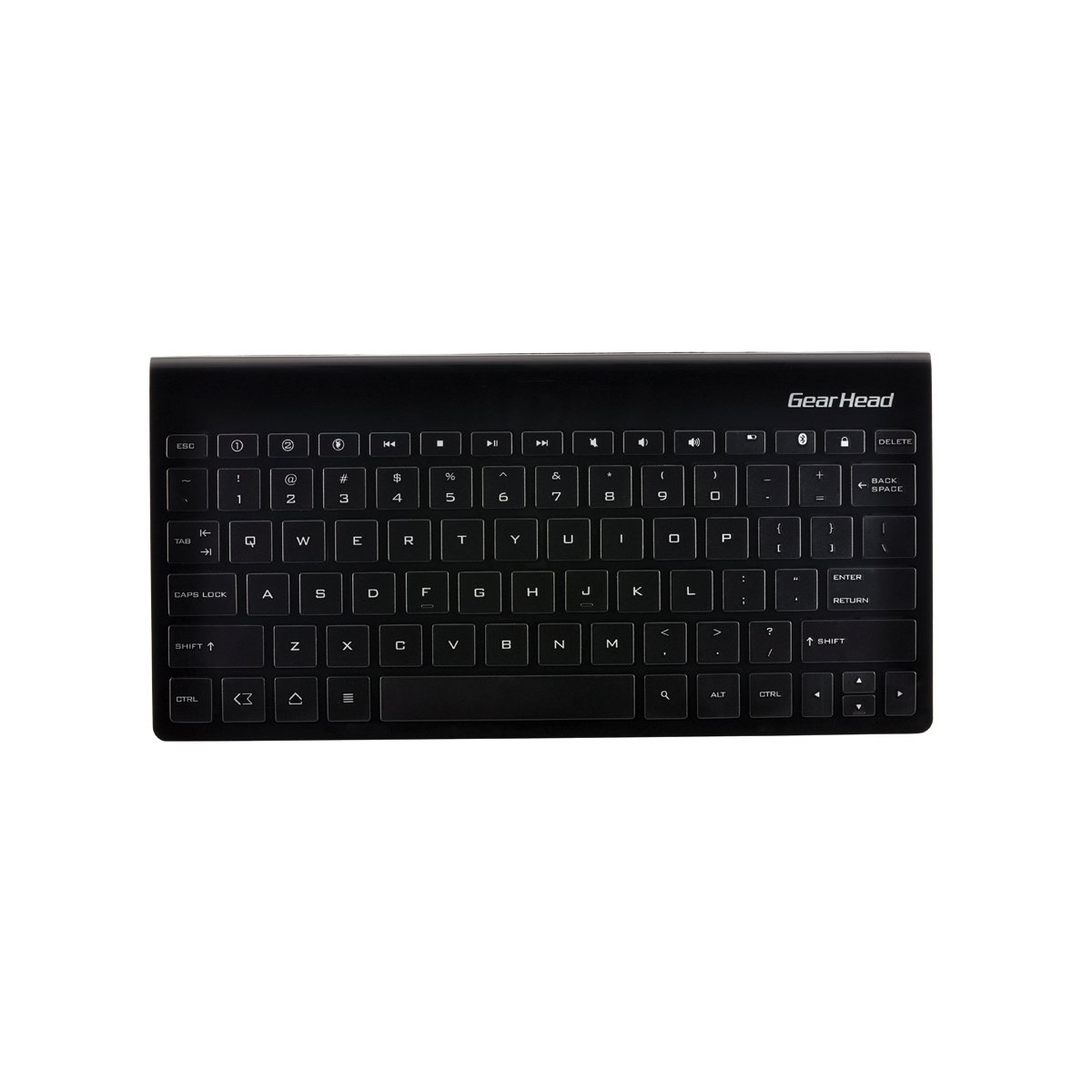
Figure 1: Gear Head KB7500AND Bluetooth Wireless Keyboard. This image shows the overall design of the keyboard, highlighting its compact form factor and key layout, including the function keys and dedicated hot keys.
5. Operating Instructions
5.1 General Typing
Once paired, the keyboard functions like a standard QWERTY keyboard. Simply open any text input application on your Android device and begin typing.
5.2 Using Integrated Hot Keys
The KB7500AND keyboard features 10 integrated hot keys for quick access to common functions. These keys are typically located along the top row of the keyboard. Refer to the key labels for their specific functions, which may include:
- Home
- Back
- Search
- Volume Up/Down/Mute
- Play/Pause, Previous/Next Track
- Browser
Note: The exact functionality of some hot keys may vary depending on your Android device's operating system version and specific applications.
5.3 Multi-Host Functionality
This keyboard supports connecting to two different Android devices. To switch between connected devices:
- Pair the keyboard with your first device (Device A) as described in Section 4.3.
- To pair with a second device (Device B), activate the pairing mode on the keyboard again (e.g., by pressing a dedicated multi-host key or the connect button).
- Pair the keyboard with Device B following the steps in Section 4.3.
- To switch between Device A and Device B, use the designated multi-host keys (e.g., F1/F2 or similar, check keyboard markings). Pressing the corresponding key will switch the keyboard's connection to that device.
6. Maintenance
6.1 Cleaning
To clean your keyboard, gently wipe the surface with a soft, dry, lint-free cloth. For stubborn dirt, slightly dampen the cloth with water or a mild, non-abrasive cleaner. Do not use harsh chemicals, solvents, or abrasive materials, as these can damage the keyboard's finish or internal components. Avoid getting moisture into the key gaps or ports.
6.2 Battery Replacement
When the keyboard's performance degrades or the LED indicator signals low battery, replace the AAA batteries. Follow the battery installation steps in Section 4.1. Always use new, high-quality AAA batteries and dispose of old batteries responsibly according to local regulations.
6.3 Storage
When not in use for extended periods, turn off the keyboard to conserve battery life. Store the keyboard in a cool, dry place away from direct sunlight, extreme temperatures, and excessive humidity. If storing for a very long time, consider removing the batteries to prevent leakage.
7. Troubleshooting
If you encounter issues with your Gear Head KB7500AND keyboard, refer to the following common solutions:
- Keyboard not powering on: Ensure batteries are correctly installed and fully charged. Check the power switch is in the 'ON' position.
- Keyboard not pairing:
- Ensure Bluetooth is enabled on your Android device.
- Make sure the keyboard is in pairing mode (blinking Bluetooth LED).
- Move the keyboard closer to your Android device.
- Forget the keyboard from your device's Bluetooth settings and attempt to pair again.
- Restart both the keyboard (turn off/on) and your Android device.
- Keys not responding or delayed input:
- Check battery level and replace if low.
- Ensure the keyboard is within the 30-foot operating range of your device.
- Minimize interference from other wireless devices.
- Reconnect the Bluetooth connection.
- Hot keys not working as expected:
- Functionality may depend on your Android OS version and specific applications.
- Ensure the keyboard is correctly paired.
If the problem persists after trying these steps, please contact customer support.
8. Specifications
| Brand | Gear Head |
| Model Number | KB7500AND |
| Connectivity Technology | Bluetooth 4.0 |
| Compatible Operating System | Android OS 2.2 (Froyo) and above |
| Power Source | 2 x AAA Batteries |
| Item Weight | 12 ounces (approx. 340 grams) |
| Product Dimensions (LxWxH) | 10.61 x 0.8 x 5.14 inches (approx. 26.95 x 2.03 x 13.06 cm) |
| Color | Black |
| Material | Plastic |
9. Warranty and Support
Gear Head products are designed for reliability and performance. For specific warranty information, please refer to the warranty card included with your product or visit the official Gear Head website. If you require technical assistance or have questions not covered in this manual, please contact Gear Head customer support through their official channels.
