
Redi-Remote RT076R0JN01A
User Manual: Redi-Remote Replacement Control
For MEMOREX MVD4541A, 076R0JN01A, DVCR810D, VRDVD4001AC, MVD4541, VRDVD4100B
Introduction
This manual provides instructions for the Redi-Remote replacement remote control, designed for specific MEMOREX units. This remote is a custom-built replacement and is not an original MEMOREX product. It is engineered to be compatible with the following models: MVD4541A, 076R0JN01A, DVCR810D, VRDVD4001AC, MVD4541, and VRDVD4100B.
The remote control features a sliding cover that conceals the lower half of the buttons, providing a more compact design when not in use.
Setup
Battery Installation
The remote control requires 4 AAA batteries for operation. These batteries are included with your purchase.
- Locate the battery compartment on the back of the remote control.
- Slide open the battery compartment cover.
- Insert the 4 AAA batteries, ensuring correct polarity (+ and -) as indicated inside the compartment.
- Close the battery compartment cover securely.
Initial Use
This Redi-Remote replacement control is designed for immediate use with compatible MEMOREX units and requires no programming. Simply insert the batteries, and the remote is ready to operate your device.
Operating Your Remote Control
Familiarize yourself with the layout and functions of the buttons on your Redi-Remote. The remote is divided into two main sections: the primary control area and a hidden advanced control area.
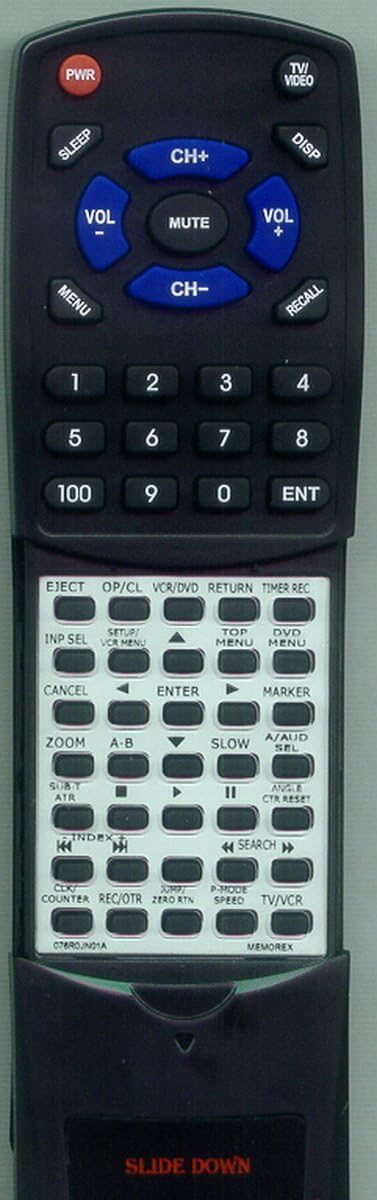
This image displays the full view of the Redi-Remote replacement remote control. The top section features power, volume, channel, and numeric buttons. The lower section, revealed by sliding down a cover, contains advanced playback and menu navigation controls.
Top Section Buttons
- PWR (Power): Turns the connected device on or off.
- SLEEP: Activates the sleep timer function.
- TV/VIDEO: Switches between TV and video input modes.
- DISP (Display): Shows on-screen display information.
- VOL +/- (Volume): Adjusts the volume level.
- MUTE: Mutes or unmutes the audio.
- CH +/- (Channel): Changes the channel up or down.
- MENU: Accesses the main menu of the device.
- RECALL: Recalls the previously viewed channel.
- Numeric Keypad (0-9, 100, ENT): Used for direct channel entry and other numerical inputs. ENT confirms numerical input.
Lower Section Buttons (Slide Down to Reveal)
To access these functions, gently slide down the cover located at the bottom of the remote control. The cover is labeled "SLIDE DOWN".
- EJECT: Ejects disc from DVD/VCR.
- OP/CL (Open/Close): Opens or closes the disc tray.
- VCR/DVD: Toggles between VCR and DVD modes.
- RETURN: Returns to the previous screen or menu.
- TIMER REC (Timer Record): Sets up a timed recording.
- INP SEL (Input Select): Selects input source.
- SETUP/VCR MENU: Accesses setup menu or VCR specific menu.
- TOP MENU: Accesses the top menu of a DVD.
- DVD MENU: Accesses the DVD menu.
- CANCEL: Cancels current operation or selection.
- Navigation Arrows (Up, Down, Left, Right): Navigates through menus and options.
- ENTER: Confirms a selection.
- MARKER: Sets a marker during playback.
- ZOOM: Zooms in on the picture.
- A-B: Repeats a section between two marked points.
- SLOW: Activates slow-motion playback.
- A/AUD SEL (Audio Select): Selects audio tracks or languages.
- SUBT/ATR (Subtitle/Audio Track): Toggles subtitles or audio tracks.
- Playback Controls (Play, Pause, Stop, Fast Forward, Rewind): Standard media playback functions.
- ANGLE/CTR RESET (Angle/Counter Reset): Changes camera angle or resets counter.
- INDEX: Jumps to the next index point.
- SEARCH: Initiates search function.
- CLK/COUNTER (Clock/Counter): Displays clock or counter.
- REC/OTR (Record/One Touch Record): Starts recording or one-touch recording.
- JUMP/ZERO RTN (Jump/Zero Return): Jumps to a specific time or returns to zero.
- P-MODE/SPEED (Picture Mode/Speed): Adjusts picture mode or playback speed.
- TV/VCR: Toggles between TV and VCR modes.
Maintenance
Cleaning the Remote
To maintain the remote control's appearance and functionality, wipe it regularly with a soft, dry cloth. For stubborn dirt, slightly dampen the cloth with water. Avoid using abrasive cleaners, solvents, or alcohol, as these can damage the remote's surface or internal components.
Battery Replacement
Replace the batteries when the remote control's response becomes sluggish or stops functioning. Always replace all 4 AAA batteries at the same time with new ones. Do not mix old and new batteries, or different types of batteries, as this can lead to leakage or improper operation. Dispose of used batteries according to local regulations.
Troubleshooting
- Remote not responding:
- Ensure the batteries are inserted correctly with the proper polarity.
- Replace old batteries with new ones.
- Check for any obstructions between the remote control and the device's infrared sensor.
- Ensure you are within the effective operating range and pointing the remote directly at the device.
- Remote not controlling auxiliary devices:
Redi-Remotes are specifically designed to control the listed MEMOREX units only. They cannot be programmed to control any auxiliary devices such as televisions, sound systems, or other brands of DVD/VCR players.
Specifications
| Feature | Detail |
|---|---|
| Product Dimensions | 7 x 2.5 x 1 inches |
| Item Weight | 4.5 ounces |
| Model Number | RT076R0JN01A |
| Compatible MEMOREX Models | MVD4541A, 076R0JN01A, DVCR810D, VRDVD4001AC, MVD4541, VRDVD4100B |
| Batteries Required | 4 AAA (included) |
| Connectivity Technology | Infrared |
| Max Number of Supported Devices | 1 (specific MEMOREX unit) |
| Special Feature | No Programming Required |
Warranty and Support
As a custom-built replacement remote, specific warranty details may vary. For any concerns regarding the remote after purchase, or for support inquiries, please contact the seller directly. The seller for this product is RemotesPro.
It is recommended to retain your purchase receipt for any potential support or return processes.
Ask a question about this manual
Ask about setup, troubleshooting, compatibility, parts, safety, or missing instructions. Manuals+ will review the question and use this page’s manual context to help answer it.