
1. Introduction
The Logitech C920 HD Pro Webcam is designed to deliver high-definition video and clear audio for video calls, streaming, and recording. Featuring Full HD 1080p video capture and a 78-degree field of view, this webcam connects via USB for easy integration with your computer system. This manual provides instructions for setting up, operating, maintaining, and troubleshooting your C920 webcam.

Figure 1: Front view of the Logitech C920 HD Pro Webcam. The camera lens is centered, flanked by stereo microphones, with the Logitech logo on the right.
2. Package Contents
Verify that all items are present in your package:
- Logitech C920 HD Pro Webcam
- Integrated USB Cable
- User Manual (this document)
3. Setup Instructions
Follow these steps to set up your Logitech C920 HD Pro Webcam:
- Unpack the Webcam: Carefully remove the webcam and its integrated USB cable from the packaging.
- Position the Webcam:
The C920 features a versatile clip/stand that allows it to be mounted on various surfaces:
- On a Monitor/Laptop Screen: Open the clip and place the webcam on top of your monitor or laptop screen. Adjust the clip to securely grip the back of the screen.
- On a Tripod: The webcam includes a standard tripod thread on the bottom of its stand. Screw the webcam onto a compatible tripod for more flexible positioning.
- On a Desk: Fold the clip into a flat stand and place the webcam on a stable, flat surface.

Figure 2: Logitech C920 Webcam with its multi-position clip/stand unfolded, ready for mounting on a monitor or tripod.
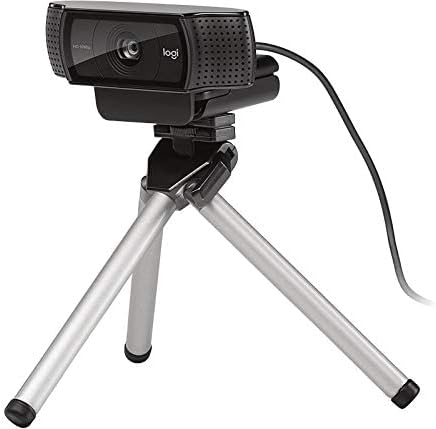
Figure 3: Logitech C920 Webcam securely mounted on a small tripod, demonstrating its versatility.
- Connect to Computer: Plug the integrated USB cable into an available USB port on your computer. The webcam is a plug-and-play device and typically does not require additional driver installation on most modern operating systems (Windows, macOS, Chrome OS).
- Software Installation (Optional): For advanced features and settings, you may download the Logitech Capture software from the official Logitech website (www.logitech.com/support/c920).
- Test the Webcam: Open a video conferencing application (e.g., Zoom, Skype, Google Meet) or your computer's camera application to verify that the webcam is recognized and functioning correctly.
4. Operating Instructions
The Logitech C920 HD Pro Webcam is designed for ease of use. Once connected, it functions as a standard video input device for most applications.
4.1. Video Calls and Conferencing
- Launch your preferred video conferencing application (e.g., Zoom, Microsoft Teams, Google Meet, Skype).
- Navigate to the application's settings or preferences.
- Select "Logitech C920" as your video input device and, if applicable, as your microphone input device. The C920 features dual stereo microphones for clear audio.
- Adjust your position and lighting for optimal video quality. The C920 includes automatic light correction.
4.2. Recording Video
- Open a video recording application (e.g., Windows Camera app, QuickTime Player on macOS, or Logitech Capture software).
- Ensure the C920 is selected as the video source.
- Start recording. The C920 supports Full HD 1080p video recording at 30 frames per second.
4.3. Advanced Settings (with Logitech Capture)
If you have installed Logitech Capture software, you can access additional features:
- Custom Resolution and Frame Rate: Adjust video resolution (up to 1080p) and frame rate.
- Camera Controls: Pan, tilt, and zoom digitally.
- Image Adjustments: Fine-tune brightness, contrast, saturation, and white balance.
- Source Switching: Easily switch between multiple cameras or screen sharing.
5. Maintenance
To ensure the longevity and optimal performance of your Logitech C920 HD Pro Webcam, follow these simple maintenance guidelines:
- Cleaning the Lens: Gently wipe the camera lens with a soft, lint-free cloth. For stubborn smudges, slightly dampen the cloth with water or a lens cleaning solution. Avoid abrasive materials or harsh chemicals.
- Cleaning the Body: Use a soft, dry cloth to clean the webcam's body. Do not use liquid cleaners directly on the device.
- Storage: When not in use, store the webcam in a clean, dry place away from extreme temperatures and direct sunlight.
- Cable Care: Avoid bending or twisting the USB cable excessively. Do not pull the cable to disconnect the webcam; always grasp the USB connector.
6. Troubleshooting
If you encounter issues with your Logitech C920 HD Pro Webcam, refer to the following common problems and solutions:
| Problem | Possible Cause | Solution |
|---|---|---|
| Webcam not detected by computer. | Loose USB connection, faulty USB port, driver issue. |
|
| No video or black screen in applications. | Incorrect webcam selection, privacy settings, application conflict. |
|
| Poor video quality (blurry, dark, grainy). | Insufficient lighting, dirty lens, incorrect settings. |
|
| No audio or poor audio quality. | Incorrect microphone selection, microphone muted, environmental noise. |
|
7. Specifications
Key technical specifications for the Logitech C920 HD Pro Webcam:
| Feature | Detail |
|---|---|
| Model Number | 960-000764 |
| Video Capture Resolution | Full HD 1080p at 30fps (H.264 video compression) |
| Max Video Resolution | FHD |
| Photo Sensor Technology | BSI CMOS |
| Field of View | 78-degree diagonal |
| Autofocus | Yes |
| Microphone | Dual stereo microphones with automatic noise reduction |
| Connectivity Technology | USB 2.0 (USB 3.0 ready) |
| Hardware Platform | Laptop, Desktop |
| Item Weight | 5.6 ounces (approx. 158.7 grams) |
| Package Dimensions | 3.98 x 3.31 x 2.24 inches |
| Color | Black |
| Supported OS | Windows 7 or later, macOS 10.10 or later, Chrome OS, Android v 5.0 or above |
8. Warranty and Support
Logitech products are manufactured to high quality standards and are designed to provide superior performance. For detailed warranty information, please refer to the warranty card included with your product or visit the official Logitech website.
Warranty Information:
- Typically, Logitech offers a limited hardware warranty for its webcams. The duration and terms may vary by region.
- Keep your proof of purchase for warranty claims.
Customer Support:
For technical assistance, driver downloads, FAQs, and further support, please visit the Logitech support website:
You can also find contact information for Logitech customer service in your region on their website.


