
1. Introduction
This manual provides essential information for the installation, configuration, operation, and maintenance of the Juniper Networks SRX220H-POE Services Gateway. The SRX220H-POE is a high-performance security, routing, and switching platform designed for small to medium-sized branch offices. It offers 8 Gigabit Ethernet ports and 2 mini-PIM slots, with Power over Ethernet (PoE) capabilities.
Please read this manual thoroughly before operating the device to ensure proper functionality and to prevent damage.
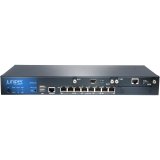
Figure 1: Front view of the Juniper Networks SRX220H-POE Services Gateway, showing the 8 Gigabit Ethernet ports and status indicators.
2. Safety Information
Observe the following safety precautions to prevent injury and damage to the device:
- Electrical Safety: Ensure the power source matches the device's requirements. Use only the provided power cord.
- Grounding: Always connect the device to a properly grounded outlet.
- Ventilation: Do not block ventilation openings. Ensure adequate airflow around the device to prevent overheating.
- Placement: Install the device in a stable, dry environment, away from direct sunlight, heat sources, and moisture.
- Servicing: Refer all servicing to qualified personnel. Do not attempt to open or repair the device yourself.
3. Setup
3.1 Unpacking the Device
Carefully remove the SRX220H-POE Services Gateway from its packaging. Verify that all components listed below are present:
- Juniper Networks SRX220H-POE Services Gateway unit
- Power cord
- Rack-mount kit (if applicable)
- Console cable
- Documentation CD/Quick Start Guide
3.2 Rack Mounting (Optional)
The SRX220H-POE is rack-mountable. To install the device in a standard 19-inch equipment rack:
- Attach the provided rack-mount brackets to the sides of the SRX220H-POE using the screws supplied with the kit.
- Align the brackets with the rack posts and secure the device using appropriate rack screws.
- Ensure the device is level and securely fastened.
3.3 Connecting Power
Connect the power cord to the power input on the rear panel of the SRX220H-POE, then plug the other end into a grounded electrical outlet. The device will begin its power-on self-test (POST).
3.4 Initial Network Connection
Connect an Ethernet cable from your computer to one of the Gigabit Ethernet ports (e.g., ge-0/0/0) on the SRX220H-POE for initial configuration. Alternatively, use the console port with a console cable and terminal emulation software.
4. Operating the Device
4.1 Powering On and Off
To power on the device, connect the power cord. The device will automatically start. To power off, disconnect the power cord from the electrical outlet. It is recommended to gracefully shut down the system via the command-line interface (CLI) before disconnecting power, if possible.
4.2 Basic Configuration
Access the device's CLI via the console port or an Ethernet management interface. Default login credentials are typically root with no password (for initial setup). Refer to the Juniper Networks documentation for detailed configuration guides for Junos OS.
- Setting IP Address: Configure the management interface with a static IP address.
- User Accounts: Create new user accounts with strong passwords and delete or disable default accounts.
- Security Policies: Implement appropriate security policies for your network environment.
4.3 Power over Ethernet (PoE)
The SRX220H-POE ports support Power over Ethernet, allowing compatible devices (e.g., IP phones, wireless access points) to receive power and data over a single Ethernet cable. Ensure connected devices are PoE-compatible and do not exceed the total power budget of the SRX220H-POE.
5. Maintenance
5.1 Software Updates
Regularly check the Juniper Networks support website for the latest Junos OS software updates. Applying updates helps ensure optimal performance, security, and access to new features. Follow the provided upgrade procedures carefully.
5.2 Cleaning
Keep the device clean and free of dust. Use a soft, dry cloth to wipe the exterior. Do not use liquid cleaners or aerosol sprays directly on the device. Ensure ventilation openings are clear of obstructions.
5.3 Backup Configuration
Periodically back up your device configuration to an external storage device or network location. This allows for quick restoration in case of a system failure or misconfiguration.
6. Troubleshooting
This section provides solutions to common issues. For more complex problems, consult the Juniper Networks support documentation or contact technical support.
| Problem | Possible Cause | Solution |
|---|---|---|
| Device does not power on. | No power, faulty power cord, power supply issue. | Check power cord connection. Verify power outlet functionality. Try a different power cord. |
| Cannot access device via network. | Incorrect IP configuration, network cable issue, firewall blocking access. | Verify IP address and subnet mask. Check network cable connections. Temporarily disable client firewall for testing. Try console access. |
| PoE device not receiving power. | Device not PoE-compatible, cable issue, power budget exceeded, PoE port disabled. | Ensure device is PoE-compatible. Check Ethernet cable. Verify PoE configuration on the SRX220H-POE. Check total power consumption. |
| Slow network performance. | Network congestion, misconfiguration, faulty cable, hardware issue. | Monitor network traffic. Review configuration for bottlenecks. Test with different cables. Check device logs for errors. |
7. Specifications
Key technical specifications for the Juniper Networks SRX220H-POE Services Gateway:
- Model: SRX220H-POE
- Ports: 8 x Gigabit Ethernet (GE) ports
- Expansion Slots: 2 x Mini-PIM slots
- PoE Support: Yes, Power over Ethernet on specified ports
- Memory: 1 GB
- Power: 120W
- Form Factor: Rack-mountable
- Dimensions (Approximate): Refer to official Juniper documentation for precise measurements.
- Weight: Approximately 8.82 pounds (4 kg)
- Manufacturer: Juniper Networks
8. Warranty and Support
Juniper Networks products typically come with a standard limited hardware warranty. For specific warranty terms and conditions applicable to your SRX220H-POE Services Gateway, please refer to the warranty documentation included with your purchase or visit the official Juniper Networks website.
8.1 Technical Support
For technical assistance, product documentation, software downloads, and knowledge base articles, visit the Juniper Networks Support Portal. You may need your product serial number to register for support services.
Juniper Networks Support Website: https://www.juniper.net/support/
For information on extended protection plans, please consult your reseller or Juniper Networks sales representative.
