
1. Introduction
The ORICO 1106SS-BK is a 5.25-inch trayless hot swap mobile rack designed to accommodate a single 3.5-inch SATA hard drive or SSD within a standard 5.25-inch CD/DVD drive bay of a desktop computer. This adapter facilitates easy installation and removal of 3.5-inch SATA drives without the need for tools, supporting hot-swapping functionality for convenient data management.
The unit supports SATA III with data transfer rates of up to 6 Gbps and is compatible with various operating systems including Windows Me/2000/XP/Vista/7/8/8.1/10 and Mac OS 10.2 and above. Its durable stainless steel construction aids in heat dissipation, and a front-mounted on/off button allows for control over drive connection and sleep mode.

Image 1.1: The ORICO 1106SS-BK mobile rack, showcasing its design for a 5.25-inch bay.
2. Setup and Installation
Follow these steps to install the ORICO 1106SS-BK mobile rack and a 3.5-inch SATA hard drive into your computer system.
2.1 Installing the Mobile Rack into a PC Bay
- Prepare your PC: Power off your computer and disconnect all cables. Open the computer case to access the internal drive bays.
- Locate a 5.25-inch bay: Identify an available 5.25-inch CD/DVD drive bay. Remove any front panel covers or brackets as necessary.
- Insert the mobile rack: Slide the ORICO 1106SS-BK into the chosen 5.25-inch bay from the front of the computer case until it is flush with the front panel.
- Secure the rack: Use screws to secure the mobile rack to the computer case on both sides. Ensure it is firmly mounted to prevent movement.
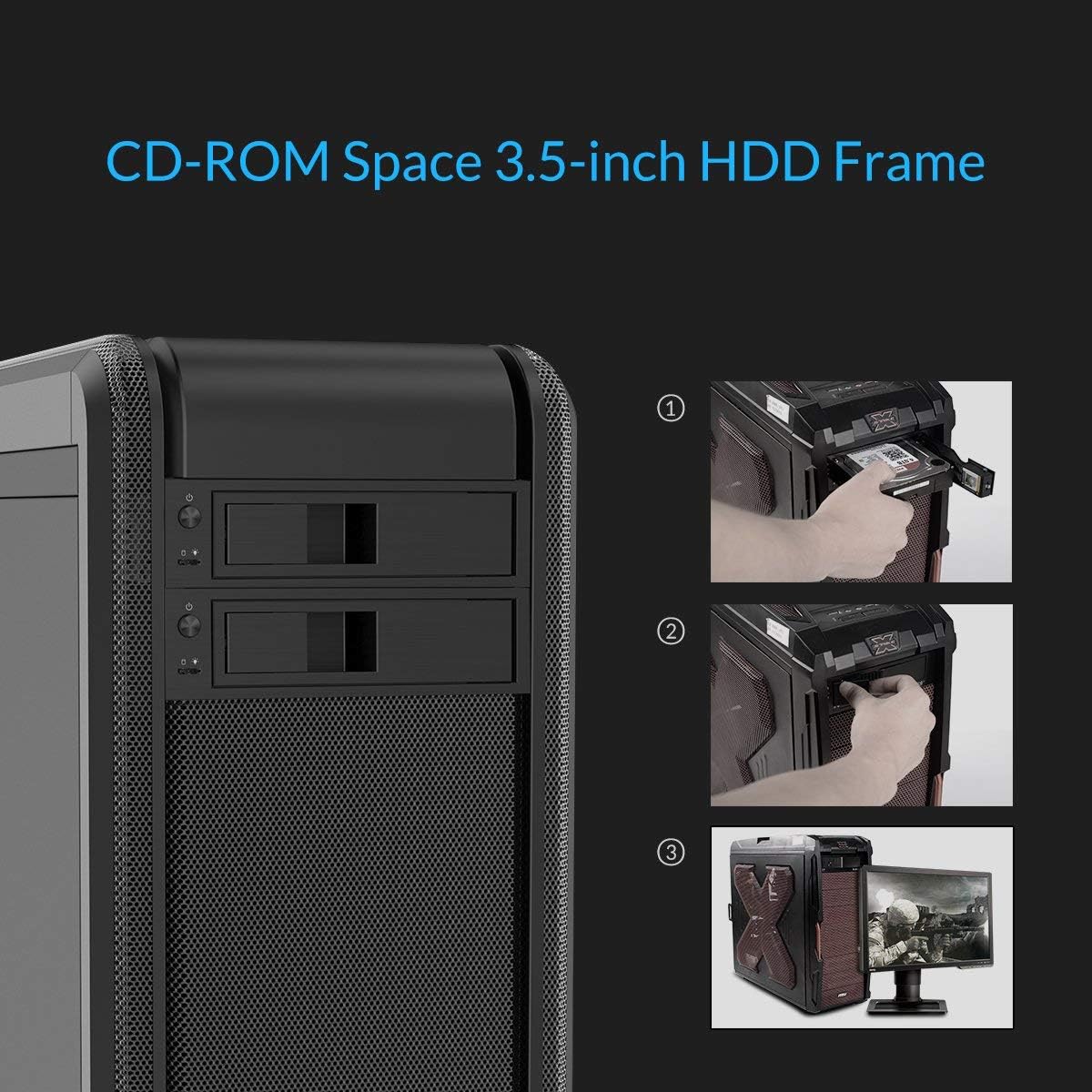
Image 2.1: Installation of the mobile rack into a computer's 5.25-inch drive bay.
2.2 Connecting the Drive and Power
- Connect SATA data cable: Attach one end of a SATA data cable to the SATA port on the back of the ORICO 1106SS-BK and the other end to an available SATA port on your motherboard.
- Connect SATA power cable: Connect a SATA power cable from your power supply unit (PSU) to the power connector on the back of the ORICO 1106SS-BK.
- Close the case: Once all connections are made, close your computer case and reconnect all external cables.
2.3 Inserting a 3.5-inch Hard Drive
- Open the bay door: Gently pull the latch on the front of the mobile rack to open the bay door.
- Insert the hard drive: Slide your 3.5-inch SATA hard drive into the open bay. The trayless design allows for direct insertion.
- Close the bay door: Push the bay door closed until it latches securely. This action will connect the hard drive to the internal SATA and power connectors.

Image 2.2: A hand demonstrating the tool-free insertion of a 3.5-inch hard drive into the mobile rack.
3. Operating Instructions
The ORICO 1106SS-BK is designed for straightforward operation, supporting hot-swapping and featuring an independent power control.
3.1 Powering On/Off the Drive
- Power Button: The front panel of the mobile rack features an on/off button. Press this button to power on or power off the inserted hard drive. This allows you to connect or disconnect the drive without shutting down your computer.
- LED Indicator: An LED indicator light on the front panel will illuminate when the drive is powered on and active. It may blink during data access.
3.2 Hot Swapping Functionality
The ORICO 1106SS-BK supports hot-swapping, allowing you to insert or remove hard drives while the computer is running. For optimal performance and data integrity, ensure your operating system and motherboard BIOS/UEFI settings are configured to support hot-plugging for the SATA port connected to the mobile rack.
- Before Removal: Always safely eject or unmount the hard drive through your operating system before physically removing it from the mobile rack. This prevents data corruption.
- Insertion: Drives inserted while the system is running should be automatically detected by the operating system. If not, refer to the troubleshooting section.

Image 3.1: Depiction of the mobile rack's versatility for various data management tasks.
4. Maintenance
To ensure the longevity and optimal performance of your ORICO 1106SS-BK mobile rack, consider the following maintenance guidelines:
- Keep Clean: Periodically clean the exterior of the mobile rack and the surrounding area of your PC case to prevent dust buildup, which can impede airflow and heat dissipation. Use a soft, dry cloth.
- Airflow: Ensure adequate airflow around the mobile rack within your PC case. The stainless steel construction is designed for heat dissipation, but proper case ventilation is still important.
- Handle with Care: While the unit is durable, handle the bay door and locking mechanism gently during drive insertion and removal to prevent wear or damage.
5. Troubleshooting
If you encounter issues with your ORICO 1106SS-BK, refer to the following common troubleshooting steps:
- Drive Not Detected:
- Ensure the hard drive is fully inserted and the bay door is securely latched.
- Verify that both the SATA data and power cables are securely connected to the mobile rack and the motherboard/PSU.
- Check your motherboard's BIOS/UEFI settings to ensure the SATA port connected to the mobile rack is enabled and configured for hot-plugging (if desired). Some motherboards require specific SATA ports to be used for hot-swap functionality.
- If hot-swapping, ensure the necessary hot-swappable drivers are installed for your operating system.
- Test with a different known-good SATA hard drive to rule out a drive issue.
- Hot Swap Not Working:
- Confirm that your motherboard and operating system fully support SATA hot-plugging on the specific port used. This often requires enabling AHCI mode in BIOS/UEFI and ensuring the correct drivers are installed.
- Always safely eject the drive through the operating system before physical removal.
- Drive Door Feels Flimsy/Difficult to Close:
- Ensure the hard drive is aligned correctly before attempting to close the door. Do not force the door if there is resistance.
- The mechanism is designed for tool-free operation; excessive force is not required.
- Slow Data Transfer:
- Verify that both the mobile rack and your hard drive are connected to SATA III (6 Gbps) compatible ports and cables.
- Ensure your operating system drivers for the SATA controller are up to date.
6. Specifications
| Feature | Specification |
|---|---|
| Model Number | ORICO 1106SS-BK |
| Compatible Drive Type | 3.5-inch SATA HDD/SSD |
| Drive Bay Compatibility | 5.25-inch CD/DVD drive bay |
| Interface | SATA 6.0 Gb/s (SATA III) |
| Data Transfer Rate | Up to 6 Gbps |
| Max Number of Supported Devices | 1 |
| Hot Swap Support | Yes (requires OS/motherboard support) |
| Material | Acrylonitrile Butadiene Styrene (ABS), Metal (Stainless Steel) |
| Product Dimensions | 7.2 x 5.7 x 1.6 inches (185mm x 148mm x 42mm) |
| Item Weight | 3.52 ounces (0.1 Kilograms) |
| Operating System Support | Windows Me/2000/XP/Vista/7/8/8.1/10, Mac OS 10.2 and above |

Image 6.1: Dimensional drawing of the ORICO 1106SS-BK mobile rack.
7. Support Information
For further assistance or inquiries regarding your ORICO 1106SS-BK mobile rack, please refer to the following:
- Manufacturer Website: Visit the official ORICO website for product updates, drivers, and additional support resources.
- Customer Service: If you experience any issues or have questions not covered in this manual, please contact ORICO customer support. Refer to your product packaging or the ORICO website for contact details.
ORICO is committed to customer satisfaction. If you are dissatisfied with your purchase for any reason, please contact us to resolve the issue.
