
Introduction
This manual provides detailed instructions for the installation, configuration, and operation of your D-Link DSR-150 VPN Router. The DSR-150 is designed to offer secure, high-performance networking solutions for small and medium businesses, integrating VPN capabilities and dynamic web content filtering.
Product Overview
The D-Link DSR-150 is a robust VPN router featuring multiple ports and indicator lights for easy status monitoring. Understanding the physical components is essential for proper setup and operation.
Front Panel
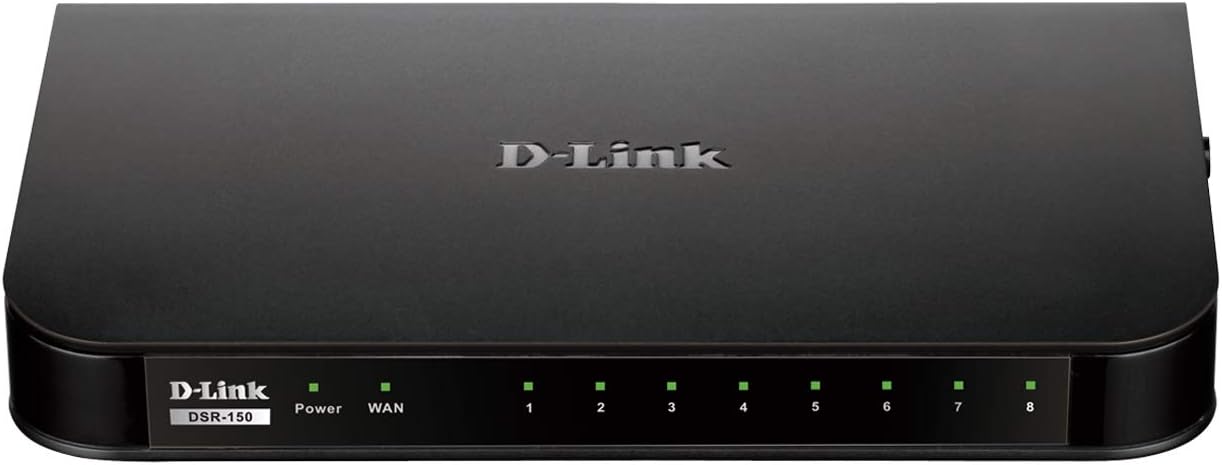
Image: Front view of the D-Link DSR-150 VPN Router. This image displays the device's front panel, including the D-Link branding, model number (DSR-150), and a series of LED indicators. These indicators typically show the status of power, WAN connection, and activity for each of the eight LAN ports.
Rear Panel
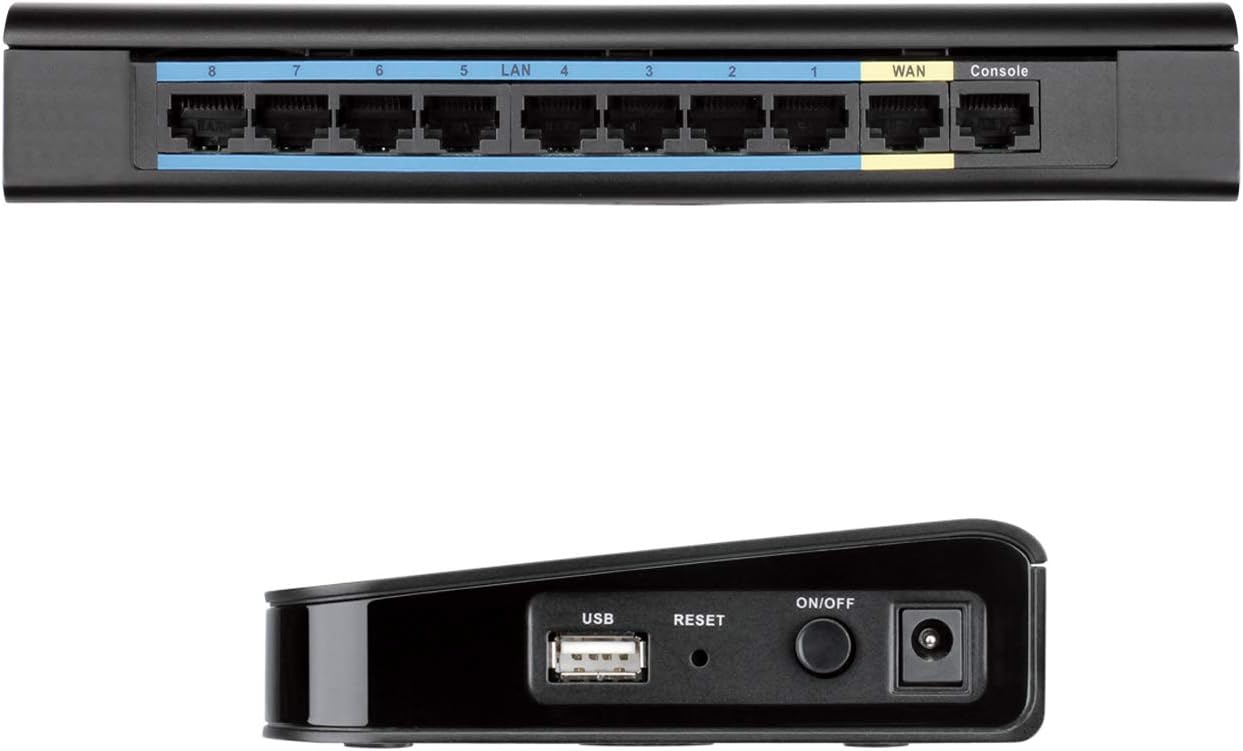
Image: Rear view of the D-Link DSR-150 VPN Router. This image highlights the connectivity options on the back of the router, including eight LAN ports (typically for connecting local network devices), one WAN port (for connecting to the internet modem), and a Console port (for direct management access).
Side Panel

Image: Side view of the D-Link DSR-150 VPN Router. This image shows the side of the device, featuring a USB port (for potential external storage or other peripherals), a recessed Reset button (for factory defaults), and the Power On/Off button alongside the power input jack.
Key Features
The DSR-150 VPN Router offers a range of features designed for secure and efficient network management:
- High-Speed VPN Support: Integrated VPN tunnel support for secure remote network access.
- Multiple LAN/WAN Ports: Features eight (8) 10/100 LAN Ports and one (1) 10/100 WAN Port.
- Policy-Based Firewall: Policy-based service management allows for easy configuration of firewall rules.
- SSL VPN Tunnels: Supports one (1) SSL VPN tunnel for clientless remote access.
- GRE Tunnels: Supports five (5) Generic Routing Encapsulation (GRE) tunnels.
- IPsec/PPTP/L2TP Tunnels: Simultaneously supports up to ten (10) IPsec VPN tunnels plus ten (10) additional PPTP/L2TP tunnels for site-to-site connectivity.
- D-Link Green Ethernet: Incorporates D-Link Green Ethernet features to save power and reduce energy costs.
- Dynamic Web Content Filtering: Enables administrators to allow or block access to websites based on categories.
Setup
1. Unpacking and Inspection
Carefully unpack the router and verify that all components are present. This typically includes the DSR-150 router, a power adapter, and an Ethernet cable.
2. Physical Connection
- Connect the provided power adapter to the router's power input port and then to a power outlet.
- Connect your internet modem or main network line to the WAN port on the rear of the DSR-150 using an Ethernet cable.
- Connect your computers or other network devices to any of the LAN ports (1-8) on the rear of the DSR-150 using Ethernet cables.
- Press the On/Off button on the side panel to power on the router. Wait for the Power LED on the front panel to become solid.
3. Initial Configuration Access
To access the web-based management interface for initial configuration:
- Ensure your computer is connected to one of the router's LAN ports.
- Open a web browser (e.g., Chrome, Firefox, Edge).
- Enter the default IP address of the router (commonly
192.168.10.1or similar, refer to the device label or quick installation guide) into the browser's address bar and press Enter. - Enter the default username and password (typically
adminfor both, or as specified in the quick installation guide) when prompted.
Operating Instructions
VPN Configuration
The DSR-150 supports various VPN types to establish secure connections for remote users and branch offices.

Image: VPN capabilities for remote access. This image illustrates the concept of secure remote access, showing a user with a laptop and icons representing different VPN protocols like SSL VPN, PPTP, and L2TP, which facilitate secure connections to a central network.

Image: Site-to-Site VPN Tunnels. This diagram visually explains how a main office and a branch office can establish a secure connection over the internet using various VPN protocols such as IPsec, PPTP, and L2TP, creating encrypted virtual links between locations.
- SSL VPN: For clientless remote access, navigate to the VPN > SSL VPN section in the web interface. Configure user accounts and access policies.
- IPsec/PPTP/L2TP: For site-to-site connections, go to VPN > IPsec or VPN > PPTP/L2TP. Define tunnel parameters, authentication methods, and network ranges for secure communication between offices.
- GRE Tunnels: Configure Generic Routing Encapsulation tunnels under the VPN > GRE section for specific routing needs.
Dynamic Web Content Filtering
This feature allows administrators to control internet usage by blocking or allowing access to websites based on their categories.

Image: Web Content Filtering. This image depicts a laptop screen showing lines of code, symbolizing the router's capability to filter web content. This feature helps administrators manage and control internet usage by blocking access to specific websites or categories.
- Navigate to Security > Content Filtering.
- Enable Dynamic Content Filtering.
- Configure policies to block or allow specific website categories or define custom URL/keyword filters.
Firewall Rules
The DSR-150's policy-based service management allows for granular control over network traffic.
- Access Firewall > Rules to create, modify, or delete firewall policies.
- Define rules based on source/destination IP, port numbers, and protocols to secure your network.
Maintenance
Firmware Updates
Regularly updating the router's firmware is crucial for security, performance, and access to new features.
- Visit the official D-Link support website for the DSR-150 model to download the latest firmware.
- In the router's web interface, navigate to System > Firmware Upgrade.
- Follow the on-screen instructions to upload and install the new firmware. Do not power off the device during this process.
Backup and Restore Configuration
It is recommended to back up your router's configuration settings before making significant changes or firmware updates.
- Go to System > Configuration Management.
- Use the options to save the current configuration to your computer or restore a previously saved configuration.
Rebooting the Device
A reboot can resolve minor network issues or apply certain configuration changes.
- From the web interface, navigate to System > Reboot and confirm the action.
- Alternatively, power off the device using the On/Off button, wait 10 seconds, and then power it back on.
D-Link Green Ethernet
The DSR-150 incorporates D-Link Green Ethernet technology to optimize power consumption.

Image: Efficient Green Technology. This image features a D-Link router alongside a large power symbol composed of green leaves, symbolizing the device's adherence to WEEE directives and its environmentally responsible design through D-Link Green Ethernet features.
Troubleshooting
This section addresses common issues you might encounter with your DSR-150 router.
- No Internet Access:
- Verify the WAN cable connection to your modem.
- Check the WAN status in the router's web interface.
- Ensure your modem is working correctly.
- Cannot Access Web Interface:
- Confirm your computer is connected to a LAN port.
- Verify your computer's IP address is in the same subnet as the router (e.g., 192.168.10.x).
- Try clearing your browser's cache or using a different browser.
- VPN Connection Issues:
- Double-check VPN tunnel settings, including IP addresses, authentication methods, and encryption.
- Ensure firewall rules are not blocking VPN traffic.
- Slow Network Performance:
- Check for high network traffic or bandwidth-intensive applications.
- Inspect Ethernet cables for damage.
- Ensure the router's firmware is up to date.
Specifications
- Model Number: DSR-150
- Brand: D-Link
- Connectivity Technology: Wired
- Ports: 8 x 10/100 Fast Ethernet LAN, 1 x 10/100 Fast Ethernet WAN
- VPN Support: IPsec, PPTP, L2TP, SSL, GRE
- Dimensions (L x W x H): Approximately 11.34 x 9.76 x 2.6 inches (28.8 x 24.8 x 6.6 cm)
- Weight: Approximately 1 pound (0.45 kg)
- Special Feature: WPS (Wired Protected Setup)
- Antenna Type: Internal
Warranty and Support
D-Link offers a Limited Lifetime Warranty on the DSR Series VPN Routers, demonstrating their commitment to product quality and long-term customer confidence. For detailed warranty terms and conditions, please refer to the documentation included with your product or visit the official D-Link website.
If you encounter issues that cannot be resolved using this manual, please contact D-Link Technical Support for assistance. Support contact information can typically be found on the D-Link website or in your product's packaging.


