
1. Introduction
The Portronics POR 600 Portable LED Projector is designed for versatile use, offering a compact solution for entertainment and presentations. This manual provides essential information for setting up, operating, and maintaining your projector, ensuring optimal performance and longevity.

Figure 1: Front view of the Portronics POR 600 Portable LED Projector.
2. Product Overview
The POR 600 utilizes DLP (Digital Light Processing) technology for reliable color and picture accuracy. It features 100 ANSI Lumens brightness and can project an image size from 15 to 80 inches diagonally, with an optimal projection distance of 0.5 to 3 meters. The native resolution is 854x480.

Figure 2: Illustration of DLP Technology, which provides sophisticated light processing for clear images.
2.1 Key Features
- Ultra-Portable Design: With compact dimensions and a weight of approximately 948g, the projector is easy to carry.
- DLP Technology: Ensures reliable color and picture accuracy.
- 100 ANSI Lumens: Provides sufficient brightness for presentations and viewing in reasonably dark environments.
- Large Screen Projection: Capable of projecting images up to 80 inches diagonally.
- Multiple Connectivity Options: Supports USB, HDMI, AV, and MicroSD card inputs.
- Built-in Battery: Features a 3400mAh, 3.7V built-in battery for portable use.
- In-built Speakers: Provides audio output directly from the device.
- Remote Control: For convenient operation.

Figure 3: The compact size of the projector, highlighting its portability.
3. What's in the Box
Upon opening the package, ensure all the following items are present:
- 1N Portronics POR 600 Projector
- Power adapter
- Remote control
- Stand
- HDMI Cable
- User Manual
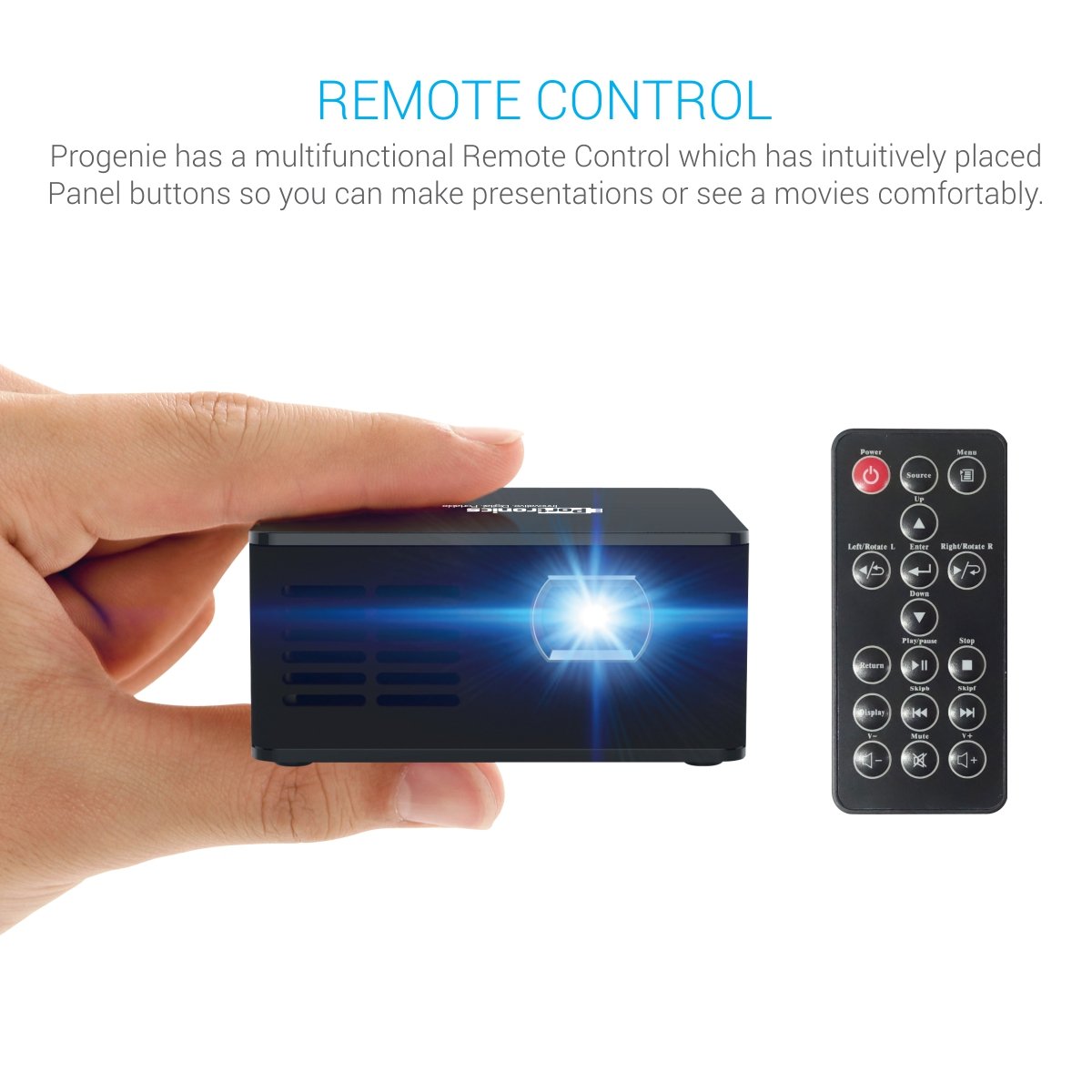
Figure 4: The projector mounted on its included stand.
4. Setup
4.1 Power Connection
- Connect the provided power adapter to the DC input port on the projector.
- Plug the power adapter into a suitable power outlet.
- The projector can also operate on its built-in 3400mAh battery for portable use. Ensure the battery is charged before use.
4.2 Input Sources
The POR 600 supports various input methods:
- HDMI Port: For connecting laptops, gaming consoles, or other HDMI-enabled devices.
- AV Port: For connecting older devices using an AV cable.
- USB Port: For playing media directly from a USB drive.
- Micro SD Card Slot: For playing media directly from a Micro SD card.

Figure 5: Overview of the projector's connectivity ports.
4.3 Positioning and Focus
- Place the projector on a stable, flat surface. For optimal viewing, use the included stand.
- Adjust the distance between the projector and the projection surface (wall or screen) to achieve the desired screen size. An 80-inch diagonal screen can be achieved by placing the projector approximately 8 feet away.
- Rotate the focus ring on the projector lens until the image appears clear and sharp.
5. Operation
5.1 Power On/Off
Press the power button on the projector or the remote control to turn the device on or off.
5.2 Source Selection
Use the "Source" button on the remote control to cycle through available input modes (HDMI, AV, USB, MicroSD) until your desired input is selected.
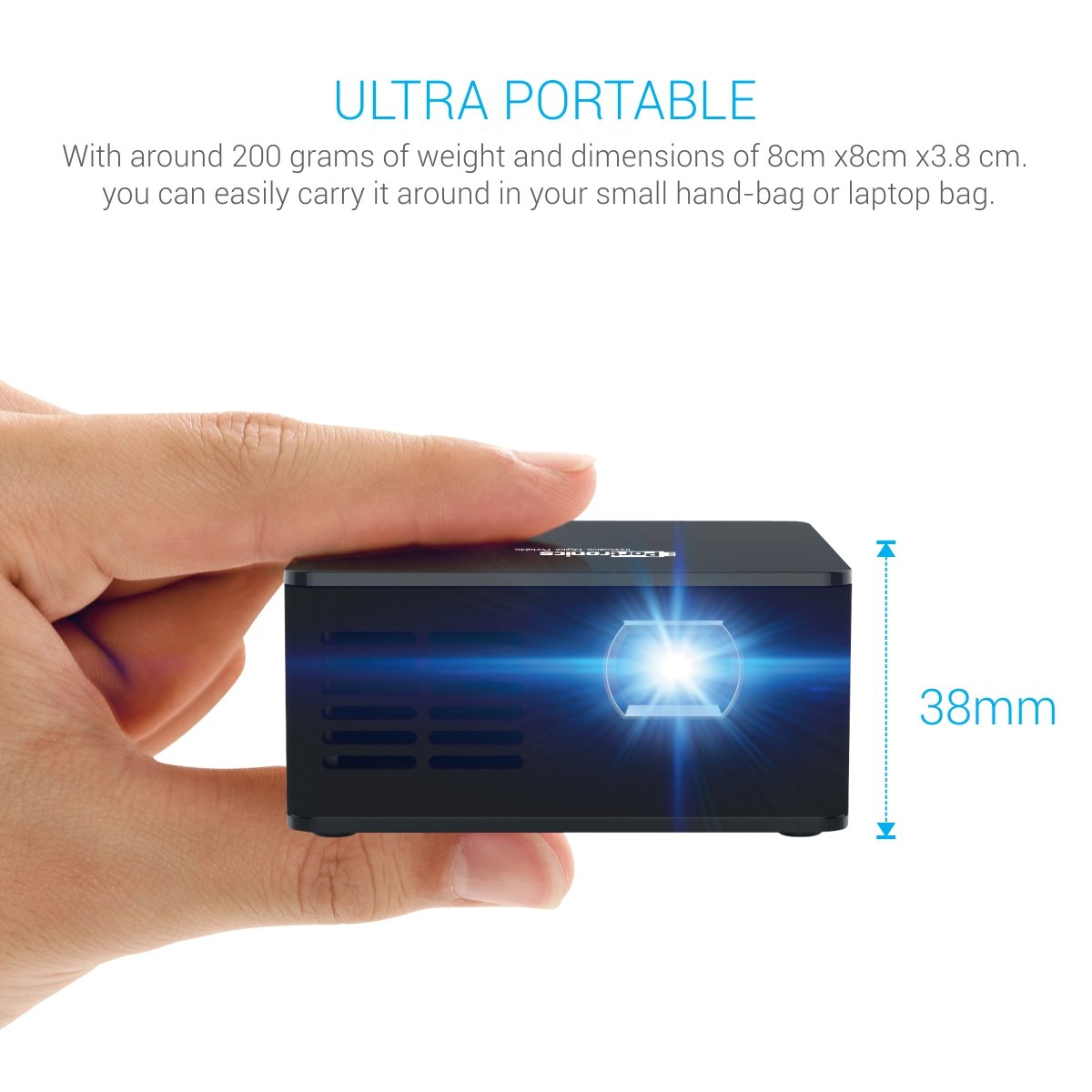
Figure 6: The projector and its multifunctional remote control.
5.3 Audio Output
The projector has built-in speakers. For enhanced audio, connect external speakers via the AUX output port.

Figure 7: The projector's in-built speaker.
5.4 Media Playback
The projector supports various media formats for direct playback from USB drives or Micro SD cards, including text (.txt), photo (.jpeg/.bmp/), and audio (.mp3_audio).
Video 1: This video demonstrates the Portronics POR 600 Portable LED Projector's features, connectivity options, and contents of the box. It highlights its portability, DLP technology, and various input methods for media playback.
6. Specifications
| Feature | Specification |
|---|---|
| Brand | Portronics |
| Model | POR 600 |
| Product Dimensions | 18.8 x 7.6 x 14.9 cm; 948 g |
| Display Technology | LED, DLP (Texas Instruments) |
| Native Resolution | 854 x 480 |
| Lumens | 100 ANSI Lumens |
| Contrast Ratio | 1000:1 |
| Image Size (diagonal) | 15”~ 80” |
| Projection Distance | 0.5 to 3 meters (1~10 feet) |
| Lamp Life | Over 20,000 hours (RGB LED) |
| Aspect Ratio | 16:9 |
| Battery | Built-in, 3400mAh, 3.7V Lithium Ion |
| Power Consumption | 15W (Max) |
| Power Supply | 9V/2A |
| Hardware Interface | USB, HDMI, AV, microSD card |
| Compatible Devices | Smartphones (Android/iOS), Laptops/Computers, USB Devices, SD Cards |
| Supported Audio Formats | mp3_audio |
| Mounting Type | Tabletop Mount |
7. Troubleshooting
If you encounter issues with your Portronics POR 600 Projector, refer to the following common problems and solutions:
- No Image Displayed:
- Ensure the projector is powered on and the lens cap is removed.
- Verify that the correct input source (HDMI, AV, USB, MicroSD) is selected using the remote control.
- Check all cable connections to ensure they are secure and properly inserted.
- Image is Blurry:
- Adjust the focus ring on the projector lens until the image becomes clear.
- Ensure the projection surface is flat and smooth.
- No Sound:
- Check the volume settings on both the projector and the connected source device.
- If using external speakers, ensure they are properly connected to the AUX output port and powered on.
- Remote Control Not Responding:
- Replace the batteries in the remote control.
- Ensure there are no obstructions between the remote control and the projector's IR receiver.
- Projector Overheating:
- Ensure the projector's ventilation vents are not blocked.
- Operate the projector in a well-ventilated area.
8. Warranty and Support
The Portronics POR 600 Portable LED Projector comes with a 1-year manufacturer warranty. For warranty claims, technical support, or further assistance, please contact Portronics customer service or visit their official website for the most up-to-date support information.
For more details, visit the Portronics Store.
