
1. Introduction
The Vividia USB Flexible Inspection Camera is designed for detailed visual inspection in areas that are difficult to access. This device connects to your PC via a USB interface and is powered directly by the USB connection, eliminating the need for external batteries. Its 95cm (3.1ft) flexible cable allows for maneuverability into various shapes to reach confined spaces.
Equipped with a 1/6" VGA CMOS sensor, 5x zoom function, and two built-in adjustable LED lights, the camera captures snapshots and videos with clear color. The camera head and cable are waterproof, making it suitable for wet environments. The small 11.2mm camera head is ideal for close-up inspections in tight areas, such as automotive maintenance, electrical repair, plumbing, and HVAC/R applications.

Figure 1: Vividia USB Flexible Inspection Camera Borescope Endoscope.
Package Contents:
- USB Inspection Camera
- CD Software
- Attachment Set (magnetic pick-up, hook, and mirror)
- User’s Manual (this document)
- Plastic Carrying Case
2. Safety Information
- Do not use this device for medical purposes or internal human/animal examination.
- Keep the device away from strong magnetic fields or high-voltage environments.
- Ensure the USB connection is secure before operation.
- The camera head and cable are waterproof; however, the handle and USB connector are not. Do not immerse the handle or USB connector in liquids.
- Avoid bending the flexible cable excessively or sharply, as this may damage internal wiring.
- Store the device in its carrying case when not in use to prevent damage.
- Do not attempt to disassemble or modify the device. Refer to qualified personnel for service.
3. Setup
3.1 System Requirements
The Vividia USB Flexible Inspection Camera is compatible with Windows 7, Windows Vista, and Windows XP operating systems.
3.2 Software Installation
- Insert the provided CD Software into your computer's CD/DVD drive.
- Follow the on-screen instructions to install the necessary drivers and application software. If the installation does not start automatically, browse the CD content and run the setup file (e.g., "setup.exe").
- Once the software is installed, restart your computer if prompted.
3.3 Connecting the Camera
- Ensure the software is installed and your computer is ready.
- Connect the USB plug of the inspection camera to an available USB port on your PC.
- The operating system should automatically detect the device.
- Launch the installed inspection camera software. The live video feed from the camera should appear on your screen.

Figure 2: Proper handling of the inspection camera during setup or operation.
4. Operating Instructions
4.1 Basic Operation
- Positioning the Camera: Gently bend the flexible cable to guide the camera head into the desired inspection area. The cable retains its shape for precise positioning.
- Adjusting Illumination: Use the brightness control wheel on the handle to adjust the intensity of the two built-in LED lights. This helps illuminate dark inspection areas.
- Zoom Function: The camera features a 5x digital zoom. Use the zoom buttons on the handle to magnify the image on your screen.
- Capturing Snapshots: Press the Snapshot Button on the handle to capture a still image of the current view. Images are saved in JPEG format. Alternatively, you can use the software interface to take snapshots.
- Recording Videos: Use the software interface to start and stop video recording. Videos are saved in AVI format.
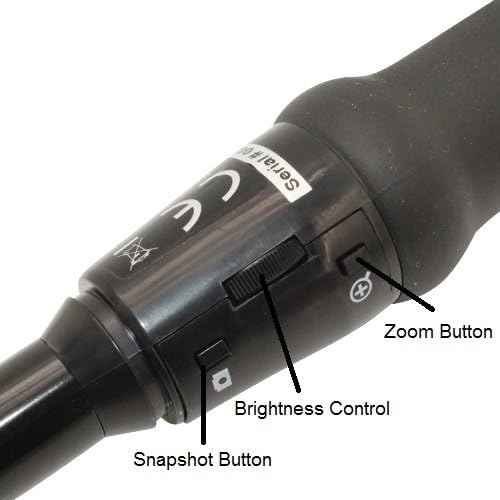
Figure 3: Controls on the camera handle: Snapshot Button, Brightness Control, and Zoom Button.
4.2 Using Attachments
The inspection camera comes with an attachment set to enhance its functionality:
- Magnetic Pick-up: Attach the magnetic probe to the camera head to retrieve small metallic objects from hard-to-reach places.
- Hook: Use the hook attachment to retrieve small non-magnetic objects or to maneuver cables.
- Mirror: Attach the mirror to the camera head to view objects located at a right angle to the camera's direct line of sight. This is useful for inspecting sides of pipes or behind obstacles.

Figure 4: The inspection camera with its included attachment set.

Figure 5: Example of an attachment (hook) installed on the camera head.
4.3 Typical Applications
This inspection camera is suitable for various applications, including:
- Automotive maintenance (engine inspection, checking fluid lines)
- Electrical repair (inspecting wiring in conduits, junction boxes)
- Plumbing applications (checking pipes for blockages, leaks)
- HVAC/R (inspecting ducts, vents, internal components)
- General visual inspection of inaccessible areas in homes or workshops.

Figure 6: The inspection camera in use for examining pipes.
5. Maintenance
- Cleaning the Camera Head: The camera head is waterproof. After use in wet or dirty environments, gently wipe the lens and camera head with a soft, damp cloth. Do not use abrasive cleaners or solvents.
- Cleaning the Cable: Wipe the flexible cable with a damp cloth to remove any dirt or debris.
- Storage: When not in use, store the inspection camera and its accessories in the provided plastic carrying case. Ensure the cable is coiled loosely and not kinked. Store in a cool, dry place away from direct sunlight and extreme temperatures.
- Software Updates: Periodically check the manufacturer's website for any available software or driver updates to ensure optimal performance and compatibility.
6. Troubleshooting
| Problem | Possible Cause | Solution |
|---|---|---|
| No image on screen. |
|
|
| Poor image quality / Dark image. |
|
|
| Snapshot/Video recording not working. |
|
|
7. Specifications
| Feature | Detail |
|---|---|
| Sensor | 1/6" VGA CMOS |
| Image Resolution | 640x480 pixels (JPEG) |
| Video Resolution | 640x480 pixels (AVI, up to 30FPS) |
| Focal Distance | 6cm - infinite |
| Digital Zoom | 5x |
| Lens | F#2.8 with 54° viewable angle |
| Illumination | 2 white LED lights with adjustable brightness |
| Water Resistance | Camera head & cable are waterproof (handle is NOT waterproof) |
| Cable Length (Flexible) | 95cm (3.1ft) |
| Cable Diameter | 9mm (0.35in) |
| Camera Head Outer Diameter | 11.2mm (0.44in) |
| USB Cable Length | 200cm (6ft) |
| Interface | USB 1.1 |
| Compatible OS | Windows 7/Vista/XP |
| Model Number | VV-Flex-Cam-11 |
| UPC | 858499002544 |
8. Warranty and Support
8.1 Manufacturer's Warranty
This Vividia USB Flexible Inspection Camera (Model: VV-Flex-Cam-11) is covered by a 1-year manufacturer's warranty from the date of purchase. This warranty covers defects in materials and workmanship under normal use. It does not cover damage caused by misuse, accident, unauthorized modification, or improper installation.
Please retain your proof of purchase for warranty claims.
8.2 Technical Support
For technical assistance, troubleshooting, or warranty inquiries, please contact your retailer or the manufacturer, VIVIDIA. Refer to the contact information provided with your product packaging or visit the official VIVIDIA website for support resources.