1. Introduction
The Logitech MK220 is a compact wireless keyboard and mouse combo designed for efficiency and convenience. It offers a reliable 2.4 GHz wireless connection, long-lasting battery life, and a space-saving design, making it ideal for various computing environments, including PC and laptop use.

Image: The Logitech MK220 Wireless Keyboard and Mouse Combo, showcasing both the compact keyboard and the ambidextrous mouse.
Key Features:
- Space-saving Design: The compact keyboard is approximately 36 percent smaller than standard keyboards, yet it retains all essential keys for full functionality.
- Comfortable and Portable: The ambidextrous mouse is compact, providing smooth tracking and scrolling for versatile use.
- Long-lasting Battery: Enjoy up to 24 months of battery life for the keyboard and up to 12 months for the mouse, thanks to auto-sleep power-saving technology.
- Reliable Wireless Connection: Experience plug-and-play simplicity with no delays or dropouts up to 10 meters, powered by Logitech Advanced 2.4 GHz technology.
- Durable Construction: The keyboard features a spill-proof design, ensuring longevity and resilience against minor accidents.
- Sustainable Materials: Plastic parts in the MK220 include certified post-consumer recycled plastic (66% for the mouse, 44% for the keyboard, and 75% for the receiver).
2. What's in the Box
Upon opening your Logitech MK220 package, you should find the following components:
- Wireless keyboard
- Wireless mouse
- USB receiver
- 2 AAA batteries (for keyboard)
- 2 AA batteries (for mouse)
- User documentation
- 3-year manufacturer's guarantee and full product support information
3. Setup Guide
Follow these simple steps to set up your Logitech MK220 combo:
- Install Batteries:
- For the keyboard: Open the battery compartment on the underside of the keyboard and insert the two AAA batteries provided, ensuring correct polarity (+/-).
- For the mouse: Open the battery compartment on the underside of the mouse and insert the two AA batteries provided, ensuring correct polarity (+/-).
- Connect USB Receiver: Locate an available USB port on your computer (PC or laptop). Insert the small USB receiver into the port.
- Power On: Ensure the mouse has its power switch (usually on the underside) set to the 'ON' position. The keyboard typically powers on automatically once batteries are inserted and the receiver is connected.
- Automatic Connection: Your keyboard and mouse should automatically connect to the USB receiver. No additional software installation is usually required for basic functionality.
If the devices do not connect immediately, try moving them closer to the USB receiver or re-inserting the receiver into a different USB port.
4. Operating Instructions
Keyboard Usage:
The compact design of the MK220 keyboard includes a full set of keys, including a number pad, despite its smaller footprint. It features multimedia function keys accessible via the 'Fn' key.

Image: Close-up view of the Logitech MK220 keyboard, highlighting its space-saving design and integrated number pad.
- Standard Typing: Use the keyboard as you would any standard keyboard for typing and data entry.
- Function (Fn) Keys: Many keys have secondary functions (e.g., media controls, volume, calculator). To activate these, press and hold the Fn key, then press the desired function key (F1-F12).
- Caps Lock/Num Lock: Note that this model does not feature dedicated indicator lights for Caps Lock or Num Lock.
Mouse Usage:
The MK220 mouse is designed for comfortable, ambidextrous use, offering precise tracking and smooth scrolling.

Image: Top-down view of the Logitech MK220 mouse, emphasizing its portable and ambidextrous design.
- Left and Right Click: Standard mouse buttons for selection and context menus.
- Scroll Wheel: Use the scroll wheel for vertical scrolling in documents and web pages. It can also function as a middle click button.
- Power Saving: The mouse features an auto-sleep mode to conserve battery life when not in use. Simply move or click the mouse to wake it up.

Image: Visual representation indicating the long battery life of the Logitech MK220 keyboard (24 months) and mouse (12 months).
5. Maintenance
Proper maintenance ensures the longevity and optimal performance of your Logitech MK220 combo.
- Battery Replacement:
- Replace keyboard batteries (2 AAA) when performance degrades or it becomes unresponsive.
- Replace mouse batteries (2 AA) when performance degrades or it becomes unresponsive.
- Always use fresh, high-quality alkaline batteries for best results.
- Cleaning:
- Although the keyboard has a spill-proof design, it is recommended to clean it with a soft, dry cloth. For stubborn dirt, a slightly damp cloth can be used, ensuring no liquid enters the internal components.
- Clean the mouse's optical sensor periodically with a soft, lint-free cloth to ensure accurate tracking.
- Avoid using harsh chemicals or abrasive cleaners.
- Storage: When not in use for extended periods, it is advisable to turn off the mouse to conserve battery life. Store the combo in a cool, dry place away from direct sunlight and extreme temperatures.
6. Troubleshooting
If you encounter issues with your Logitech MK220 combo, try the following troubleshooting steps:
- No Connection/Unresponsive Device:
- Check Batteries: Ensure batteries are correctly installed and have sufficient charge. Replace them if necessary.
- USB Receiver: Try plugging the USB receiver into a different USB port on your computer.
- Proximity: Ensure the keyboard and mouse are within 10 meters (33 feet) of the USB receiver and there are no large metal objects or other electronic devices causing interference.
- Re-establish Connection: For some models, there might be a small connect button on the receiver and/or the devices. Refer to the included user documentation for specific re-pairing instructions if needed.
- Lag or Delayed Response:
- Interference: Move the receiver away from other wireless devices (e.g., Wi-Fi routers, cordless phones) that operate on the 2.4 GHz frequency.
- Surface (Mouse): Ensure the mouse is used on a suitable surface. Highly reflective or transparent surfaces may affect tracking.
- Keyboard Keys Not Working:
- Clean Keys: Check for any debris under the keys that might be preventing them from registering.
- Test on Another Computer: If possible, test the keyboard on another computer to determine if the issue is with the keyboard or your system.
For more detailed troubleshooting or persistent issues, please refer to the official Logitech support website or the user documentation provided with your product.
7. Specifications
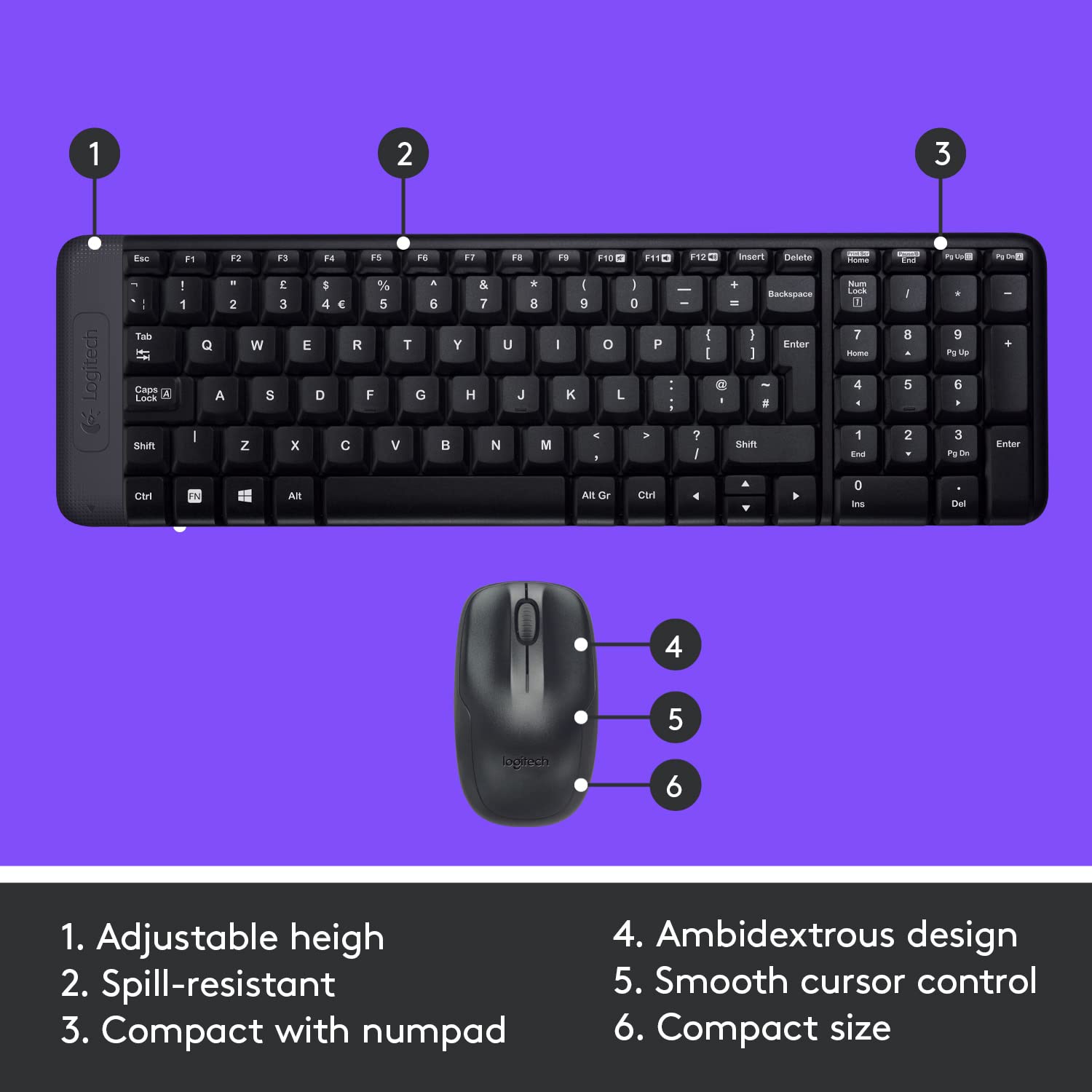
Image: Diagram illustrating key features of the Logitech MK220 combo, including adjustable height, spill-resistance, compact design, ambidextrous mouse, smooth cursor control, and compact size.
| Feature | Detail |
|---|---|
| Brand | Logitech |
| Model Series | MK220 |
| Item Model Number | 920-003157 |
| Colour | Black |
| Connectivity Type | 2.4 GHz Radio Frequency Wireless |
| Power Source | Battery Powered |
| Keyboard Batteries | 2 AAA batteries (included) |
| Mouse Batteries | 2 AA batteries (included) |
| Average Battery Life (Keyboard) | 24 Months |
| Average Battery Life (Mouse) | 12 Months |
| Compatible Devices | Personal Computer, Laptop |
| Operating System Compatibility | Windows 10, 11 or later, Chrome OS |
| Product Dimensions | 45.8 x 5.1 x 12.4 cm |
| Item Weight | 480 g |
| Special Feature | Wireless, Spill-resistant keyboard |
| Date First Available | 30 July 2012 |
8. Warranty and Support
Your Logitech MK220 Wireless Keyboard and Mouse Combo comes with a 3-year manufacturer's guarantee. This warranty covers defects in materials and workmanship under normal use.
For warranty claims, technical support, or additional product information, please visit the official Logitech support website or contact their customer service. Details for full product support are typically included in the user documentation provided in the box.
Keep your purchase receipt as proof of purchase for warranty purposes.


