
Introduction
This manual provides essential instructions for the setup, operation, maintenance, and troubleshooting of your Polycom HDX 7000-720 Video Conferencing System. Please read this manual thoroughly before using the system to ensure proper installation and optimal performance.
1. System Components
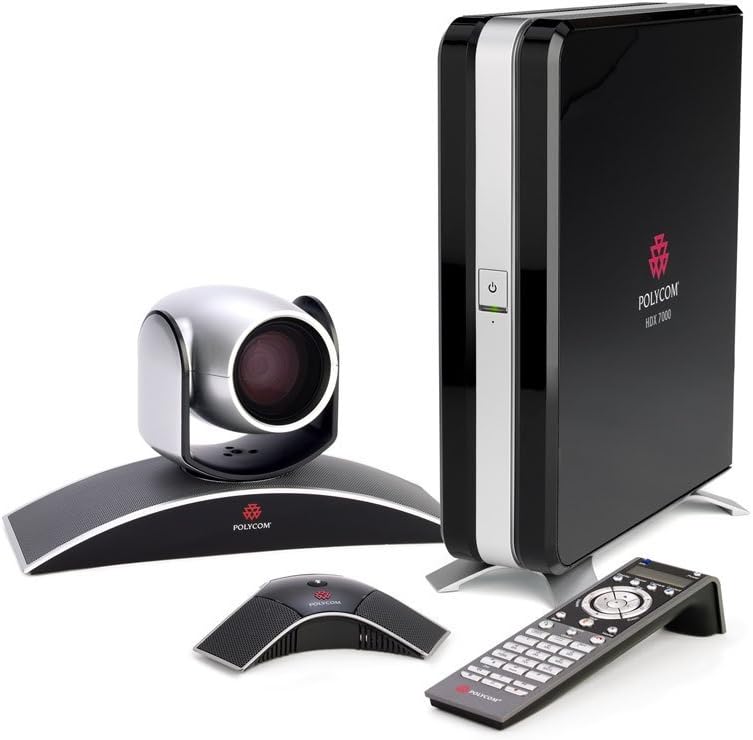
The Polycom HDX 7000-720 system typically includes the following components:
- Polycom HDX 7000 Codec Unit
- Polycom EagleEye Camera
- Polycom HDX Microphone Array
- Infrared Remote Control
- Necessary Cables (power, video, audio, network)
2. System Setup
2.1 Unpacking and Placement
Carefully unpack all components. Place the HDX 7000 codec unit in a well-ventilated area, away from direct sunlight or heat sources. Position the EagleEye camera and microphone array appropriately for optimal room coverage.
2.2 Connecting Components
Refer to the rear panel diagram for correct connection points. Ensure all connections are secure before powering on the system.

- Power Connection: Connect the power cable to the codec unit and then to a suitable power outlet.
- Camera Connection: Connect the EagleEye camera to the dedicated camera port on the rear of the HDX 7000 codec unit.
- Microphone Array Connection: Connect the HDX microphone array to the audio input port designated for microphones.
- Display Connection: Connect your display(s) (monitor, projector) to the DVI video output ports on the codec unit. The system supports multiple displays.
- Network Connection: Connect an Ethernet cable from your network router or switch to the LAN port on the codec unit for network access.
- Content Input (Optional): If sharing content from a PC or other source, connect it to the DVI or other available video input ports.
3. Basic Operation
3.1 Powering On/Off
Press the power button on the front of the HDX 7000 codec unit or on the remote control to power the system on or off. Allow the system a few moments to boot up.
3.2 Using the Remote Control
The infrared remote control provides access to all system functions, including call management, camera control, volume adjustment, and menu navigation.

3.3 Making and Receiving Calls
Use the remote control to navigate to the dialing menu. Enter the IP address or E.164 number of the desired contact and initiate the call. Incoming calls will typically display an alert on the screen, allowing you to accept or decline.
3.4 Camera Control
The EagleEye camera offers pan, tilt, and zoom (PTZ) capabilities. Use the directional buttons and zoom controls on the remote to adjust the camera's view. You can also save and recall camera presets for common viewing angles.

3.5 Content Sharing
To share content from a connected device (e.g., laptop), select the content sharing option from the system menu. Ensure your device is properly connected to the codec's content input port.
4. Maintenance
4.1 Cleaning
Use a soft, dry cloth to clean the exterior surfaces of the codec unit, camera, and microphone array. Avoid using liquid cleaners or abrasive materials, which can damage the finish or internal components.
4.2 Software Updates
Periodically check the Polycom support website for available software updates. Keeping your system's software up-to-date ensures optimal performance, security, and access to new features.
5. Troubleshooting
This section addresses common issues you might encounter with your Polycom HDX 7000-720 system.
5.1 No Power
- Verify the power cable is securely connected to both the codec unit and the power outlet.
- Ensure the power outlet is functional.
- Check the power button on the front panel or remote control.
5.2 No Video Display
- Confirm that the display is powered on and set to the correct input source.
- Check the DVI video cables connecting the codec to the display(s) for secure connections.
- Ensure the camera is properly connected and powered.
5.3 No Audio
- Check the volume settings on the system and your display.
- Verify the microphone array is correctly connected and not muted.
- Ensure external speakers (if used) are connected and powered.
5.4 Network Connection Issues
- Confirm the Ethernet cable is securely connected to the LAN port and your network device.
- Check your network router or switch for proper operation.
- Verify network settings within the system's configuration menu.
6. Technical Specifications
Key specifications for the Polycom HDX 7000-720 system:
- Brand: Polycom
- Model Number: HDX7000
- Manufacturer Part Number: 7200-23130-001
- Item Weight: 24.3 pounds
- Package Dimensions: 20 x 18 x 17 inches
- First Available: September 28, 2013
7. Warranty Information
For detailed warranty information regarding your Polycom HDX 7000-720 system, please refer to the warranty card included with your product or visit the official Polycom website. Warranty terms and conditions may vary by region and purchase date.
8. Customer Support
If you require further assistance or encounter issues not covered in this manual, please contact Polycom customer support. Support contact information can typically be found on the Polycom website or in your product documentation.


