
Nuance K409A-G00-12.0
Dragon NaturallySpeaking Home 12.0 User Manual
Model: K409A-G00-12.0 | Brand: Nuance
Introduction
Dragon NaturallySpeaking 12 Home is a speech recognition software designed to enhance your interaction with your PC using voice commands. It allows you to convert spoken words into text, navigate applications, and perform various computer tasks hands-free. This manual provides essential information for setting up, operating, and maintaining your Dragon NaturallySpeaking Home 12.0 software.
This version delivers up to a 20% improvement in out-of-box accuracy compared to Dragon 11, offering better performance through easier correction and editing options, and greater control over command preferences.
Setup and Installation
Before installation, ensure your system meets the minimum requirements. A Nuance-approved noise-canceling headset microphone is included and recommended for optimal performance.
System Requirements
| Category | Recommended | Minimum |
|---|---|---|
| CPU | 2.2 GHz Intel dual core or equivalent AMD processor | 1 GHz Intel Pentium or equivalent AMD processor or 1.66 GHz Intel Atom processor (SSE2 instruction set required) |
| Processor Cache | 2 MB L2 cache | 512 KB L2 cache |
| Free Hard Disk Space | 3.2 GB (4 GB for localized non-English versions) | |
| Supported Operating Systems | Microsoft Windows 7 and higher (32-bit and 64-bit), Microsoft Windows XP SP3 (32-bit only), Windows Server 2008 SP2 and R2 (32-bit and 64-bit) | |
| RAM | 2 GB for Windows XP, Windows 7, and Windows Server 2008 32-bit; 4 GB for Windows 7 and Windows Server 2008 64-bit | 1 GB for Windows XP; 2 GB for Windows 7 and Windows Server 2008 |
| Other | Microsoft Internet Explorer 7 or higher for online help, Sound card supporting 16-bit recording, DVD-ROM drive for installation, Nuance-approved noise-canceling headset microphone (included in purchase). An Internet connection is required for automatic product activation. | |
Installation Steps
- Insert the Dragon NaturallySpeaking 12 Home DVD into your computer's DVD-ROM drive.
- Follow the on-screen prompts to begin the installation process.
- Connect your Nuance-approved noise-canceling headset microphone when prompted.
- Complete the initial setup, which includes creating your user profile and performing the audio setup wizard. This helps Dragon adapt to your voice.
- An Internet connection is required for automatic product activation. This is a quick, anonymous process.
The interactive tutorial provides simulations to help you learn and practice good dictation, correction, and editing habits for efficient text creation within minutes.
Operating Instructions
Basic Dictation
Dragon NaturallySpeaking 12 Home allows you to convert spoken words into text with high accuracy. Speak clearly and at a natural pace. Words will appear on your screen, often three times faster than typing. Capture your ideas at the speed of thought without letting typing, spelling, or fear of the blank page slow you down.
- To begin dictating, ensure your microphone is active.
- Speak the words you wish to appear on screen.
- Dragon adapts to your voice and vocabulary over time, improving recognition results.
Using Voice Commands
Beyond dictation, Dragon enables control of your PC and applications using simple voice commands. These commands can launch applications, select menu items, "press" keys, save files, or switch between windows.
- Application Control: Dictate documents in Microsoft Word, Corel WordPerfect, or OpenOffice Writer.
- Email Management: Send emails in Microsoft Outlook or Windows LiveMail. Full Text Control and commands are available for Gmail and Hotmail in Internet Explorer 9+, Mozilla Firefox 10+, and Google Chrome 16+.
- Web Browsing: Search the web using Internet Explorer, Mozilla Firefox, or Google Chrome.
- Social Media: Post to Facebook or Twitter.
- Dragon Voice Shortcuts: Collapse multi-step tasks into direct voice commands. For example, say: "Search the web for licensed electricians in Brooklyn, New York" or "search Google for 87 divided by 12." You can also say "open top site for Girl Scouts" to open the top-ranked page.
Smart Format Rules
Dragon adapts by detecting your format corrections (e.g., abbreviations, numbers) to ensure your dictated text appears as intended every time.
Text-to-Speech Voice
Dragon 12 features a natural-sounding Text-to-Speech voice that can read editable text. This feature includes fast forward, rewind, and speed/volume control for easy proofing and multitasking.
Maintenance and Optimization
Regular maintenance helps ensure optimal performance and accuracy of your Dragon NaturallySpeaking software.
- User Profile Adaptation: Dragon continuously adapts to your voice and vocabulary. Regularly use the software and make corrections to improve its recognition accuracy over time.
- Personalization: Personalize Dragon with acronyms, proper names, and other unique phrases you frequently use to enhance accuracy for specific terminology.
- Microphone Care: Keep your Nuance-approved headset microphone clean and free from obstructions. Ensure it is positioned correctly for clear audio input.
- Software Updates: Check for and install any available software updates from Nuance to benefit from performance improvements and bug fixes.
- System Performance: For faster performance, especially if using multi-core processors and more than 4 GB of RAM, Dragon 12 automatically selects the BestMatch V speech model when you create your user profile.
Troubleshooting
This section addresses common issues you might encounter with Dragon NaturallySpeaking Home 12.0.
| Problem | Possible Solution |
|---|---|
| Low Recognition Accuracy |
|
| Software Not Responding / Freezing |
|
| Microphone Not Working |
|
| Keyboard Disabled After Installation |
|
For further assistance, refer to the Dragon Help system, which includes a "Tip of the Day" window and on-screen help.
Product Images

Front view of the Dragon NaturallySpeaking Home 12.0 software box, highlighting the product title and version.

Back view of the Dragon NaturallySpeaking Home 12.0 software box, detailing key features and edition comparison.
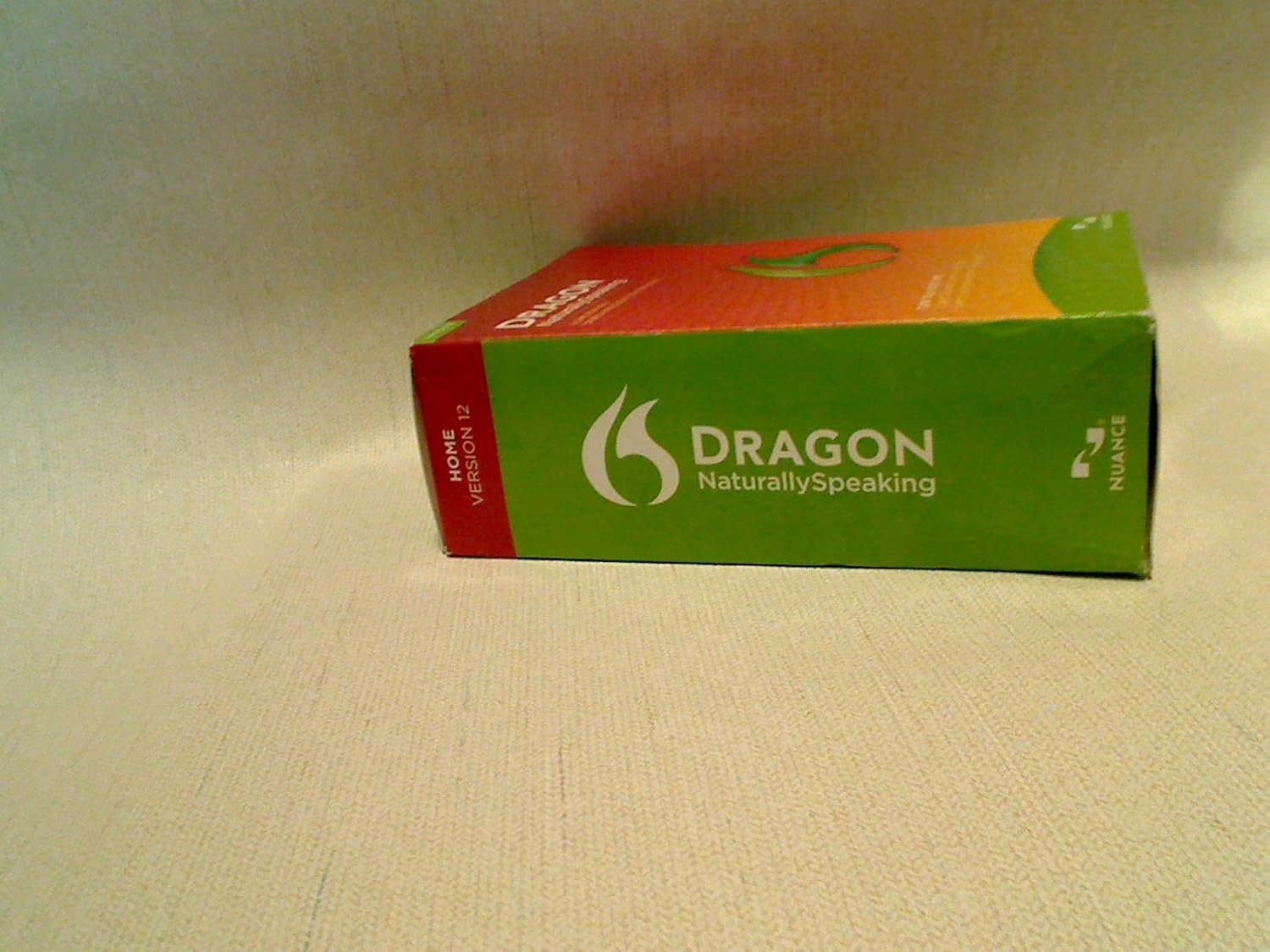
Top-down view of the Dragon NaturallySpeaking Home 12.0 software box, showing the top and side panels.

Side view of the Dragon NaturallySpeaking Home 12.0 software box, displaying the product name and version.

The Dragon NaturallySpeaking Home 12.0 software box opened, revealing the inside packaging and contents.
Digital Software Delivery
This video provides an overview of how to purchase, download, and manage digital software from Amazon. It explains the convenience of immediate access and the ability to store and redownload your software from your Amazon library.
Official video from Amazon explaining the process of purchasing and downloading digital software.
Support and Resources
Nuance provides various resources to assist users with Dragon NaturallySpeaking Home 12.0:
- Dragon Help System: Access the comprehensive help system directly from the software for detailed instructions and troubleshooting tips. It includes a "Tip of the Day" and on-screen help.
- Dragon Sidebar: This convenient desktop location provides important voice commands and tips.
- Interactive Tutorial: Utilize the built-in tutorial to learn and practice effective dictation, correction, and editing techniques.
- Online Resources: Visit the official Nuance website for additional support, FAQs, and community forums.
For specific technical support, please refer to the contact information provided with your software purchase or on the official Nuance website.
Ask a question about this manual
Ask about setup, troubleshooting, compatibility, parts, safety, or missing instructions. Manuals+ will review the question and use this page’s manual context to help answer it.