
1. Introduction
This manual provides essential information for the proper installation, operation, and maintenance of your Fujitsu KB410 PS/2 Wired Keyboard. Please read this manual thoroughly before using the product to ensure safe and efficient operation. Keep this manual for future reference.
2. Safety Information
- Do not expose the keyboard to liquids, moisture, or extreme temperatures.
- Avoid dropping or subjecting the keyboard to strong impacts.
- Do not attempt to disassemble or repair the keyboard yourself. Refer all servicing to qualified personnel.
- Keep the keyboard away from strong magnetic fields.
- Use only with compatible PS/2 ports.
3. Package Contents
Please check the package contents upon unpacking. If any items are missing or damaged, contact your retailer.
- Fujitsu KB410 PS/2 Wired Keyboard
- Instruction Manual (this document)
4. Setup
Follow these steps to connect your Fujitsu KB410 keyboard to your computer:
- Power Off: Ensure your computer is completely powered off before connecting the keyboard.
- Locate PS/2 Port: Identify the PS/2 keyboard port on your computer. This port is typically purple and circular.
- Connect Keyboard: Carefully align the PS/2 connector of the keyboard with the PS/2 keyboard port on your computer and push it in firmly until it is secure.
- Power On: Turn on your computer. The operating system should automatically detect and install the necessary drivers for the keyboard. No additional software installation is typically required for PS/2 keyboards.
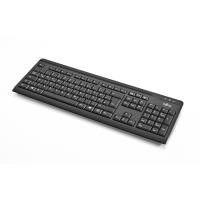
Image showing the Fujitsu KB410 PS/2 Wired Keyboard from a top-down perspective, highlighting its standard layout and black color.
5. Operating
The Fujitsu KB410 is a standard wired keyboard designed for general computer use. Its operation is intuitive and follows the standard QWERTY layout.
- Typing: Press the keys to input characters into your computer.
- Function Keys (F1-F12): These keys perform various functions depending on the software or operating system in use.
- Numeric Keypad: Use the numeric keypad for efficient data entry. Ensure the 'Num Lock' indicator light is on for the numeric keys to function.
- Indicator Lights: The keyboard features indicator lights for Num Lock, Caps Lock, and Scroll Lock, showing their active status.
6. Maintenance
Proper maintenance ensures the longevity and optimal performance of your keyboard.
- Cleaning: Disconnect the keyboard from the computer before cleaning. Use a soft, damp cloth to wipe the surface. For stubborn dirt between keys, use compressed air or a soft brush. Do not use harsh chemicals or abrasive cleaners.
- Storage: Store the keyboard in a clean, dry environment away from direct sunlight and extreme temperatures when not in use for extended periods.
- Cable Care: Avoid bending or twisting the PS/2 cable excessively to prevent internal damage.
7. Troubleshooting
If you encounter issues with your Fujitsu KB410 keyboard, refer to the following common solutions:
| Problem | Possible Solution |
|---|---|
| Keyboard is not responding. |
|
| Certain keys are not working or are sticking. |
|
| Num Lock, Caps Lock, or Scroll Lock indicators are not working. |
|
8. Specifications
| Feature | Detail |
|---|---|
| Model Number | S26381-K515-L416 |
| Connection Type | PS/2 (Wired) |
| Color | Black |
| Product Dimensions | 17.8 x 6.22 x 0.93 inches (45.2 x 15.8 x 2.36 cm) |
| Item Weight | 1.22 pounds (0.55 kg) |
| Manufacturer | Fujitsu |
| ASIN | B008JIWC5G |
9. Warranty and Support
Fujitsu products are designed for reliability and performance. For information regarding warranty coverage, technical support, or service, please refer to the warranty card included with your purchase or visit the official Fujitsu support website. Please have your product model number (KB410 or S26381-K515-L416) and serial number ready when contacting support.


