1. Product Overview
The ZyXEL GS2200-8 is an 8-Port Layer 2 Managed Gigabit Switch designed to provide high-performance network connectivity for small to medium-sized enterprises and branch offices. It features a non-blocking switch fabric with a forwarding rate of up to 14.9 million packets per second, ensuring wire-speed performance. This switch supports advanced Layer 2 features, including VLANs, Quality of Service (QoS), and port trunking, to optimize network traffic and resource allocation. It also incorporates robust security features like Port Security and 802.1X authentication, along with IPv6 management capabilities, making it suitable for modern network environments. The GS2200-8 is manageable via a web interface or command-line interface (CLI), offering flexibility for network administrators.
2. Key Features
- Advanced full Layer 2 switching features for efficient network management.
- Dual-personality (RJ-45/SFP) Gigabit Ethernet interfaces for flexible connectivity options.
- Enhanced port security and 802.1X port authentication to secure network access.
- 8 IEEE 802.1p hardware priority queues for effective traffic prioritization.
- MAC freeze and intrusion lock functionalities to prevent unauthorized device access.
- WFQ, WRR, and SPQ queuing algorithms for flexible bandwidth management.
- Comprehensive IPv6 solution for future-proof network infrastructure.
- 20 Gbps non-blocking switch fabric ensuring high-speed data transfer.
3. Hardware Overview
3.1 Front Panel
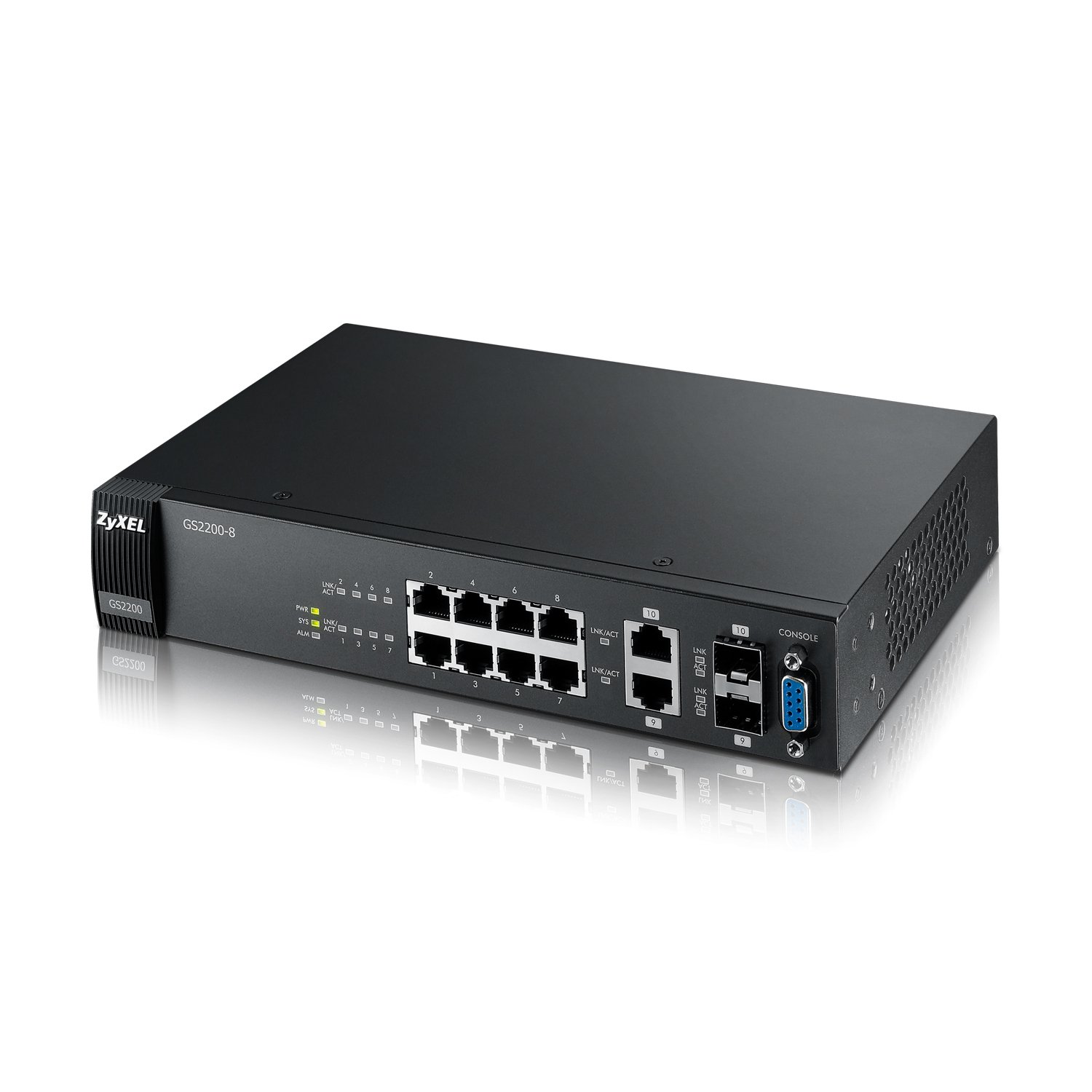
Figure 1: Front Panel of the GS2200-8 Switch
The front panel of the ZyXEL GS2200-8 switch features eight 10/100/1000 Mbps Gigabit Ethernet ports (numbered 1-8), two dual-personality Gigabit SFP ports (numbered 9-10), and various LED indicators. The LEDs provide status information for Power (PWR), System (SYS), and Alarm (ALM), as well as Link/Activity status for each port. A console port is also present for direct management access.
3.2 Rear Panel

Figure 2: Rear Panel of the GS2200-8 Switch
The rear panel of the ZyXEL GS2200-8 switch contains the AC power input connector. This input supports 100-240VAC at 50/60Hz, with a maximum current draw of 0.3A. Ensure the correct power cable is used and properly connected to a grounded power source.
4. Initial Setup
- Unpack the Switch: Carefully remove the GS2200-8 switch and all accessories from its packaging. Verify that all components are present.
- Mounting (Optional): The switch can be placed on a desktop or mounted in a rack. Refer to the separate mounting guide for rack installation instructions. Ensure adequate ventilation around the device.
- Connect Power: Connect the provided AC power cord to the power input on the rear panel of the switch and then to a suitable power outlet. The Power (PWR) LED on the front panel should illuminate.
- Connect Network Devices: Connect your network devices (e.g., computers, servers, other switches) to the Gigabit Ethernet ports (1-8) on the front panel using standard Ethernet cables. For fiber optic connections, insert SFP transceivers into ports 9-10 and connect fiber cables.
- Initial Management Access:
- Web Interface: Connect a computer directly to any Ethernet port on the switch. Configure your computer's IP address to be in the same subnet as the switch's default IP address (refer to the quick start guide for default IP). Open a web browser and enter the switch's default IP address to access the web management interface.
- Console Port: For command-line interface (CLI) access, connect a serial cable from your computer's serial port to the console port on the switch's front panel. Use a terminal emulation program (e.g., PuTTY) with appropriate serial port settings (e.g., 115200 bps, 8 data bits, no parity, 1 stop bit, no flow control).
- Configure Basic Settings: Log in using the default credentials (refer to documentation) and change the default password immediately. Configure essential network settings such as IP address, subnet mask, and gateway.
5. Operation
The ZyXEL GS2200-8 is a Layer 2 managed switch, offering extensive control over your network traffic. Once the initial setup is complete, you can configure various features through the web management interface or CLI.
- VLAN Configuration: Create and manage Virtual Local Area Networks (VLANs) to segment your network, improve security, and optimize performance.
- Quality of Service (QoS): Prioritize critical network traffic (e.g., VoIP, video conferencing) using QoS settings to ensure consistent performance.
- Link Aggregation (Port Trunking): Combine multiple physical ports into a single logical link to increase bandwidth and provide link redundancy.
- Spanning Tree Protocol (STP/RSTP/MSTP): Prevent network loops and ensure path redundancy using Spanning Tree Protocols.
- Security Features: Implement Port Security to limit the number of MAC addresses per port, and enable 802.1X authentication for secure network access control.
- Monitoring: Utilize the switch's monitoring tools to view port status, traffic statistics, and system logs for network diagnostics.
For detailed configuration instructions on specific features, refer to the comprehensive user guide available on the ZyXEL support website.
6. Maintenance
- Firmware Updates: Regularly check the ZyXEL support website for firmware updates. Applying the latest firmware ensures optimal performance, security, and access to new features.
- Cleaning: Keep the switch clean and free from dust. Use a soft, dry cloth to wipe the exterior. Ensure ventilation openings are not obstructed. Do not use liquid or aerosol cleaners.
- Environmental Conditions: Operate the switch within the specified environmental conditions (temperature, humidity) to ensure longevity and stable operation.
- Configuration Backup: Periodically back up your switch configuration to an external device. This allows for quick restoration in case of a reset or device replacement.
7. Troubleshooting
| Problem | Possible Cause | Solution |
|---|---|---|
| Switch does not power on (PWR LED off). | No power supply or faulty power cable. | Check power cable connection to the switch and power outlet. Ensure the power outlet is functional. |
| No network connectivity on a port (Link/Act LED off). | Incorrect cable, faulty cable, or connected device is off/faulty. | Verify Ethernet cable connection. Try a different cable or port. Ensure the connected device is powered on and functioning correctly. |
| Cannot access web management interface. | Incorrect IP address, network configuration issue, or firewall blocking access. | Ensure your computer's IP address is in the same subnet as the switch. Check firewall settings. Try accessing via the console port. Reset the switch to factory defaults if necessary (refer to the full manual for procedure). |
| Slow network performance. | Network congestion, duplex mismatch, or faulty cabling. | Check port statistics for errors or high utilization. Ensure duplex settings match on both ends of the connection. Verify cable quality and length. |
If you encounter persistent issues, consult the full user manual or contact ZyXEL technical support.
8. Technical Specifications
- Model: GS2200-8
- Brand: ZYXEL
- Number of Ports: 8 Gigabit Ethernet ports, 2 SFP ports (dual-personality)
- Interface Type: RJ-45, SFP
- Data Transfer Rate: 1000 Megabits Per Second (Gbps)
- Switching Fabric: 20 Gbps non-blocking
- Forwarding Rate: 14.9 Mpps
- Power Source: AC (100-240VAC, 50/60Hz, 0.3A Max)
- Item Dimensions (LxWxH): 14.49 x 8.58 x 3.15 inches (36.8 x 21.8 x 8 cm)
- Item Weight: 4.41 pounds (2 kg)
- Operating System Compatibility: Windows | Mac OS (for management tools)
- GTIN/UPC: 736891336996, 849382147374, 760559119430, 778890643330
9. Warranty and Support
For detailed warranty information, product registration, and technical support, please visit the official ZyXEL website. The website provides access to the latest documentation, firmware downloads, and contact information for customer service.
ZyXEL Support Website: www.zyxel.com/support
Always refer to the official ZyXEL resources for the most accurate and up-to-date information regarding your GS2200-8 switch.


