
D-Link DIR-636L
D-Link Wireless N 300 Mbps Home Cloud App-Enabled Gigabit Router (DIR-636L) User Manual
Model: DIR-636L
Introduction
This manual provides comprehensive instructions for setting up, operating, and maintaining your D-Link Wireless N 300 Mbps Home Cloud App-Enabled Gigabit Router (DIR-636L). Please read this manual thoroughly before using the device to ensure optimal performance and safety.
What's in the Box
- D-Link Cloud Router 1200 (DIR-636L)
- Ethernet cable
- Power adapter
- Quick Install Guide
Product Overview


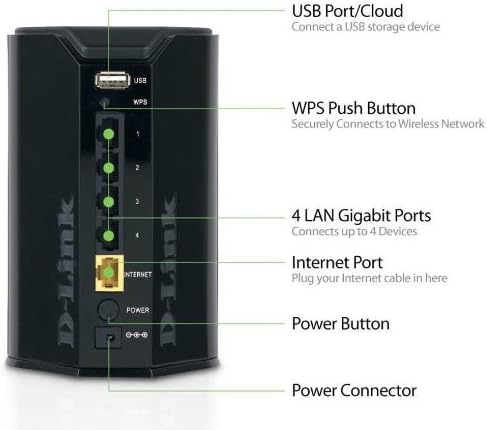
The D-Link DIR-636L Cloud Router is designed for high-performance wireless connectivity and network management. It features a compact, vertical design with indicator lights on the front and all connectivity ports on the rear for efficient cable management.
Setup
Initial Installation
- Unpack the Router: Carefully remove all components from the box.
- Position the Router: Place the router in a central location in your home for optimal wireless coverage. Avoid placing it near large metal objects or other electronic devices that may cause interference.
- Connect the Modem: Connect one end of the provided Ethernet cable to the Internet port (yellow) on the back of the DIR-636L router and the other end to your modem's Ethernet port.
- Connect Power: Plug the power adapter into the router's power connector and then into a wall outlet. The power LED on the front of the router should illuminate.
- Power On: Press the power button on the back of the router. Wait for the Internet LED to turn solid green, indicating a successful connection.
Configuration via Web Browser
- Connect to the Router: Connect your computer to one of the LAN Gigabit ports (1-4) on the router using an Ethernet cable, or connect wirelessly to the default Wi-Fi network (SSID and password are on a label on the router).
- Access Setup Wizard: Open a web browser and type http://dlinkrouter.local or http://192.168.0.1 into the address bar.
- Follow On-Screen Prompts: The D-Link Setup Wizard will guide you through configuring your Internet connection, wireless network name (SSID), and password.
Configuration via QRS Mobile App
For quick setup using your smartphone or tablet, download the free D-Link QRS Mobile app from your device's app store. The app will guide you through the setup process step-by-step.
Operating the Router
Wireless Connectivity
The DIR-636L provides wireless speeds up to 300 Mbps, ideal for video streaming and web surfing. Its built-in high-powered amplifier ensures wall-to-wall coverage throughout your home.
Connecting Devices Wirelessly:
- Standard Connection: On your device, select your Wi-Fi network name (SSID) and enter the password you configured during setup.
- WPS (Wi-Fi Protected Setup): Press the WPS button on the back of the router (labeled "WPS") and then activate WPS on your wireless device within two minutes to establish a secure connection without entering a password.
Wired Connectivity
The router features four Gigabit Ethernet ports for blazing fast wired connections. These are ideal for gaming consoles, smart TVs, desktop computers, and other devices requiring stable, high-speed connections.
SharePort Mobile App
Utilize the free D-Link SharePort Mobile app to wirelessly access media files (videos, music, photos) stored on a USB drive connected to the router's USB 2.0 port. This allows you to stream content directly to your iPhone, iPad, or Android device.
Official D-Link video demonstrating the features of the Wireless-N300 Dual-Band Gigabit Cloud Router, including wireless file sharing and network monitoring capabilities.
mydlink Cloud Services
The mydlink app allows you to monitor and manage your home network remotely from your iPhone, iPad, or Android device. You can view web browsing history, see connected and blocked devices in real-time, and receive automatic email alerts for unauthorized connections.
Maintenance
- Regular Reboots: Periodically rebooting your router (unplugging and replugging the power) can help clear its memory and improve performance. A monthly reboot is generally sufficient.
- Firmware Updates: Check the D-Link support website for firmware updates. Keeping your router's firmware up-to-date ensures optimal performance, security, and access to new features.
- Physical Cleaning: Keep the router clean and free of dust to prevent overheating. Use a soft, dry cloth.
- Security: Regularly change your Wi-Fi password and router login credentials. Use strong, unique passwords.
Troubleshooting
No Internet Connection
- Check Cables: Ensure all Ethernet cables are securely connected to the correct ports on the router and modem.
- Reboot Devices: Power cycle your modem first, wait 30 seconds, then power cycle your router. Wait for all indicator lights to stabilize.
- ISP Issue: Contact your Internet Service Provider (ISP) to confirm there are no service outages in your area.
Slow Wireless Speed or Poor Coverage
- Router Placement: Move the router to a more central location, away from obstructions like thick walls, large metal objects, or other electronics.
- Interference: Other wireless devices (cordless phones, microwaves) can cause interference. Try changing your Wi-Fi channel in the router settings.
- Too Many Devices: If many devices are connected, consider upgrading to a higher-speed router or optimizing network usage.
Cannot Access Router Setup Page
- IP Address: Ensure your computer is set to obtain an IP address automatically (DHCP).
- Correct Address: Double-check that you are typing the correct address (http://dlinkrouter.local or http://192.168.0.1).
- Firewall/Antivirus: Temporarily disable any firewall or antivirus software on your computer that might be blocking access.
- Factory Reset: As a last resort, perform a factory reset by pressing and holding the reset button on the router for 10 seconds. Note: This will erase all your custom settings.
Specifications
| Feature | Detail |
|---|---|
| Model Name | DIR-636L |
| Wireless Type | 802.11bgn |
| Wireless Speed | Up to 300 Mbps |
| Ethernet Ports | 4 x Gigabit Ethernet |
| USB Ports | 1 x USB 2.0 |
| Security | Wi-Fi Protected Access (WPA/WPA2), WPS |
| IPv6 Certified | Yes |
| Dimensions (LxWxH) | 4.5 x 3.8 x 5.5 inches |
| Item Weight | 9.9 ounces |
| Compatible Operating Systems | Windows 7, Windows Vista, Windows XP SP2, Mac OS X (v10.4) |
Warranty and Support
The D-Link Wireless N 300 Mbps Home Cloud App-Enabled Gigabit Router (DIR-636L) comes with a 1-year limited warranty. D-Link also provides 24/7 basic installation support.
For further assistance, technical support, or to check for the latest firmware updates, please visit the official D-Link support website or contact their customer service.
Note: Warranty terms may vary by region. Please refer to the warranty card included with your product or the D-Link website for specific details.
Related documentsDIR-636L


Ask a question about this manual
Ask about setup, troubleshooting, compatibility, parts, safety, or missing instructions. Manuals+ will review the question and use this page’s manual context to help answer it.