
Introduction
This manual provides detailed instructions for the setup, operation, and maintenance of your La Crosse Technology Equity 75904 LED Blue Digit Alarm Clock. Please read this manual thoroughly before using the product to ensure proper function and longevity.
Safety Information
- Do not expose the unit to extreme temperatures, direct sunlight, or high humidity.
- Do not immerse the unit in water.
- Use only the provided power adapter.
- Do not attempt to open or repair the unit yourself. Refer all servicing to qualified personnel.
- Keep out of reach of children.
Package Contents
- Equity 75904 LED Blue Digit Alarm Clock
- Power Adapter
- Instruction Manual (this document)
Product Overview
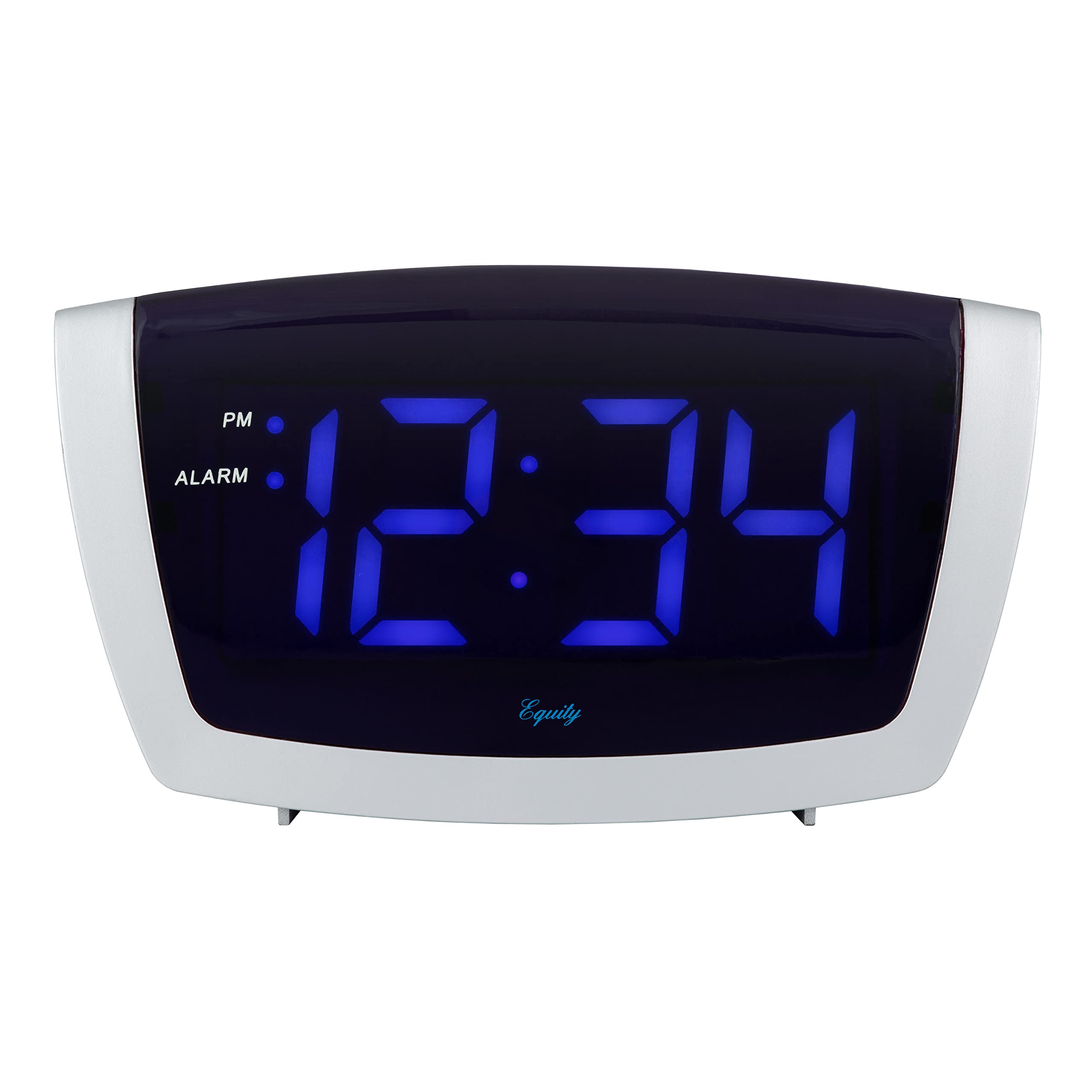
Figure 1: Front view of the alarm clock, showing the large blue LED time display, PM indicator, and ALARM indicator.
The Equity 75904 features a large 1.8-inch blue LED display for clear visibility. It includes a snooze function and a USB charging port for convenience.

Figure 2: Rear panel of the alarm clock. From left to right, it shows the USB output port, ALARM button, TIME button, MINUTE button, HOUR button, and the DC 5V power input. The battery compartment is also visible.
The rear panel houses the control buttons for setting the time and alarm, along with the USB charging port and power input. A battery compartment is located at the bottom for backup power.

Figure 3: Side view of the alarm clock, highlighting the ALARM ON/OFF slide switch.
The side of the clock features a simple slide switch to easily turn the alarm function on or off.
Setup
1. Power Connection
- Insert the small end of the power adapter into the DC 5V input jack on the back of the alarm clock.
- Plug the other end of the power adapter into a standard 120V AC wall outlet. The clock display will illuminate.
2. Battery Backup (Optional)
For power backup during outages, install one 9V alkaline battery (not included) into the battery compartment on the back of the unit. This battery will maintain time settings but will not power the display or alarm during a power outage.
Operating Instructions
1. Setting the Time
- Press and hold the TIME button on the back of the clock until the hour digits begin to flash.
- Press the HOUR button repeatedly to adjust the hour. Observe the PM indicator for correct AM/PM setting.
- Press the MINUTE button repeatedly to adjust the minute.
- Press the TIME button again to confirm and exit time setting mode.
2. Setting the Alarm
- Press and hold the ALARM button on the back of the clock until the alarm hour digits begin to flash.
- Press the HOUR button repeatedly to adjust the alarm hour. Observe the PM indicator for correct AM/PM setting.
- Press the MINUTE button repeatedly to adjust the alarm minute.
- Press the ALARM button again to confirm and exit alarm setting mode.
3. Activating/Deactivating the Alarm
Use the ALARM ON/OFF slide switch located on the side of the clock to enable or disable the alarm. When the alarm is active, the ALARM indicator on the front display will be lit.
4. Snooze Function
When the alarm sounds, press the large SNOOZE button on the top of the clock. The alarm will temporarily stop and sound again after approximately 8 minutes.
5. USB Charging Port

Figure 4: The alarm clock with a smartphone connected to its 1A USB charging port.
Connect your mobile device's USB charging cable to the 1A USB port on the back of the clock to charge your device. Ensure the clock is powered via the AC adapter for this function to work.
Maintenance
Cleaning
Wipe the clock with a soft, damp cloth. Do not use abrasive cleaners or solvents.
Battery Replacement
If the clock loses time during a power outage, the 9V backup battery may need replacement. Open the battery compartment on the back, remove the old battery, and insert a new 9V alkaline battery, observing polarity.
Troubleshooting
| Problem | Solution |
|---|---|
| Display is blank. | Ensure the power adapter is securely plugged into both the clock and a working wall outlet. Check if the outlet has power. |
| Alarm does not sound. | Verify the ALARM ON/OFF switch on the side is in the 'ON' position. Check that the alarm time is set correctly and the ALARM indicator is lit. |
| USB port is not charging. | Ensure the clock is connected to AC power. The USB charging function requires the main power adapter. Check the USB cable and the device being charged. |
| Time is incorrect after power outage. | The 9V backup battery may be dead or missing. Replace the 9V battery and reset the time. |
Specifications

Figure 5: Product dimensions of the alarm clock.
| Feature | Detail |
|---|---|
| Model Number | 75904 |
| Display Type | Digital LED |
| LED Digit Size | 1.8 inches |
| Display Color | Blue |
| USB Charging Port | 1 Amp (for mobile devices) |
| Alarm Type | Beep alarm with climbing noise |
| Snooze Duration | 8 minutes |
| Power Source | Corded Electric (DC 5V adapter) |
| Battery Backup | 1 x 9V battery (not included) |
| Product Dimensions | 7.25" W x 3.9" H |
| Material | Plastic |
Warranty and Support
Warranty Information
This product comes with a 2-year limited warranty covering parts and labor. For specific warranty claims or details, please refer to the official La Crosse Technology website or contact customer support.
Customer Support
La Crosse Technology offers unmatched support, resources, and video tutorials backed by a USA-based support team. For assistance, please visit the La Crosse Technology website or contact their customer service department.
