
Introduction
This manual provides detailed instructions for the setup, operation, maintenance, and troubleshooting of your Victor VCT12054 12-Digit Portable Printing Calculator. Please read this manual thoroughly before using your calculator to ensure proper function and longevity.
The Victor VCT12054 calculator, designed for portability and business use, shown here in a bag.
Setup
1. Power Supply
The VCT12054 calculator can be powered by either an AC adapter or batteries.
- AC Adapter: Connect the provided AC adapter to the calculator's power input jack and then plug it into a standard electrical outlet.
- Batteries: For portable use, install 4 AAA batteries (not included) into the battery compartment located on the underside of the calculator. Ensure correct polarity (+/-) as indicated.
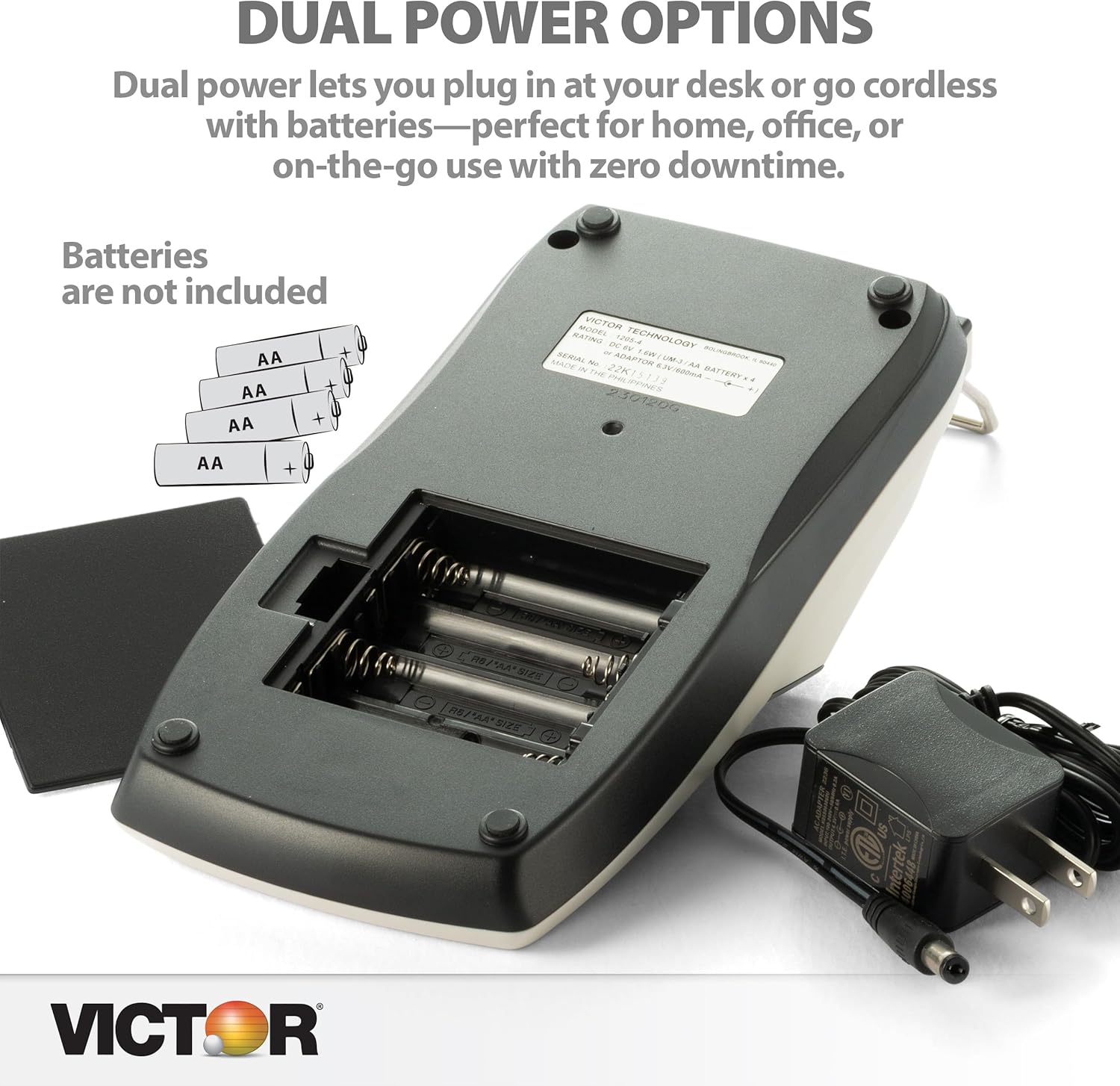
View of the calculator's underside, illustrating the battery compartment and AC adapter connection point.
2. Paper Roll Installation
- Open the printer cover.
- Place a new paper roll into the paper roll holder, ensuring the paper feeds from the bottom of the roll.
- Feed the leading edge of the paper into the printer mechanism until it emerges from the top.
- Close the printer cover.

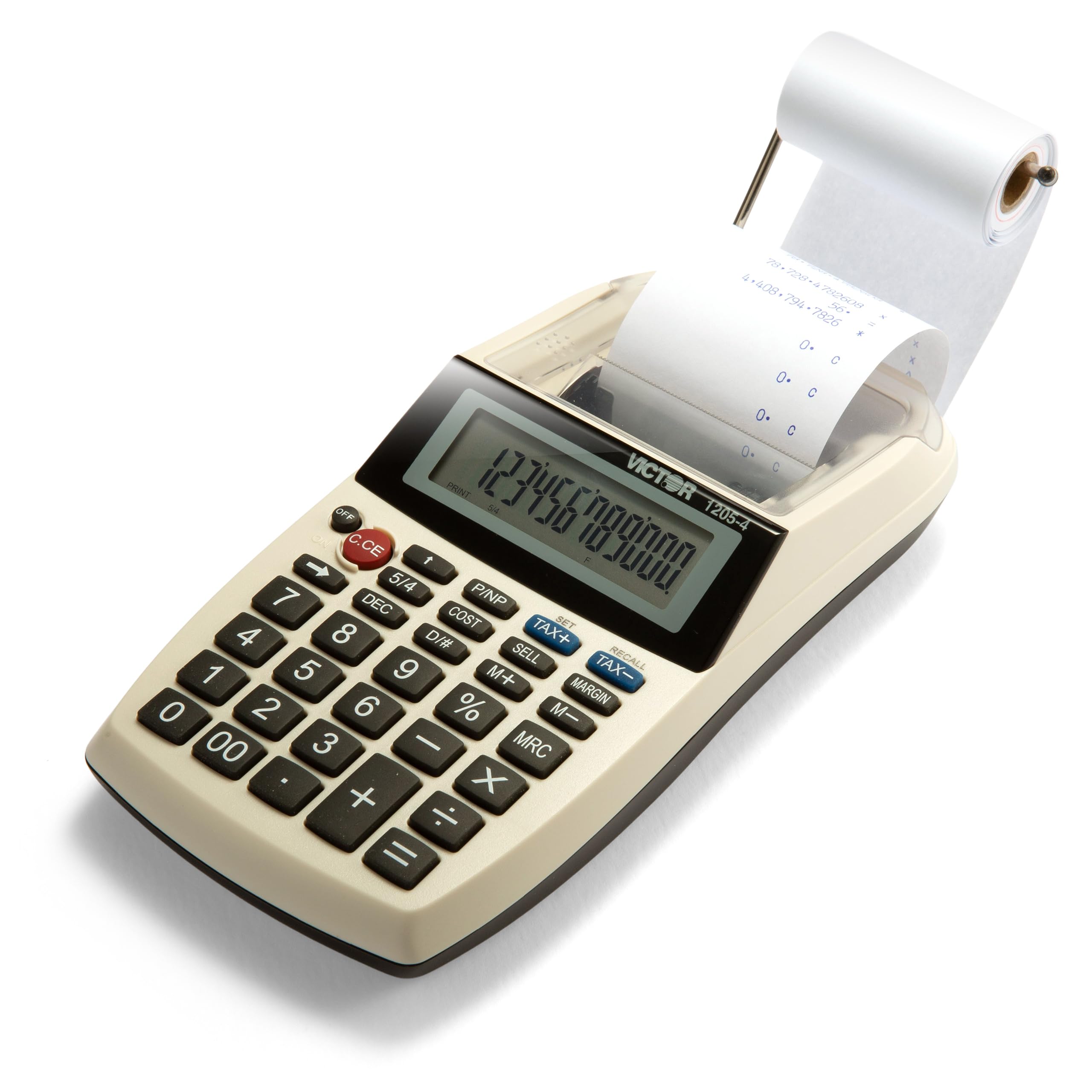
A detailed view of the calculator's printing mechanism, showing a paper roll with printed calculations.
3. Ink Roller Installation/Replacement
The calculator uses an ink roller for printing. If printouts are faint or illegible, the ink roller may need replacement (Victor IR-40 is the correct item number, not IR-40T as sometimes incorrectly listed).
- Ensure the calculator is turned off.
- Open the printer cover.
- Carefully remove the old ink roller by lifting it out.
- Unpack the new ink roller and insert it into the designated slot, ensuring it clicks into place.
- Close the printer cover.
Operating Instructions
Familiarize yourself with the key functions for efficient operation.

Detailed view of the calculator's keypad, showing various function keys and the 12-digit LCD display.
Basic Calculations
- Addition (+): Enter the first number, press +, enter the second number, press =.
- Subtraction (-): Enter the first number, press -, enter the second number, press =.
- Multiplication (x): Enter the first number, press x, enter the second number, press =.
- Division (÷): Enter the first number, press ÷, enter the second number, press =.
- Clear Entry (C.CE): Clears the last entered number.
- Clear All (OFF/ON): Pressing OFF then ON clears all calculations and resets the calculator.
Special Functions
- Cost/Sell/Margin: These keys allow for quick calculations of cost, selling price, and profit margin. Refer to the on-screen prompts or specific examples for usage.
- Tax+ / Tax-: Used for adding or subtracting a pre-set tax rate. To set the tax rate, consult the full manual or manufacturer's website.
- Memory Functions (M+, M-, MRC):
- M+: Adds the displayed value to memory.
- M-: Subtracts the displayed value from memory.
- MRC: Press once to recall the memory total. Press twice to clear the memory.
- Decimal Selector (DEC): Adjusts the number of decimal places for calculations.
- Rounding Selector (5/4): Controls rounding up or down.
- Item Count (D/#): Keeps track of the number of entries.
- Print/Non-Print (P/NP): Toggles the printing function on or off.
Maintenance
Cleaning
To maintain the calculator's appearance and functionality, wipe the exterior with a soft, dry cloth. Do not use abrasive cleaners or solvents. Keep the printer mechanism free of dust and paper debris.
Replacing Consumables
- Paper Roll: Replace the paper roll when it runs out, following the instructions in the "Paper Roll Installation" section.
- Ink Roller: Replace the ink roller when printouts become faint. Refer to the "Ink Roller Installation/Replacement" section.
- Batteries: If using battery power, replace all 4 AAA batteries when the display dims or the calculator fails to power on.
Troubleshooting
| Problem | Possible Cause | Solution |
|---|---|---|
| Calculator does not power on. | No power from AC adapter or dead batteries. | Ensure AC adapter is securely plugged in, or replace all batteries with new ones. |
| Printouts are faint or blank. | Ink roller is dry or incorrectly installed. | Replace the ink roller (Victor IR-40) or ensure it is properly seated. |
| Paper does not feed or jams. | Paper roll incorrectly installed or paper path obstructed. | Reinstall the paper roll correctly. Clear any paper debris from the printer mechanism. |
| Calculator stops functioning, screen goes blank. | Intermittent power issue or internal malfunction. | Try using a different power source (AC adapter vs. batteries). If the problem persists, contact Victor customer support. |
| Paper tape falls off the holder. | Loose paper roll holder or improper paper roll size. | Ensure the paper roll is seated correctly. Use standard paper rolls designed for this model. |
Specifications
- Model: VCT12054
- Display: 12-Digit LCD
- Printer: 2.0 lines per second, 1-color printing
- Power Source: AC Adapter (included), 4 x AAA Batteries (not included)
- Dimensions (H x W x D): Approximately 1.8" x 4" x 8" (4.57 x 10.16 x 20.32 cm)
- Weight: Approximately 430.91 g (0.95 lbs)
- Material: Manufactured with 25% recycled plastic
- Key Functions: Cost/Sell/Margin, Tax+, Tax-, Memory (M+, M-, MRC), Decimal Selector, Rounding Selector, Item Count, Print/Non-Print.

The Victor VCT12054 calculator shown with its compact dimensions.
Warranty and Support
For warranty information, technical support, or service inquiries, please contact Victor customer service directly. Refer to the product packaging or the official Victor website for the most current contact details.
Manufacturer: S.P. Richards CA
Model Number: VCT12054


